If you spend a lot of time typing things on your iPhone or iPad and often have to delete and re-type due to mistakes, using keyboard shortcuts might just be your magic pill!
Keyboard shortcuts (also called text shortcuts) are a really quick and cool way to type your phrase or words on your iPad, iPhone or iPod touch. Use keyboard shortcuts to type long words, names, and phrases way faster than before.
Plus, creating your very own and unique keyboard shortcuts is a heck of a lot of fun! And with iCloud, they sync across all your devices signed in with the same Apple ID.
So when you create a shortcut on your iDevice, from that point onwards, it automatically turns into the word or sentence that you want.
And that’s terrific news for many of us who text, email, etc. while on the run…or when doing other things. Hey, it’s a multitasking world, so let’s harness the power of our iDevices to help get work done.
Looking for Keyboard Shortcuts for Quick Actions like Undo?
For iOS 11+ Users, Many Standard Keyboard Shortcuts Are Gone!
If you updated to iOS 11 or above and lost your keyboard shortcuts on the left and right, and this is sadly the new norm for your iPhone’s Keyboard–NO SHORTCUTS!.
For some reason, Apple changed the keyboard layout starting in iOS 11.
So now the arrow keys, undo, hide keyboard, and even the comma buttons that many of us enjoyed and used daily are gone.
Apple completely removed these options from the landscape keyboard starting in iOS 11.
Compare this new keyboard layout to one from iOS 10–you see the difference!
And for many people, this change is most unwelcome.
How To Add Your Own iPhone Keyboard Shortcuts (Text Replacements)
And adding a keyboard shortcut is fairly easy
Simply tap Settings > General > Keyboards > Text Replacement
Tap on the Plus Sign +
For older iOS: Settings > General > Keyboard > Add New Shortcut
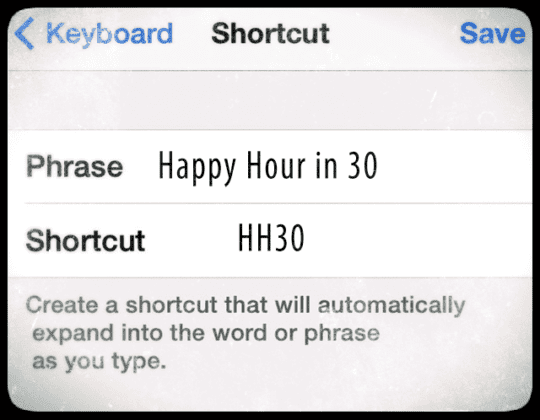
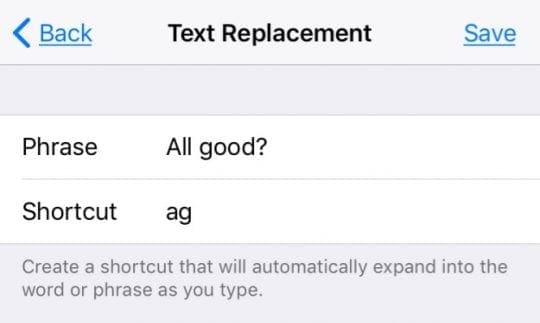
Then, type in your phrase, shortcut, and tap Save
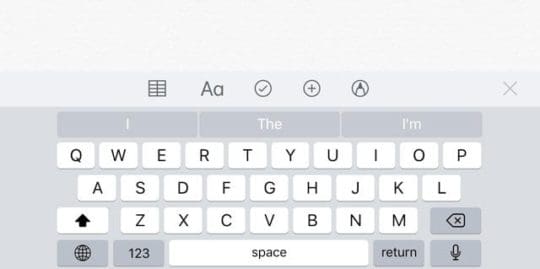
Now, just type in that shortcut, press the space bar, and your iPhone replaces it with your phrase. That’s pretty darn nice!
Edit Your iPhone’s Text Shortcuts
If you find that your keyboard shortcut isn’t as intuitive as you thought, it’s easy to change.
Settings > General > Keyboards > Text Replacement
Tap on the shortcut you want to edit
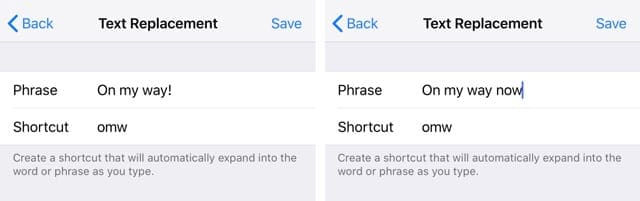
Edit or change the phrase or shortcut as desired
Press Save
Delete Your iPhone’s Text Shortcuts
So if you want to erase a shortcut completely, there are some pretty easy ways to delete keyboard shortcuts.
Settings > General > Keyboards > Text Replacement
Tap on the shortcut you want to delete
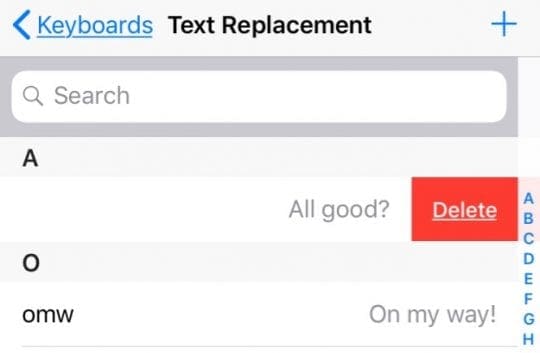
Swipe right to left on the shortcut to delete it
For older iOS versions, we have two ways to delete keyboard shortcuts.
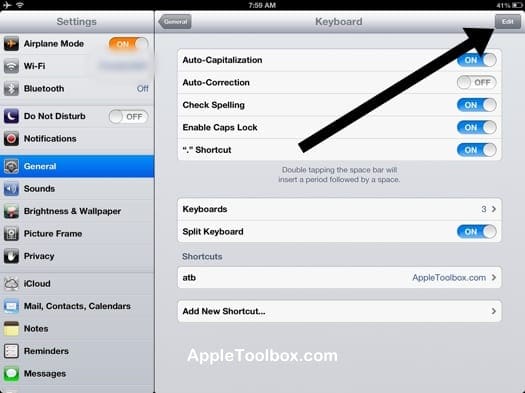
The first one is to tap the “Edit” button followed by the red minus sign (see Image 1).
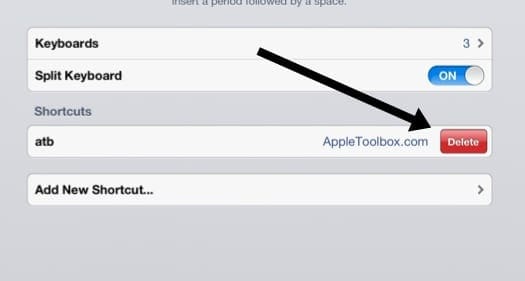
And the second way is to swipe your finger (left to right, or right to left) on the shortcut that you want to delete. After a second, a red Delete option will appear (Image 2).
EDIT KEYBOARD SHORTCUTS (#1)
EDIT KEYBOARD SHORTCUTS (#2)
Not Seeing Text Replacements? Force Your Text Replacements To Re-Sync
Go to Settings > General > Keyboard
Turn off Auto-Capitalization, Auto-Correction and “.” Shortcut
Power off your device and wait 30 seconds to 1 minute, then power up your device
Return to Settings > General > Keyboard
Toggle these back on Auto-Capitalization, Auto-Correction and “.” Shortcut
Wait another 30 seconds to a minute (don’t do anything with your device–just let it sync)
After about 1 minute, tap on Settings > General > Keyboard >Text Replacement and check if your text replacement shortcuts are there!
Summary
Keyboard shortcuts are a way of life. They are the zen of texting. And they’re a heck of a lot of fun when dreaming up new short ways to say long things!
So let’s all get shortcutting and have some fun in too. Cause hey, as a wise one once said, “People rarely succeed unless they have fun in what they are doing.”
Obsessed with tech since the early arrival of A/UX on Apple, Sudz (SK) is responsible for the original editorial direction of AppleToolBox. He is based out of Los Angeles, CA.
Sudz specializes in covering all things macOS, having reviewed dozens of OS X and macOS developments over the years.
In a former life, Sudz worked helping Fortune 100 companies with their technology and business transformation aspirations.
Whenever I delete a shortcut phase from my Apple 6, it comes back within s day. I push edit and the red delete box next to the phrase but it doesn’t stay deleted.
Help!
Susan Dykstra
When I delete a shortcut it’ll work for like a day or so and then when the phone either get shut off or it updates to the computer it goes back to the shortcut again. Very irritating
I use these a lot, particularly for SMS/iMessages but I’ve found them to be a lot less reliable since I upgraded to iOS 6 — a lot of the time, they just don’t work. Rather than triggering the macro, the text just gets laid down normally. Anyone else seeing this?












I have the same problem. I delete the shortcut and it comes back in a day or two. This happens on my iPhone and my Macbook Air.
How do you make it stay deleted.
Whenever I delete a shortcut phase from my Apple 6, it comes back within s day. I push edit and the red delete box next to the phrase but it doesn’t stay deleted.
Help!
Susan Dykstra
When I delete a shortcut it’ll work for like a day or so and then when the phone either get shut off or it updates to the computer it goes back to the shortcut again. Very irritating
i do that but it keeps coming back!
I use these a lot, particularly for SMS/iMessages but I’ve found them to be a lot less reliable since I upgraded to iOS 6 — a lot of the time, they just don’t work. Rather than triggering the macro, the text just gets laid down normally. Anyone else seeing this?