• Skip to primary navigation
  • Skip to main content
  • Skip to primary sidebar
  • Skip to footer

AppleToolBox

Tools and Fixes for Mac, iPad, iPhone & iWatch

Search posts

  • About
  • Contact

CONNECT WITH US

CATEGORIES

  • iPhone
  • iPad
  • iPod
  • Apple Watch
  • Mac/MacBook
  • AirPods
  • Apple TV
  • News
  • Apple Services
  • HomePod
  • Reviews

SITE

  • Home
  • About Us
  • Contact
  • Advertise

Search posts

You are here: Home / Mac / How to Add Docusign to Word on Mac

How to Add Docusign to Word on Mac

By Louis Roundtree 0 comments Last updated October 23, 2024

Things to Know
  • Docusign for Word is a helpful add-in for signing documents electronically in Word.
  • It works exactly the same on Word for Mac as it does on Windows.
  • You’ll need a Docusign account to use Docusign on Word.

Contents

  • How to Add Docusign to Word on Mac: Step-by-Step Guide
  • How to Sign a Document with Docusign for Word on Mac
  • Benefits of Installing Docusign to Word on Mac
  • Bonus Tips: How to Create or Edit Your Docusign Signature

How to Add Docusign to Word on Mac: Step-by-Step Guide

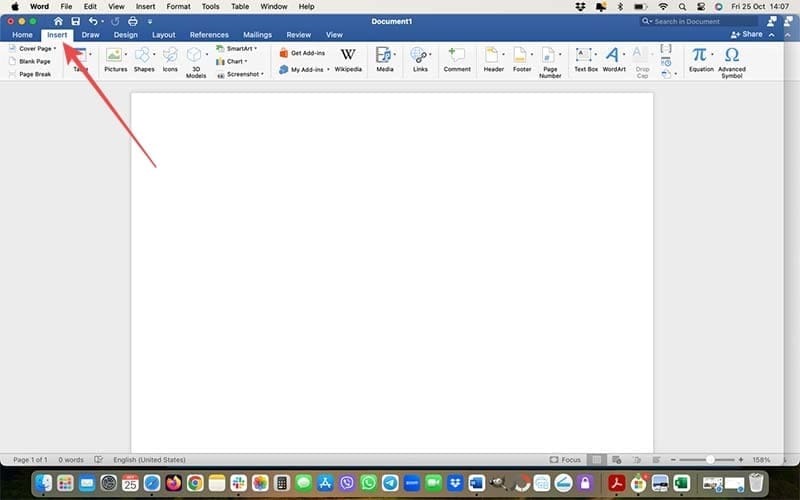
Step 1. Open up Word on your Mac and click on the “Insert” button on the ribbon at the top of the screen.

How to Add Docusign to Word on Mac 1

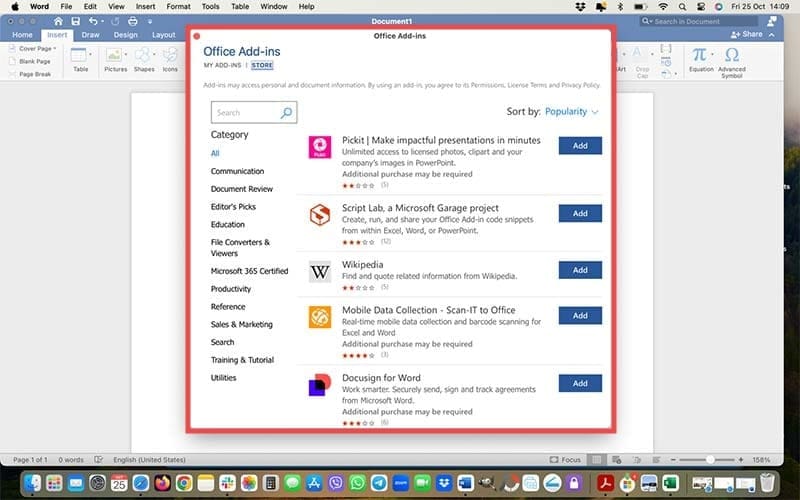
Step 2. Find and select “Get Add-ins.” This will open up the “Store” page.

How to Add Docusign to Word on Mac 2

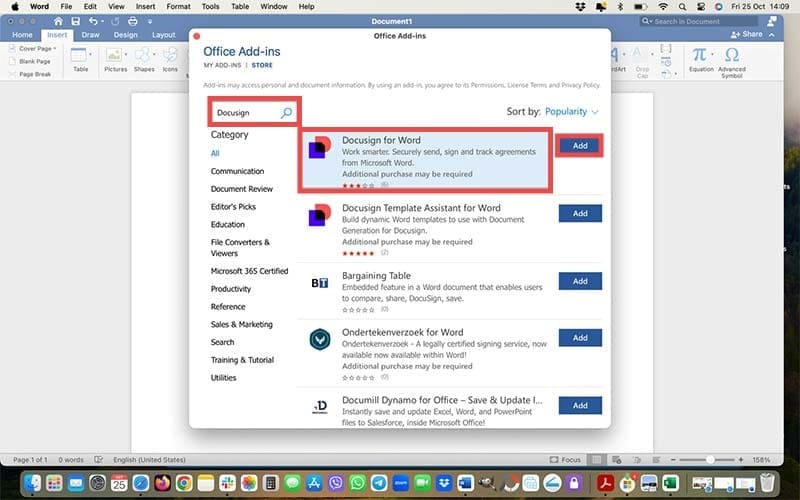
Step 3. Search for “Docusign” in the box provided and click “Add” next to the “Docusign for Word” add-in, when it appears.

How to Add Docusign to Word on Mac 3

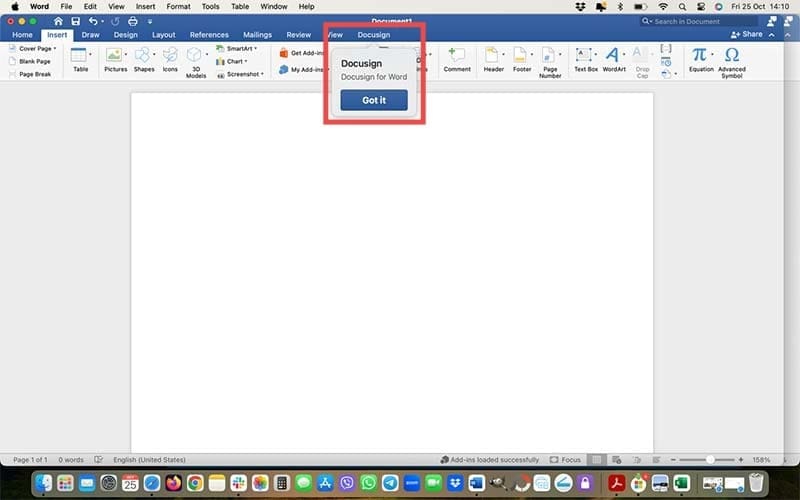
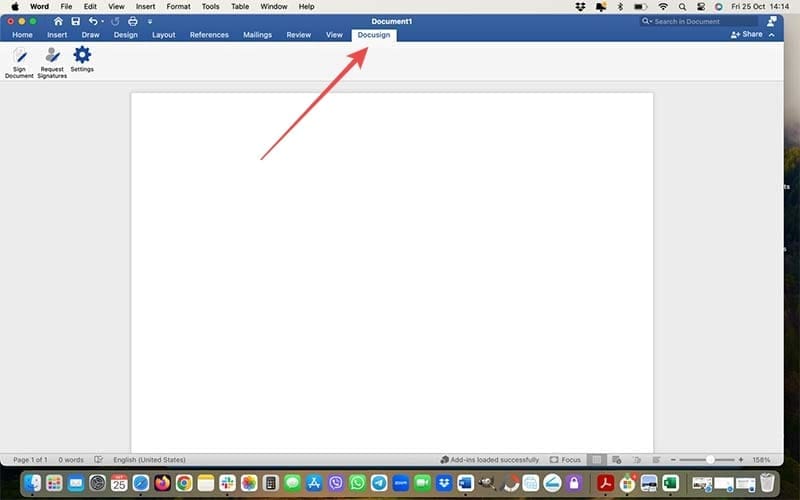
Step 4. Wait for the installation to finish. Once it’s done, you’ll see a new “Docusign” button added as a menu option on your ribbon.

How to Add Docusign to Word on Mac 4

How to Sign a Document with Docusign for Word on Mac

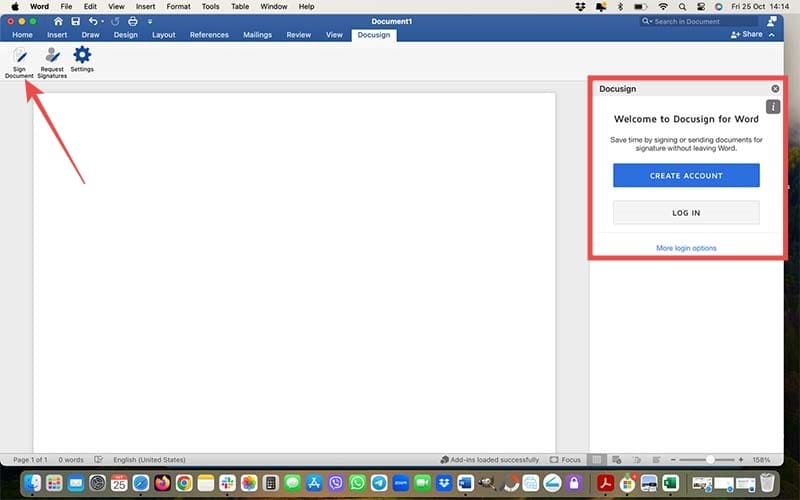
Step 1. Open the document you want to sign and click the “Docusign” button in the ribbon.

How to Add Docusign to Word on Mac 5

Step 2. Select the “Sign Document” option. You’ll then have to sign into your Docusign account. If you don’t have one yet, you can create one via the Docusign website. You’ll just need an email address and some other basic info to set up your account for the first time. As a new user, you can also make the most of Docusign s free trial, or sign up to a paid plan.

How to Add Docusign to Word on Mac 6

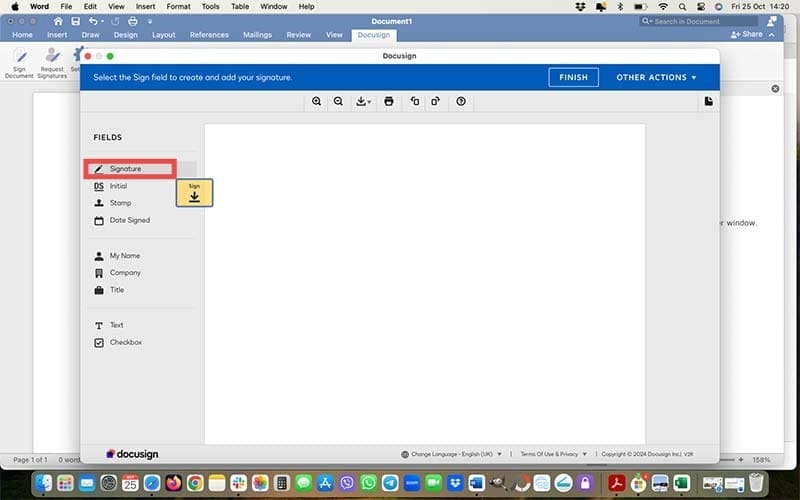
Step 3. Once you’re logged in, you can just drag and drop your Docusign signature onto the document. Or, select the “Signature” button and then click on the document where you want it to appear. You can opt to add your initials and signature date, along with other info, if needed.

How to Add Docusign to Word on Mac 7

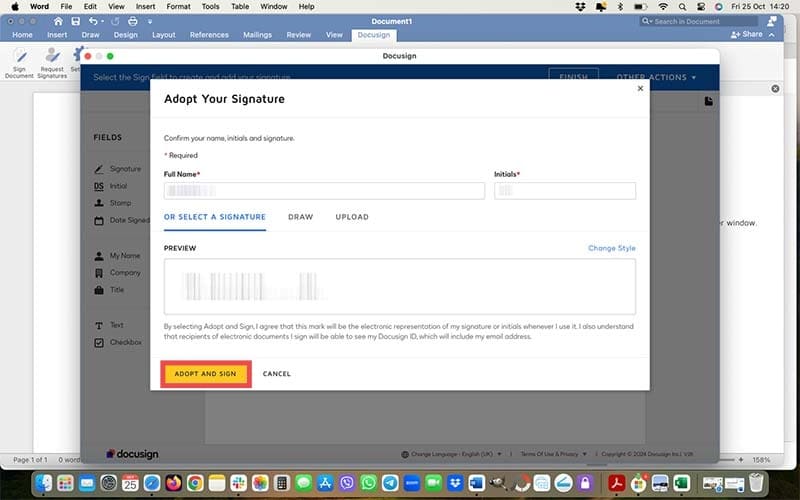
Step 4. Select “Adopt and Sign” to confirm your signature, and then “Finish” to complete the process.

How to Add Docusign to Word on Mac 8

Benefits of Installing Docusign to Word on Mac

Now you know how to add Docusign to Word on Mac, but you might be wondering if it’s worth installing in the first place. There are several advantages to this.

The first and most obvious one is that you’ll be able to sign documents directly by opening them in Word. You won’t have to, for example, save a document to your Mac, then go to the Docusign site, upload the file, sign it, download it again in your desired format, and then send it to the other recipients.

Instead, you can just open whatever docs you have to sign directly in Word, sign them in no time, and save the changes. It’s quick, easy, and convenient.

Bonus Tips: How to Create or Edit Your Docusign Signature

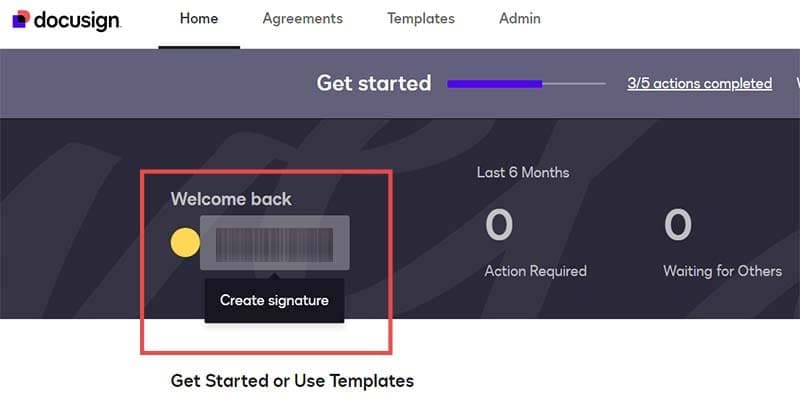
Step 1. Log into your Docusign account via the official Docusign site.

How to Add Docusign to Word on Mac 9

Step 2. Click on your existing signature to adjust it or create a new one.

How to Add Docusign to Word on Mac 12

Step 3. In the “Create Your Signature” menu, type in your name and initials and look through the list of proposed signature styles to select one. You can also click the “Draw” tab and draw your signature using your mouse instead for a more customized creation.

How to Add Docusign to Word on Mac 14

Step 4. Click the “Create” button to finalize your new signature. The next time you use Docusign for Word on Mac or Docusign in general, you’ll be able to add that signature to your docs.

Related Posts:

  • How to Recover Unsaved Word Document on Mac in 5 Best Ways
    How to Recover Unsaved Word Document on Mac in 5 Best Ways
  • 2023 Mac Studio lifestyle - 1
    macOS Could Not Be Installed, How-To Fix
  • New Outlook for Mac 7 Best Features You Should Know
    New Outlook for Mac: 7 Best Features You Should Know
  • How to Add Grammarly to Word on Mac 4 Best Methods in 2023
    How to Add Grammarly to Word on Mac: 4 Best Methods in 2023
  • pexels-skitterphoto-9316
    How To Scan Documents On iPhone And iPad
  • photo of an iphone with ios 16 downloaded on it
    iOS 16 Tips and Tricks: The Definitive List
  • iPhone 15 Pro Max - 1
    10 Handy Apple Shortcuts You Can Use Every Day
  • Update Apple ID settings on your iPhone, iPad, or Mac after changing your password
    Getting a Message to Update Apple ID Settings on…
  • pexels-tima-miroshnichenko-6860464
    How To Start Using Regex With The Shortcuts App
Louis Roundtree
Louis Roundtree

As an avid gamer, I’ve run into my fair share of error codes and weird faults that have forced me to find fixes to problems I never anticipated. That gave me a passion for sharing those fixes with others so we can all game without feeling like our hardware is rebelling against us.

Reader Interactions

Write a Comment Cancel reply

Primary Sidebar

Recent Posts

  • How to Set Up iCloud Passwords on a Windows PC?
  • How to Turn Off Apple Music’s Dark Mode
  • How to Disable Predictive Text in iOS 26
  • How to Stop Sharing Analytics in iOS 26
  • How to Manage Your iPhone Call Log
  • Are Apple’s Safety Precautions Enough for AirTags?

Connect with us

Footer

ABOUT

  • About Us
  • Contact us
  • Advertise
  • Privacy
  • Terms of Use

GUIDES

  • iOS & iPadOS
  • Apple ID
  • iCloud
  • App Store
  • iTunes
  • FaceTime
  • iMessage
  • Siri
  • Books and iBooks
  • Game Center
  • AirPlay

CONNECT

  • Facebook
  • Twitter
  • FeedBurner
  • YouTube

© Copyright 2010-2024 Guiding Tech Media · All Rights Reserved

This site and its content are in no way affiliated or endorsed by Apple, Inc. · Reproduction without explicit permission is prohibited

Last Updated on October 25, 2024 by Louis Roundtree