Over the past few years, we’ve been seeing Apple make great strides to turn iCloud Keychain into a powerful password manager. While there were some that were hoping to see a dedicated app released with iOS 15, that was not the case. However, that hasn’t stopped Apple from continuing to update Keychain with additional and extremely useful features.
Whether it’s because you use a third-party option like 1Password or rely on your browser, you may not know about iCloud Keychain. This is a way for you to store your passwords and then have them sync across Apple devices.
iCloud Keychain remembers things, so that you don’t have to. It auto-fills your information—like your Safari usernames and passwords, credit cards, and Wi-Fi passwords on any device that you approve.
For some, the saved passwords were a major reason why folks wouldn’t switch from Chrome to Safari. With the recent update, you no longer have to worry about that, as Apple has made it easier.
How To Add Notes to iCloud Keychain Passwords
iOS 15.4 introduced a few new features for iPhone and iPad users, including the ability to use Face ID with a mask. However, one feature that seems to have flown under the radar a bit is the ability to add notes to your iCloud Keychain password entries.
There could be any number of reasons as to why you would want to add a note to one of the entries. However, no matter what the reason is, you can rest easy knowing that whatever notes are added are as protected and secure as the accounts that they are tied to.
By adding a note to an iCloud Keychain password entry, you can be reminded when an extra step might need to be taken before logging in. Or maybe you are going through the list of saved passwords and want to know why you have an account with that specific website.
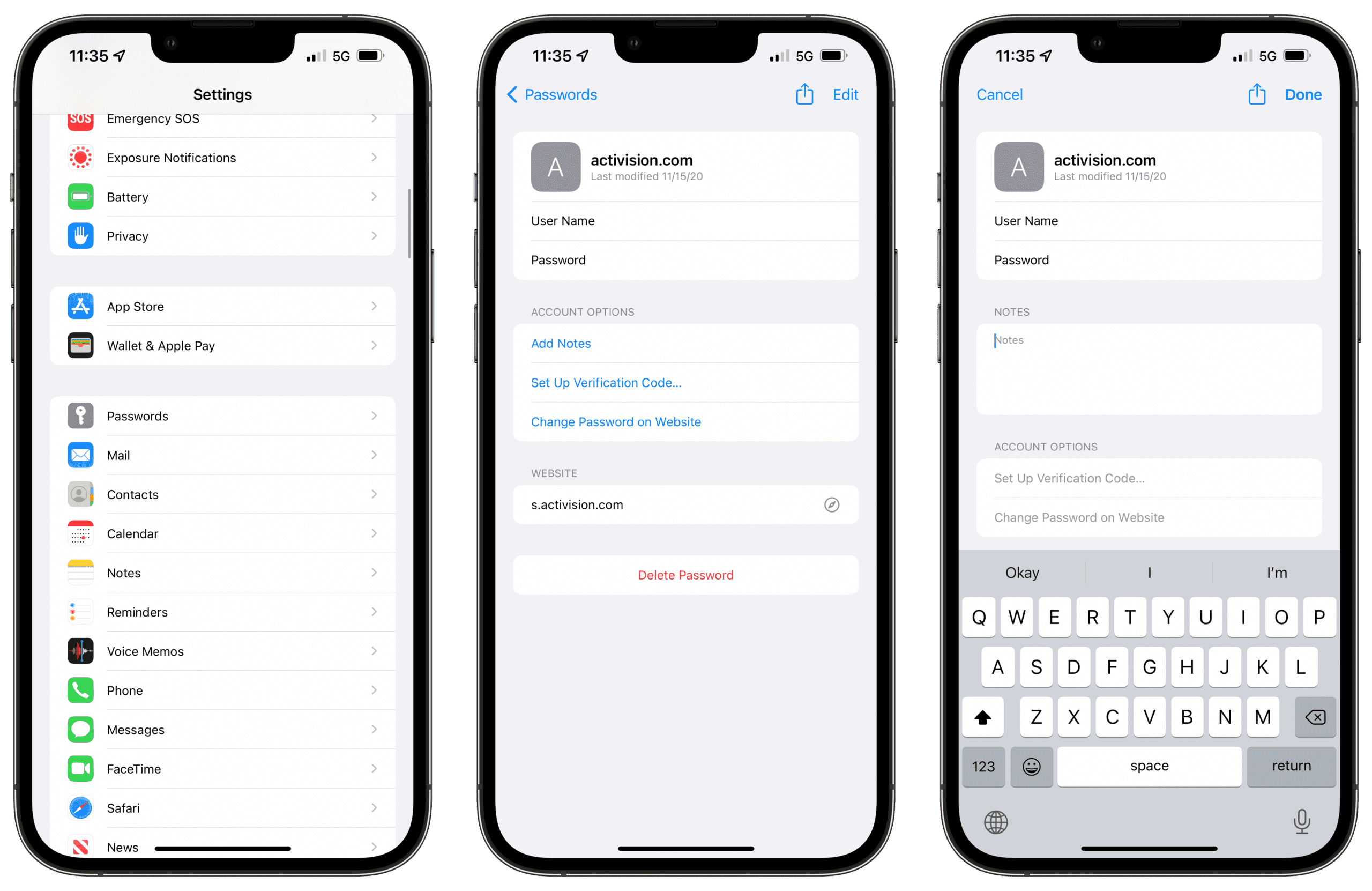
Regardless of the reason why here’s how you can add notes to iCloud Keychain passwords:
Open the Settings app on your iPhone or iPad.
Scroll down and tap Passwords.
Use Face ID or enter your passcode to authenticate who you are.
Select an entry from the list or tap the + icon in the top right to create a new saved password entry.
Under Account Options, tap Add Notes.
Type out the notes in the entry field that you want to add to your saved entry.
Tap Done in the top right corner.
Once the notes have been added, you’ll be able to quickly and easily view them when going through your iCloud Keychain passwords. The notes can also be edited after the fact and will be deleted if or when you delete an account from the iCloud Keychain.
Andrew Myrick is a freelance writer based on the East Coast of the US. He enjoys everything to do with technology, including tablets, smartphones, and everything in between. Perhaps his favorite past-time is having a never-ending supply of different keyboards and gaming handhelds that end up collecting more dust than the consoles that are being emulated.
On an iPhone Xs Max running the latest iOS, when I get to Under Account Options tap Add Notes – that choice is not available. Account Options offers instead: Change Password on Website or Set Up Verification Code












On an iPhone Xs Max running the latest iOS, when I get to Under Account Options tap Add Notes – that choice is not available. Account Options offers instead: Change Password on Website or Set Up Verification Code