• Skip to primary navigation
  • Skip to main content
  • Skip to primary sidebar
  • Skip to footer

AppleToolBox

Tools and Fixes for Mac, iPad, iPhone & iWatch

Search posts

  • About
  • Contact

CONNECT WITH US

CATEGORIES

  • iPhone
  • iPad
  • iPod
  • Apple Watch
  • Mac/MacBook
  • AirPods
  • Apple TV
  • News
  • Apple Services
  • HomePod
  • Reviews

SITE

  • Home
  • About Us
  • Contact
  • Advertise

Search posts

You are here: Home / iPad / How to AutoFill Passwords From Google Chrome on iPhone and iPad

How to AutoFill Passwords From Google Chrome on iPhone and iPad

By Andrew Myrick 2 comments Last updated October 6, 2021

If you aren’t already doing so, you should be managing your passwords from a separate application like 1Password, compared to just relying on your browser. But the problem for many is that it’s just much easier to let your browser do all the work for you, especially when options like Safari and Google Chrome will even suggest secure passwords for new accounts. These browsers even go so far as to let you know when one of your passwords have been compromised, so you can reset the password and keep your account from falling into the wrong hands.

Related Reading

  • What’s the Best Password Manager for Apple Products?
  • How to view, edit, delete and manage Safari passwords
  • What’s the deal with Apple app-specific passwords? Here’s everything you need to know
  • Comparing the Best Web Browsers for Mac
  • Enable SIM Pin On Your iPhone to Prevent Thieves from Viewing Your Texts, Calls, Etc.

Nevertheless, it’s still a better solution than physically writing down all of your passwords, and even better than just using the same one across all of your accounts. Google and Apple have gone to great lengths to improve the password management possible within the browser, removing the need for many to consider using a separate service altogether. One such example of this is the ability to have your passwords automatically filled whenever you’re signing into a website you’ve been to before. This is a feature that’s available by default with iCloud Keychain, but other password managers like 1Password and LastPass also an be used in conjunction with iCloud Keychain.

AutoFill Passwords From Google Chrome on iPhone and iPad

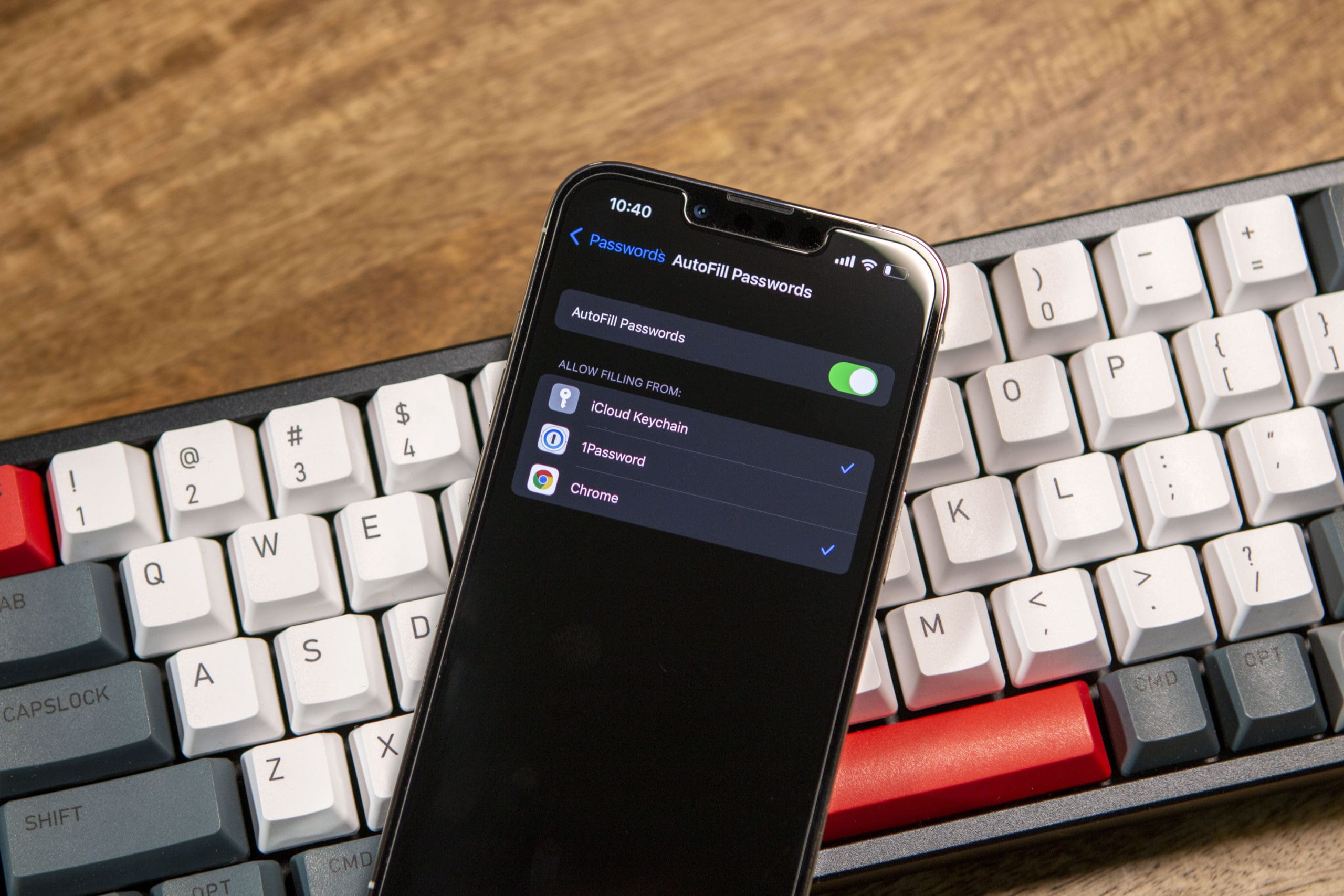
AutoFill Passwords From Google Chrome on iPhone 13 Pro

Google has been on top of its game when it comes to the latest iOS 15 and iPadOS 15 software updates. The company was one of the first to release a series of updates for its apps, taking advantage of everything that iOS 15 and iPadOS 15 has to offer. And because October is also known as Cybersecurity Awareness Month, Google is also pushing a new update to the Chrome app. With this update, you can autofill passwords from Google Chrome on iPhone and iPad, whereas the only way you could do so before was if you used Chrome as your primary browser.

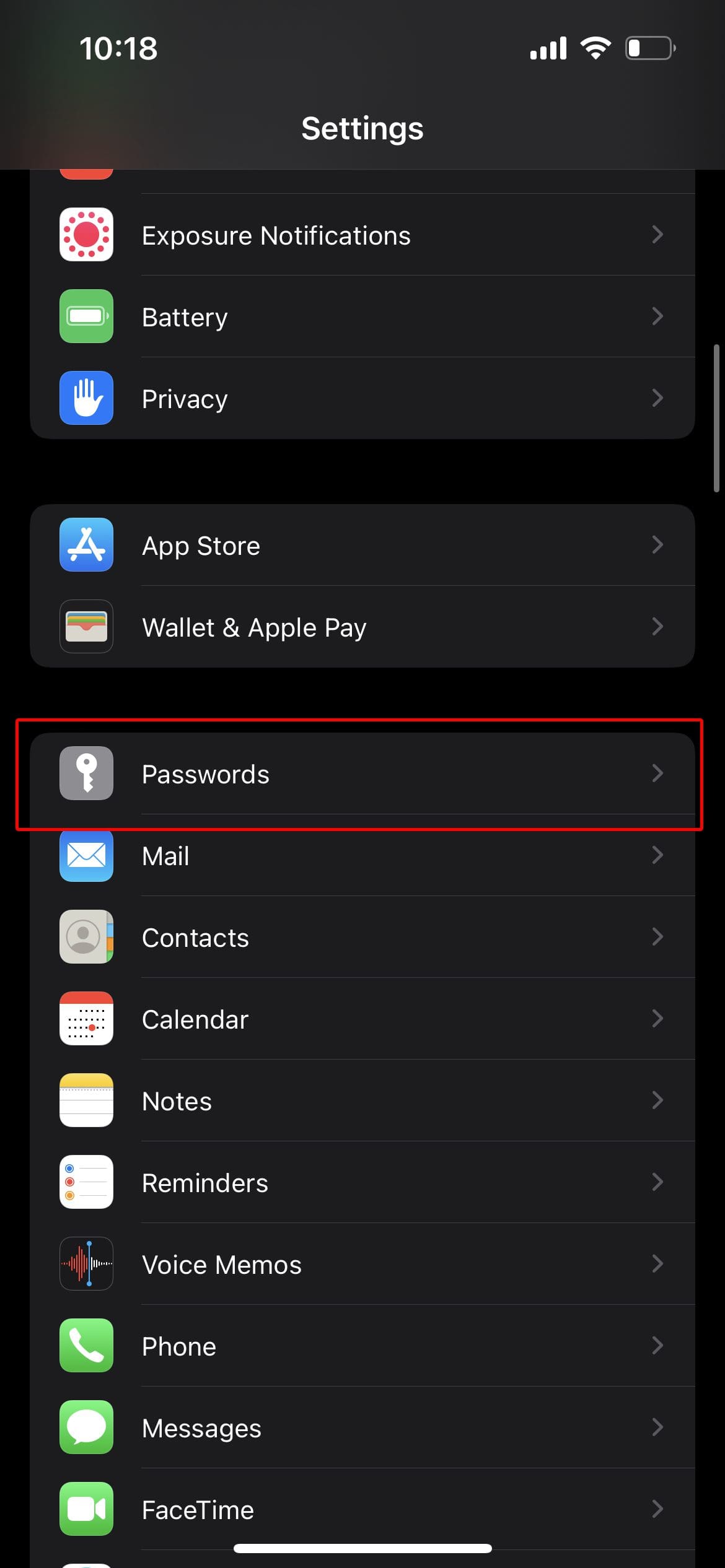
AutoFill Passwords From Google Chrome 1
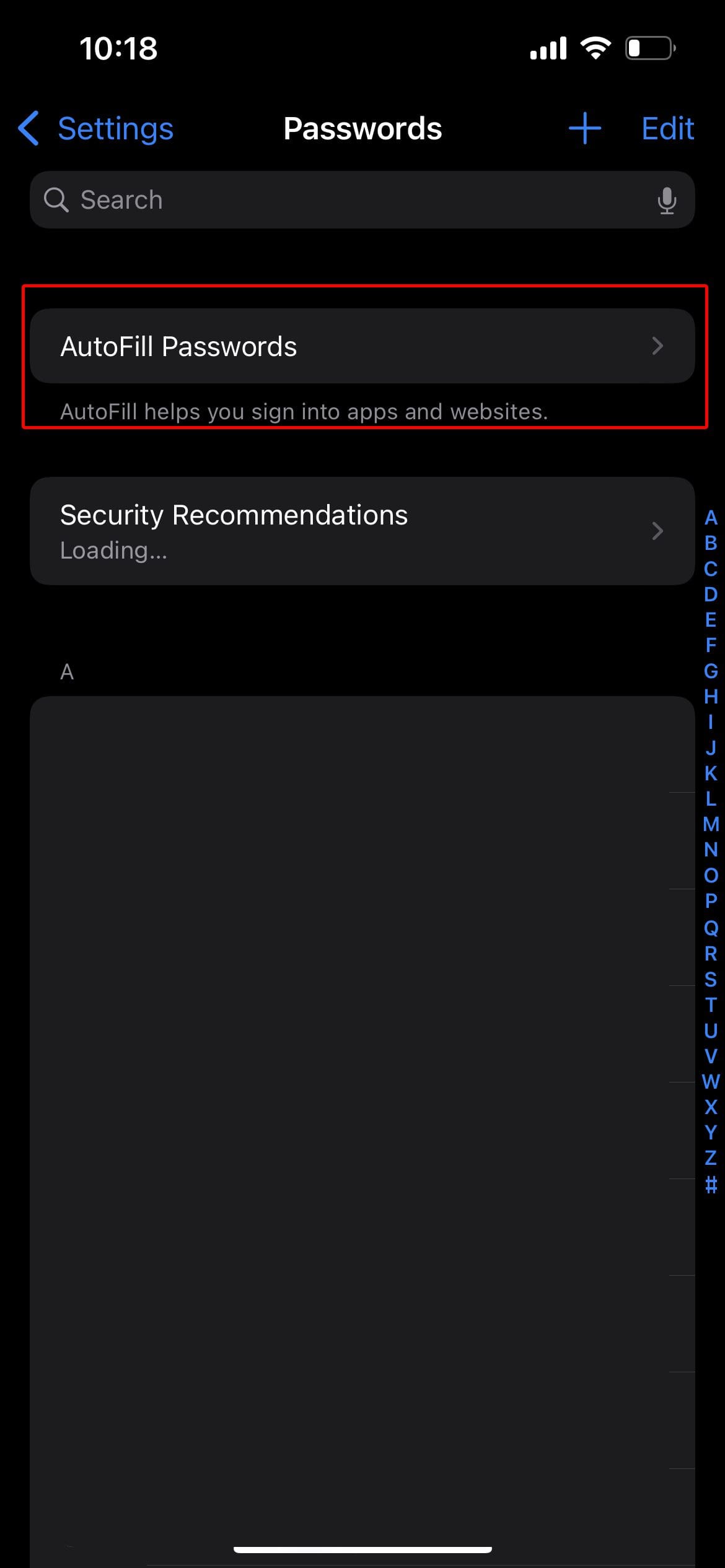
AutoFill Passwords From Google Chrome 2
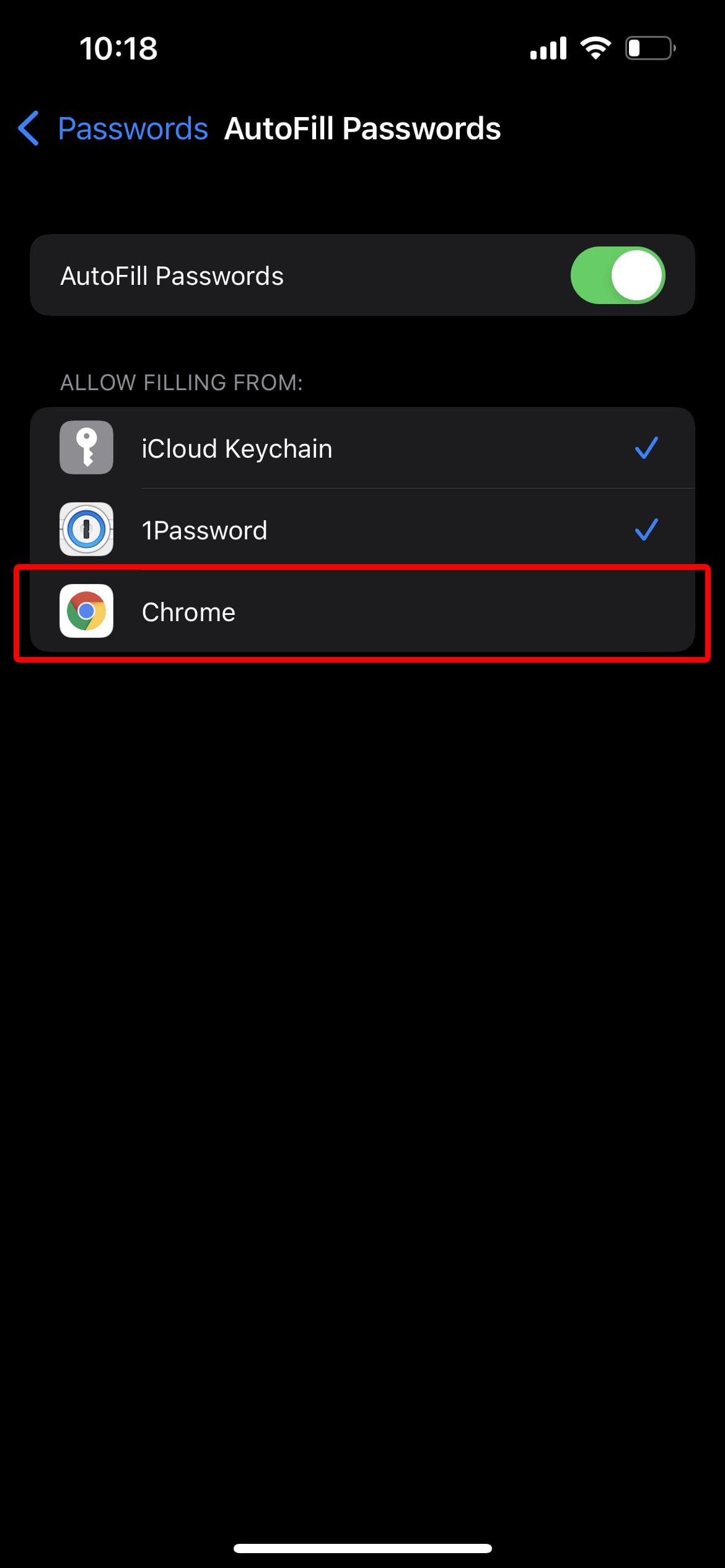
AutoFill Passwords From Google Chrome 3
  1. Open the Settings app on your iPhone or iPad.
  2. Scroll down and tap Passwords.
  3. Enter your passcode or use Face ID, if applicable.
  4. Tap AutoFill Passwords at the top of the page.
  5. Make sure that AutoFill Passwords is toggled to the On position.
  6. Under Allow Filling From:, tap Chrome.
  7. Tap the Turn on AutoFill button.

After this feature has been enabled, whenever you need to sign into an account from another app or in Safari, you can opt to auto-fill passwords from Chrome or iCloud Keychain. It’s important to note that if you are already using another password manager, such as 1Password, for autofilling, then that option is replaced by Chrome. Apple only allows two apps or services to be used at the same time for autofilling passwords, with one of them automatically being iCloud Keychain.

Related Posts:

  • how to sync data from other browsers to safari
    How to Sync Data From Other Browsers to Safari
  • Best Mac browser logos over colorful background
    Comparing the Best Web Browsers for Mac
  • A problem occurred with this webpage so it was reloaded, fix
    Can’t Clear the Browsing History in Safari on Your…
  • How to Disable the Login Password on Mac
    How to Disable the Login Password on Mac
  • sidecar on iPadOS and macOS
    Sidecar not working in iPadOS and macOS? How to fix…
  • How to use Security Keys on Mac - 2
    Protect Your Accounts With Built-In 2FA Support
  • Update Apple ID settings on your iPhone, iPad, or Mac after changing your password
    Getting a Message to Update Apple ID Settings on…
  • How to Install Windows 11 on Mac
    Want iMessage on Your Windows PC? How-To
  • photo of an iphone with ios 16 downloaded on it
    iOS 16 Tips and Tricks: The Definitive List
Andrew Myrick
Andrew Myrick

Andrew Myrick is a freelance writer based on the East Coast of the US. He enjoys everything to do with technology, including tablets, smartphones, and everything in between. Perhaps his favorite past-time is having a never-ending supply of different keyboards and gaming handhelds that end up collecting more dust than the consoles that are being emulated.
Reader Interactions

Write a Comment Cancel reply

Show 2 Comments

  1. Bryan says

    July 27, 2022 at 2:13 AM

    thanks for the article! appreciate the help

    Reply
  2. Pat says

    October 18, 2021 at 10:15 AM

    How do I get into the apple keychain when I forgot password for it

    Reply

Primary Sidebar

Recent Posts

  • Guide to Changing iMessage Backgrounds on iPhone and Mac
  • Has Apple Killed Vision Pro? (Insane Sales Flop Explained)
  • 5 Great Apps for Staying Organized on Your iPhone
  • What Are iPhone Antennas and Do You Need One?
  • iPhone Alarm Not Going Off in iOS 26? Here’s What to Do
  • How to Fix a Slow Charging iPhone

Connect with us

Footer

ABOUT

  • About Us
  • Contact us
  • Advertise
  • Privacy
  • Terms of Use

GUIDES

  • iOS & iPadOS
  • Apple ID
  • iCloud
  • App Store
  • iTunes
  • FaceTime
  • iMessage
  • Siri
  • Books and iBooks
  • Game Center
  • AirPlay

CONNECT

  • Facebook
  • Twitter
  • FeedBurner
  • YouTube

© Copyright 2010-2024 Guiding Tech Media · All Rights Reserved

This site and its content are in no way affiliated or endorsed by Apple, Inc. · Reproduction without explicit permission is prohibited