We can’t overstate how important it is to use a password manager, as there are countless accounts that you have passwords and logins for. Chances are that you’ve already seen or heard about massive security breaches from various companies resulting in passwords and critical information being hacked and used for nefarious purposes. Using a secure password is only one part of the equation, and you never want to use the same password for multiple accounts.
Whenever you create an account on a website or within an app, you provide a single layer of security by default. This layer is pretty obvious, but it’s whatever password that you entered when creating the account. It should go without saying, but we recommend using an app like 1Password to manage your passwords, as you will want to create unique passwords with every account. By doing so, you reduce the risk of multiple accounts being compromised if you use the same password across the board.
There is another layer of authentication that can be added, and that’s when you start hearing about “2FA” or two-factor authentication. Many of the most popular apps and services already offer this, but it’s something that you should aim to enable on any and all of your accounts.
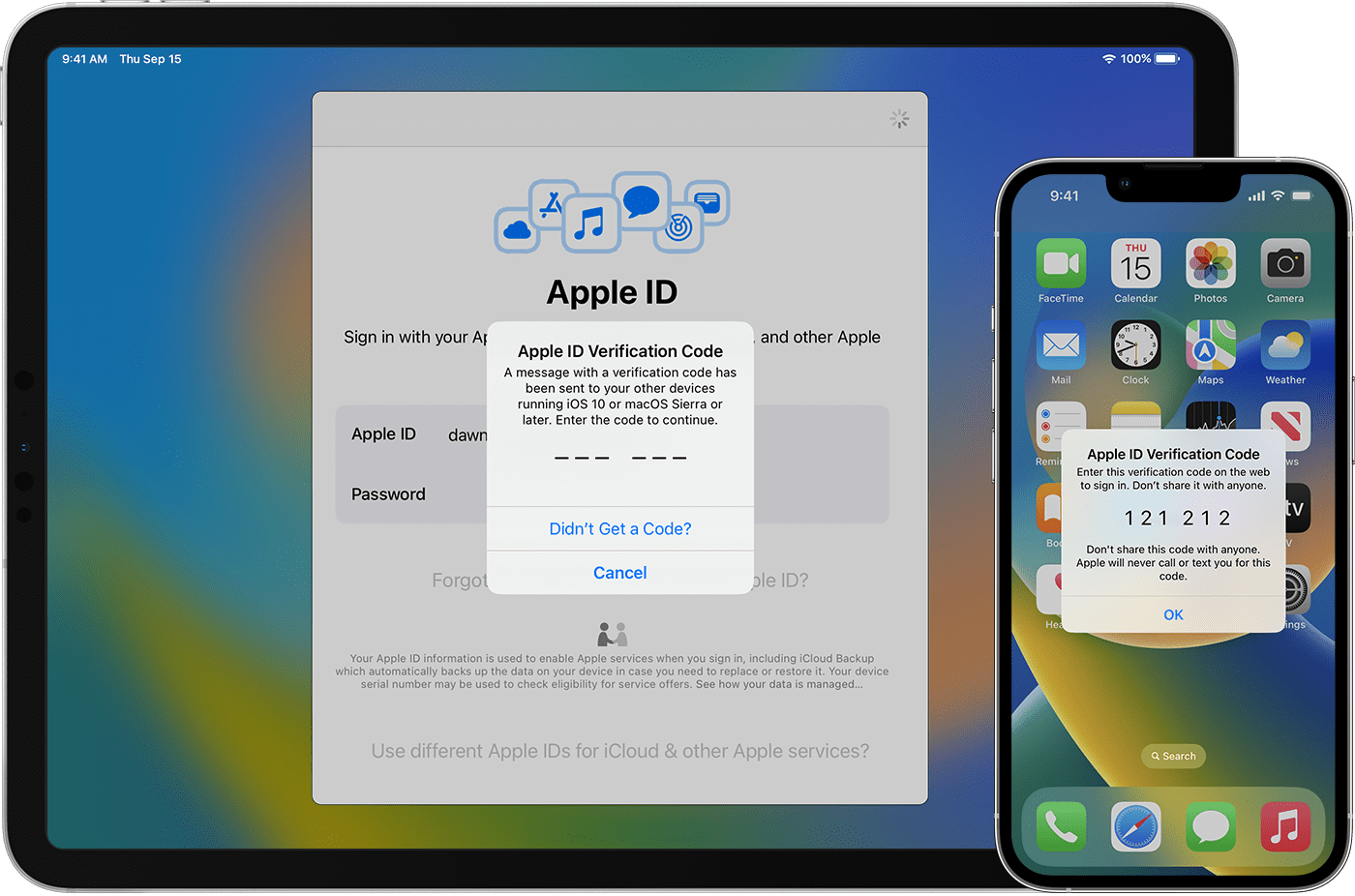
By enabling two-factor authentication, you not only need to enter the correct password, but you’ll also need to provide the second layer of verification. Sometimes this is done via an email, or with a code sent via text message to your device. Apple handles 2FA a bit differently, as it uses your other Apple “Trusted Devices” to automatically generate those codes and then enter them on the device you need them on.
Protect Your Accounts With Built-In 2FA Support
While Apple’s “Trusted Devices” approach works well with your Apple products, it does not solve the problem when using other accounts and services. However, with online security and privacy continuing to grow in importance, Apple is doing its part to try and make it easier to manage.
Following the release of iOS 15 and iPadOS 15, Apple now makes it possible for you to use the built-in Password Manager to automatically generate any 2FA codes. However, in order to keep your account secure, you’ll first need to get everything set up and connected.
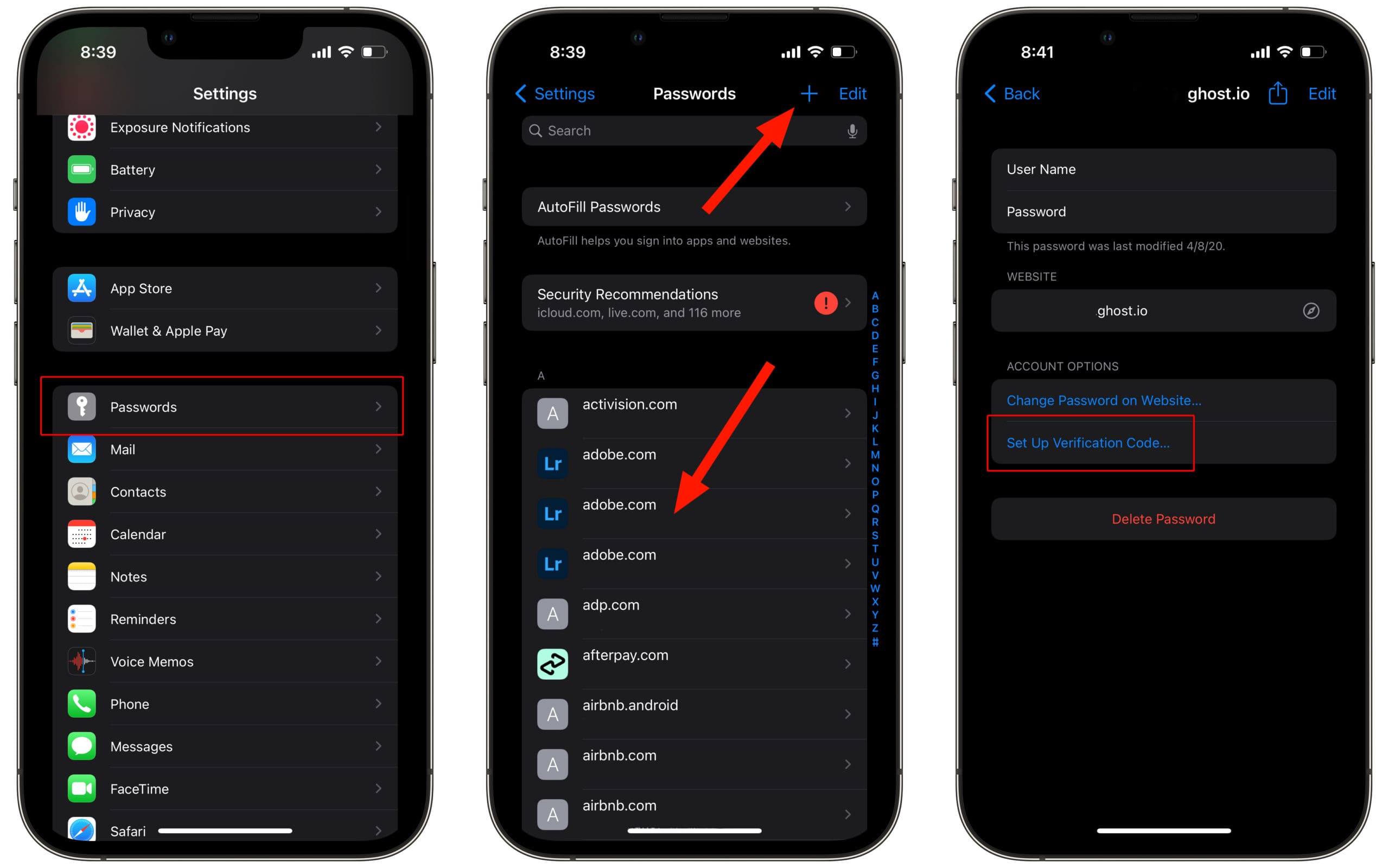
Open the Settings app on your iPhone.
Scroll down and tap Passwords.
Authenticate yourself using Face ID or your iPhone’s passcode.
Search for and select the account that you want to set up two-factor authentication for.
You can also tap the + icon in the top right corner to create a new login or password.
Under the Account Options section, tap Set Up Verification Code…
Tap one of the following options:
Enter Setup Key
Scan QR Code
Follow the on-screen prompts depending on which option you chose.
In order to enter a setup key or scan a QR code, you will need to head into the security settings for the app or website in question. The method will likely be different depending on the service, but it’s usually found under a Privacy and/or Security section.
Use 1Password For All Of Your Password Management Needs (Including 2FA)
There are quite a few password managers out there, but our favorite continues to be 1Password. The app recently underwent a design overhaul as it was upgraded from 1Password 7 to 1Password 8. In addition to using 1Password to catalog your various accounts, including generating new and secure passwords, 1Password can also act as the hub for your two-factor authentication codes. Here’s how you can set up 1Password to generate the 2FA codes that you’ll need:
Open the 1Password app on your iPhone or iPad.
Authenticate yourself via FaceID or your Account Password.
Locate the account to which you want to add 2FA authentication.
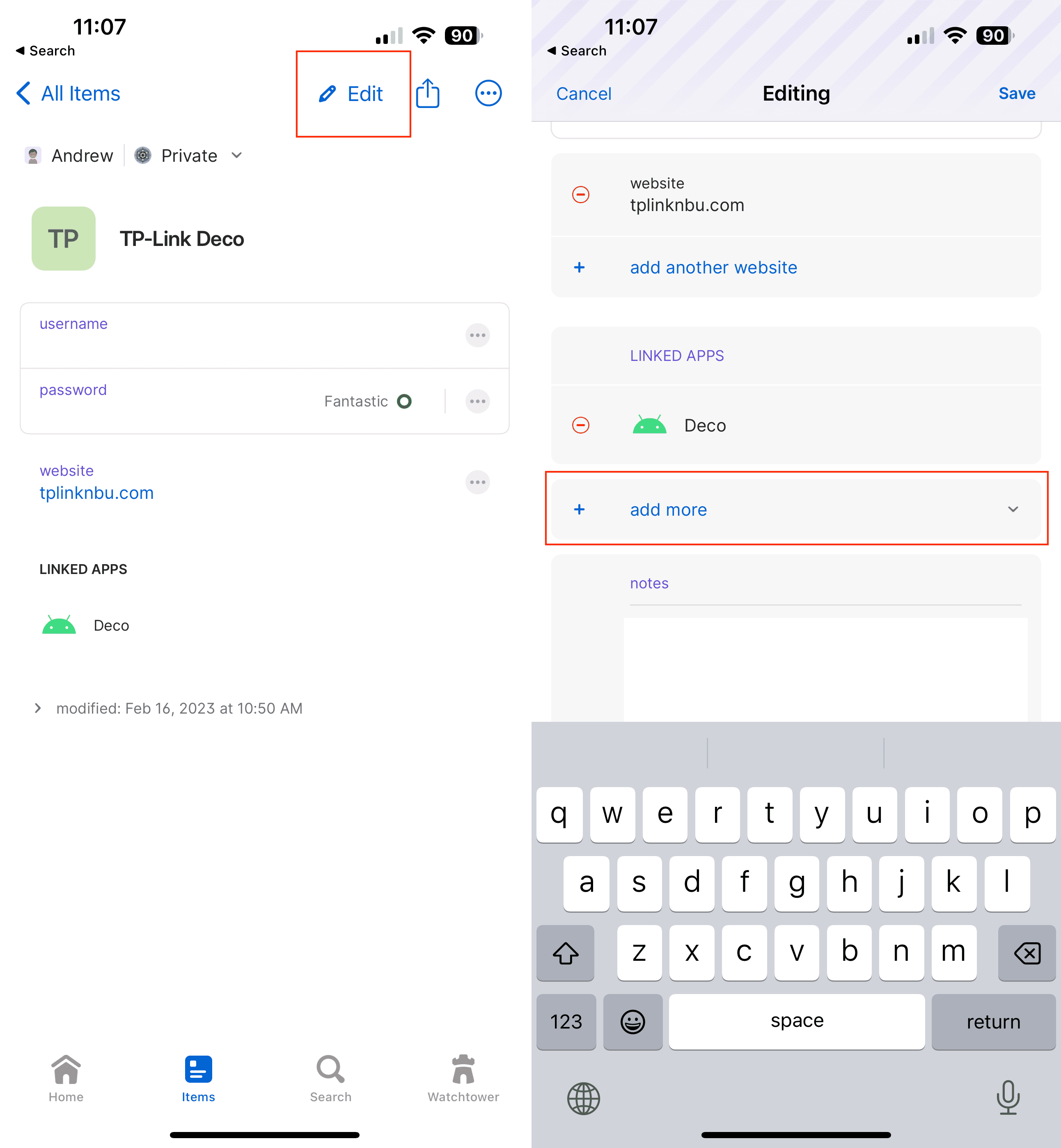
Tap the Edit button in the top right corner.
Scroll down and tap + add more.
Select One-Time Password from the list of options.
If available, enter the Setup Key.
Otherwise, tap the QR Code on the right.
Scan the QR code provided by the website or service that you are adding.
Make any additional or necessary changes.
Tap the Save button in the top right corner.
There’s really so much that 1Password has to offer that it can make your head spin. You can do everything from using it as a password manager to keeping notes and even License Keys for software that you purchase. It really does offer a “one-stop-shop” approach, something that you don’t really find all that often in apps that are actually good. Plus, 1Password is also available on pretty much every platform imaginable, even if it’s just through a browser extension. At the very least, you can also access your passwords from the web client if you can’t install an extension or are using someone else’s computer.
Andrew Myrick is a freelance writer based on the East Coast of the US. He enjoys everything to do with technology, including tablets, smartphones, and everything in between. Perhaps his favorite past-time is having a never-ending supply of different keyboards and gaming handhelds that end up collecting more dust than the consoles that are being emulated.












Write a Comment