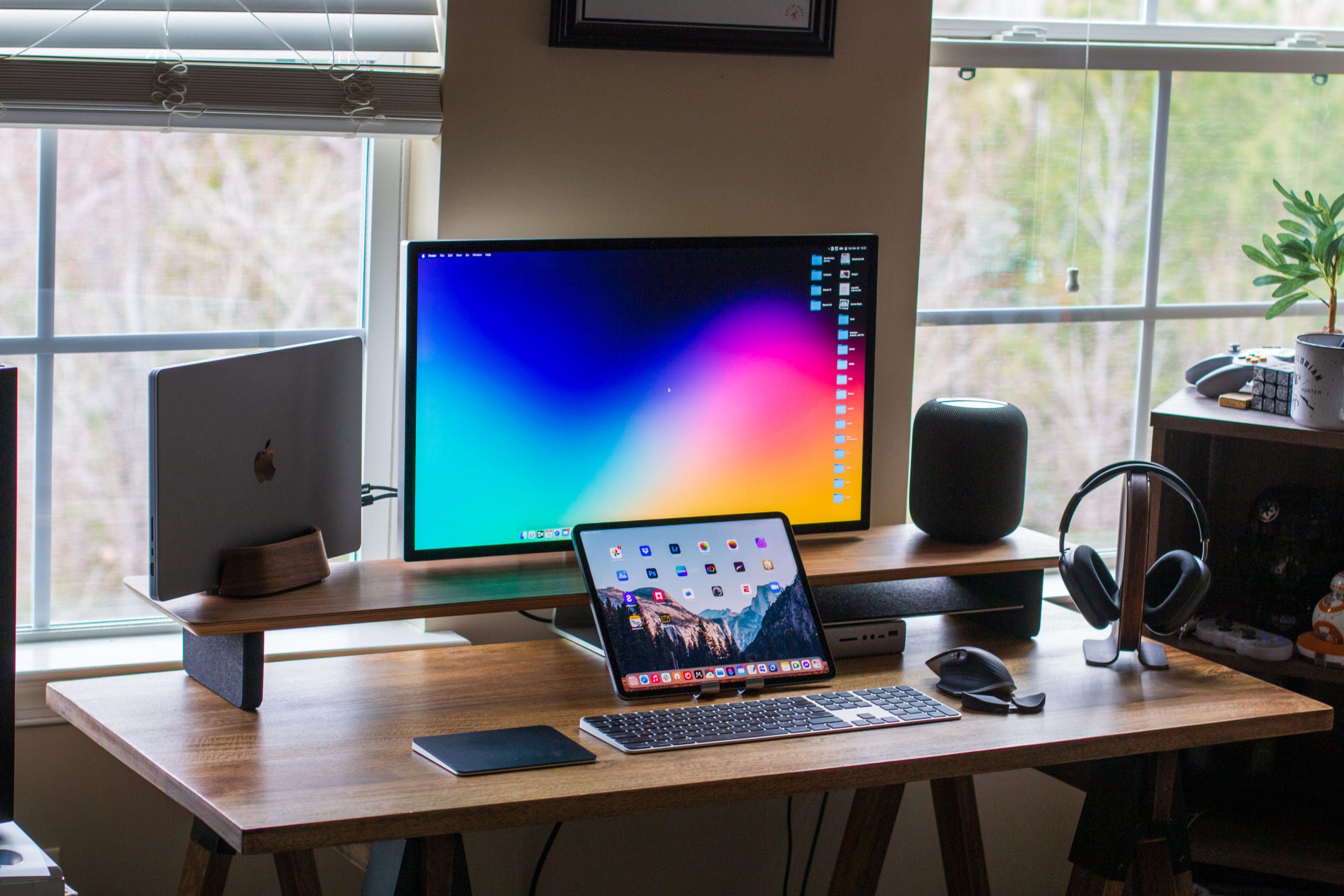
One feature that iPad users have been wanting for years is proper external display support. It seems as though this wasn’t possible with previous “A” series iPad chips. But that’s all changing with iPadOS 16, provided that you own an M1-powered iPad.
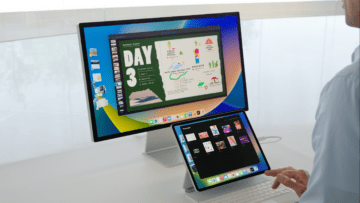
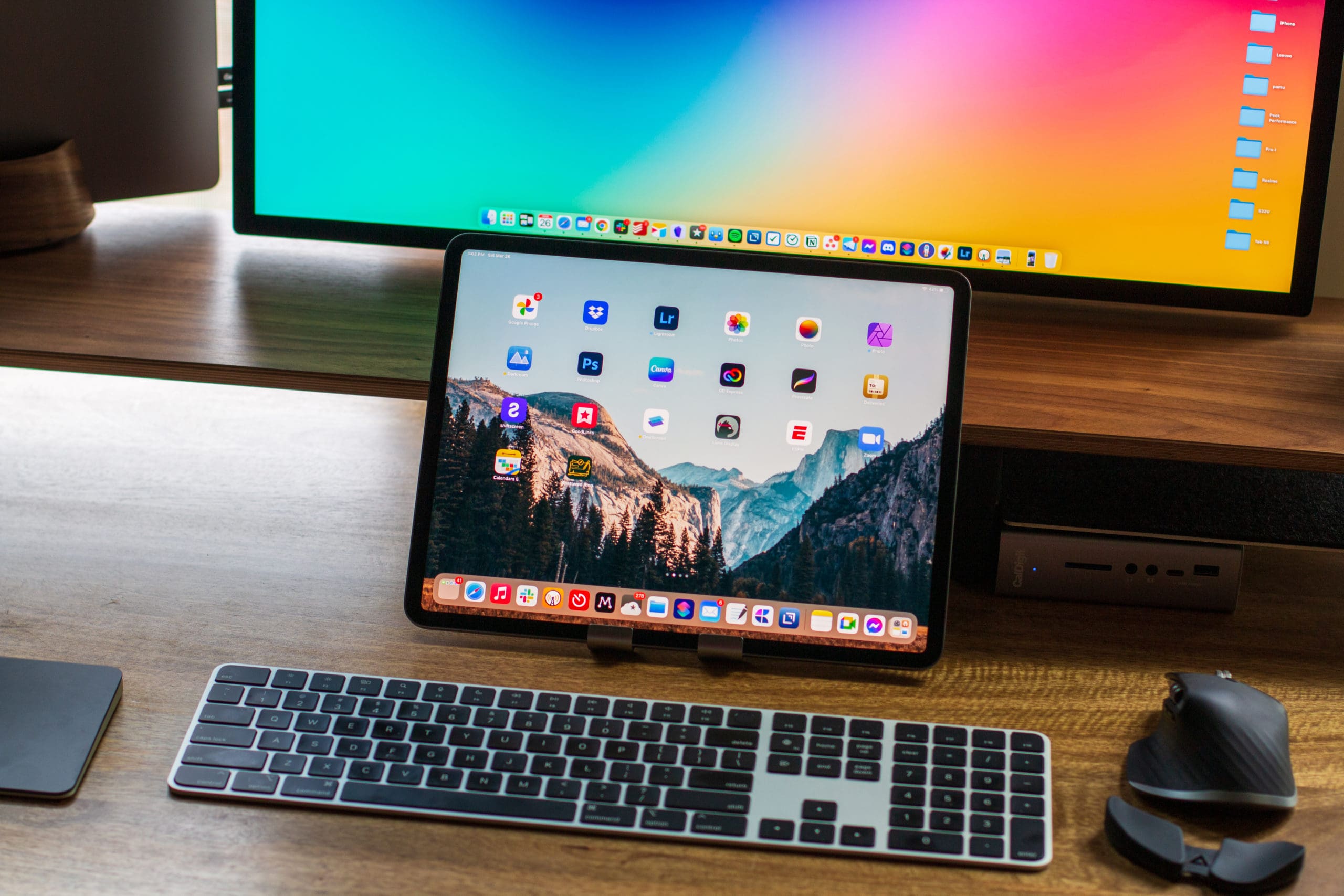
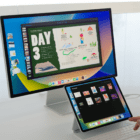
Instead of plugging in your iPad and only being able to mirror what’s on the screen, you’ll now be able to “extend the desktop”. This includes being able to use Stage Manager on both your iPad and external display. By doing so, you’ll be able to use a total of eight apps at the same time.
How to Change External Display Settings on iPadOS 16
Because iPadOS 16 introduces proper external display support, there’s a bit more customization available than what you might expect. When connecting to an external monitor, you can even go so far as to change the position of where your iPad is in comparison to your monitor. Here’s how you can change the different external display settings on iPadOS 16:
Plug your iPad into an external monitor.
Open the Settings app on your iPad.
Tap Display & Brightness in the sidebar.
Under the Displays section, tap the name of your external monitor.
Tap Display Zoom.
Select one of the following:
Zoomed – Shows less content, icons and windows are larger.
Standard – This shows more content, icons, windows, and text are smaller.
Under Display Setting, tap one of the following (if applicable):
Standard Dynamic Range (SDR)
High Dynamic Range (HDR)
Toggle Allow Display Mode Changes on or off, depending on your needs.
There are a few things to be aware of when going through and changing these settings. For one, you might not see a High Dynamic Range option when connecting your iPad to an external display, even if it’s possible. If this is the case, Apple recommends using a different cable. Or if you’re using something like a Thunderbolt dock, you can try and connect the cable to different ports.
Additionally, it does not seem as though Apple’s additional Display Zoom option is available for external monitors. We’re not exactly sure why this is the case, but hopefully, it’s just a bug and the More Space option comes in the future.
Using an iPad With an External Monitor
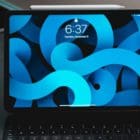
We’ve touched on a lot of the major changes coming to iOS 16 and iPadOS 16 later in 2022. But for iPad owners, the biggest change is easily the addition of Stage Manager. This provides a much-better multitasking experience, as you can use up to four apps in different windows at the same time. And when connecting to an external monitor, this number doubles, allowing you to have a total of eight app windows visible at the same time.
At the time of this writing, the experience has already gotten more reliable and is much better than the first Developer Beta. But there are still some quirks and bugs that need to get worked out. One example is the aforementioned HDR / SDR toggle in Display Settings, which has not appeared for us, regardless of what cable or dock we connect the iPad and monitor to.
Nevertheless, we’re closer than ever to being able to truly use our iPads as standalone devices and laptop replacements. Provided that you have an M1-powered iPad model, you can forget about dealing with black bars on either side of the connected display. And you won’t be limited to screen mirroring unless you really want to. Apple is finally giving iPad owners the features that we’ve been asking for.
Andrew Myrick is a freelance writer based on the East Coast of the US. He enjoys everything to do with technology, including tablets, smartphones, and everything in between. Perhaps his favorite past-time is having a never-ending supply of different keyboards and gaming handhelds that end up collecting more dust than the consoles that are being emulated.
I see so many articles with bogus information like this one… I’ve tried that method and all that it does is change the appearance of the icons and content on the external display. The resolution, however, remains the same. I’ve tried everything and it just doesnt go higher than 1080p, even in monitors that support up to 4K 60hz.
Starting to sound like Apple’s false advertising and people needing to create useless content.





I see so many articles with bogus information like this one… I’ve tried that method and all that it does is change the appearance of the icons and content on the external display. The resolution, however, remains the same. I’ve tried everything and it just doesnt go higher than 1080p, even in monitors that support up to 4K 60hz.
Starting to sound like Apple’s false advertising and people needing to create useless content.
I email the USA. My sent box says unread but I know that my messages are being read. I’m so confused!