• Skip to primary navigation
  • Skip to main content
  • Skip to primary sidebar
  • Skip to footer

AppleToolBox

Tools and Fixes for Mac, iPad, iPhone & iWatch

Search posts

  • About
  • Contact

CONNECT WITH US

CATEGORIES

  • iPhone
  • iPad
  • iPod
  • Apple Watch
  • Mac/MacBook
  • AirPods
  • Apple TV
  • News
  • Apple Services
  • HomePod
  • Reviews

SITE

  • Home
  • About Us
  • Contact
  • Advertise

Search posts

You are here: Home / iPad / How to Change the Main Language on Your iPhone or iPad

How to Change the Main Language on Your iPhone or iPad

By Danny Maiorca 0 comments Last updated December 29, 2022

These days, Apple’s devices support more languages than you might even know existed. And if you want to change the language on your device, doing so takes little time.

Related Reading:

  • How to Add a Different Keyboard Language on iPhone
  • 12 Built-In Mac Apps You Didn’t Know Existed
  • Siri Shortcuts Not Working on iPhone or Apple Watch? How to Fix
  • How to Use Dictionaries in iOS 16
  • How to Use the Shared With You Function in iOS 16

If you want to change the main language on your iPhone or iPad, the process is pretty simple. In this article, we’ll show you how to change this specific aspect on your device.

Contents

  • How to Change the Main Language on Your iPhone
  • How to Change the Main Language on Your iPad
  • Changing the Main Language on Your iPhone Is a Little Different From the iPad

How to Change the Main Language on Your iPhone

Changing the main language on your iPhone only takes a couple of simple steps, and you’ll find these below.

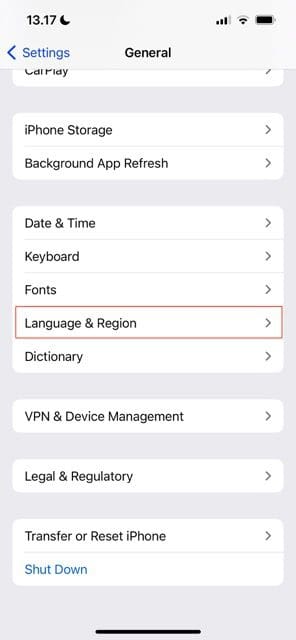
Select Language and Region on iOS
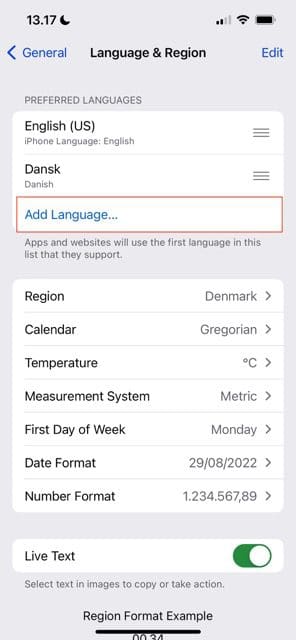
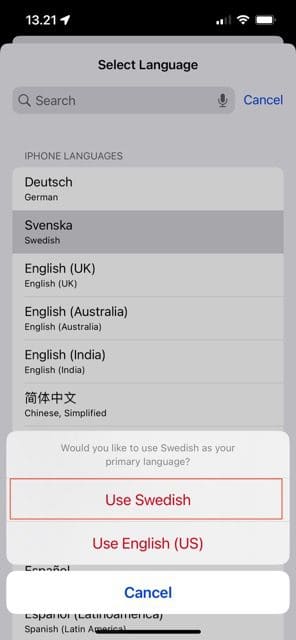
Screenshot showing prompt to change language on iOS
Screenshot showing the option to change the language on iOS
  1. Go to Settings > General > Language & Region.
  2. At the top of the page, you’ll see the languages you already use under Preferred Languages. Go to the Add Language tab when you’re ready to change it.
  3. Pick the language you want to change to. If you can’t find it when scrolling, you can use the search bar. In this example, we’ll change our iPhone’s language to Swedish.
  4. You will see a prompt asking if you want to change your primary language or continue using the current one. Select Use [New Language].

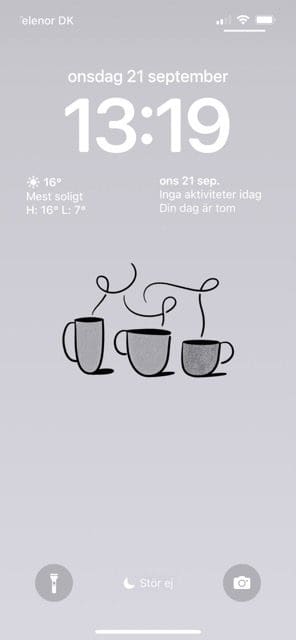
Your iPhone will shift to the language you chose straight away. If you want to change the language back to one that’s already on your list, you can use the three lines icon to move your preferred language to the top. Once you’ve confirmed that you want to reset your iPhone, the changes will take effect.

Screenshot showing the home screen on iPhone With Changed Language
Screenshot showing how to change the preferred language on iOS

How to Change the Main Language on Your iPad

The process of changing the main language on your iPad is a little different from your iPhone. However, the steps are still pretty simple and won’t take you too long; follow the instructions below.

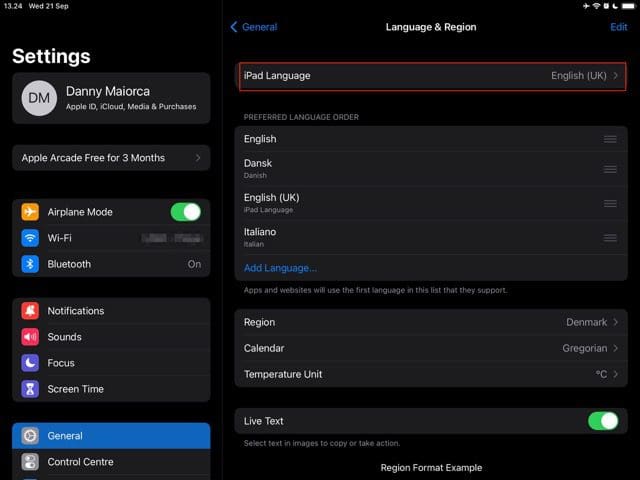
1. Go to Settings > General > Language & Region.

2. At the top, you’ll see a tab called iPad Language. Click on this to change it.

screenshot showing the tab to change language on ipad

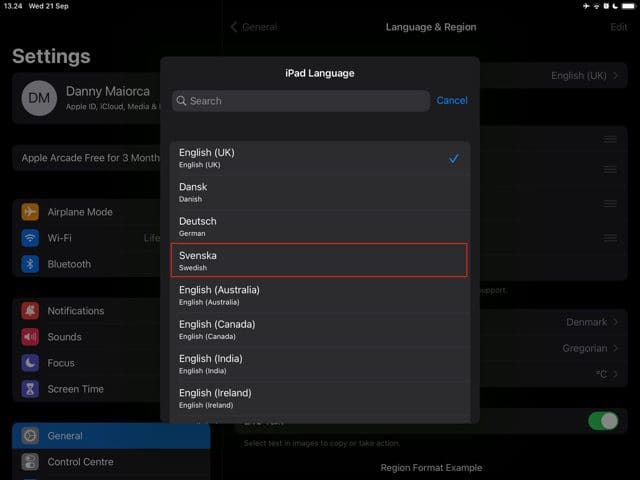
3. Choose the language you want to change your iPad to. Again, we’ll pick Swedish in this instance.

screenshot showing how to change the language via a box on ipad

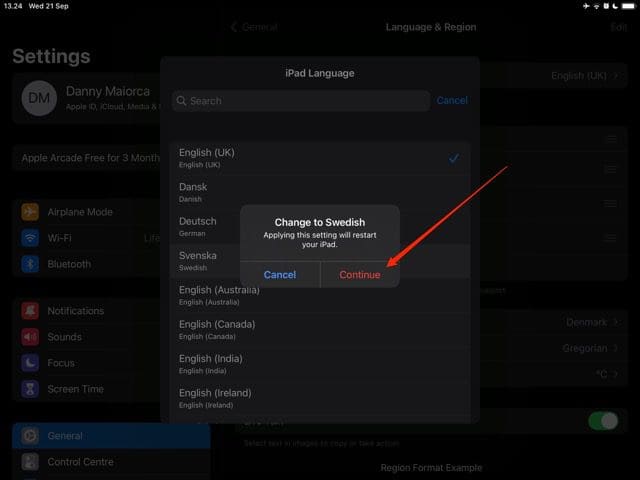
4. You will see a prompt asking you to confirm your requested change. Click on Continue, and your iPad will restart.

screenshot showing the confirmation option on ipad

Like on the iPhone, you can shift between languages by going to the three lines icon if you want to change back to another of your preferred languages.

Changing the Main Language on Your iPhone Is a Little Different From the iPad

Regardless of whether you want to change the main language on your iPhone or iPad, the process is simple – even if it is different. You can choose from languages across the globe, and it’s easy to switch to your mother tongue or use your device as a tool for learning a new one.

If you later decide that you want to switch your preferred language back to what it was before, the process is also straightforward.

Related Posts:

  • pexels-designecologist-1779487
    The Best iPhone And Mac Shortcuts For Beginners
  • Apple Watch Ultra Tips and Tricks
    Apple Watch Tips and Tricks for 2023
  • Photo of person sleeping after saving so much time with the best Automator routines for Mac
    The Best iPhone Shortcuts (2021 Edition)
  • pexels-skylar-kang-6368908
    Keyboard Maestro vs. Shortcuts vs. Automator:…
  • pexels-tima-miroshnichenko-6860464
    How To Start Using Regex With The Shortcuts App
  • pexels-cottonbro-5077039
    Shortcuts Tips and Tricks To Take Your iPhone…
  • pexels-cottonbro-5053846
    The Best Apps For Shortcuts Pros
  • pexels-ola-dapo-3345882
    The Best iPhone And Mac Shortcuts For Pros
  • IMG_2654
    How To Start Using The iPhone Shortcuts App
Danny Maiorca

Danny has been a professional writer since graduating from university in 2016, but he’s been writing online for over a decade. He has been intrigued by Apple products ever since getting an iPod Shuffle in 2008 and particularly enjoys writing about iPhones and iPads. Danny prides himself on making complex topics easy to understand. In his spare time, he’s a keen photographer.

Reader Interactions

Write a Comment Cancel reply

Primary Sidebar

Recent Posts

  • How to Stop Sharing Analytics in iOS 26
  • How to Manage Your iPhone Call Log
  • Are Apple’s Safety Precautions Enough for AirTags?
  • How to Hide Username and Photo on the Mac Lock Screen
  • Microsoft Resume vs. Apple Handoff – Which Wins for Cross-Device Work?
  • How to Export iTunes Library to New Computer

Connect with us

Footer

ABOUT

  • About Us
  • Contact us
  • Advertise
  • Privacy
  • Terms of Use

GUIDES

  • iOS & iPadOS
  • Apple ID
  • iCloud
  • App Store
  • iTunes
  • FaceTime
  • iMessage
  • Siri
  • Books and iBooks
  • Game Center
  • AirPlay

CONNECT

  • Facebook
  • Twitter
  • FeedBurner
  • YouTube

© Copyright 2010-2024 Guiding Tech Media · All Rights Reserved

This site and its content are in no way affiliated or endorsed by Apple, Inc. · Reproduction without explicit permission is prohibited

Last Updated on December 29, 2022 by Mitch Bartlett