It’s one thing to take a photo that looks great with the perfect amount of lighting. However, it’s much more difficult to take a picture with a less-than-stellar lighting situation, and that’s where Night Mode comes in.
Introduced last year, this makes it easier for users to take low-light photos, but there’s so much more to it. From working with the new A13 processor to using the third camera sensor on the iPhone, a lot of work is put into making this a possibility.
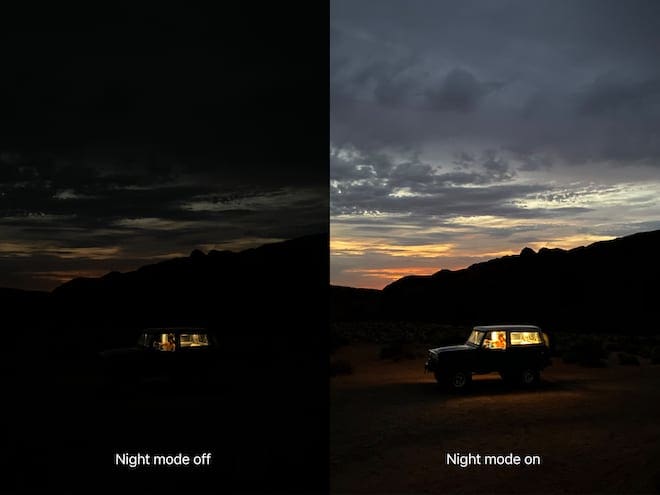
Night Mode will let you take images in low-light conditions. And they’ll actually be viewable.
Apple introduced Night Mode on its latest iPhone models as a way to provide a better way for users to take low-light pictures. Nobody likes pulling out their phone in a dimly-lit situation only to not be able to see anything. And you don’t want to ruin the moment by having your iPhone’s flash light up the room and have everything be blown out.
Night Mode makes use of the iPhone’s wide-angle camera lens, with the reason for this being due to the larger sensor. This allows for the camera to let in more light, providing brighter photos even when there’s not much light.
Then, your iPhone works with the Neural Engine in the new A13 chipset to analyze and output better shots. The way this is done is when you tap on the shutter button, you’re not just taking a single picture. Instead, your iPhone takes multiple pictures and then combines these images to provide the end result.
What iPhones support Night Mode?
Despite early rumors that Night Mode was going to be a feature of iOS 13 and not hardware-specific, that turned out to not be the case. Here are the phone’s that support Night Mode:
iPhone 11
11 Pro
11 Pro Max
This means that any iPhone before the one’s released in late 2019, will not be able to take advantage of this new technology. Instead, you’ll have to rely on third-party apps, or just avoid taking low-light pictures.
How to disable Night Mode
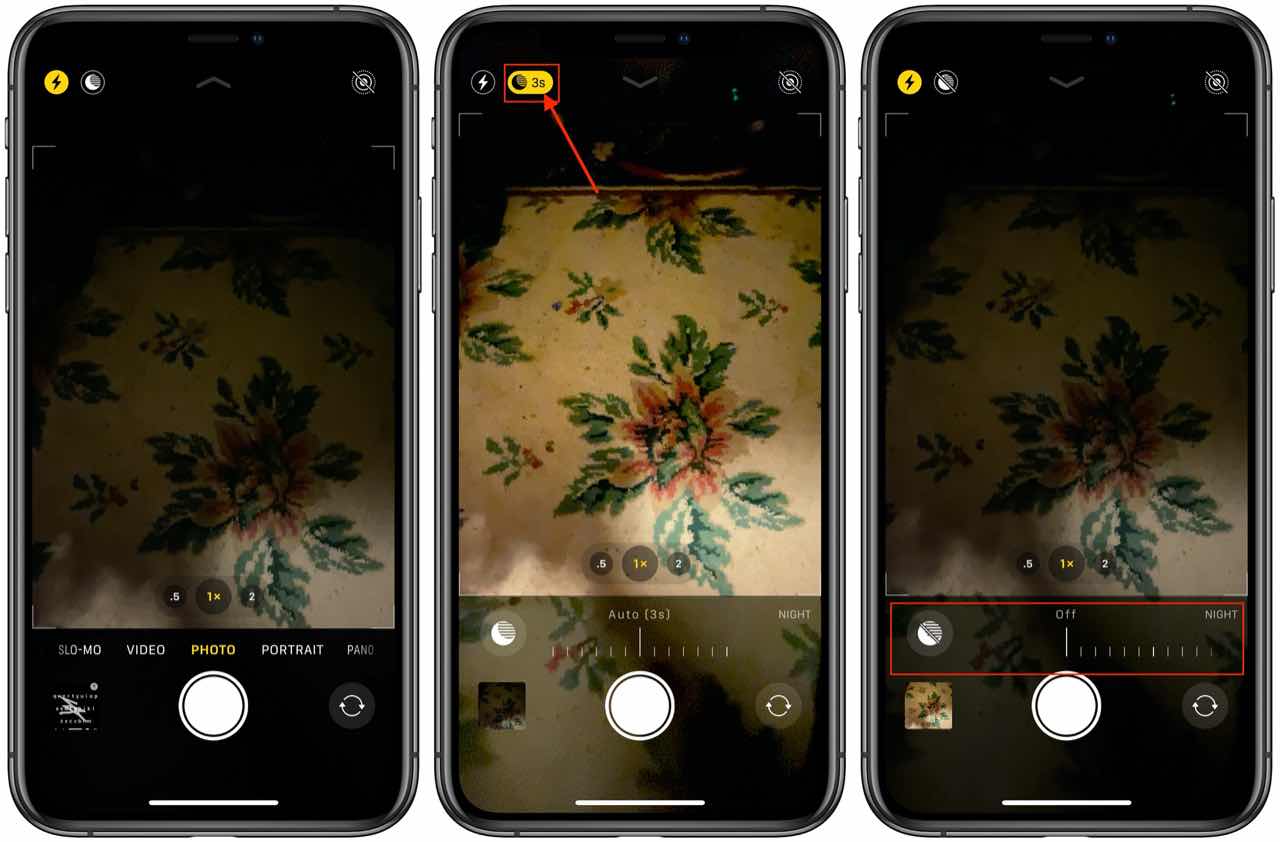
There is no specific button that allows you toggle Night Mode on or off. Instead, your iPhone recognizes automatically when it needs to be turned on, providing a Moon Icon in the top left-hand corner.
Those who want to turn off or “disable” Night Mode, will need to follow these steps:
Open the Camera app on your iPhone
Tap the Moon icon in the top left-hand corner
Drag the slider all the way to the left
Unfortunately, Apple has not added a setting option for disabling Night Mode completely. This means that if you want to turn off this feature, you will have to follow the aforementioned steps on a “per picture” basis. Obviously, this is not great if you’re just trying to grab your phone and snap a quick pic, but that’s the only option we have for the time being.
Tips to take better Night Mode photos
If you are frustrated by the lack of clarity of your Night Mode photos, there are a few things you can try. There’s no guarantee that these tips will work, but it’s better than having a feature that you can’t or won’t use.
Use a tripod
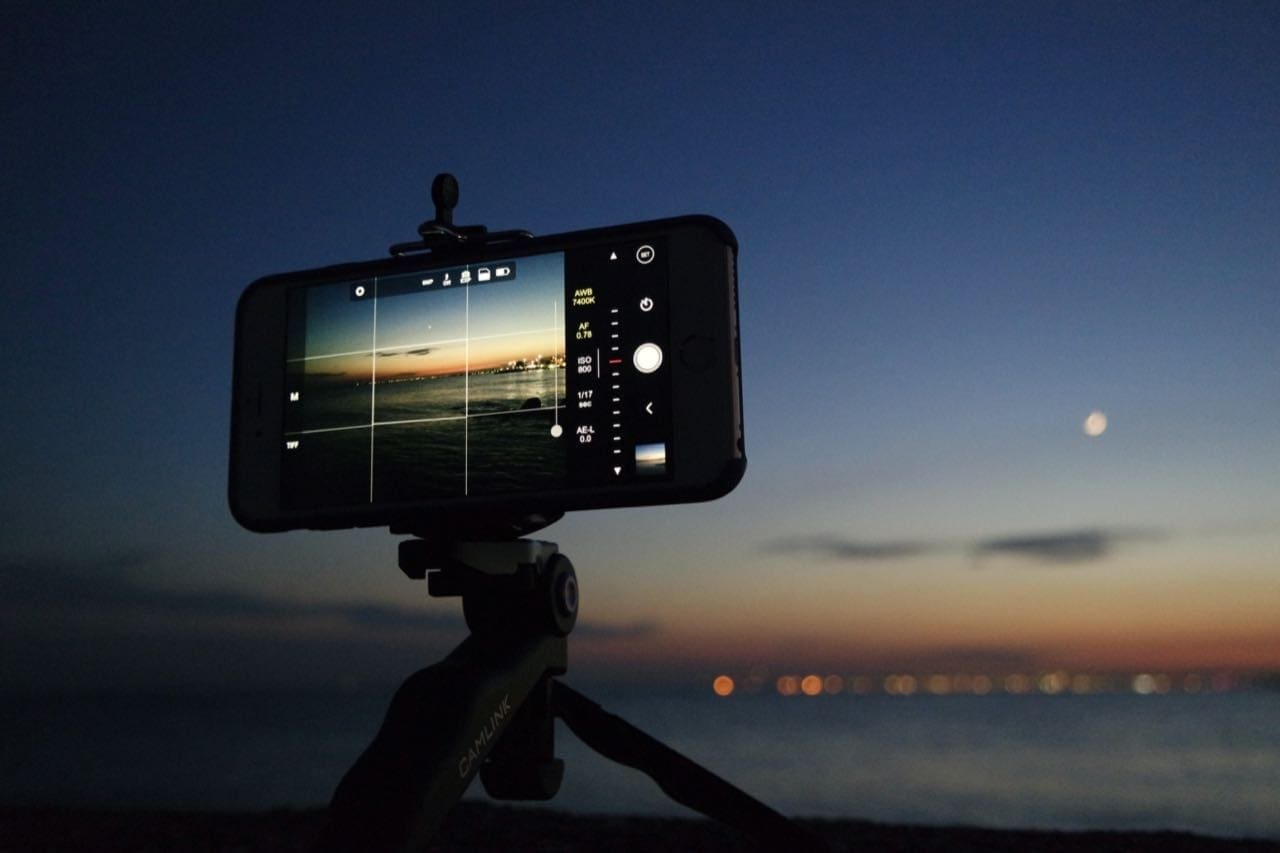
Not everyone has the most steady of hands (myself included). And since the iPhone takes multiple pictures at the same time, it’s important to keep your phone still for as long as is needed. Using a tripod allows you to set your phone up, tap the shutter button, and walk away, letting your iPhone do all the work. We recommend something like the GripTight Stand PRO from GorillaPod due to its versatility and compatibility with any smartphone size.
Take pictures of non-moving objects
Since your iPhone is essentially taking pictures with long exposures, having moving objects can be a bit tricky. It’s cool to see long exposures with intentionally moving objects like cars or planes. However, if a moving object ends up in front of the camera, it could end up looking a streak of light. This may not be the end result you are looking for, so we would recommend framing your photos to avoid these situations.
Adjust the Night Mode Time Intervals
When looking at the Moon icon in the Camera app, you’ll see a number next to it. This is the length of the exposure, with a larger number providing a longer exposure. By default, this is set to 3-seconds, but can be adjust by tapping the icon and using the on-screen wheel to change the length. If you are trying to get the “right” photo, we recommend tinkering with this to see what works for the scenario.
Can third-party apps help take better Night Mode photos?
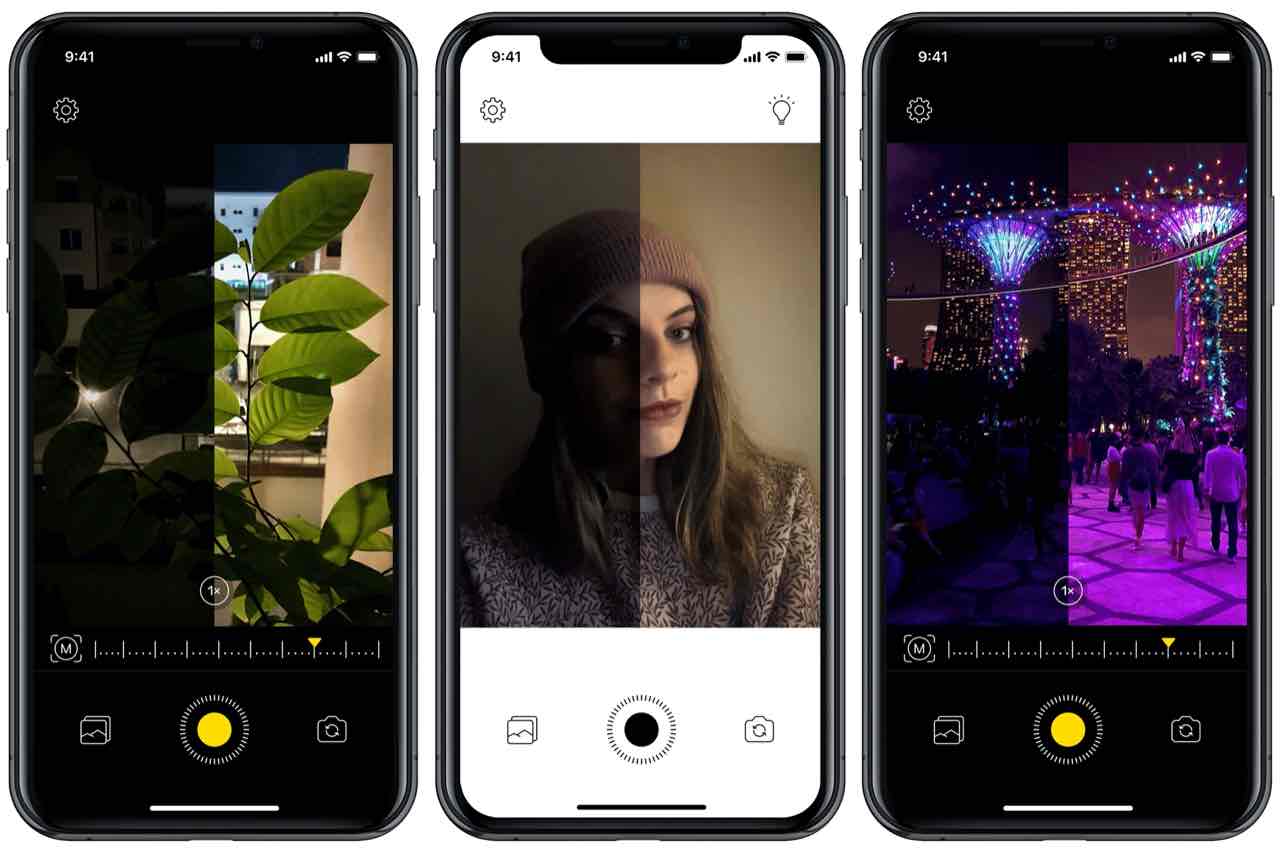
NeuralCam for iPhone
The App Store is home to so many different apps that can replace the options that are pre-installed on your iPhone. This includes the camera app, which uses Apple’s API’s to take advantage of the three different camera lenses and the A13 processor.
These are some of our favorite third-party options:
NeuralCam Pro ($4.99) – In many instances, NeuralCam Pro took better low-light photos than Apple’s stock Camera App. NeuralCam’s primary focus is to operate as your go-to app when trying to take Night Mode shots, and it provides fantastic images. Plus, it is compatible with iPhones going all the way back to the iPhone 6.
ProCam ($5.99) – ProCam 7 has been recently updated and can operate as your replacement Camera app. There are a slew of different Shooting Modes, including Burst, Portrait, 3D Photo, and Time Lapse. Of course, there’s also a dedicated Night Mode, but you may need to do a bit more tweaking in the app to get the best result.
Cortex Cam ($2.99) – While great for regular photos, Cortex Cam takes several photos at different exposures to help provide a noise-free low-light photo. Unlike NeuralCam or ProCam, you may still want to have a tripod nearby when using Cortex Cam to take those Night Mode pictures.
Since you can’t replace the stock Camera app on a system-level, you’ll still be “stuck” using Apple’s app when using the lock-screen shortcut. But a ll of these apps are more than capable of providing a great alternative to the Stock Camera app.
Conclusion
Regardless of whether you use a third-party app or if you use Apple’s own camera, the pictures you can take from your smartphone is impressive. Gone are the days where you need a DSLR to take professional-looking photos.
Sound off in the comments and let us know if you have any other tips for taking better Night Mode photos. Also, share some of your favorite pics that you have taken with nothing more than your iPhone!
Andrew Myrick is a freelance writer based on the East Coast of the US. He enjoys everything to do with technology, including tablets, smartphones, and everything in between. Perhaps his favorite past-time is having a never-ending supply of different keyboards and gaming handhelds that end up collecting more dust than the consoles that are being emulated.
I think everything is worded properly and it’s understandable, but I still get no internet connection and sitting right next to the modem or router. Don’t know what to do
Thanks for all the top for Apple update live being able to write in colors nit hsppy with screen distortion still have it
Will call Apple support once again








I think everything is worded properly and it’s understandable, but I still get no internet connection and sitting right next to the modem or router. Don’t know what to do
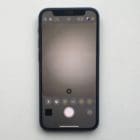
Camera mode on the iPhone 12 interferes with taking good pictures in low light
Thanks for all the top for Apple update live being able to write in colors nit hsppy with screen distortion still have it
Will call Apple support once again