It’s absolutely incredible how powerful the Mac has become in recent years. Apple’s lineup of computers has long been the go-to choice for students and creators alike, but outside of gaming, more and more people are switching to Apple than ever before. But at the end of the day, your experience relies on the apps that you use on a daily basis. Apple can only do so much from a software standpoint, and you might end up running into troublesome and problematic apps that just “act up” for one reason or another.
Thankfully, you don’t always need to just restart the Mac whenever an app is wreaking havoc on your computer. While this is a fine solution in some instances, it’s not the end-all-be-all solution, as Apple has implemented a Force Quit option within the operating system.
How To Force Quit Applications on the Mac
There are actually two different methods that you can use to safely force quit an app that is causing you problems. Opting to force quit applications is different from just quitting an app, which can be done using CMD + Q on your keyboard. But if there’s a stubborn app that just won’t quit, you can force quit it using the following keyboard combination:
Option + Command + Escape
Essentially, this is the same as the “Control + Alt + Delete” combination that Windows users take advantage of to bring up Task Manager. But since the Mac features different action keys, you can’t just use the same keyboard combination across the board.
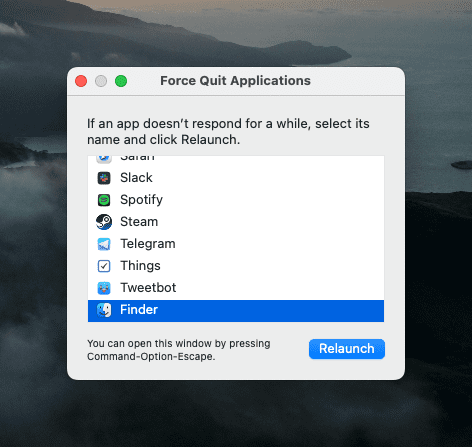
After clicking the combination above, you’ll be presented with the Force Quit dialog box. From here, highlight the app you need to close, and then click the Force Quit button.
Force Quit Applications From The Menu Bar
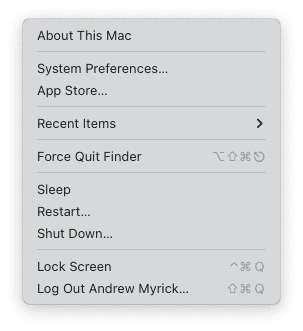
Even those who have used macOS for years can’t always remember the right combination of keys that are needed in order to force quit an application. Luckily, there’s another method that simply lives in your Menu Bar. Here’s how you can force quit applications on the Mac from the Menu Bar:
Click the Apple logo in the top left corner of your Menu Bar.
From the drop-down menu, select Force Quit…
Select the troublesome app from the list of open applications.
Click the Force Quit button in the bottom right corner.
As you might notice in the screenshot above, the “Force Quit” button may not always appear. When it comes to system apps, primarily Finder, you’ll instead see a Relaunch button. Again, this only applies to system apps, so it won’t appear on any third-party or even first-party apps that are open at any given time on your Mac.
Andrew Myrick is a freelance writer based on the East Coast of the US. He enjoys everything to do with technology, including tablets, smartphones, and everything in between. Perhaps his favorite past-time is having a never-ending supply of different keyboards and gaming handhelds that end up collecting more dust than the consoles that are being emulated.
Force quit is NOT working with photoshop. Everything is stuck. Photoshop was there once with the Force Quit from the apple logo, but is no longer there, however, photoshop is still on the screen and nothing happens with any of the commands.













Force quit is NOT working with photoshop. Everything is stuck. Photoshop was there once with the Force Quit from the apple logo, but is no longer there, however, photoshop is still on the screen and nothing happens with any of the commands.
HELP