• Skip to primary navigation
  • Skip to main content
  • Skip to primary sidebar
  • Skip to footer

AppleToolBox

Tools and Fixes for Mac, iPad, iPhone & iWatch

Search posts

  • About
  • Contact

CONNECT WITH US

CATEGORIES

  • iPhone
  • iPad
  • iPod
  • Apple Watch
  • Mac/MacBook
  • AirPods
  • Apple TV
  • News
  • Apple Services
  • HomePod
  • Reviews

SITE

  • Home
  • About Us
  • Contact
  • Advertise

Search posts

You are here: Home / Apple Watch / How to Get PC Notification on an Apple Watch

How to Get PC Notification on an Apple Watch

By Louis Roundtree 0 comments Last updated July 30, 2025

Things to Know
  • Sending PC notifications from a PC to an Apple Watch is possible, but only in limited ways.
  • You can use certain Microsoft apps on your iPhone to receive push messages on your Watch.
  • Mac users can disable notifications on their iPhone and send certain app messages to the Watch only.
  • Phone Link syncing allows Windows users to have iMessages on both their PC and their Watch.

Apple and Microsoft occasionally don’t play well together, and today’s topic is a prime example of this. If you’re wondering how to get your PC (Windows or Mac) to display notifications on your Apple Watch, we’ve got the answers. The solutions might not be the smoothest, but they should allow for some functionality between your two devices.

Contents

  • Getting PC Notifications on an Apple Watch
    • Microsoft Apps
    • Bypass the iPhone (Mac)
    • Phone Link (Windows)

Getting PC Notifications on an Apple Watch

There are a few ways to get push notifications on your Apple Watch, either from your PC or the Microsoft apps installed on it. Let’s get started:

Microsoft Apps

Certain Microsoft apps, like Outlook and To Do, are supported by both Windows and iOS. This allows for notifications to be sent to your Apple Watch without too much difficulty. For this to work, however, you’ll also need to have the Microsoft app installed on your iPhone and be signed in to your Microsoft account. Here’s what to do:

Step 1. Open up Settings on your iPhone and scroll down to “Notifications.”

How to Get PC Notification on an Apple Watch 1

Step 2. Scroll down to your Microsoft app and tap it.

How to Get PC Notification on an Apple Watch 2

Step 3. Under the “Alerts” subsection, ensure that “Banners” is enabled at least.

How to Get PC Notification on an Apple Watch 3

Step 4. Drag the “Sounds” slider to “On.”

Next, go to the Watch app and do the following:

Step 1. Navigate to “Notifications.”

How to Get PC Notification on an Apple Watch 4

Step 2. Ensure your app is set to send notifications by dragging its slider to “On.”

How to Get PC Notification on an Apple Watch 5

Your Apple Watch should now receive any notifications from the app.

Bypass the iPhone (Mac)

If you have an Mac and are looking to receive notifications from your PC, but not necessarily your iPhone, then you can disable mirroring and receive notifications from your PC directly instead. Here’s how:

Step 1. Open up the Watch app on your iPhone and navigate to “Notifications.”

Step 2. Find the app you’d like to de-link and tap it.

Step 3. Tap the “Custom” option instead of the “Mirror my iPhone.”

Step 4. Select “Allow Notifications” below this.

To disable app notifications on your iPhone:

Step 1. Open Settings and navigate to “Notifications.”

Step 2. Tap the app in question and drag the “Allow Notifications” slider to “Off.”

From here on, you’ll only receive the app’s messages on your Apple Watch and not your iPhone.

Phone Link (Windows)

The Phone Link app allows for the limited sharing of calls and messages between your iPhone and your Windows PC. iMessage can be used to sync messages from your PC to your watch. Here’s what to do:

Step 1. Open Phone Link via the search bar.

Step 2. Choose the “iPhone” option on the welcome screen.

How to Get PC Notification on an Apple Watch 6

Step 3. Ensure your PC Bluetooth is enabled.

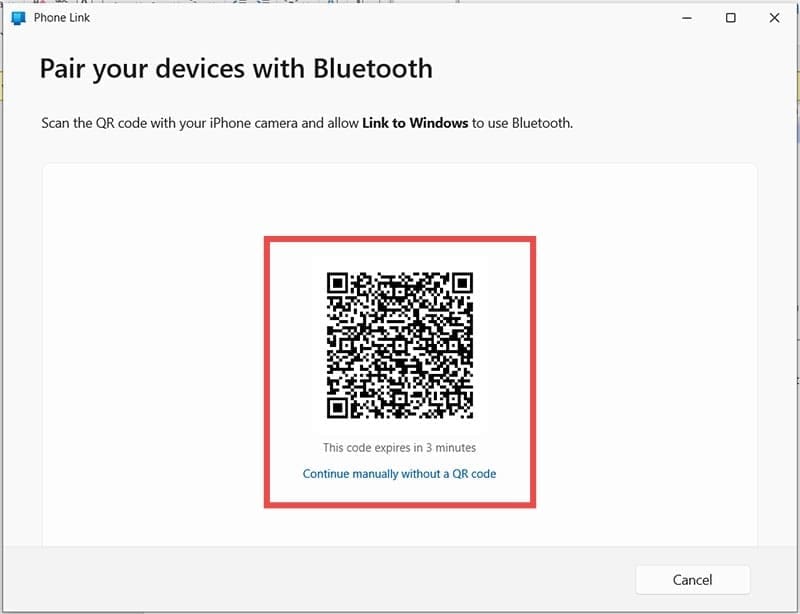
Step 4. Scan the QR code that pops up with your iPhone.

How to Get PC Notification on an Apple Watch 7

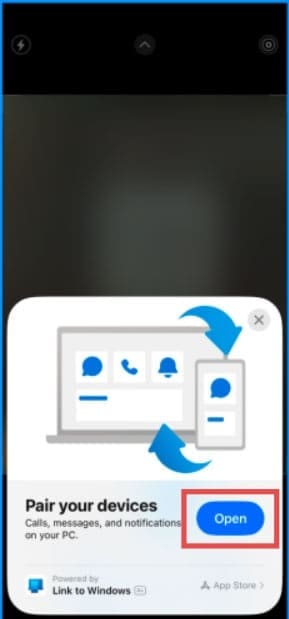
Step 5. Press “Open” to begin the pairing process.

How to Get PC Notification on an Apple Watch 8

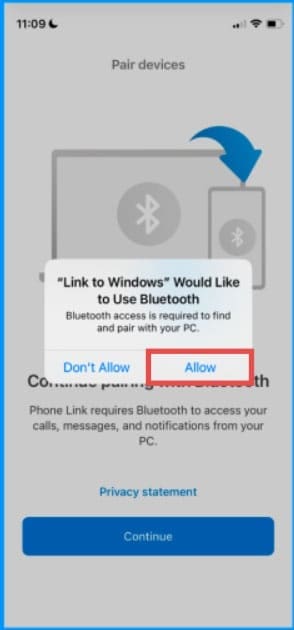
Step 6. Enable Bluetooth and accept the privacy statement on your iPhone.

How to Get PC Notification on an Apple Watch 9

Step 7. On the PC, you’ll see a verification code appear. Input this into your iPhone, click “Pair,” and the devices will start syncing.

How to Get PC Notification on an Apple Watch 10

Phone Link will now run with your iPhone and be accessible via your system tray. Your iMessage will be paired too, and new messages will be shown on your PC. iMessage push notifications should also be received on your Apple Watch. If necessary, check the Notification settings of the app in your iPhone’s settings.

Related Posts:

  • New Outlook for Mac 7 Best Features You Should Know
    New Outlook for Mac: 7 Best Features You Should Know
  • How to Fix Attachments Not Showing in Outlook for Mac
    How to Fix Attachments Not Showing in Outlook for Mac
  • How to Switch From New Outlook to Old on Mac 4 Best Steps
    How to Switch from New Outlook to Old on Mac: 4 Steps
  • How to Fix Verifying Microsoft Outlook Mac Stuck Error 11 Best Methods
    How to Fix Verifying Microsoft Outlook Mac Stuck…
  • Games coming to macOS Sonoma
    How to Play Windows Games on Mac
  • 2023 Mac Studio lifestyle - 1
    macOS Could Not Be Installed, How-To Fix
  • 2022 Mac Mini with Studio Display and Accessories
    Mac Tips For New Users In 2023
  • sidecar on iPadOS and macOS
    Sidecar not working in iPadOS and macOS? How to fix…
  • outlook iphone outage
    Outlook Outage 2026: iPhone Fixes for Sign-In Chaos
Louis Roundtree
Louis Roundtree

As an avid gamer, I’ve run into my fair share of error codes and weird faults that have forced me to find fixes to problems I never anticipated. That gave me a passion for sharing those fixes with others so we can all game without feeling like our hardware is rebelling against us.

Reader Interactions

Write a Comment Cancel reply

Primary Sidebar

Recent Posts

  • How to Manage Your iPhone Call Log
  • Are Apple’s Safety Precautions Enough for AirTags?
  • How to Hide Username and Photo on the Mac Lock Screen
  • Microsoft Resume vs. Apple Handoff – Which Wins for Cross-Device Work?
  • How to Export iTunes Library to New Computer
  • What the Gemini Desktop App Will Bring to Mac

Connect with us

Footer

ABOUT

  • About Us
  • Contact us
  • Advertise
  • Privacy
  • Terms of Use

GUIDES

  • iOS & iPadOS
  • Apple ID
  • iCloud
  • App Store
  • iTunes
  • FaceTime
  • iMessage
  • Siri
  • Books and iBooks
  • Game Center
  • AirPlay

CONNECT

  • Facebook
  • Twitter
  • FeedBurner
  • YouTube

© Copyright 2010-2024 Guiding Tech Media · All Rights Reserved

This site and its content are in no way affiliated or endorsed by Apple, Inc. · Reproduction without explicit permission is prohibited

Last Updated on July 31, 2025 by Louis Roundtree