Ever since Apple announced iOS 15 and gave developers access to the beta, Safari has had quite a roller-coaster experience. Apple attempts to change the way we use the mobile browser, but the changes have not been well-received. But there is a new feature available that extends the functionality of Safari.
Pretty much everyone is likely familiar with browser extensions and what they are. But if not, they are downloadable add-ons that improve and increase the functionality of their browsers.
And with iOS 15 and iPadOS 15, Apple is bringing the ability to install extensions. Technically, this was already possible with iOS 14, but Apple is hoping to expand things this year. Previously, the only “extensions” you could download and use were content blockers. While that largely remains true right now, the goal is to have extensions turn into an entire ecosystem in the App Store.
How To Install Safari Extensions on iPhone and iPad
If you want to test out some Safari Extensions for yourself, then you’ll need to actually download them. However, it’s not exactly like you can just fire up the App Store and install them like you do every other app. Here’s how to install Safari Extensions on iPhone and iPad:
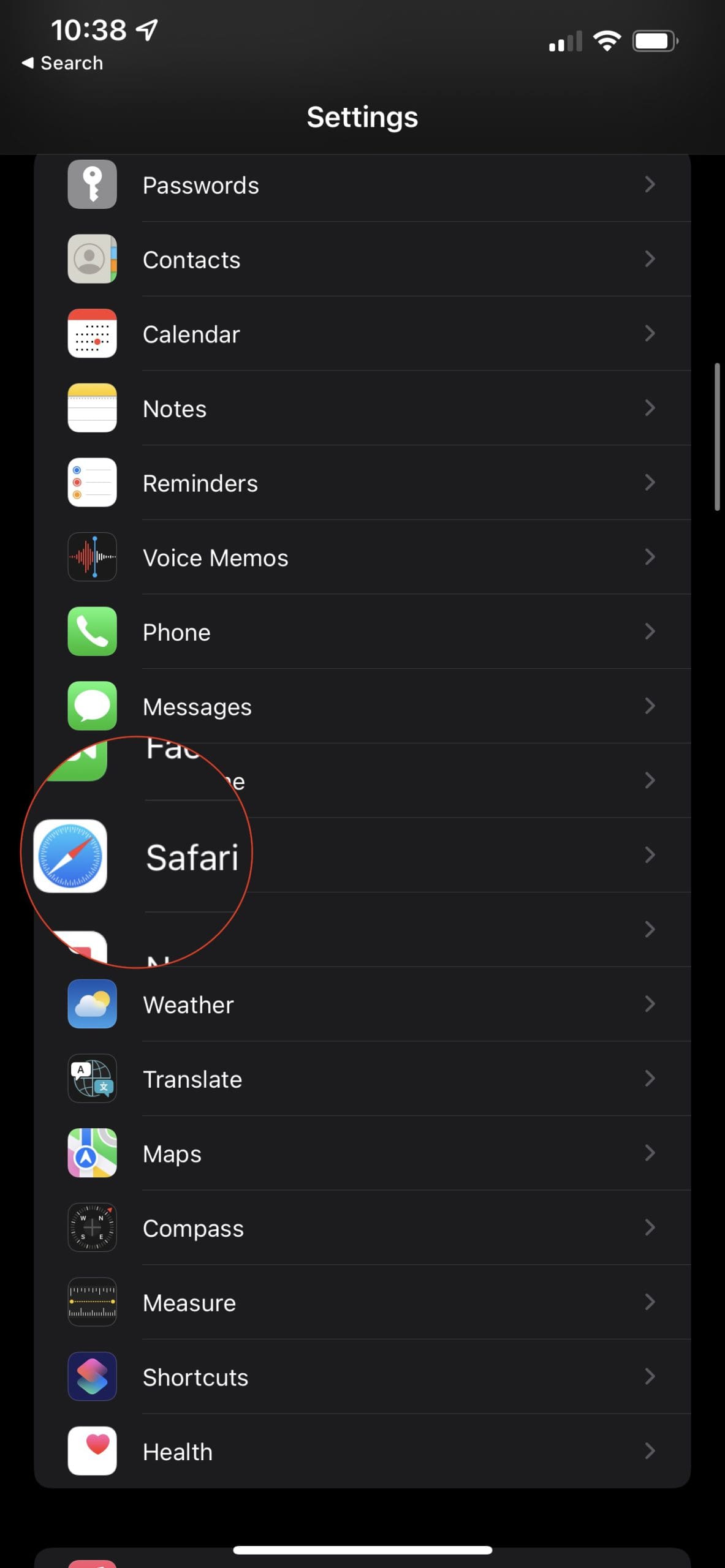
Open the Settings app on your iPhone or iPad.
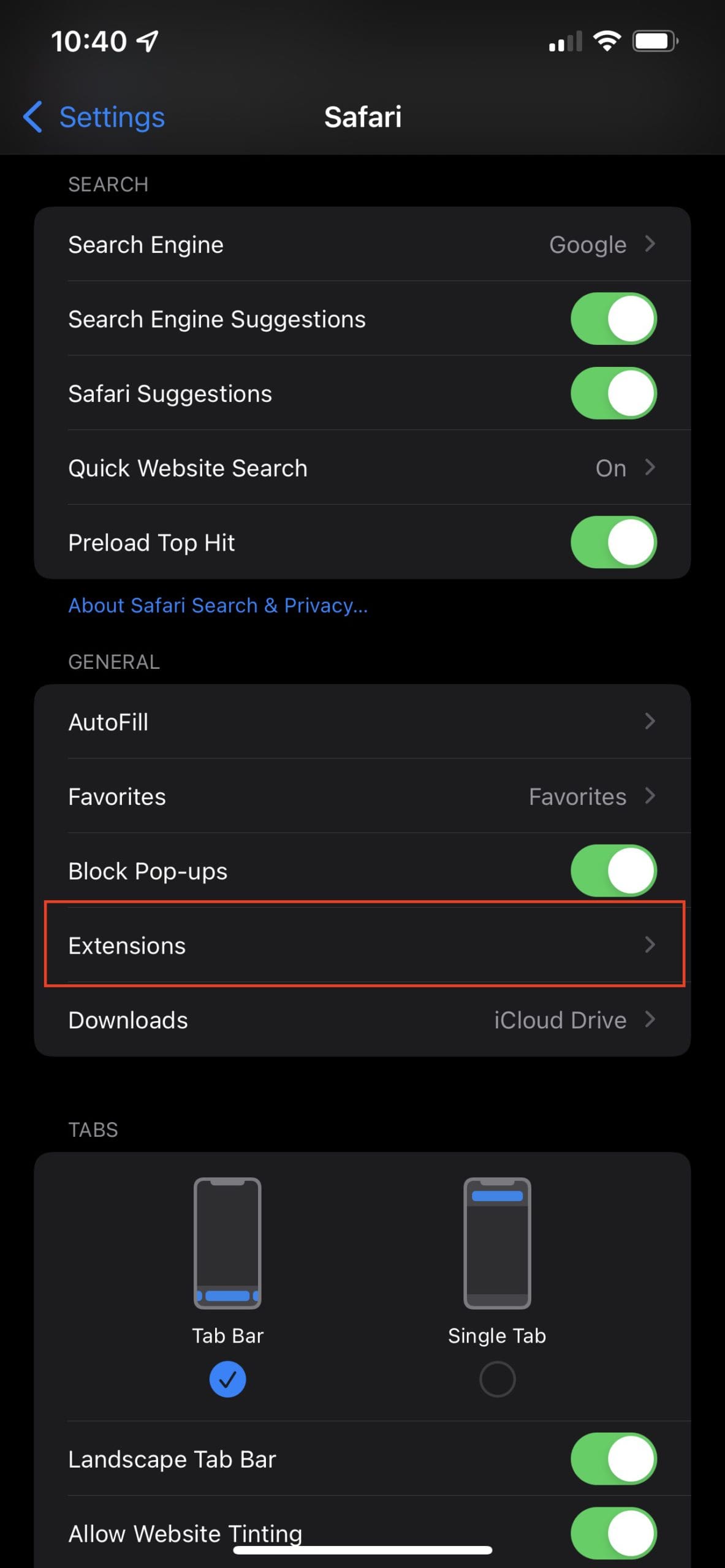
Scroll down and tap Safari.
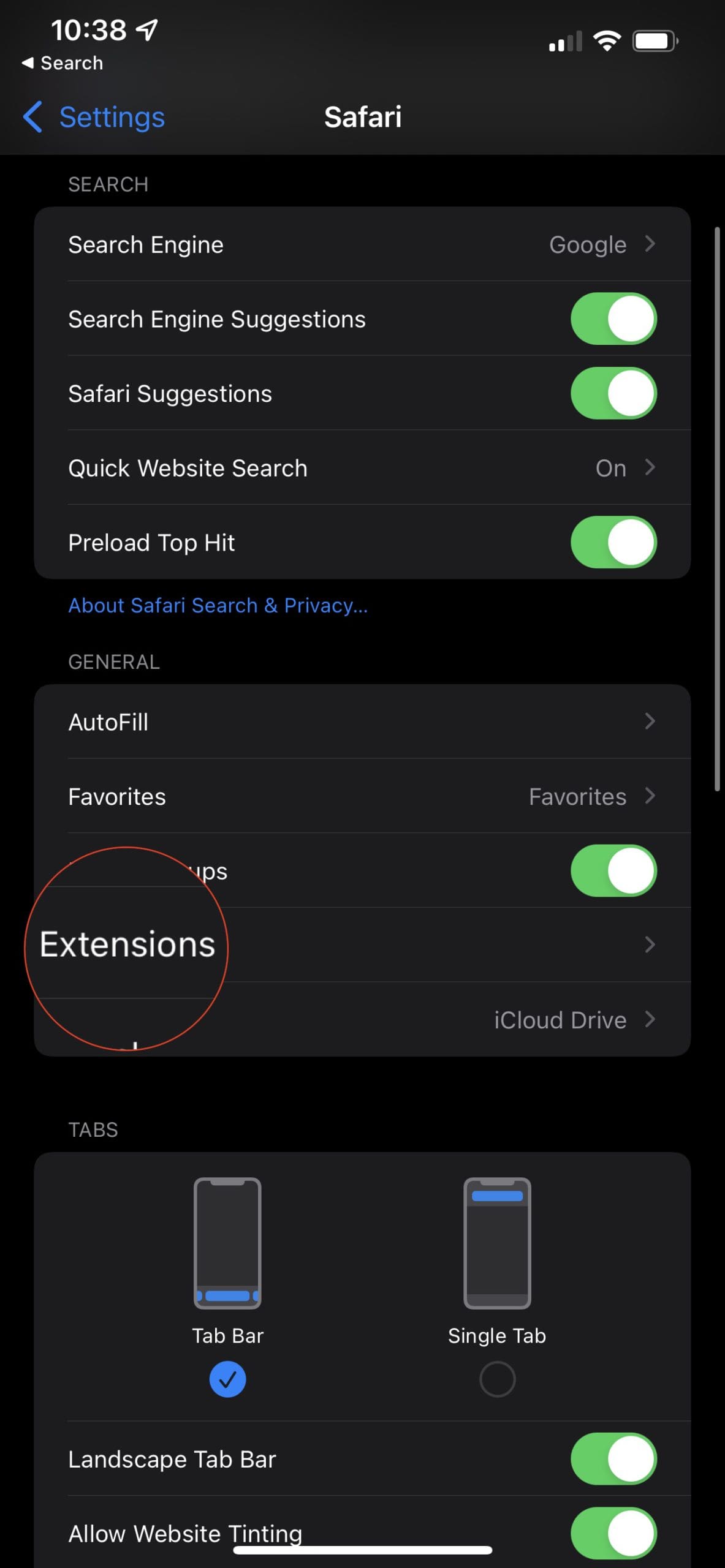
Under General, select Extensions.
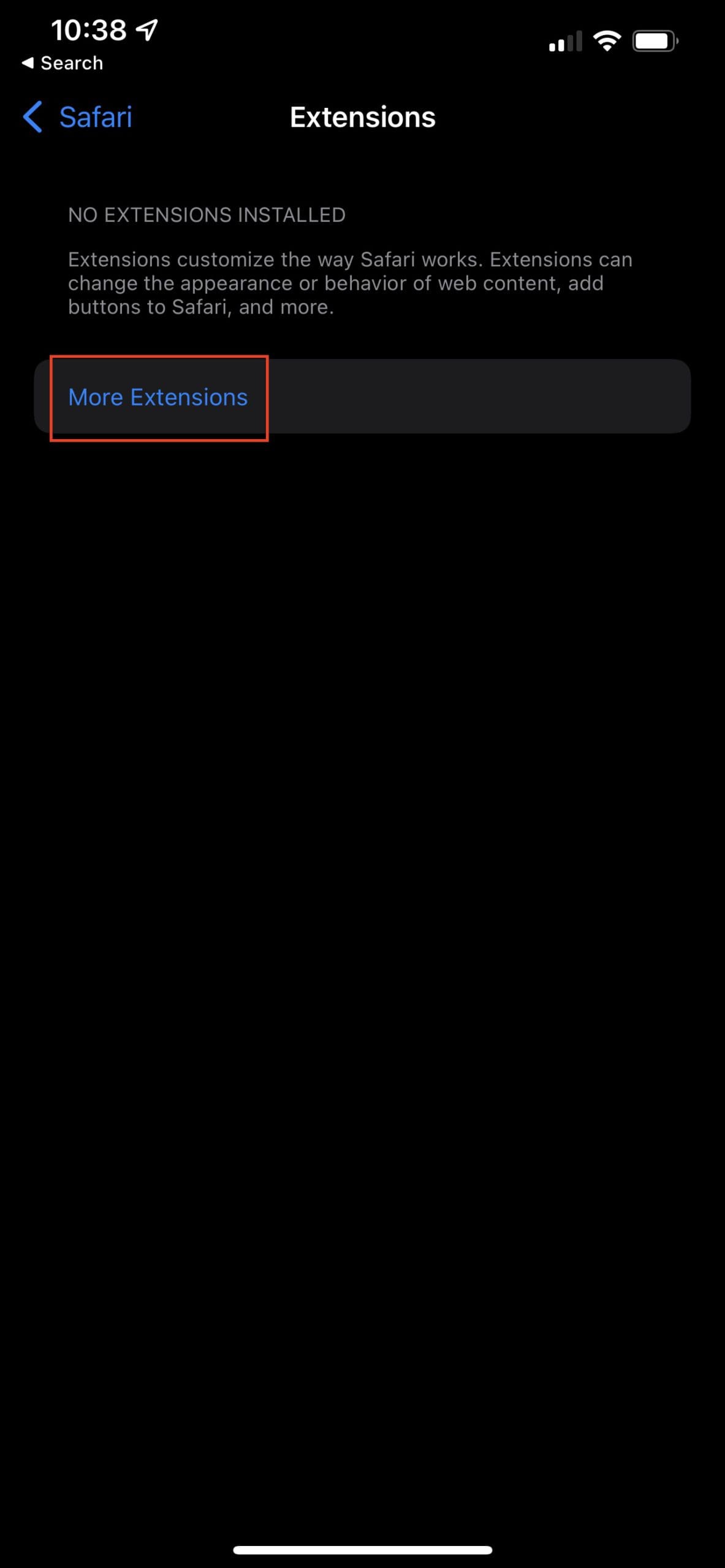
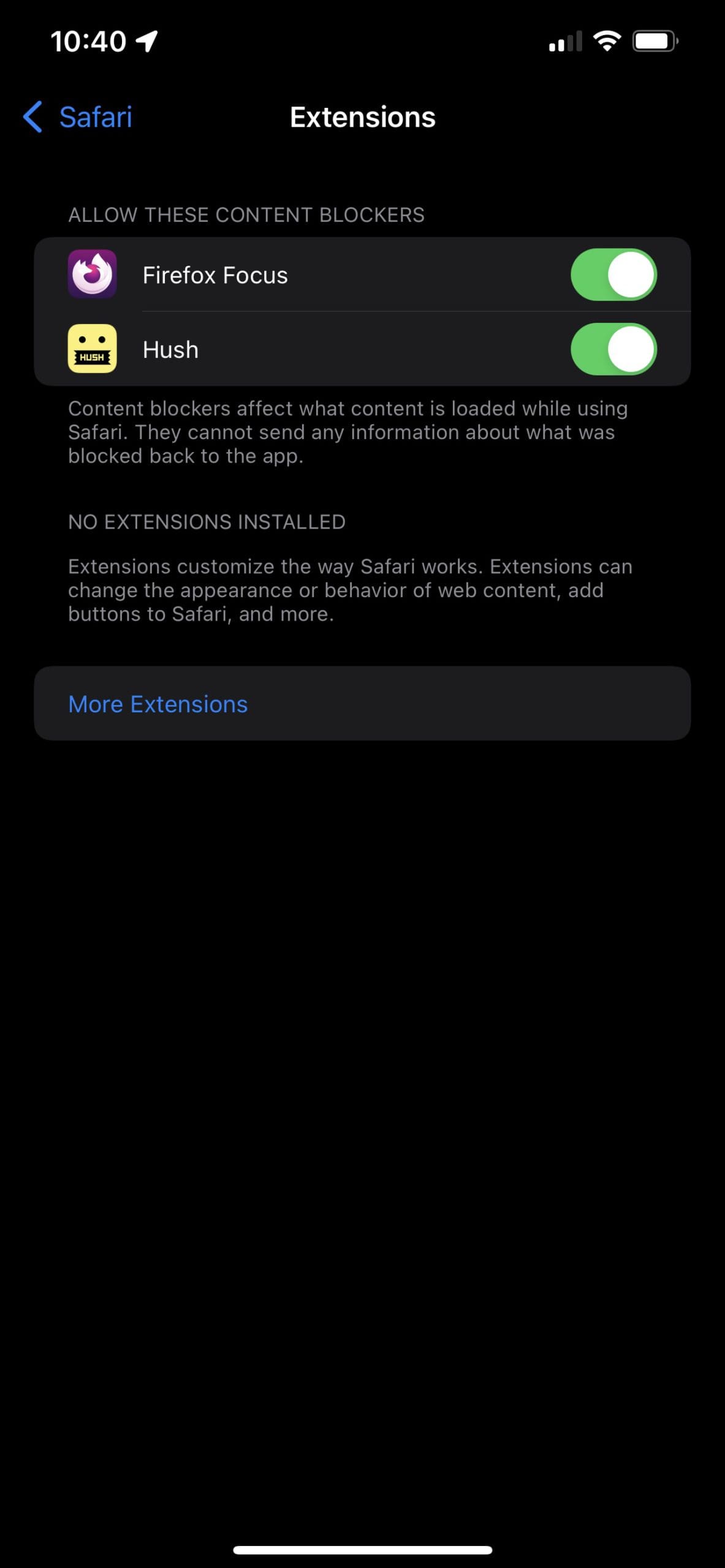
Tap More Extensions.
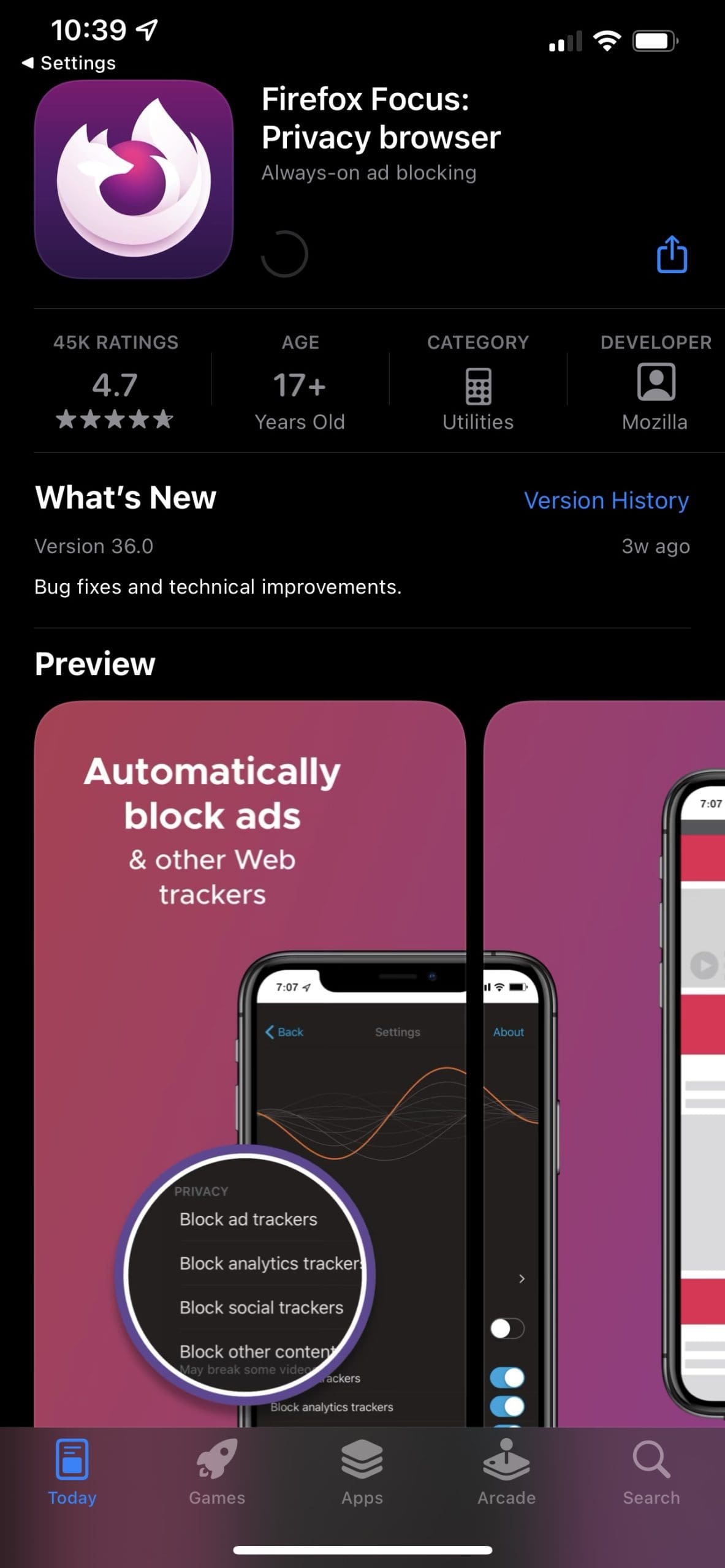
Locate an extension that you want to download.
Follow the prompts from the App Store to download and install Safari extensions.
Once the extension is finished downloading, then you can start tinkering around and getting everything set up. Whether it’s signing into your accounts, or setting up the different types of ads, you’re free to do just that.
How To Use Safari Extensions on iPhone and iPad
Now that you’ve installed one or two Safari Extensions, you can use it. Once everything has been enabled, here’s how you can use Safari Extensions on the iPhone and iPad:
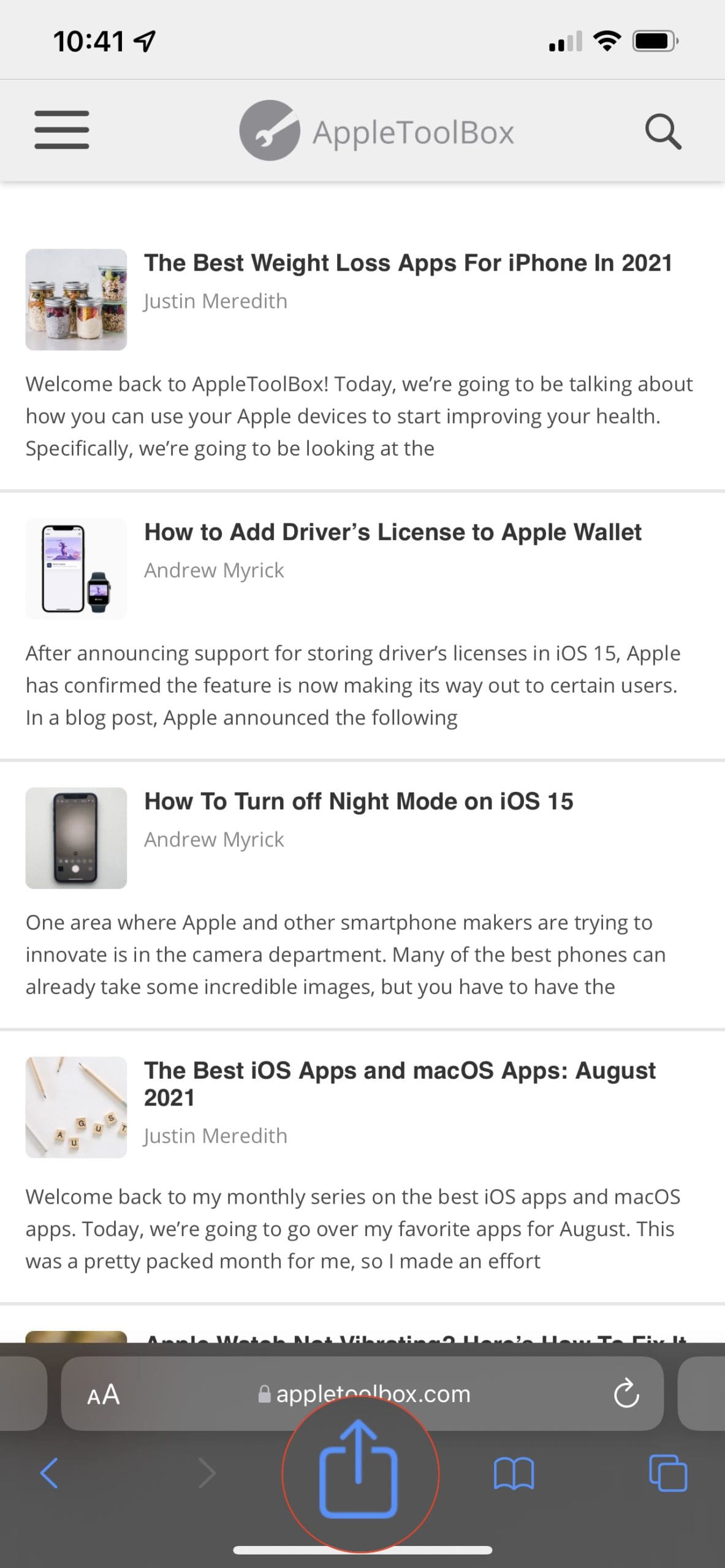
Open Safari on your iPhone or iPad.
On the iPad, tap the Share icon in the top toolbar.
If using the iPhone, tap the three dot icon in the toolbar and then select Share.
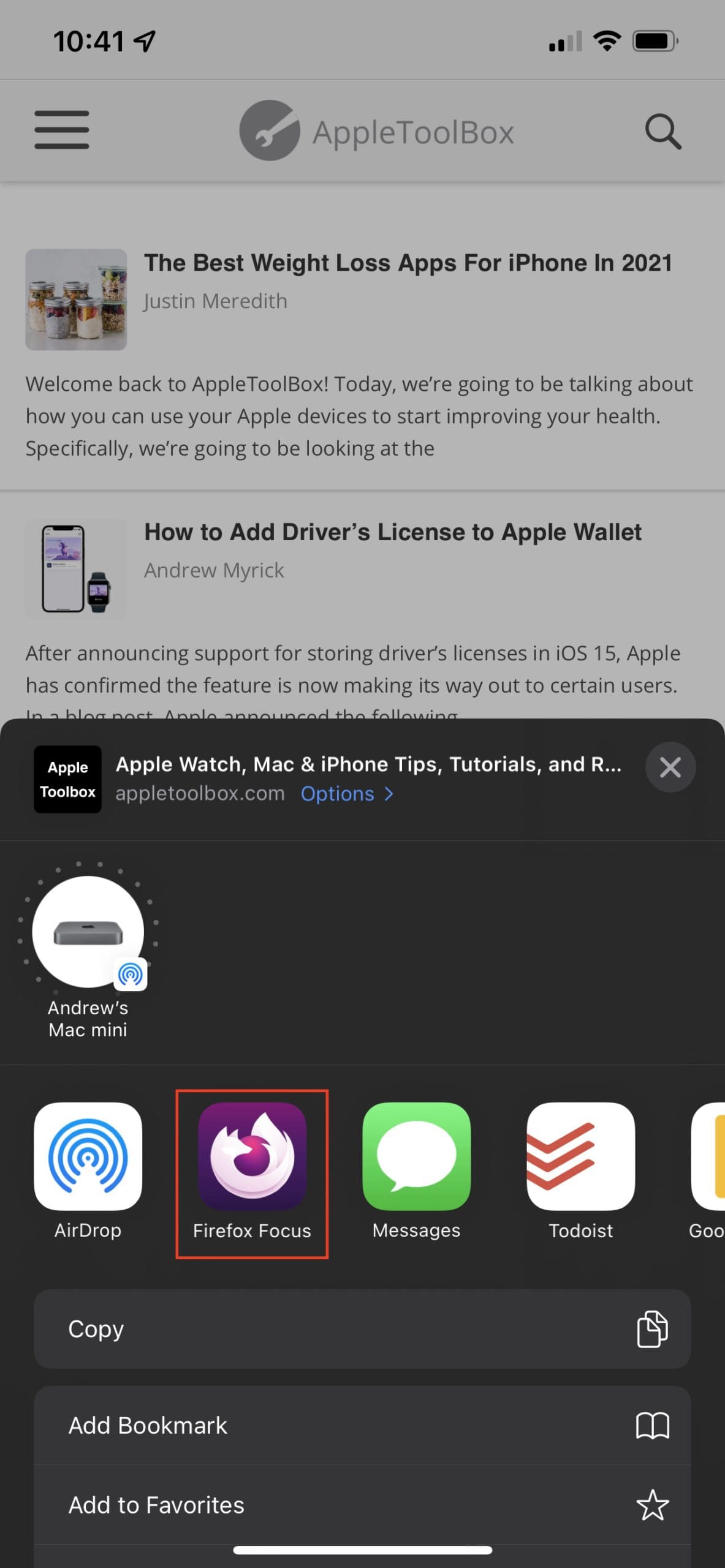
Scroll through the list of actions and tap the extension.
In the event that you can’t find your extension in your list of Actions, you’ll need to add it. This can be done by opening the Share menu, scrolling down, and tapping Edit Actions… From here, locate your extension in the list and tap the toggle next to it. Now it will appear in your Share Sheet menu.
How To Delete Safari Extensions on iPhone and iPad
Sometimes you come across a different tool that gets the job done better than the old one. In that case, you’ll want to delete the Safari extension from your iPhone and iPad. However, before you just simply go deleting things, you’ll first want to turn off the functionality.
Open the Settings app on your iPhone or iPad.
Scroll down and tap Safari.
Under General, select Extensions.
Tap the toggle next to all of the features provided by your installed Extensions.
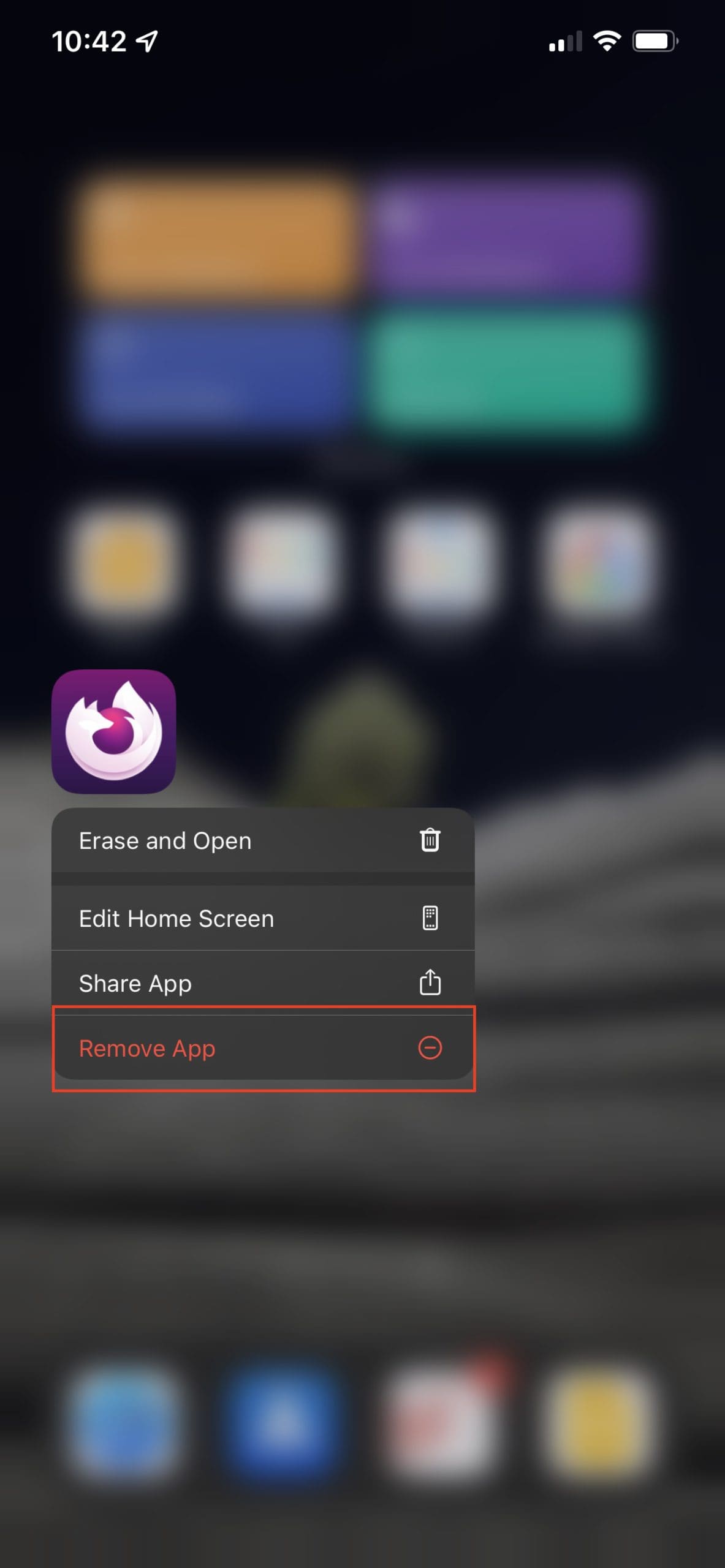
Most Safari Extensions have an accompanying app that includes a traditional app icon. If you want to remove it completely, make sure you follow the steps above, but then you can delete the app just like you would any other app.
Some of Our Favorites
If you’re a little unsure of where to start, we understand as there are quite a few great extensions already available. But we’ve rounded up some of our favorites so you can get an idea of what is possible.
AdGuard – Free w/ in-app purchase: AdGuard is an ultra-efficient ad blocker for Safari. It will not only remove annoying ads but also secure your privacy with advanced tracking protection.
Pocket – Free / $4.99 (Premium): Use Pocket to capture the content that comes at you all day long, and curate your own space filled with only the topics you care about.
Mailo – $2.99: Mailo makes it faster and easier to send your self emails for reminders, notes, and links to read later.
Grammarly – Free w/ in-app purchase: Whether you’re tapping out a quick email or writing up a long report, Grammarly’s real-time writing feedback will help you make sure your work is tip-top.
Those are just some of our favorite extensions for Safari on iPhone and iPad. Let us know in the comments below if there’s something that we missed, or a new extension that we should check out!
Andrew Myrick is a freelance writer based on the East Coast of the US. He enjoys everything to do with technology, including tablets, smartphones, and everything in between. Perhaps his favorite past-time is having a never-ending supply of different keyboards and gaming handhelds that end up collecting more dust than the consoles that are being emulated.













Write a Comment