• Skip to primary navigation
  • Skip to main content
  • Skip to primary sidebar
  • Skip to footer

AppleToolBox

Tools and Fixes for Mac, iPad, iPhone & iWatch

Search posts

  • About
  • Contact

CONNECT WITH US

CATEGORIES

  • iPhone
  • iPad
  • iPod
  • Apple Watch
  • Mac/MacBook
  • AirPods
  • Apple TV
  • News
  • Apple Services
  • HomePod
  • Reviews

SITE

  • Home
  • About Us
  • Contact
  • Advertise

Search posts

You are here: Home / Apple Services / How to Join FaceTime Calls on Your Android or Windows Device

How to Join FaceTime Calls on Your Android or Windows Device

By Louis Roundtree 0 comments Last updated May 16, 2025

Things to Know
  • FaceTime can include users of Android and Windows devices, though not as seamlessly as you might like.
  • Chromium browsers allow these users to join (but not start) FaceTime calls.
  • Send a link to Windows and Android devices, and they’ll be able to join a FaceTime session.

FaceTime is one of the easiest (not to mention most popular) ways to chat via video call. What happens, though, if you want to include a friend or family member whose phone or PC is outside the Apple ecosystem?

Not to worry. Even though there are a few extra steps involved, it’s still very possible to join FaceTime on Android or Windows device and get in on the fun. This article will show you how to connect both.

Contents

  • Chromium Browsers to the Rescue
  • Join FaceTime on Android, Join FaceTime on Windows
    • Starting FaceTime
    • Joining FaceTime on Android
    • Joining FaceTime on Windows
  • Life Outside the Ecosystem

Chromium Browsers to the Rescue

You might be forgiven for thinking FaceTime is restricted to Apple devices only. The Apple ecosystem has a long history of not communicating well with Android, Windows, and Linux. This is slowly starting to change, and even though the functionality is limited, better communication is possible.

Case in point, FaceTime.

Thanks to the new technology behind Chromium browsers, such as Google Chrome and Microsoft Edge, you can now join FaceTime on Windows or Android. While they can’t begin a FaceTime call, they can still connect via a link that an Apple user sends them. In addition to the link, the user only needs a fully updated Chromium browser and a steady Wi-Fi connection to join in.

Join FaceTime on Android, Join FaceTime on Windows

Before you can connect to FaceTime on Android or Windows, you’ll need to create the call and its link on an Apple device:

Starting FaceTime

To start your FaceTime call on your Apple device, here’s what to do:

Step 1. Open up the app, and tap the “Create Link” button.

How to Join FaceTime Calls on Your Android or Windows Device 1

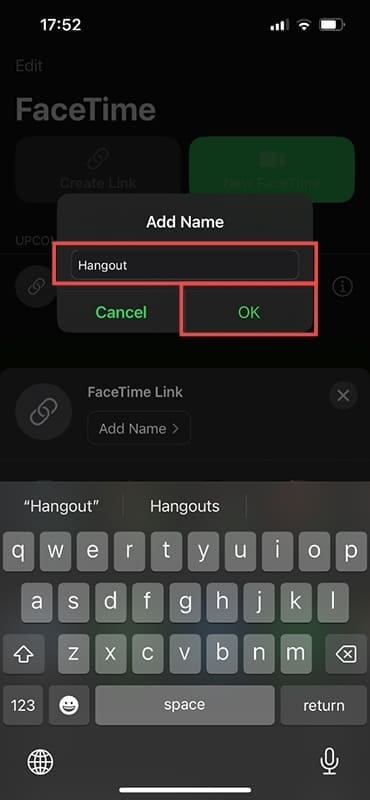
Step 2. A new sheet will slide up from the bottom. Tap “Add Name” to enter a name for this call.

Step 3. Hit the “OK” button once done.

How to Join FaceTime Calls on Your Android or Windows Device 2

Step 4. You’ll see a list of potential contacts to add, including different ways (and apps) to send the link. Share it however you want.

How to Join FaceTime Calls on Your Android or Windows Device 3

Step 5. Tap on the FaceTime link to join the conversation. Tap the “Join” button.

How to Join FaceTime Calls on Your Android or Windows Device 4

Step 6. Wait for your guests to arrive.

Joining FaceTime on Android

To join the video call on Android, here’s what to do:

Step 1. Tap the link sent to you by the Apple user.

Step 2. From the list of apps, choose a Chromium browser (Chrome, Edge, Brave, or Opera) to open the link. Firefox won’t work.

Step 3. Enter your name into the chat and wait to be let in by the user.

Joining FaceTime on Windows

For Windows, the steps are quite similar. Here’s what you need to do:

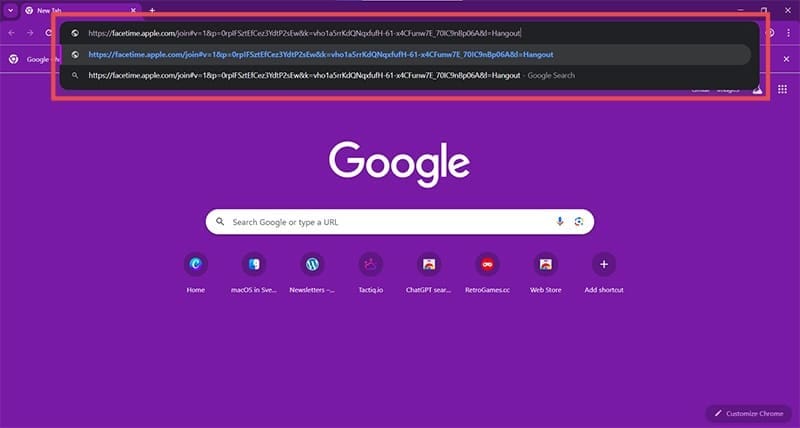
Step 1. Click on the link received from the Apple user. You can also copy and paste it.

Step 2. Use your Chromium browser (Chrome, Edge, Brave, or Opera) to open the link.

How to Join FaceTime Calls on Your Android or Windows Device 5

Step 3. You’ll be taken to the chat. Enter your name, hit “Continue,” and wait for the Apple user to let you in.

How to Join FaceTime Calls on Your Android or Windows Device 6

Life Outside the Ecosystem

If you’re looking for smoother, app-based ways to connect that go beyond FaceTime, then don’t worry, there are plenty of options to choose from. Apps like Zoom, Microsoft Teams, Google Meet, and more not only run on all three ecosystems but can seamlessly communicate with each other.

If you’re in regular contact with users outside the Apple ecosystem, then consider downloading and using one of these. You can always FaceTime with your Apple friends.

Related Posts:

  • two people calling on facetime
    Group Facetime Not Working? Here's How You Can Fix It
  • pexels-tranmautritam-326508
    The Best Apple Ecosystem Features
  • How to use ChatGPT on iPhone and iPad - Hero
    How to Use ChatGPT on iPhone and iPad
  • how to sync data from other browsers to safari
    How to Sync Data From Other Browsers to Safari
  • Photo of an iPhone being taken out of its box
    How To Use Dual SIM and eSIM on Your iPhone
  • pexels-cottonbro-5082579
    Getting Started With iOS 15: Everything Good And Bad
  • How to Install Windows 11 on Mac
    Want iMessage on Your Windows PC? How-To
  • pexels-tranmautritam-696899
    iPhone Tips for New Users In 2023
  • How to Use AirPods Max With Android Hero
    How To Use iMessage on Android
Louis Roundtree
Louis Roundtree

As an avid gamer, I’ve run into my fair share of error codes and weird faults that have forced me to find fixes to problems I never anticipated. That gave me a passion for sharing those fixes with others so we can all game without feeling like our hardware is rebelling against us.

Reader Interactions

Write a Comment Cancel reply

Primary Sidebar

Recent Posts

  • How to Hide Username and Photo on the Mac Lock Screen
  • Microsoft Resume vs. Apple Handoff – Which Wins for Cross-Device Work?
  • How to Export iTunes Library to New Computer
  • What the Gemini Desktop App Will Bring to Mac
  • What to Do When Windows 11 Won’t Detect Your iPad
  • Outlook Outage 2026: iPhone Fixes for Sign-In Chaos

Connect with us

Footer

ABOUT

  • About Us
  • Contact us
  • Advertise
  • Privacy
  • Terms of Use

GUIDES

  • iOS & iPadOS
  • Apple ID
  • iCloud
  • App Store
  • iTunes
  • FaceTime
  • iMessage
  • Siri
  • Books and iBooks
  • Game Center
  • AirPlay

CONNECT

  • Facebook
  • Twitter
  • FeedBurner
  • YouTube

© Copyright 2010-2024 Guiding Tech Media · All Rights Reserved

This site and its content are in no way affiliated or endorsed by Apple, Inc. · Reproduction without explicit permission is prohibited

Last Updated on May 18, 2025 by Louis Roundtree