When you keep your Apple Notes notes organized, they are easier to find. You won’t waste time looking for a note in the sea of notes you may have created. You can follow various tips to keep your Apple Notes organized for an easy find. You can do things such as move already existing notes to a new folder with the same subject, or you can erase folders you don’t need anymore. Keep reading to see all the tips you can follow to help you find your notes faster and give your Apple Notes app a cleaner look.
Keep Your Apple Notes Organized: Move Notes to Another Folder
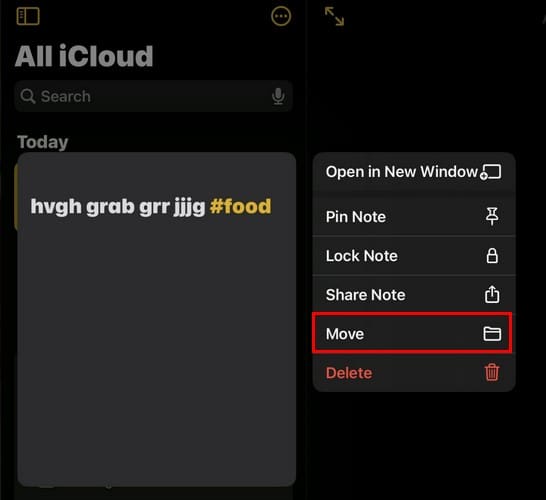
Putting your notes in the correct folder is essential to find them faster. For example, If you have a note about a recipe but it’s in a folder called Upcoming Vacation, there is a good chance you’re having a hard time finding it. If you need to move a note, locate the note and long-press on it. A list of options will appear, and the Move option will be one of them.
Now, you must choose what folder you want to put the note in. You can choose from existing folders or tap on the New Folder option. If you create a folder, name it and tap on Save. The note will be added to the new folder automatically, and the new folder will appear in the list of existing folders.
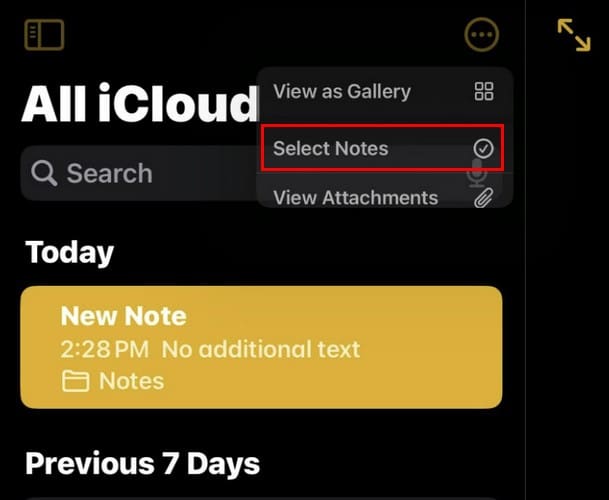
But what if you need to move multiple notes? Whether on your iPhone or iPad, tap on the dots at the top and choose Select Notes.
Select the notes you want to move, and if you want to keep track of how many notes you’re moving, the app will show you how many at the top. Once you’ve chosen all the notes, tap the Move button at the bottom left. But you’ll also see the Delete option if you want to clean up a bit. You can choose from existing folders or create a new one when moving your notes.
Keep Your Apple Notes Organized by Creating Folders
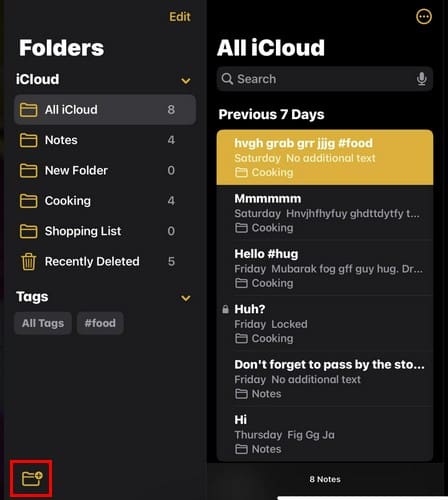
Your notes will be easier to find if you have them in a folder. To create a folder, tap the folder icon at the bottom left. If you don’t see it, tap on the sidebar icon at the top right, and you should see the folder icon. You’ll need to name your folder, and once you have, tap the Done button at the top right.
Erase, Rename, Move, and Share a Folder
If it’s time for a folder to go, you can erase one by long-pressing on it and tapping the Delete option. By performing the same action, you can also rename the folder if you think a different name is better.
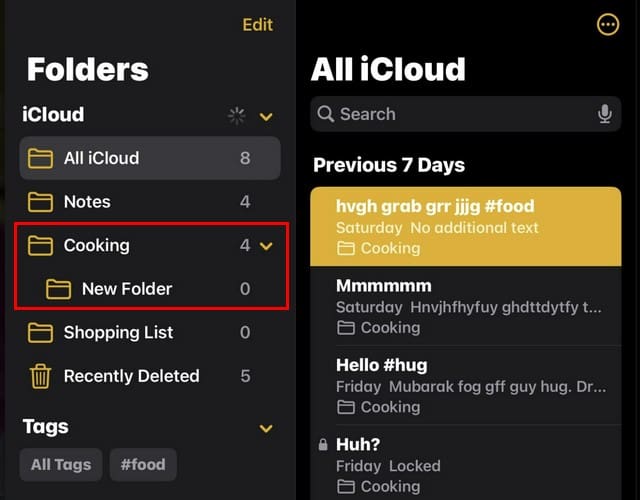
You can move one folder and turn it into a sub-folder by choosing the move option. For example, you can have one folder called Party Plans and another sub-folder called Guest List. When you create a sub-folder, you’ll know which folders have them since they now have an arrow beside them.
Tap the arrow to see all the sub-folders that a specific folder has. To remove that sub-folder, long-press on the folder and drag it out of there. If you see a prohibited icon beside the folder as you move it, you can’t place it there and must choose a new location.
The last option you’ll see is Share. When you choose this option, you can share the folder using apps installed on your device.
Keep Your Apple Notes Organized by Pinning Your Notes
You can easily pin your notes by long-pressing on them and choosing the Pin Note option. When you long-pres son the note, you can also choose from other options such as:
Open in a new window
Lock Note
Share Note
Move (To a new folder)
Delete
When you lock a note, you must enter the passcode for your iPhone, Mac, or iPad.
Search for Your Notes Using Your Voice
You can search for your notes by typing or tapping on the mic icon and saying the name of the note. Also, when you tap/click the search bar, you’ll see options to search for notes by:
Shares Notes
Locked Notes
Notes with Checklist
Notes with Tags
Notes with drawings
Notes with Scanned Documents
Notes with Attachments
Keep Your Apple Notes Organized By Adding Tags
You can easily find all the notes with that tag by using tags. For example, you want to create various notes for the upcoming party. So, as you create your notes, you add the tag party, so the next time you tap on the search bar and select the tag option, all the notes with that tag will appear.
To add a tag to your Apple Notes, add the # symbol followed by one word. But if the tag needs to be longer, you can add underscores, hyphens, or numbers to make it longer. You can add the tag in the title or the note’s body. You can add the tags to new or existing folders.
Rename or Delete the Tags
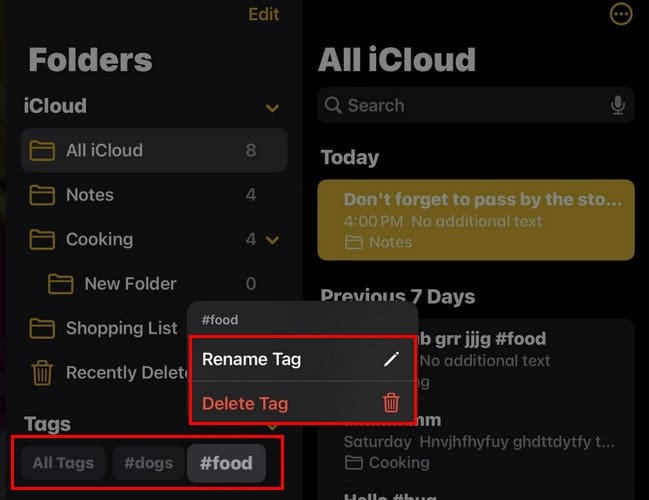
When changing your tags, ensure you see the sidebar where the folders are listed. At the bottom, locate the tag you want to change and long-press on it.
You’ll see the tag’s name at the top, followed by options to Rename or delete it. Confirm your choice, and the changes will be applied. Tags are a great way to keep all your related notes together and not waste time looking for them individually.
When you have your Apple Notes in the right place, it makes everything easier. Also, when you know the tips and tricks Apple Notes has to offer, you’re not as tempted to install a third-party app on your device. What do you do to keep your Apple Notes organized? Share your thoughts in the comments below, and don’t forget to share the article with others on social media.
I am a tech geek who loves technology. I have been writing about tech for over a decade, covering various devices and programs. I write about the latest Apple products and services and never go far without my Apple devices. I always stay updated on the latest gadgets, upgrades, features, and news. I aim to make complicated tech information easy for everyone to read. I’ve been with TechniPages from the beginning to help others fix their tech issues with the easy-to-follow guides.
I have had great success using Apple’s Notes program but am missing two features – 1) Being able to color code notes and sort based on color and 2) changing the font size in the mobile app. How can we get Apple to address these issues?
Do you use iCloud for the Notes app? If not, consider toggling on the Notes app in your iCloud settings for any devices signed in with the same Apple ID. Go to Settings > Apple ID > iCloud > Notes
To move folders, swipe left on the folder name, tap the folder icon then choose a different location. You can also press and hold the folder’s name and then drag it to another location.
To move a folder into another folder so it’s a subfolder, drag that folder onto the name and icon of another folder.
How to rename the actual note? I see renaming the folder is fairly straight forward, but I can’t seem to figure out how to give my note(s) a proper name!
On an iPad, press down on the Note and drag down (not a drag down from above the top of the screen, which takes you to the Notification Center). That reveals the Note Title along with an Edit link and date/time. The Edit link allows you to change the title of the Note.
You can also just be very clear about the very first word you write/type at the top of the Note. If you are using Pencil and your handwriting is legible, there’s your title automatically.













i used to search topics or text in NOTES. It does not work any more. How to search?
I have had great success using Apple’s Notes program but am missing two features – 1) Being able to color code notes and sort based on color and 2) changing the font size in the mobile app. How can we get Apple to address these issues?
I added some new folders to my notes and now I have two lists of folders.
How do I integrate the list of new folders with the old ones?
Thank you for your very helpful article on the Notes app.
Hi Donna,
Do you use iCloud for the Notes app? If not, consider toggling on the Notes app in your iCloud settings for any devices signed in with the same Apple ID. Go to Settings > Apple ID > iCloud > Notes
To move folders, swipe left on the folder name, tap the folder icon then choose a different location. You can also press and hold the folder’s name and then drag it to another location.
To move a folder into another folder so it’s a subfolder, drag that folder onto the name and icon of another folder.
How to rename the actual note? I see renaming the folder is fairly straight forward, but I can’t seem to figure out how to give my note(s) a proper name!
Hi Chris,
The Notes App usually takes a note’s name from the first line of your note. Change that first line, and you change the name of your note.
To change that setting, go to Settings > Notes > New Notes Start With
If using a Mac, change this setting in Notes App > Preferences > New notes start with and choose title
Hope that helps!
Sam
On an iPad, press down on the Note and drag down (not a drag down from above the top of the screen, which takes you to the Notification Center). That reveals the Note Title along with an Edit link and date/time. The Edit link allows you to change the title of the Note.
You can also just be very clear about the very first word you write/type at the top of the Note. If you are using Pencil and your handwriting is legible, there’s your title automatically.