• Skip to primary navigation
  • Skip to main content
  • Skip to primary sidebar
  • Skip to footer

AppleToolBox

Tools and Fixes for Mac, iPad, iPhone & iWatch

Search posts

  • About
  • Contact

CONNECT WITH US

CATEGORIES

  • iPhone
  • iPad
  • iPod
  • Apple Watch
  • Mac/MacBook
  • AirPods
  • Apple TV
  • News
  • Apple Services
  • HomePod
  • Reviews

SITE

  • Home
  • About Us
  • Contact
  • Advertise

Search posts

You are here: Home / Mac / How to Mute Messages on the Mail App for Mac

How to Mute Messages on the Mail App for Mac

By Danny Maiorca 0 comments Last updated October 8, 2022

These days, you’ve got plenty of options when it comes to controlling the email notifications you receive. If you use the Mail app on your Mac, you can easily stop getting notified when receiving messages from threads that aren’t overly relevant to you.

Related Reading:

  • How to Mute Email Notifications From Specific People in Mail (iOS)
  • Apple’s Mail App iOS 16 Updates Explained
  • How to Fix Mail Search Not Working on macOS
  • The Best Email Apps for iPhone
  • >How to Fix Mail Not Opening on iPhone or iPad

If you want to mute messages when using the Mail app on your Mac, you’re in the right place. In this article, we’ll show you how to do precisely that.

Contents

  • What Is Mute in Apple Mail?
  • What Happens When You Mute an Email on Mac?
  • How to Mute an Email Message on Mac
  • Muting Email Messages: Useful If You Don’t Want to Receive Distractions

What Is Mute in Apple Mail?

When you mute an email in Mail on your Mac, you will stop receiving notifications for message threads that you find irrelevant or annoying.

If you mute an email, it’s worth noting that this is not the same as blocking someone. You will still receive that person’s messages, but you’ve got more control over whether it distracts you during important tasks.

What Happens When You Mute an Email on Mac?

Once you have muted an email on the Mail app, you won’t receive new push notifications on your device for that thread. If you currently need the Mail app open for other important conversations, you will find this particularly useful.

Unless you set up specific parameters demanding otherwise, muted emails will still feature in your main inbox. You can customize these settings in your app’s preferences section.

How to Mute an Email Message on Mac

Now that you know a little more about what muting emails on the Mail app means, let’s look at how you can mute an email message on your Mac. The process shouldn’t take you longer than a couple of minutes; follow the steps below.

  1. Open the Mail app on your Mac. If you need to, sign into your account.
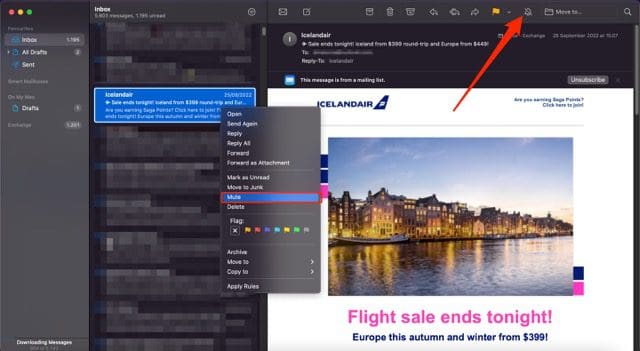
  2. Once you’re signed in, click on the email thread you want to mute. You’ll need to hold the control button at the same time you click on your trackpad.
  3. When the dropdown menu appears, choose the Mute option.

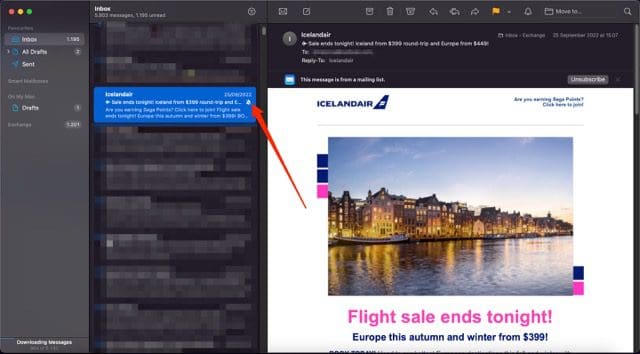
Another option for muting email messages in the Mail app on Mac is to open the email thread. In the top right, you can click on the alarm bell icon to automatically mute everything.

Screenshot showing how to mute an email on the Mail app for Mac

Once you’ve muted the email, you’ll see an alarm bell icon with a diagonal line through it next to the thread. If you later want to unmute the email, you can follow the same process listed above; the only difference is that Mute will now show as Unmute.

Screenshot showing the muted message icon on Mac

Muting Email Messages: Useful If You Don’t Want to Receive Distractions

Having read to the end of this article, you now have all the information you need to mute emails when using the Mail app on your Mac. Doing so is incredibly straightforward, and you shouldn’t need to spend too long muting your threads.

If you later want to unmute your threads, you also don’t need to follow a complicated process. Why not put these tips into action and take greater control over your inbox?

Related Posts:

  • 2023 Mac Studio lifestyle - 1
    macOS Could Not Be Installed, How-To Fix
  • 2022 Mac Mini with Studio Display and Accessories
    Mac Tips For New Users In 2023
  • WWDC 2021 Hero
    WWDC21 Recap: Everything You Missed In Apple's 2-Hour Event
  • iphone and airpods on a table
    These Apps Have the Best iOS 17 Widgets
  • pexels-tima-miroshnichenko-6860464
    How To Start Using Regex With The Shortcuts App
  • 0E4A6A0B-65E8-4184-B0C9-16C2179A1256
    The Best Weight Loss Apps For iPhone In 2021
  • pexels-cottonbro-5082579
    Getting Started With iOS 15: Everything Good And Bad
  • iPhone 15 Pro Max - 4
    Best iPhone Lock Screen Widgets for iOS 17
  • sidecar on iPadOS and macOS
    Sidecar not working in iPadOS and macOS? How to fix…
Danny Maiorca

Danny has been a professional writer since graduating from university in 2016, but he’s been writing online for over a decade. He has been intrigued by Apple products ever since getting an iPod Shuffle in 2008 and particularly enjoys writing about iPhones and iPads. Danny prides himself on making complex topics easy to understand. In his spare time, he’s a keen photographer.

Reader Interactions

Write a Comment Cancel reply

Primary Sidebar

Recent Posts

  • How to Set Up iCloud Passwords on a Windows PC?
  • How to Turn Off Apple Music’s Dark Mode
  • How to Disable Predictive Text in iOS 26
  • How to Stop Sharing Analytics in iOS 26
  • How to Manage Your iPhone Call Log
  • Are Apple’s Safety Precautions Enough for AirTags?

Connect with us

Footer

ABOUT

  • About Us
  • Contact us
  • Advertise
  • Privacy
  • Terms of Use

GUIDES

  • iOS & iPadOS
  • Apple ID
  • iCloud
  • App Store
  • iTunes
  • FaceTime
  • iMessage
  • Siri
  • Books and iBooks
  • Game Center
  • AirPlay

CONNECT

  • Facebook
  • Twitter
  • FeedBurner
  • YouTube

© Copyright 2010-2024 Guiding Tech Media · All Rights Reserved

This site and its content are in no way affiliated or endorsed by Apple, Inc. · Reproduction without explicit permission is prohibited