• Skip to primary navigation
  • Skip to main content
  • Skip to primary sidebar
  • Skip to footer

AppleToolBox

Tools and Fixes for Mac, iPad, iPhone & iWatch

Search posts

  • About
  • Contact

CONNECT WITH US

CATEGORIES

  • iPhone
  • iPad
  • iPod
  • Apple Watch
  • Mac/MacBook
  • AirPods
  • Apple TV
  • News
  • Apple Services
  • HomePod
  • Reviews

SITE

  • Home
  • About Us
  • Contact
  • Advertise

Search posts

You are here: Home / iPhone / How to Remove Recovery Contacts on iPhone

How to Remove Recovery Contacts on iPhone

By Danny Maiorca 0 comments Last updated December 29, 2022

Recovery contacts are handy if you want to regain access to your device. However, you might decide to later remove someone as your preferred option.

Related Reading:

  • My Apple ID Has Been Disabled. How Do I Restore It?
  • How to Set Up Legacy Contacts on iPhone
  • How to Chat Directly With Apple Support
  • How to Toggle Lock Screen Access on an iPhone
  • What Are Apple Passkeys?

You might want to remove someone from your recovery contacts for several reasons. Perhaps you lost trust in that individual, or maybe you simply don’t want to use the feature anymore. Regardless, this article will show you how to do it.

How to Remove Recovery Contacts on iOS

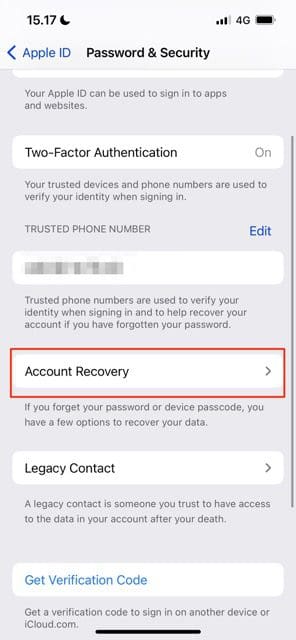
Screenshot showing the password and security tab on iOS
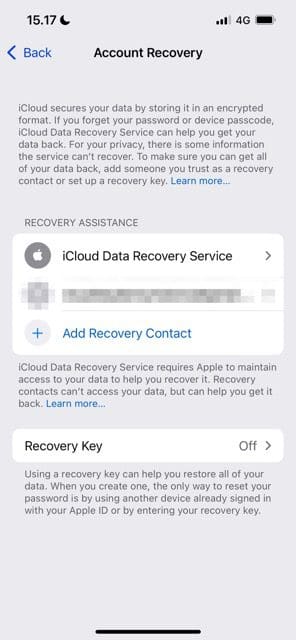
screenshot showing account recovery options on ios
Account recovery options iOS
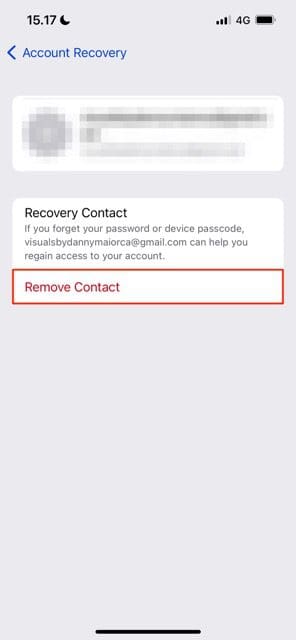
remove contact on ios

If you want to remove recovery contacts on your iPhone, the process is pretty straightforward. All you need to do is follow the steps listed below.

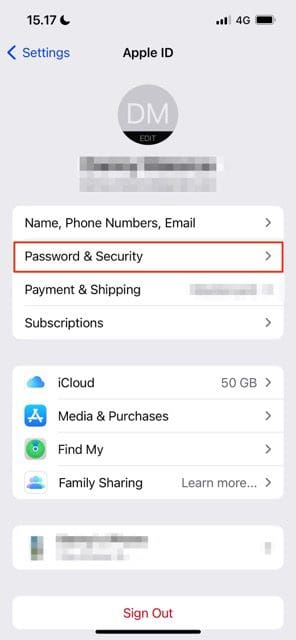
  1. Open the Settings app and click on your name at the top of the screen.
  2. Now, you’ll be in the Apple ID section. For the next step, go to Password & Security and select this.
  3. Click on the Account Recovery tab.
  4. Under Recovery Assistance, choose the contact you want to remove from your recovery contacts.
  5. When the next window appears, hit the Remove Contact option.
  6. You will see a prompt asking you to confirm your decision at the bottom of your screen. Select Remove Contact again.

After following the steps listed above, your iPhone will remove your recovery contact with immediate effect. You should see these changes reflected under the Recovery Assistance tab.

Removing Recovery Contacts on iOS Is Easy

If you want to delete a recovery contact, the process will take you just a couple of minutes at most. Once you’ve completed these actions, that individual will no longer be able to help you sign back into your device.

Unless that person has completely obliterated your trust, or you have a replacement that can help you get back into your account, we recommend thinking twice before deleting someone.

Related Posts:

  • apple-passkey-featured
    How to Use Apple Passkey
  • iPhone 15 Pro Max - 4
    Best iPhone Lock Screen Widgets for iOS 17
  • Mac Output Audio Header
    How to Control Individual Application Volume on Mac
  • How to use ChatGPT on iPhone and iPad - Hero
    How to Use ChatGPT on iPhone and iPad
  • iPhone 13 Pro Max - 27
    How To Set Up Legacy Contacts On iPhone
  • WWDC 2022 iOS 16 Lock Screen - 17
    Everything You Need To Know About iOS 16
  • AutoFill Passwords From Google Chrome on iPhone 13 Pro
    What Are Apple Passkeys?
  • an iphone on a book
    How To Reset the Screen Time Passcode on iOS,…
  • photo of an iphone with ios 16 downloaded on it
    iOS 16 Tips and Tricks: The Definitive List
Danny Maiorca

Danny has been a professional writer since graduating from university in 2016, but he’s been writing online for over a decade. He has been intrigued by Apple products ever since getting an iPod Shuffle in 2008 and particularly enjoys writing about iPhones and iPads. Danny prides himself on making complex topics easy to understand. In his spare time, he’s a keen photographer.

Reader Interactions

Write a Comment Cancel reply

Primary Sidebar

Recent Posts

  • How to Set Up iCloud Passwords on a Windows PC?
  • How to Turn Off Apple Music’s Dark Mode
  • How to Disable Predictive Text in iOS 26
  • How to Stop Sharing Analytics in iOS 26
  • How to Manage Your iPhone Call Log
  • Are Apple’s Safety Precautions Enough for AirTags?

Connect with us

Footer

ABOUT

  • About Us
  • Contact us
  • Advertise
  • Privacy
  • Terms of Use

GUIDES

  • iOS & iPadOS
  • Apple ID
  • iCloud
  • App Store
  • iTunes
  • FaceTime
  • iMessage
  • Siri
  • Books and iBooks
  • Game Center
  • AirPlay

CONNECT

  • Facebook
  • Twitter
  • FeedBurner
  • YouTube

© Copyright 2010-2024 Guiding Tech Media · All Rights Reserved

This site and its content are in no way affiliated or endorsed by Apple, Inc. · Reproduction without explicit permission is prohibited

Last Updated on December 29, 2022 by Mitch Bartlett