No matter how powerful a smartphone can get, it’s still a computer at the end of the day. And computers have their fair share of bugs and frustrations that leave the end-user scratching their head. But did you know that you can actually try to “fix” the problems with your iPhone or iPad without needing to perform a factory reset? With the release of iOS 15, Apple introduced a few different options to help you reset settings on iPhone and iPad without needing to wipe the slate clean.
This first method essentially resets all of the preferences that you might have tweaked over the duration of owning your iPhone or iPad. This literally means that if you’ve tapped a toggle to turn something on, performing this reset will put things back to the way that they were when you first took the iPhone or iPad out of the box.
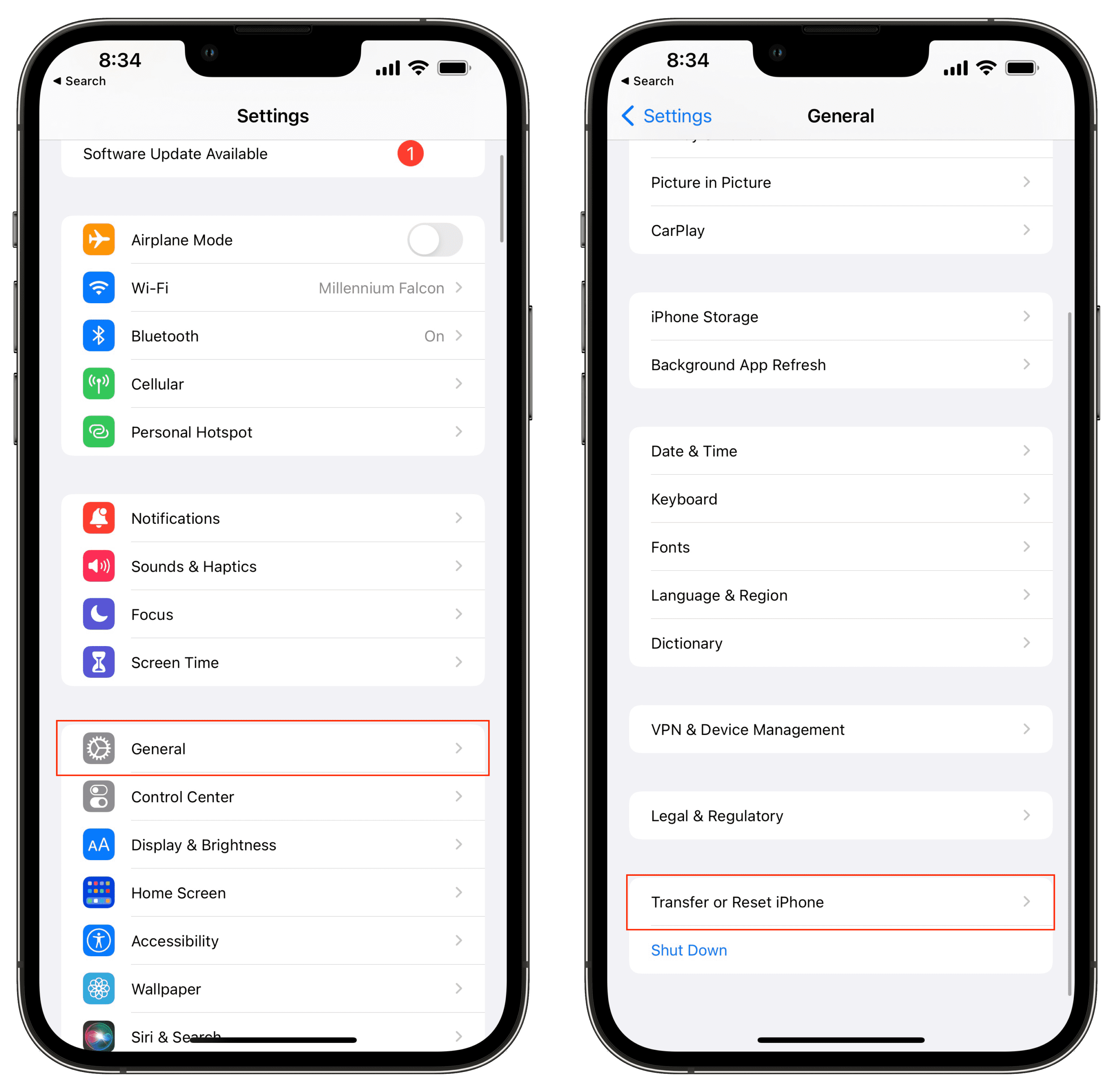
Open the Settings app on your iPhone or iPad.
Tap General.
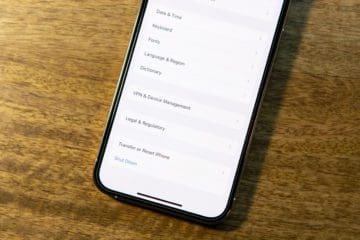
Scroll to the bottom and tap Transfer or Reset iPhone (iPad).
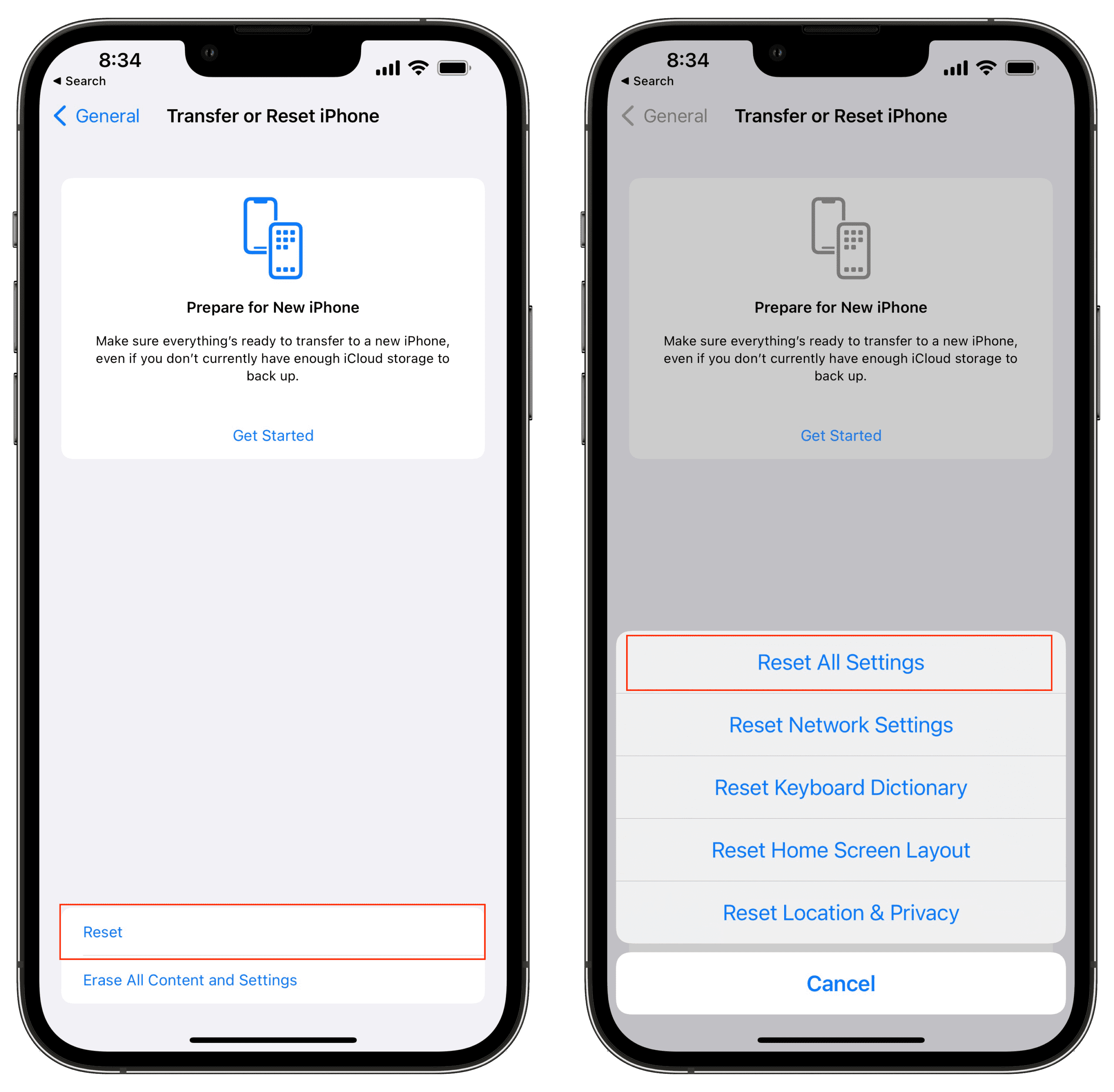
Tap the Reset button at the bottom of the page.
Tap Reset All Settings.
Enter your passcode if prompted.
Reset Network Settings
Troubleshooting network problems can be one of the biggest frustrations out there. And while the iPhone and iPad are pretty good about keeping things on track, something can easily get messed up from time to time. By resetting the Network Settings, all of your saved Wi-Fi networks and VPN connections will be completely removed. But this also resets that cellular connection on your device, which may help to improve the overall network connectivity of your iPhone and iPad.
Open the Settings app on your iPhone or iPad.
Tap General.
Scroll to the bottom and tap Transfer or Reset iPhone (iPad).
Tap the Reset button at the bottom of the page.
Tap Reset Network Settings.
Enter your passcode if prompted.
Reset Your Keyboard Dictionary
Autocorrect can either be an extremely useful tool or one that you wish would just go away. While your iPhone tries to learn the words that you type on a regular basis, you might find yourself having to re-enter a lot of words manually. If you reset the Keyboard Dictionary, everything will go back to normal and you’ll have a clean slate.
Open the Settings app on your iPhone or iPad.
Tap General.
Scroll to the bottom and tap Transfer or Reset iPhone (iPad).
Tap the Reset button at the bottom of the page.
Tap Reset Keyboard Dictionary.
Enter your passcode if prompted.
Reset Your Home Screen Layout
We all love tinkering around with different home screen setups, but there are times where you just find yourself reaching a point of no return. Luckily, you can start fresh and can completely reset your Home Screen layout to how it looked out of the box. By performing this reset, your iPhone will move all of Apple’s apps to the first screen, while putting the rest of your downloaded apps on the subsequent screens after the main one.
Open the Settings app on your iPhone or iPad.
Tap General.
Scroll to the bottom and tap Transfer or Reset iPhone (iPad).
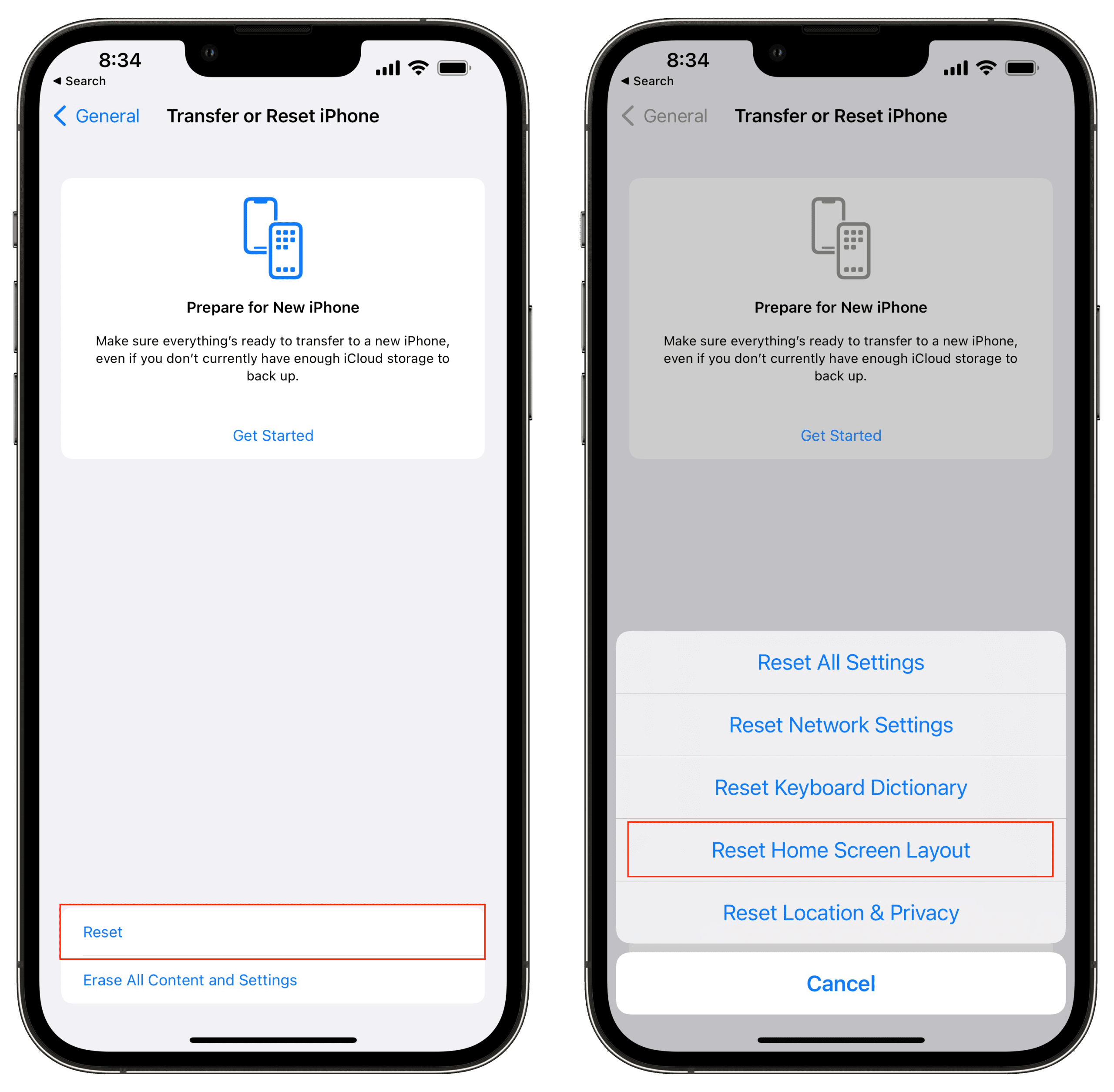
Tap the Reset button at the bottom of the page.
Tap Reset Home Screen Layout.
Enter your passcode if prompted.
Reset Location and Privacy Settings
There’s a lot to be said about the state of privacy and security with third-party apps nowadays. Usually, you’ll find yourself needing to provide access to apps, but this could end up draining your battery quickly if an app has gone “rogue”. An easy way to get things back in working order until you find the culprit is to reset the Location and Privacy settings. This revokes any access that third-party apps might have, so you’ll be prompted to permit access after the app is opened again.
Open the Settings app on your iPhone or iPad.
Tap General.
Scroll to the bottom and tap Transfer or Reset iPhone (iPad).
Tap the Reset button at the bottom of the page.
Tap Reset Location & Privacy.
Enter your passcode if prompted.
Erase All Content and Settings
Last but not least, Apple’s new Reset option includes the ability to wipe your iPhone or iPad completely. This gives you a blank slate, which helps if you’ve been dealing with a few problems, or are just planning to sell your device. The only thing that we would recommend before going down this path is to make sure your iPhone or iPad is backed up, so you don’t lose any pertinent information.
Open the Settings app on your iPhone or iPad.
Tap General.
Scroll to the bottom and tap Transfer or Reset iPhone (iPad).
Andrew Myrick is a freelance writer based on the East Coast of the US. He enjoys everything to do with technology, including tablets, smartphones, and everything in between. Perhaps his favorite past-time is having a never-ending supply of different keyboards and gaming handhelds that end up collecting more dust than the consoles that are being emulated.














Write a Comment