• Skip to primary navigation
  • Skip to main content
  • Skip to primary sidebar
  • Skip to footer

AppleToolBox

Tools and Fixes for Mac, iPad, iPhone & iWatch

Search posts

  • About
  • Contact

CONNECT WITH US

CATEGORIES

  • iPhone
  • iPad
  • iPod
  • Apple Watch
  • Mac/MacBook
  • AirPods
  • Apple TV
  • News
  • Apple Services
  • HomePod
  • Reviews

SITE

  • Home
  • About Us
  • Contact
  • Advertise

Search posts

You are here: Home / iPod / How to Set Up iPhone to Erase All Data

How to Set Up iPhone to Erase All Data

By Danny Maiorca 0 comments Last updated December 29, 2022

iPhones are well known for their security. The software on these devices is difficult to breach – and in most cases, you won’t need to worry about malware infecting your phone.

Related Reading:

  • The Best New Security Features for iOS 16
  • iOS 16: Tips to Keep Your iPhone Safe
  • iOS: How to Hard Lock Your iPhone
  • iOS 16: How to Transfer Google Authenticator to Your New Device
  • App Store Scams: How to Stay Safe on iOS 16

One of the simplest (but most effective) ways to keep unwanted eyes away from your phone is to set up a passcode. If you want maximum protection, you can set your iPhone to erase all data after 10 unsuccessful sign-in attempts via passcode.

This article will show you how to achieve the above.

Contents

  • Can You Recover Data After It’s Erased From an iPhone?
  • How to Set Up Your iPhone to Erase All Data
  • Protect Your iPhone If the Worst Happens

Can You Recover Data After It’s Erased From an iPhone?

Considering how much we keep on our iPhones these days, setting our devices to erase everything is a huge step. As such, knowing whether you can recover that data later is a good idea.

If you set your iPhone to erase everything, you can later recover what you need from iCloud. For this reason and others, regularly backing up your data is a good idea – and you should also consider keeping things like images on an external hard drive.

How to Set Up Your iPhone to Erase All Data

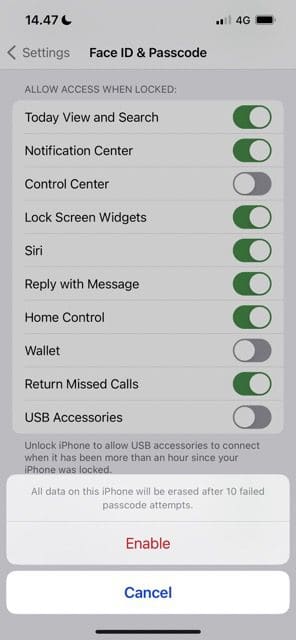
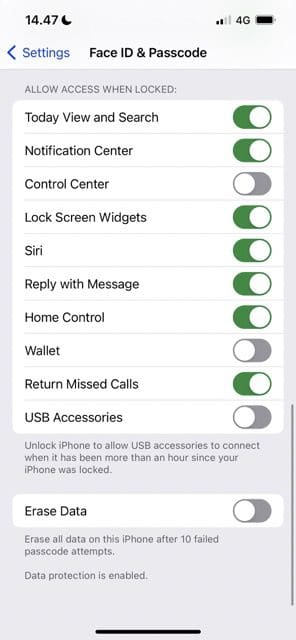
screenshot showing how to access erase data on ios
screenshot showing how to enable data deletion on ios

Having read this far, you now know whether you can recover data from an erased iPhone. Now, let’s look at how to set up this feature. Follow the steps below to achieve your desired result.

  1. Go to Settings > Face ID & Passcode.
  2. Enter your passcode when asked to.
  3. In the next window, scroll to the bottom; you’ll see a toggle option called Erase Data.
  4. When the popup call to action appears, select Enable.

After you’ve enabled the ability to erase your iPhone data, you will see the toggle turn green.

Protect Your iPhone If the Worst Happens

Setting up your iPhone to erase data if someone else grabs a hold of it will keep you protected in the worst-case scenario. In almost any situation, you’re unlikely to – on a personal level – forget your passcode 10 times in a row.

If you later want to revoke the ability for your iPhone to erase data, follow these instructions again. The only difference is that you’ll need to toggle the button off instead of on.

Related Posts:

  • an iphone on a book
    How To Reset the Screen Time Passcode on iOS,…
  • pexels-sora-shimazaki-5935791
    Everything You Need To Know About Silver Sparrow Malware
  • iPhone 15 Pro Max - 4
    Best iPhone Lock Screen Widgets for iOS 17
  • pexels-lewis-kang'ethe-ngugi-289927
    How To Prevent Mac Viruses And Malware
  • 2023 Mac Studio lifestyle - 1
    macOS Could Not Be Installed, How-To Fix
  • Microsoft Removing Authenticator Support From Apple Watch
    Microsoft Removing Authenticator Support From Apple Watch
  • Update Apple ID settings on your iPhone, iPad, or Mac after changing your password
    Getting a Message to Update Apple ID Settings on…
  • sidecar on iPadOS and macOS
    Sidecar not working in iPadOS and macOS? How to fix…
  • 2022 Mac Mini with Studio Display and Accessories
    Mac Tips For New Users In 2023
Danny Maiorca

Danny has been a professional writer since graduating from university in 2016, but he’s been writing online for over a decade. He has been intrigued by Apple products ever since getting an iPod Shuffle in 2008 and particularly enjoys writing about iPhones and iPads. Danny prides himself on making complex topics easy to understand. In his spare time, he’s a keen photographer.

Reader Interactions

Write a Comment Cancel reply

Primary Sidebar

Recent Posts

  • How to Manage Your iPhone Call Log
  • Are Apple’s Safety Precautions Enough for AirTags?
  • How to Hide Username and Photo on the Mac Lock Screen
  • Microsoft Resume vs. Apple Handoff – Which Wins for Cross-Device Work?
  • How to Export iTunes Library to New Computer
  • What the Gemini Desktop App Will Bring to Mac

Connect with us

Footer

ABOUT

  • About Us
  • Contact us
  • Advertise
  • Privacy
  • Terms of Use

GUIDES

  • iOS & iPadOS
  • Apple ID
  • iCloud
  • App Store
  • iTunes
  • FaceTime
  • iMessage
  • Siri
  • Books and iBooks
  • Game Center
  • AirPlay

CONNECT

  • Facebook
  • Twitter
  • FeedBurner
  • YouTube

© Copyright 2010-2024 Guiding Tech Media · All Rights Reserved

This site and its content are in no way affiliated or endorsed by Apple, Inc. · Reproduction without explicit permission is prohibited

Last Updated on December 29, 2022 by Mitch Bartlett