Sharing music is a great way to spark up conversations or discover new friendships. With iOS 13.5 and later, you can share the songs you’re listening to on your Instagram or Facebook stories directly from the Apple Music app.
Spotify has always featured great sharing integrations that were missing from Apple Music. In fact, many Apple Music users resorted to third-party apps to post music to their social stories. With the new Apple Music updates, all of that has changed.
How to share from Apple Music to Instagram or Facebook
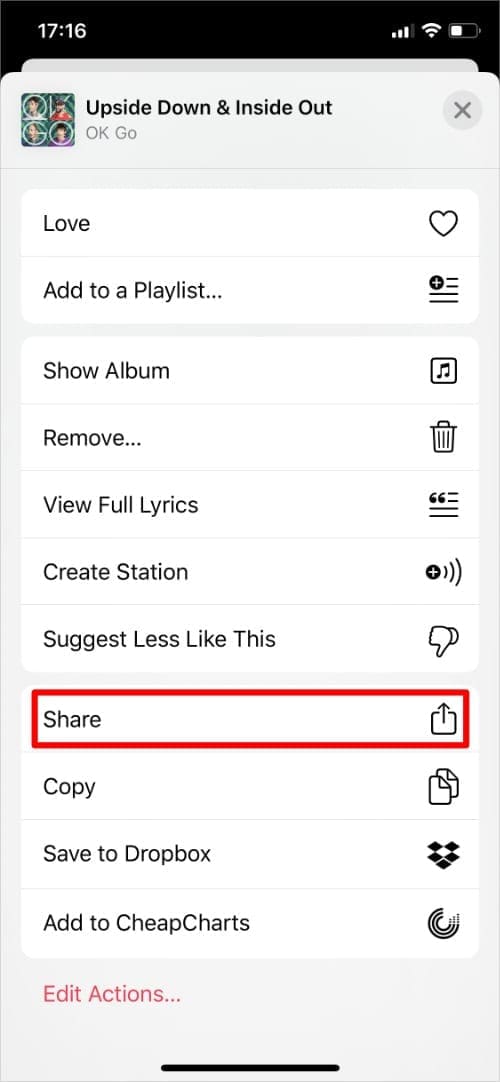
You can share artists, albums, playlists, and individual songs using the Apple Music app. All you need to do is tap the Three Dots (…) wherever you see it in the Apple Music app, then choose to Share from the action sheet that pops up.
If you want to share music to your Instagram or Facebook stories—rather than simply adding a link in a status update—you need to stick to albums, playlists, or songs. You can’t share artists in your stories, unfortunately.
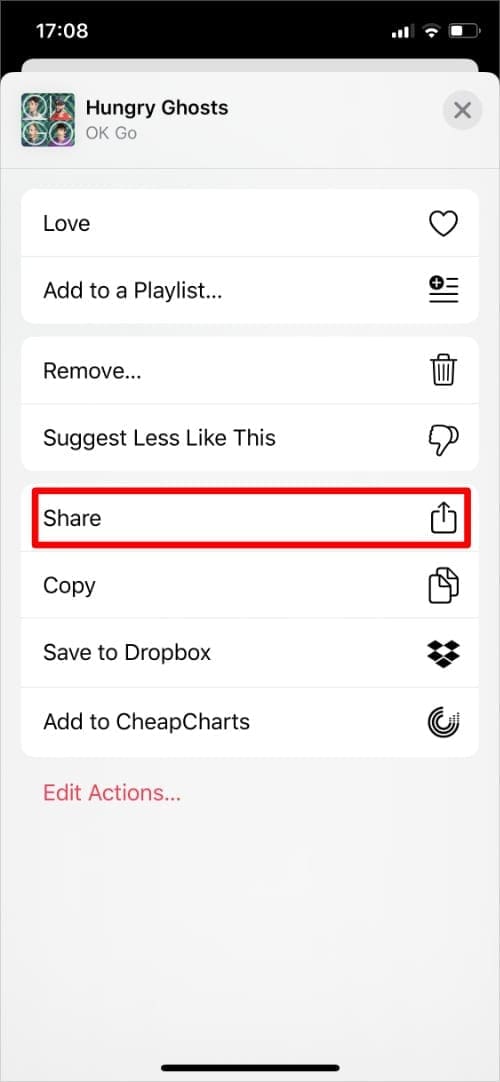
To share an album or playlist, open it in the Apple Music app, then tap the Three Dots at the top of the screen. Alternatively, tap and hold on the album or playlist from your library to open a Quick Action menu. Choose to Share Album or Share Playlist from the menu that appears.
Tap and hold an album to reveal a Quick Action menu.
Or tap the Three Dot button.
Choose to Share from the Share Sheet.
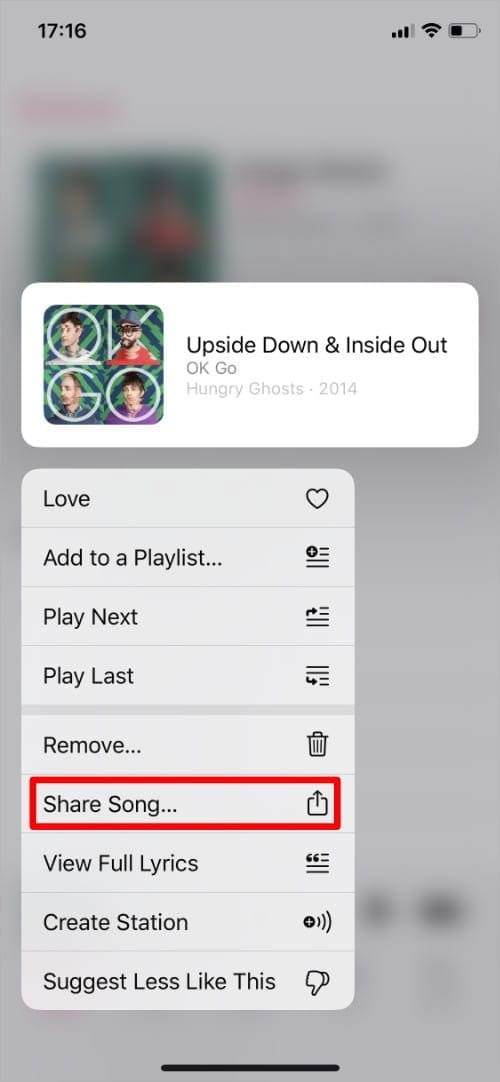
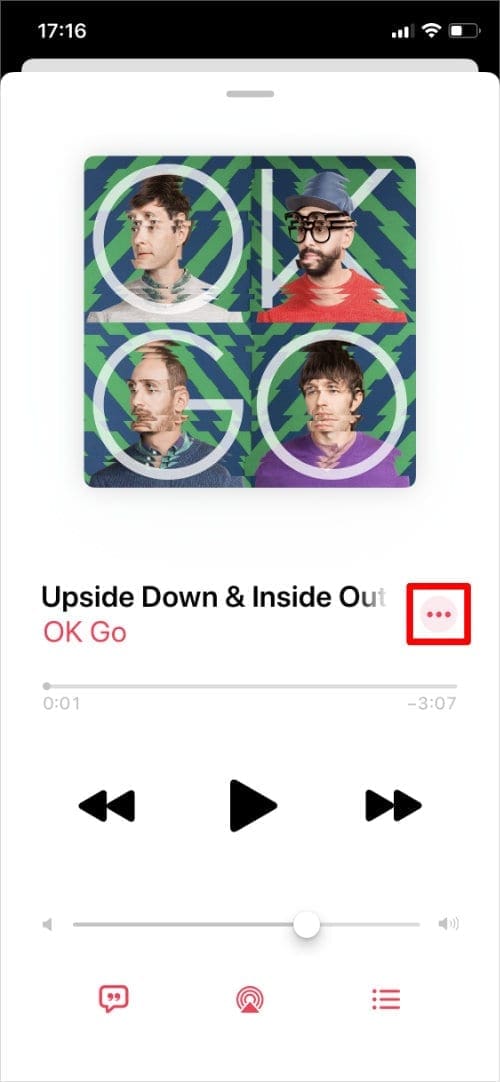
To share a particular song, tap and hold on it in the Apple Music app to open the Quick Action menu. Alternatively, start playing the song, then tap its name at the bottom of the screen and tap the Three Dots next to the song name. Choose to Share from the menu that appears.
Tap and hold on a song to reveal a Quick Action menu.
Or tap the Three Dots on the Now Playing screen.
Choose to Share from the Quick Action menu.
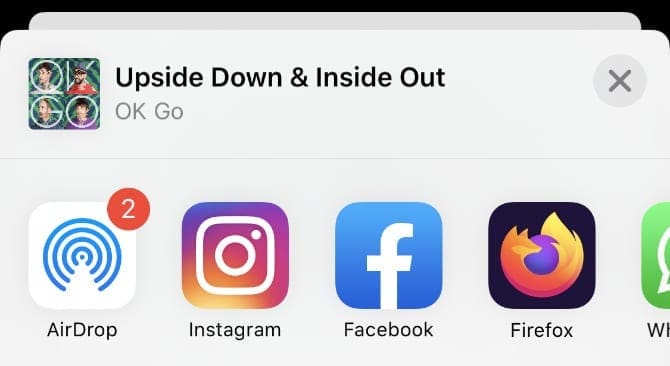
After opening the Share Sheet in Apple Music, tap the Instagram or Facebook icon in the second row to share music to your story in that app. You may need to scroll horizontally through the second row to find the right icons.
Tap the app icon you want to share music with.
How to add Instagram and Facebook to the Share Sheet
After opening the Share Sheet in Apple Music, you should be able to see Instagram and Facebook icons in the second row. If they’re missing, you can customize your Share Sheet to make them show up.
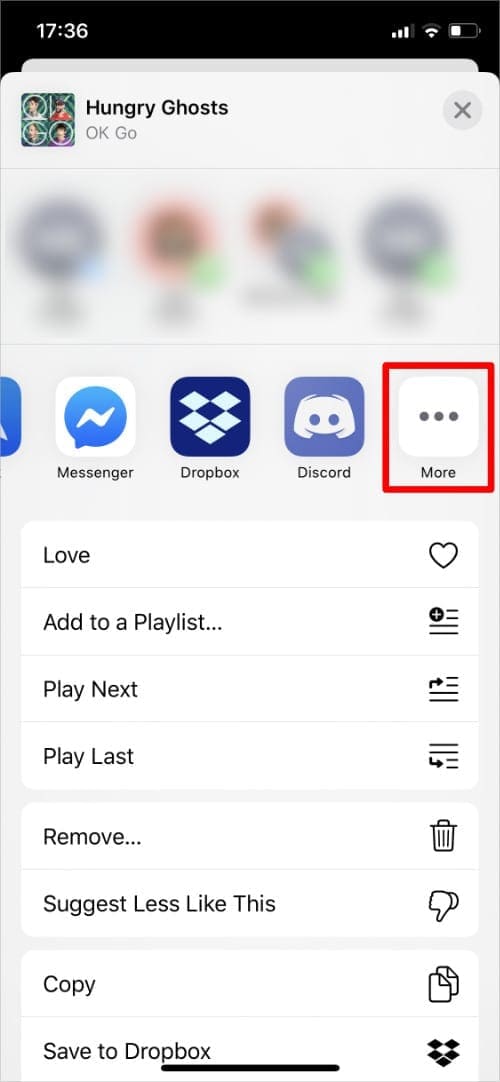
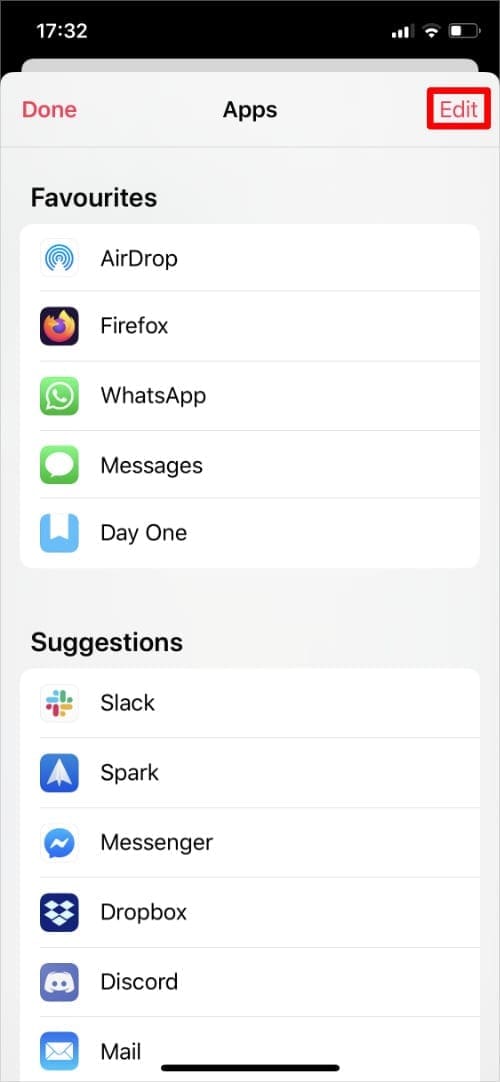
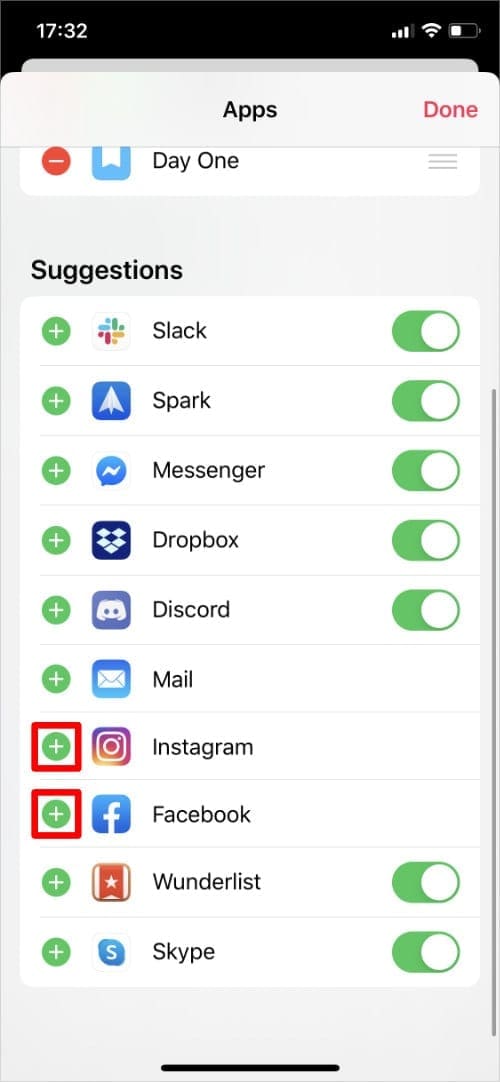
Scroll to the end of the second row in the Share Sheet, then tap More. This opens a list with every app you can add to the Share Sheet, tap Edit to make changes. Use the Add (+) buttons next to Instagram and Facebook to add them to your Favorites.
Tap the More button.
Choose to Edit the actions.
Add Instagram and Facebook.
You can also drag and drop your Favorite apps to change the order.
If Instagram and Facebook still don’t show up, make sure you download and install the apps from the App Store first. Then open each app on its own and sign in to your account.
Download: Instagram for iOS (Free) Download: Facebook for iOS (Free)
Sharing from Apple Music to your Instagram Story
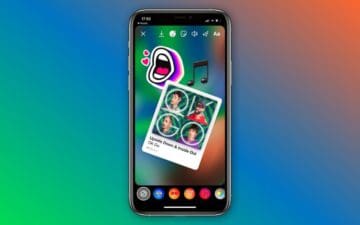
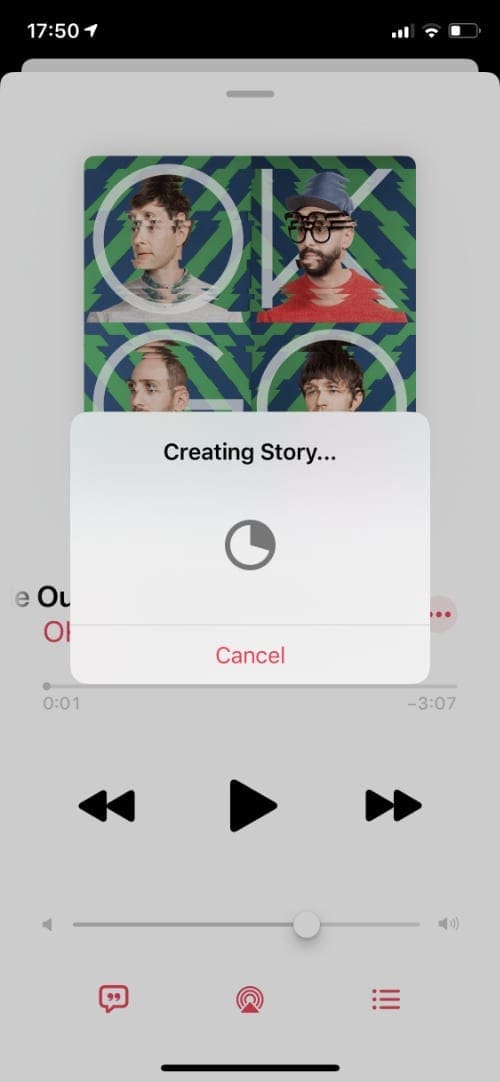
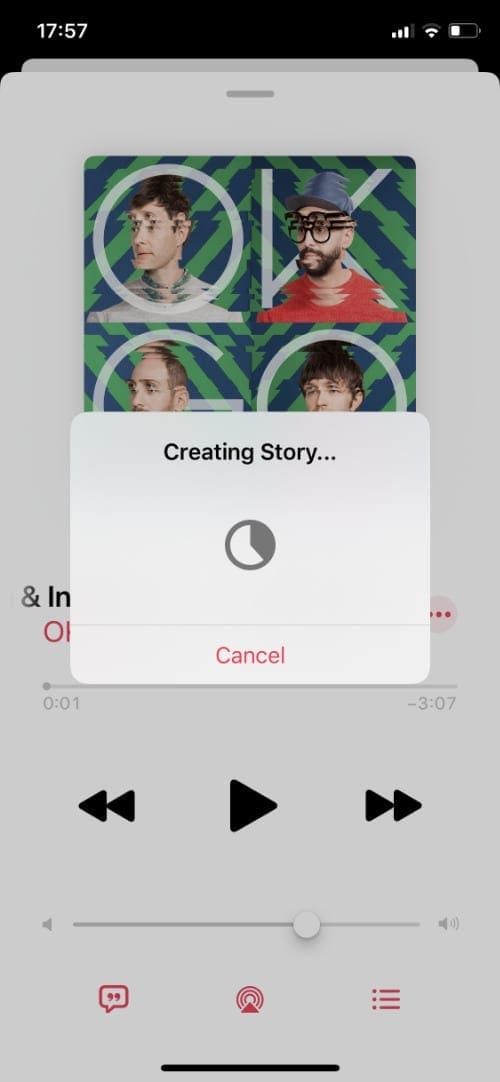
After you tap the Instagram button in the Apple Music Share Sheet, your iPhone opens a new page in the Instagram app showing the music you want to share.
Apple Music creates a new story.
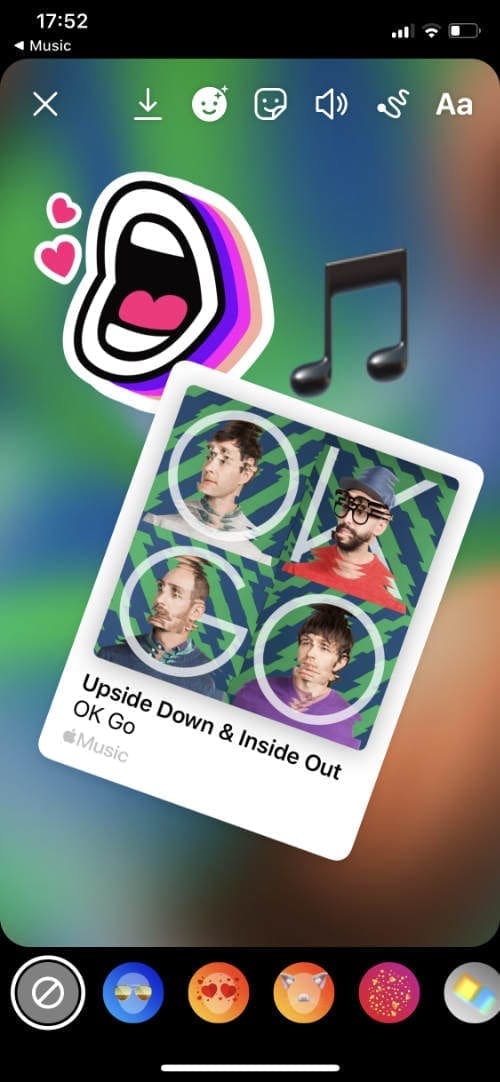
Apple Music creates a colored background.
Add stickers using Instagram.
Apple Music automatically creates a blurred background of the proper dimensions that matches the colors of the artwork. It also includes an Apple Music link your followers can tap to open that song, album, or playlist in Apple Music.
Use the Instagram buttons at the top of the screen to add stickers, draw pictures, or insert text to your story. You can also drag on the Apple Music artwork to shrink, rotate, or move it across the screen.
At the bottom of the screen, choose to share this post to Your Story or your Close Friends. Or choose to Send to particular people.
Whoever views your story can tap the Play on Apple Music button at the top of the screen to open that song, album, or playlist in the Apple Music app on their device.
Sharing from Apple Music to your Facebook Story
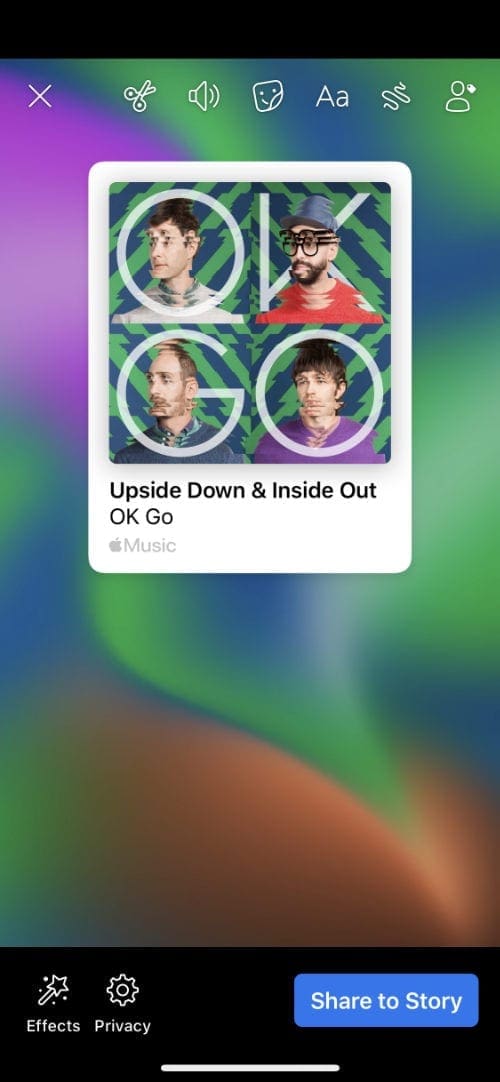
Much like Instagram, Apple Music opens the Facebook app if you choose to share music to your Facebook story. In doing so, Apple Music creates a background of the proper dimensions for Facebook that shows blurred colors matching the album artwork for that music.
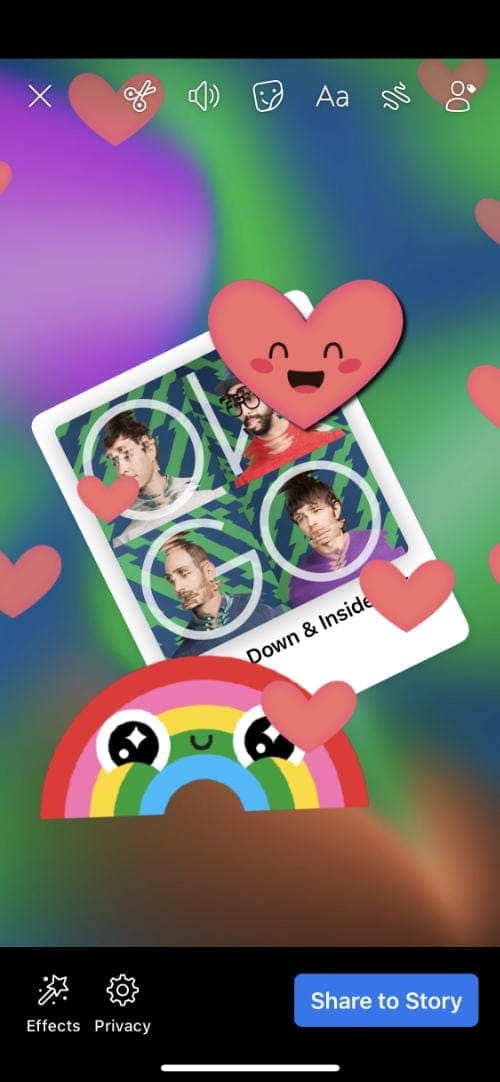
You can drag and drop on the album artwork itself to shrink, enlarge, rotate, or move it around. You can also use the buttons at the top of the screen to trim the video length, add stickers, insert text, draw pictures, or tag friends.
Apple Music creates a story for Facebook.
Apple Music gives your story a colored background.
Use Facebook to edit and add stickers.
Use the Effects button in the bottom-left corner to add filters and change the colors. Then use the Privacy button to choose who can view this story after you post it.
When you’re ready, tap Share to Story. Other people who view your story can tap the Apple Music link at the top to open that song in the Apple Music app on their device.
Stories your share from Apple Music are silent
Although you can usually add music to your Instagram and Facebook stories, any stories you share from the Apple Music app are silent. Of course, whoever views them can tap the Apple Music link at the top of your story to play that song in the Apple Music app.
There is no way to add custom sound effects or music to your Apple Music stories. This is possibly due to licensing conflicts, as Apple may not have the correct licenses to play those songs on other apps.
Share other media to your stories
Sharing music to your Instagram and Facebook stories is a great way to let other people know what you’re listening to. If you want to show your followers what you’re doing, you should share photos and videos to your stories as well.
One of the best features of an iPhone is Live Photos. These short clips are somewhere between a photo and a video, making your posts more exciting to watch than static photos. Find out how to post Live Photos to social media so more people can enjoy these short clips in your stories.
Dan writes tutorials and troubleshooting guides to help people make the most of their technology. Before becoming a writer, he earned a BSc in Sound Technology, supervised repairs at an Apple Store, and even taught English in China.














Write a Comment