• Skip to primary navigation
  • Skip to main content
  • Skip to primary sidebar
  • Skip to footer

AppleToolBox

Tools and Fixes for Mac, iPad, iPhone & iWatch

Search posts

  • About
  • Contact

CONNECT WITH US

CATEGORIES

  • iPhone
  • iPad
  • iPod
  • Apple Watch
  • Mac/MacBook
  • AirPods
  • Apple TV
  • News
  • Apple Services
  • HomePod
  • Reviews

SITE

  • Home
  • About Us
  • Contact
  • Advertise

Search posts

You are here: Home / Mac / How to Stop Safari From Suggesting Passwords on Mac or iOS

How to Stop Safari From Suggesting Passwords on Mac or iOS

By Louis Roundtree 0 comments Last updated January 16, 2026

Things to Know
  • Safari automatically suggests passwords on macOS and iOS, but this can become intrusive or pose a safety risk.
  • You can disable this feature by turning off password suggestions in the “Passwords” app on both operating systems.
  • On Mac, you can also disable Safari’s autofill for saved usernames and passwords.

Remembering complicated passwords is difficult, and it’s nice to have a little extra help sometimes. That said, the constant suggestions from your Mac or iOS Safari apps of super unbreakable passwords can be intrusive at times and unnecessary at others. Here we’ll show you how to stop Safari suggesting passwords on both.

Contents

  • Why Make Safari Stop Suggesting Passwords?
  • Stop Safari From Suggesting Passwords
    • Stop Safari Suggesting Passwords on iOS
    • Stop Passwords Suggestions on Mac

Why Make Safari Stop Suggesting Passwords?

It’s a fine line between convenience and annoyance. Operating system tips and suggestions enhance user experience until they become intrusive. You might already have a password for the site you’re on, or it’s a site you won’t be using again.

What’s more, browser-suggested passwords can also be saved, which, while convenient, can pose a security risk if someone should access your device.

Stop Safari From Suggesting Passwords

If you want to make Safari stop suggesting passwords, the process is straightforward for both Mac and iOS. Here’s what to do for both:

Stop Safari Suggesting Passwords on iOS

Stopping password suggestion on Safari on your iPhone or iPad is as easy as getting into the app settings and disabling it. Here’s how to do it:

Step 1. On your iPhone or iPad, tap the Settings icon.

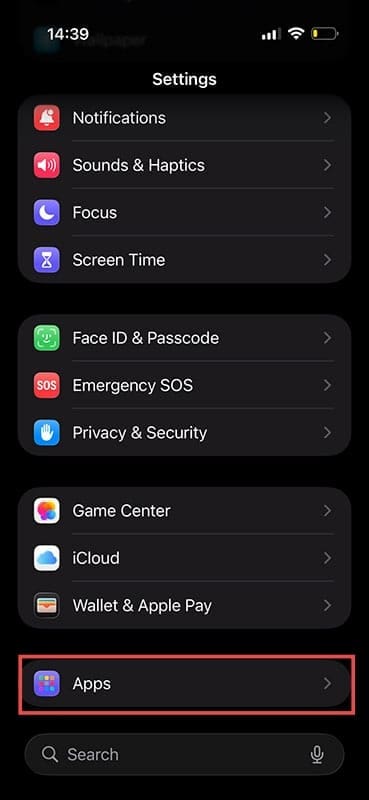
Step 2. Navigate down to “Apps” and tap it.

How to Stop Safari From Suggesting Passwords on Mac or iOS 1

Step 3. Locate “Passwords” and give it a tap.

How to Stop Safari From Suggesting Passwords on Mac or iOS 2

Step 4. Scroll down to “Suggest Strong Passwords” and toggle the slider to “Off.”

How to Stop Safari From Suggesting Passwords on Mac or iOS 3

Step 5. Open Safari and see if the browser has stopped suggesting passwords.

If you’re worried about potential security issues (someone getting hold of your device, for example), you can also disable “Allow Automatic Passkey Upgrades,” though this isn’t necessary. You can also click “Open Passwords” to delete any from storage that you’d like.

Stop Passwords Suggestions on Mac

Disabling password suggestion on macOS also requires opening and adjusting the Passwords app. Here’s what to do:

Step 1. Open the System Settings app.

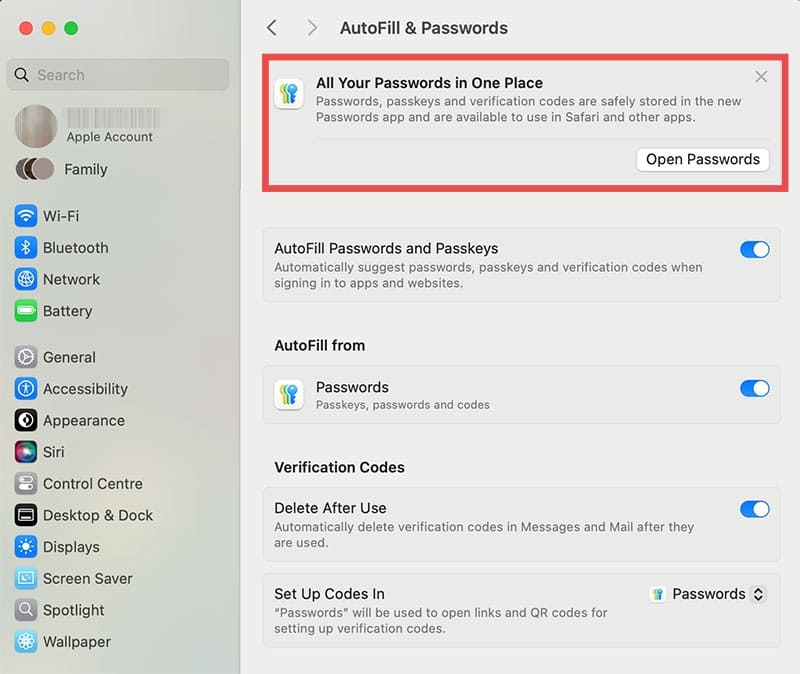
Step 2. Click “General” then “AutoFill and Passwords.”

How to Stop Safari From Suggesting Passwords on Mac or iOS 4

Step 3. Go to “All Your Passwords in One Place” and then click on “Open Passwords.” You’ll be required to enter your login password or biometric data to continue.

How to Stop Safari From Suggesting Passwords on Mac or iOS 5

Step 4. Once confirmed, in the Passwords menu, click on “Settings.”

How to Stop Safari From Suggesting Passwords on Mac or iOS 6

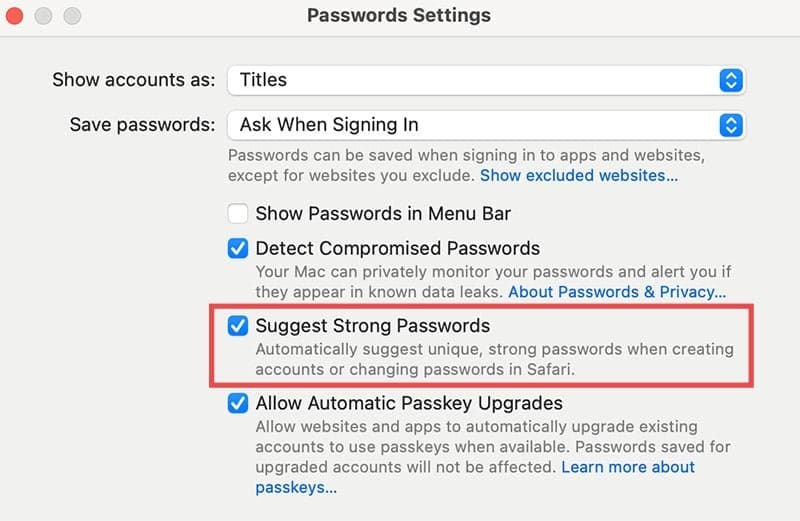
Step 5. Uncheck the box next to “Suggest Strong Passwords.”

How to Stop Safari From Suggesting Passwords on Mac or iOS 7

Step 6. Exit once done and check if the feature is disabled.

If you want to ensure autofill is disabled in Safari as well, you can do so through the app’s own settings.

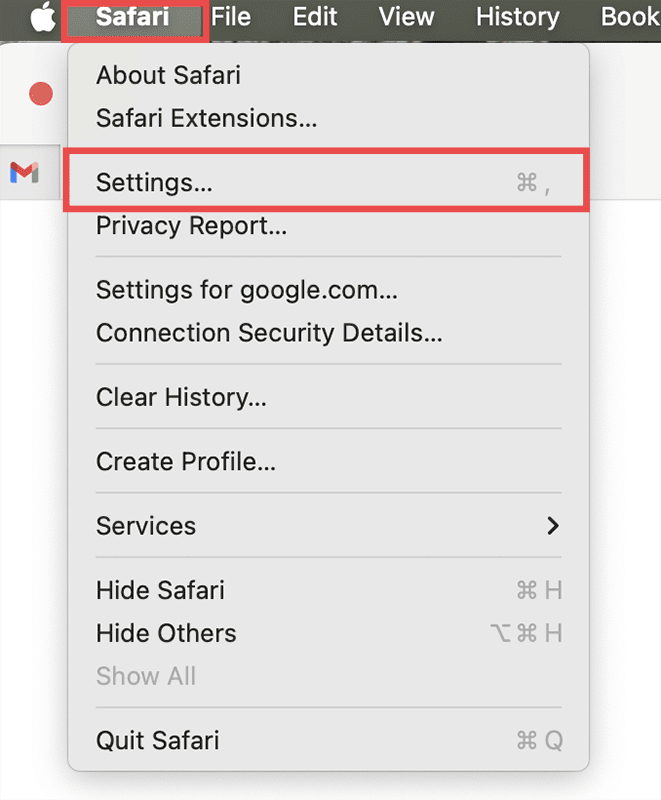
Step 1. Open the Safari window and click “Safari” in the top menu.

Step 2. Depending on your OS version, either click “Settings” or “Preferences” from the dropdown menu.

How to Stop Safari From Suggesting Passwords on Mac or iOS 8

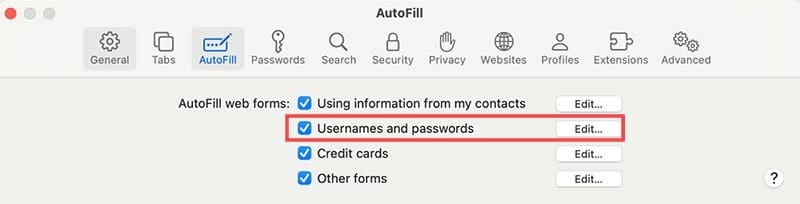
Step 3. In the Settings window that pops up, click the “Autofill” tab at the top.

How to Stop Safari From Suggesting Passwords on Mac or iOS 9

Step 4. After that, uncheck the box next to “User names and passwords.”

How to Stop Safari From Suggesting Passwords on Mac or iOS 10

Step 5. Exit the Settings and confirm that things are off in Safari.

Related Posts:

  • 2023 Mac Studio lifestyle - 1
    macOS Could Not Be Installed, How-To Fix
  • sidecar on iPadOS and macOS
    Sidecar not working in iPadOS and macOS? How to fix…
  • Update Apple ID settings on your iPhone, iPad, or Mac after changing your password
    Getting a Message to Update Apple ID Settings on…
  • iOS 16 Unsend Messages on Your On Your iPhone
    No Text or Message Notification Alerts or Sounds on…
  • Missing Holidays on iPhone Calendar? How-to Fix Hero
    How To Duplicate and Copy Calendar Events in iOS and…
  • How to use ChatGPT on iPhone and iPad - Hero
    How to Use ChatGPT on iPhone and iPad
  • How to Disable the Login Password on Mac
    How to Disable the Login Password on Mac
  • A problem occurred with this webpage so it was reloaded, fix
    Safari: "A problem occurred with this webpage so it…
  • Windows computer
    How to AirDrop from iPhone to Windows PC
Louis Roundtree
Louis Roundtree

As an avid gamer, I’ve run into my fair share of error codes and weird faults that have forced me to find fixes to problems I never anticipated. That gave me a passion for sharing those fixes with others so we can all game without feeling like our hardware is rebelling against us.

Reader Interactions

Write a Comment Cancel reply

Primary Sidebar

Recent Posts

  • How to Manage Your iPhone Call Log
  • Are Apple’s Safety Precautions Enough for AirTags?
  • How to Hide Username and Photo on the Mac Lock Screen
  • Microsoft Resume vs. Apple Handoff – Which Wins for Cross-Device Work?
  • How to Export iTunes Library to New Computer
  • What the Gemini Desktop App Will Bring to Mac

Connect with us

Footer

ABOUT

  • About Us
  • Contact us
  • Advertise
  • Privacy
  • Terms of Use

GUIDES

  • iOS & iPadOS
  • Apple ID
  • iCloud
  • App Store
  • iTunes
  • FaceTime
  • iMessage
  • Siri
  • Books and iBooks
  • Game Center
  • AirPlay

CONNECT

  • Facebook
  • Twitter
  • FeedBurner
  • YouTube

© Copyright 2010-2024 Guiding Tech Media · All Rights Reserved

This site and its content are in no way affiliated or endorsed by Apple, Inc. · Reproduction without explicit permission is prohibited

Last Updated on January 19, 2026 by Louis Roundtree