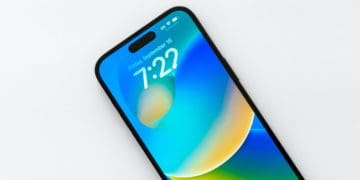
When you buy an iPhone, you’ll want your screensaver and whatnot to match your personality. And in iOS 16, Apple has introduced several features that give you more flexibility over how your lock screen looks.
If you want to switch your lock screen in iOS 16, you’re in the right place. We’ll show you how to quickly change it, along with highlighting how you can make your phone manually switch things for you.
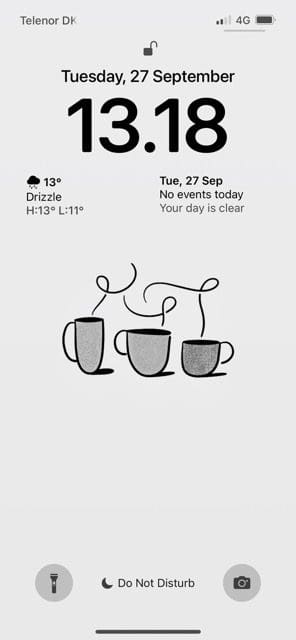
Yes – in addition to switching your lock screen in iOS 16, you can also change the clock on your device.
If you go to Settings > Wallpaper > Customize, you will find various options – including the opportunity to change your clock’s fonts.
Tap on the time, and you will see various fonts appear. You can also change the color.
Can You Change Your iPhone Lock Screen Multiple Times Each Day?
If you want to switch your lock screen in iOS 16 multiple times daily, you probably won’t wish to do so manually. Fortunately, Apple has introduced features that enable you to choose how often you want your screen to shift.
In Settings > Wallpaper > Add New Wallpaper, you can go to Photo shuffle at the top of your screen. There, you can determine whether you want your screen to change hourly or daily – or when you lock and tap your screen.
You have other ways to switch your lock screen in iOS 16, too, such as picking the Weather one. Your lock screen will change depending on whether it’s sunny, raining, and so on in your current location.
How to Switch Your Lock Screen on Your iPhone
If you want to switch your lock screen on your iPhone without doing anything drastic, this section is for you. You can follow the instructions below to achieve your desired results.
Wake your iPhone using the on/off button or home screen, depending on the model you have.
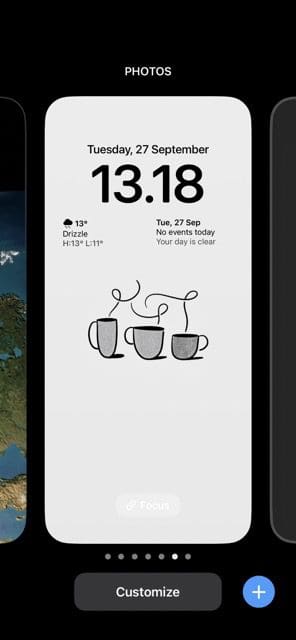
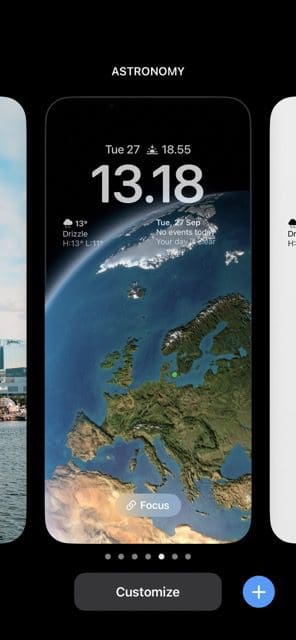
Tap and hold on to your lock screen until it becomes smaller. You’ll see a Customize tab at the bottom and a + symbol in the bottom right.
If you want to switch your screen quickly to something you’ve used before, you can swipe left until you find the option you want. When you do, tap on it and your lock screen will immediately change.
If you want to add a new lock screen, swipe right and select Add New. From there, you can choose from the various sections and options available.
You can also switch your iPhone lock screen if you’ve already unlocked your device. The process is a little longer, but you’ll achieve the same end result. Follow the instructions below:
Go to Settings > Wallpaper.
Select Add New Wallpaper.
Choose the wallpaper you want to change your device to.
Customize as you feel is necessary before selecting Add.
Once you’ve added your new lock screen, you can later switch between it and your older ones if you prefer.
Switching Your iPhone Lock Screen Is Easy
If you want to switch your lock screen in iOS 16, the process is pretty simple. You’ve got plenty of options; the easiest is doing so while your device is locked.
When switching your iPhone lock screen, you can choose from a screensaver you’ve used in the past. But if you want to try something new, you’ve also got the opportunity to do that.
If you wish to have your lock screen automatically change throughout the day, Apple has made it easy for you to do that as well.
Danny has been a professional writer since graduating from university in 2016, but he’s been writing online for over a decade. He has been intrigued by Apple products ever since getting an iPod Shuffle in 2008 and particularly enjoys writing about iPhones and iPads. Danny prides himself on making complex topics easy to understand. In his spare time, he’s a keen photographer.











Write a Comment