Using the entire Apple ecosystem of devices allows you to switch seamlessly between your Mac and your iOS devices without losing out on account synchronization or notifications. Your Apple reminders, once set up properly, will show up on every Apple device without fail. However, if you have a Windows PC and iOS devices (or a Mac) and want to share the reminders between them, you’ll need a workaround.
In most cases, you can sync Apple reminders with Microsoft To Do by connecting a Microsoft account to an Apple device. Here’s how.
Sync Apple Reminders With Microsoft To Do on a Mac or iOS
To sync your reminders across different operating systems, you’ll need to use a Microsoft account. If you have a Windows PC, you should already have one, as you’ll typically be prompted to create it when registering the system.
Step 1. Log into your Microsoft account (or make a new one) on your Windows device. Remember or write down the credentials that you used for the account, as they will come up later.
Step 2. Launch Microsoft To Do and create a new task to make sure that the setup will be completed well.
Step 3. Go to your Mac and open System Settings. For mobile devices, enter “Settings.”
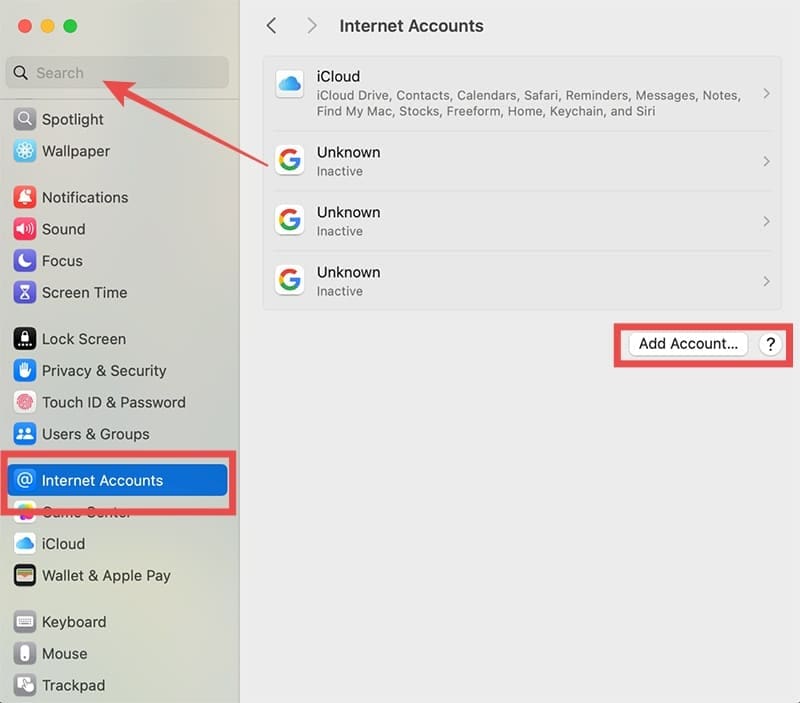
Step 4. Go to the “Internet Accounts” section (you can find it in the navigational menu or using the search bar).
Step 5. Hit the “Add Account” bottom on the settings menu.
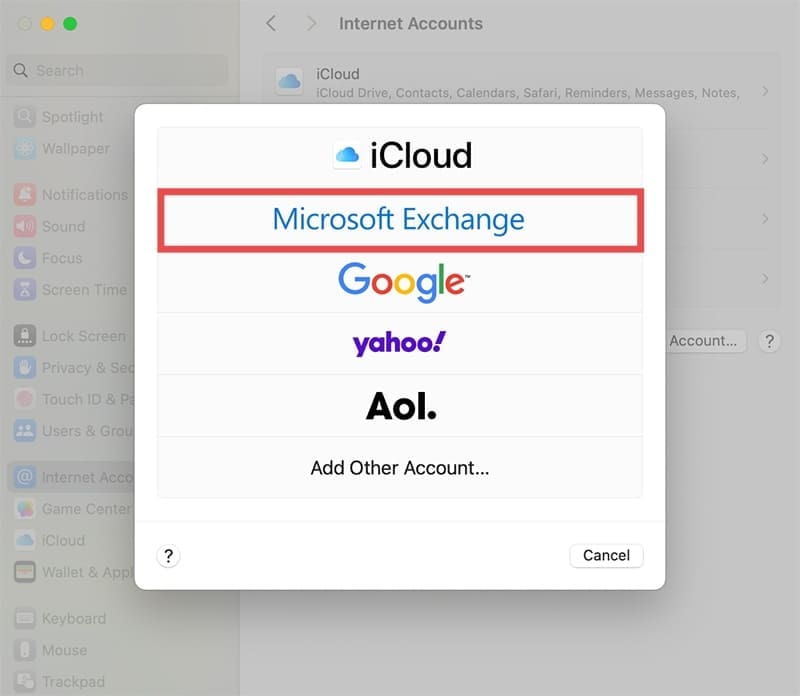
Step 6. Choose the “Microsoft Exchange” option.
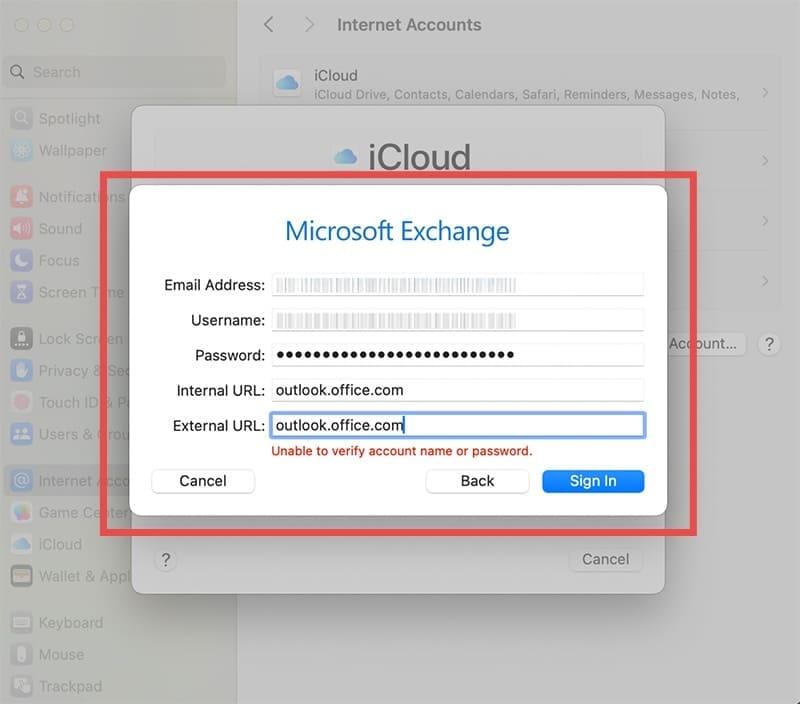
Step 7. Enter the account credentials of the Microsoft account you used for Steps 1 and 2. For “User Name,” put the email address. For the “internal URL” and “external URL” fields, paste the following: “outlook.office.com”
Step 8. You may be prompted to log in via two-factor authentication. If so, use your mobile device to complete the login. If 2FA is enabled, you may also need to enter the app into the Authenticator.
Step 9. From the list of services, choose at least “Reminders.” Other settings may be turned on depending on your needs.
Step 10. Open “Reminders” on your device, and you should see the reminder you set up in Microsoft To Do.
Note that these steps will need to be repeated for every Apple device you own. This is because each device tracks accounts that are currently logged into it separately.
However, once you do complete the setup, the sync should be seamless. As soon as you make a new reminder in Microsoft To Do, it should pop up on every Apple device that has been synced. Similarly, reminders that you create in the list for the account will also show up on Windows devices that use Microsoft To Do.
Alternative to Sync Apple Reminders With Microsoft To Do With iCloud
Even if you follow the process above, you might not get the reminders to sync from Apple devices to Windows. In this case, you can use iCloud. Specifically, you can download iCloud for the Web on both your Apple devices and on your Windows PC. In there, you’ll get access to the web version of Reminders, which you can use in your browsers to keep track of lists.
This method will work well if you want to minimize how many accounts you need to keep track of, or if you’re only using the PC temporarily or sharing it with someone else. Since iCloud uses your Apple ID, you can set the browser to never remember the credentials and log in whenever you need to check on your tasks.
As an avid gamer, I’ve run into my fair share of error codes and weird faults that have forced me to find fixes to problems I never anticipated. That gave me a passion for sharing those fixes with others so we can all game without feeling like our hardware is rebelling against us.













Write a Comment