• Skip to primary navigation
  • Skip to main content
  • Skip to primary sidebar
  • Skip to footer

AppleToolBox

Tools and Fixes for Mac, iPad, iPhone & iWatch

Search posts

  • About
  • Contact

CONNECT WITH US

CATEGORIES

  • iPhone
  • iPad
  • iPod
  • Apple Watch
  • Mac/MacBook
  • AirPods
  • Apple TV
  • News
  • Apple Services
  • HomePod
  • Reviews

SITE

  • Home
  • About Us
  • Contact
  • Advertise

Search posts

You are here: Home / iPad / How to turn off auto-playing previews on Netflix from your iPad

How to turn off auto-playing previews on Netflix from your iPad

By Andrew Myrick 0 comments Last updated February 7, 2020

If it wasn’t already clear, streaming services are the “next big thing”. More and more people are cutting the cable and switching to a streaming only lifestyle. At the forefront of this for many, has been Netflix, although new services are arriving all the time.

Related Reading

  • Which Smart TVs support streaming services like Apple TV+ or Disney+?
  • How to get Disney Plus on your Apple TV (including older models)
  • Apple TV app for Roku not working? How-to fix
  • What to do if Netflix is not compatible with your iPad
  • Disney+ is live and available in the App Store now

Netflix has been killing the game for years now, and the company has been trying to keep its platform updated. Some of the interface updates have been welcomed, and others have become nothing more than an annoyance. But the catch is that if Netflix doesn’t want to lose its user base, it has to quickly make moves to keep its customers happy.

How to turn off auto-playing previews on Netflix

One of the more annoying aspects of a recent Netflix is the auto-playing previews. This is found when you are browsing the streaming service and an ad for a show or movie starts playing. For some reason, Netflix decided this would be a good way to get folks semi-interested in different content, but it’s just become an annoyance.

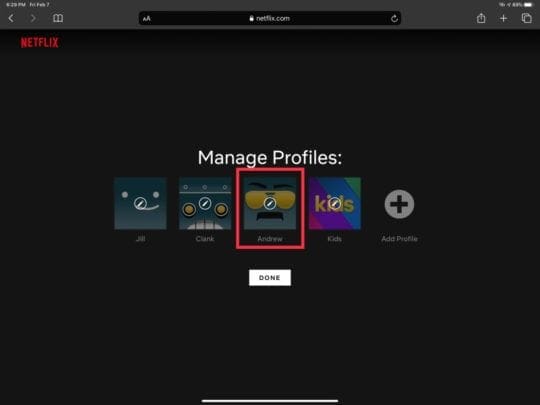
Manage Netflix Profiles
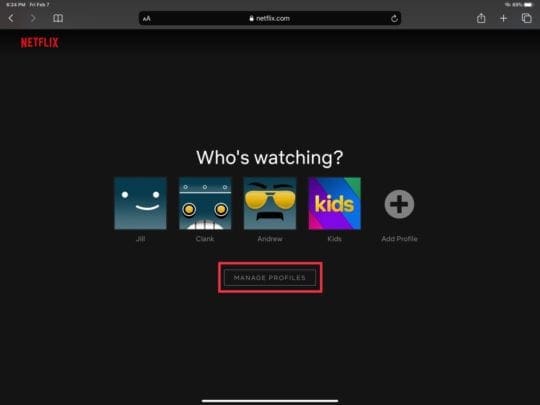
Select Your Netflix Profile

Here’s how you can turn off auto-playing previews from your iPad:

  1. Open Safari on your iPad
  2. Navigate to Netflix.com
  3. Log into your account
  4. From the Profile Page, select Manage Profiles
  5. Choose the profile you want to change
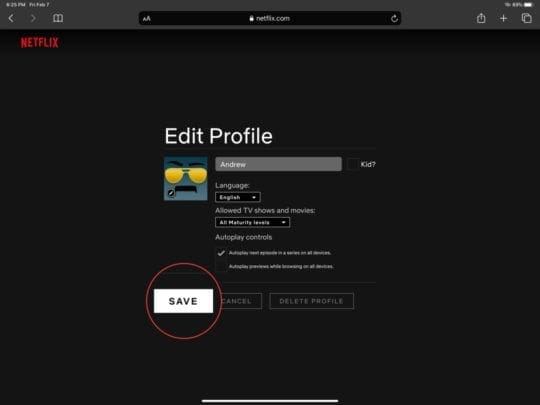
  6. Under Autoplay controls, uncheck the box labeled Autoplay previews while browsing on all devices
  7. Click Save
Toggle Auto-Playing Ads Netflix Settings
Save Profile Changes in Netflix

Next time you start browsing Netflix for the next great show to spend hours watching, you won’t have to deal with auto-playing ads. Not all of the “ads” are horrible, but it can be annoying when the ads start to play while you’re just looking around.

Conclusion

Despite so many different streaming services coming out of the woodworks, Netflix isn’t going anywhere. The company continues to pour money into new and original series/movies. Netflix is clearly not afraid to keep trying new things.

With the addition of this basic control, it’s also clear that Netflix is still listening to its customers. Now let’s just hope that the company continues to churn out great shows in the future. If you have any questions about using Netflix, let us know in the comments below.

Related Posts:

  • AirPods 3 Review_1276
    How to Connect AirPods to Roku
  • Netflix logo on a TV screen
    Netflix App Not Working on iPhone or iPad: How to Fix
  • Netflix logo on a TV screen
    What to Do if Netflix Is Not Compatible with Your iPad
  • pexels-lisa-4629485
    The Best HomeKit Devices For 2021
  • Apple HomeKit Scenes
    Gift Guide: Best HomeKit Devices and Accessories
  • Photo of someone using Apple Music on their smartphone
    How to Fix Apple Music Not Working on iPhone / iPad
  • pexels-cottonbro-5082579
    Getting Started With iOS 15: Everything Good And Bad
  • pexels-vlada-karpovich-7561034
    The Best Apple Gifts For Tech Fans
  • iPadOS 17 Widgets
    Best Interactive Widgets for iPadOS 17
Andrew Myrick
Andrew Myrick

Andrew Myrick is a freelance writer based on the East Coast of the US. He enjoys everything to do with technology, including tablets, smartphones, and everything in between. Perhaps his favorite past-time is having a never-ending supply of different keyboards and gaming handhelds that end up collecting more dust than the consoles that are being emulated.

Reader Interactions

Write a Comment Cancel reply

Primary Sidebar

Recent Posts

  • How to Manage Your iPhone Call Log
  • Are Apple’s Safety Precautions Enough for AirTags?
  • How to Hide Username and Photo on the Mac Lock Screen
  • Microsoft Resume vs. Apple Handoff – Which Wins for Cross-Device Work?
  • How to Export iTunes Library to New Computer
  • What the Gemini Desktop App Will Bring to Mac

Connect with us

Footer

ABOUT

  • About Us
  • Contact us
  • Advertise
  • Privacy
  • Terms of Use

GUIDES

  • iOS & iPadOS
  • Apple ID
  • iCloud
  • App Store
  • iTunes
  • FaceTime
  • iMessage
  • Siri
  • Books and iBooks
  • Game Center
  • AirPlay

CONNECT

  • Facebook
  • Twitter
  • FeedBurner
  • YouTube

© Copyright 2010-2024 Guiding Tech Media · All Rights Reserved

This site and its content are in no way affiliated or endorsed by Apple, Inc. · Reproduction without explicit permission is prohibited

Last Updated on February 7, 2020 by Sudz Kar