It would be an understatement to say that the Messages app – also known as iMessage – has changed how we communicate. Keeping in touch with people has become much easier, regardless of whether they’re in the same country as us. Moreover, you don’t need to worry as much about getting charged for texting people in other countries.
If you want to save some data, try turning on Low Quality Image Mode. This tool will allow you to send pictures that aren’t as high in quality as you normally would, but are still good enough.
Keep reading to discover why you might want to switch on Low Quality Image Mode and whether you need iOS 16. You’ll also learn how to turn the feature on.
Do I Need iOS 16 to Turn On Low Quality Image Mode?
No – iPhones have had Low Quality Image Mode since iOS 10, which was initially released in September 2016. As long as your device supports at least that version of iOS, you can switch on Low Quality Image Mode.
Why Would You Want to Turn on Low Quality Image Mode on Messages?
Before we look at how to turn on Low Quality Image Mode in iMessage, let’s identify why you might want to do so. Below are the top three reasons.
1. Save Data
The main reason that most people use Low Quality Image Mode is to save data. Large files can eat through your monthly allowance, especially if you’re trying to share high-quality photos that you took on a professional camera.
While you’ll still use some of your data when sending pictures in Low Quality Image mode, it’s nowhere near as much as would otherwise be the case. So, you can breathe a little easier before needing to upgrade your subscription package.
2. Send Messages Quicker
Have you ever tried sending an attachment via iMessage, only for it to take a painfully long time? You can mitigate that issue by switching on Low Quality Image Mode.
Because your files are smaller, recipients should receive your messages more quickly. Of course, you’ll need to consider other things here – such as your internet connection speed.
3. Save Battery
The more your phone has to work, the quicker your battery will drain. If you regularly send large files to others, you might notice that your battery life isn’t as good as you would otherwise have liked.
Once you turn on Low Quality Image Mode, your iPhone won’t need to use as much energy to process and send your messages. So, you should hopefully also see a difference in how long your battery lasts.
How to Turn on Low Quality Image Mode in the Messages App
Now that we’ve covered the basics, let’s look at how you can turn on Low Quality Image Mode in the Messages app. Follow the steps we’ve listed below:
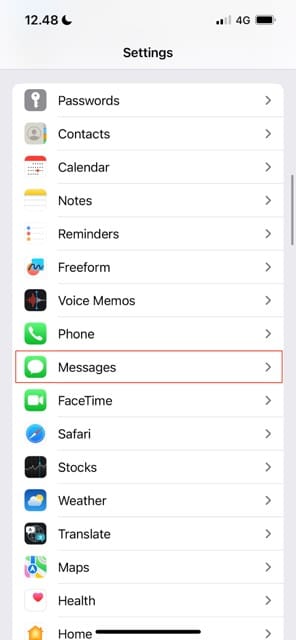
In the Settings app, look for the Messages tab and select this.
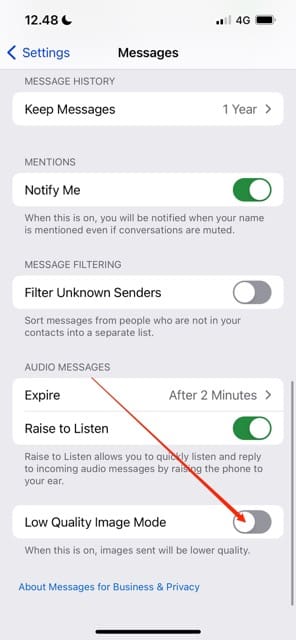
Scroll to the bottom of the next window. Here, you’ll see a toggle next to Low Quality Image Mode; switch this on so that it becomes green.
Turning On Low Quality Image Mode in Messages: Simple and Effective
If you want to send images via iMessage but you don’t want to use huge amounts of data, Low Quality Image Mode is worth switching on. The process only requires you to tap through a few screens and toggle an item on; once you’ve done that, you’re all set.
Now that you’ve read this article, you should have all the information you need to switch on Low Quality Image Mode for Messages. If you later change your mind, follow the same steps – but toggle the button off instead of on.
Danny has been a professional writer since graduating from university in 2016, but he’s been writing online for over a decade. He has been intrigued by Apple products ever since getting an iPod Shuffle in 2008 and particularly enjoys writing about iPhones and iPads. Danny prides himself on making complex topics easy to understand. In his spare time, he’s a keen photographer.











Write a Comment