You might not think too much about using the Messages app on a Mac, but macOS Ventura has plenty of new features that might change your mind. In particular, Apple has made it easier to collaborate with others.
In macOS Ventura, one of the main new introductions is being able to send collaboration requests in Messages. This article will run you through everything you need to know about it.
Once you’ve downloaded macOS Ventura and set up Messages on your Mac, you can send collaboration requests for several things. If you use Keynote, you can invite people to work with you on your presentations. Similarly, you can send collaboration requests for the Notes app.
You can also send collaboration invitations for the following apps:
Safari
Finder
Safari
Pages
Reminders
Numbers
In some cases, you can also collaborate with others on non-Apple-specific apps.
When you send collaboration requests, the recipient must have access to an Apple product. Moreover, it must support Apple’s latest software update. If they’re not using a Mac, that means they’ll need either iOS 16 or iPadOS 16, depending on the device they use.
Are Messages Collaboration Requests Limited to Specific Regions?
Some of Apple’s macOS Ventura updates are only available in specific regions; the News app’s sports features are one example. As such, you’ll want to ensure that anything you wish to use is available where you are.
The good news is that you can use collaboration invitations for Messages on your Mac wherever you are. All you need is to have macOS Ventura on your device.
How to Send Collaboration Requests in Messages
Now that we’ve covered the basics of the new collaboration requests feature in Messages, let’s look at how we can actually use it. Below are the instructions you’ll need to follow.
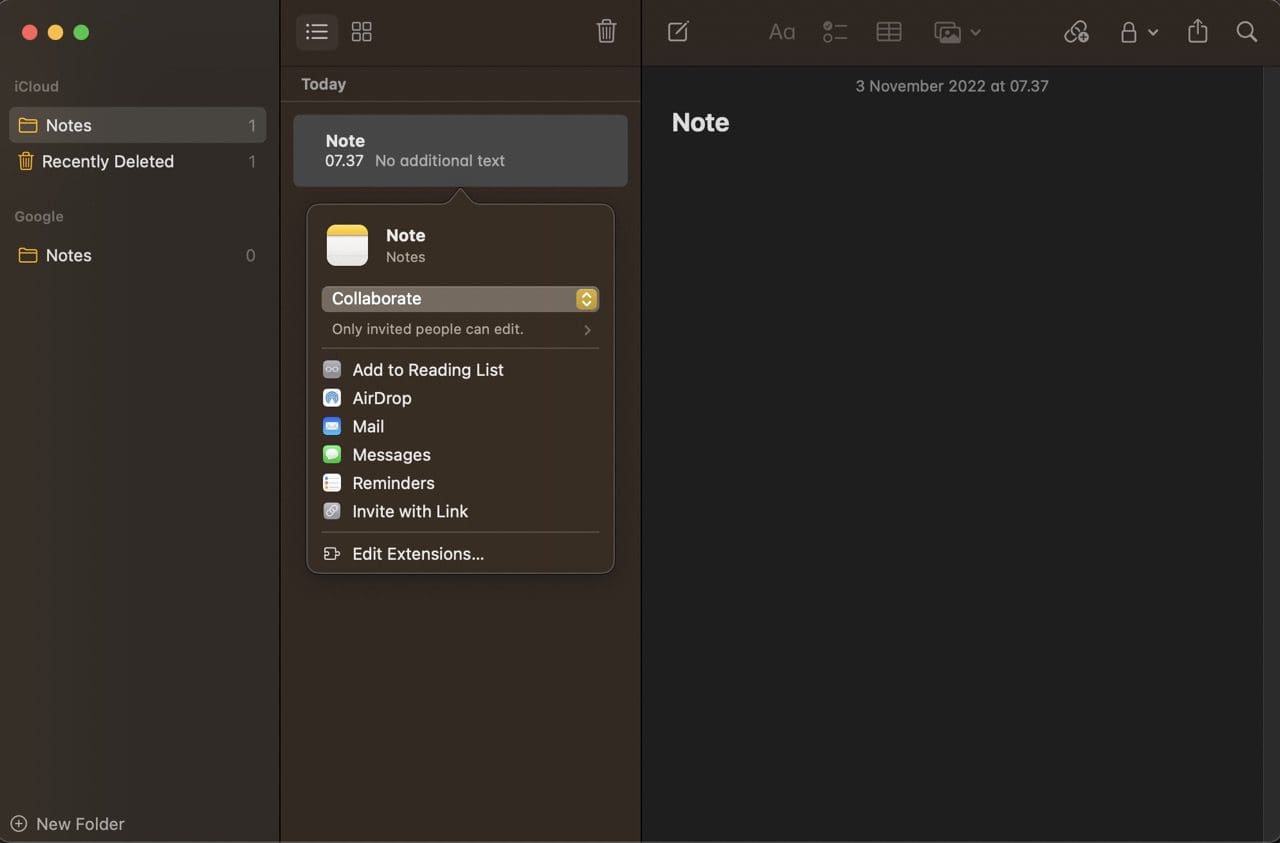
1. Go to the file or folder you’d like others to collaborate with. In this example, we’ll use a note in the Notes app.
2. Hold the control key at the same time you click on your trackpad. A dropdown menu will appear; click on the Share option.
3. Select Messages when the list of sharing options appears. You can also expand the top menu to choose whether you want someone to have full collaboration access, or if you just want them to see a copy instead.
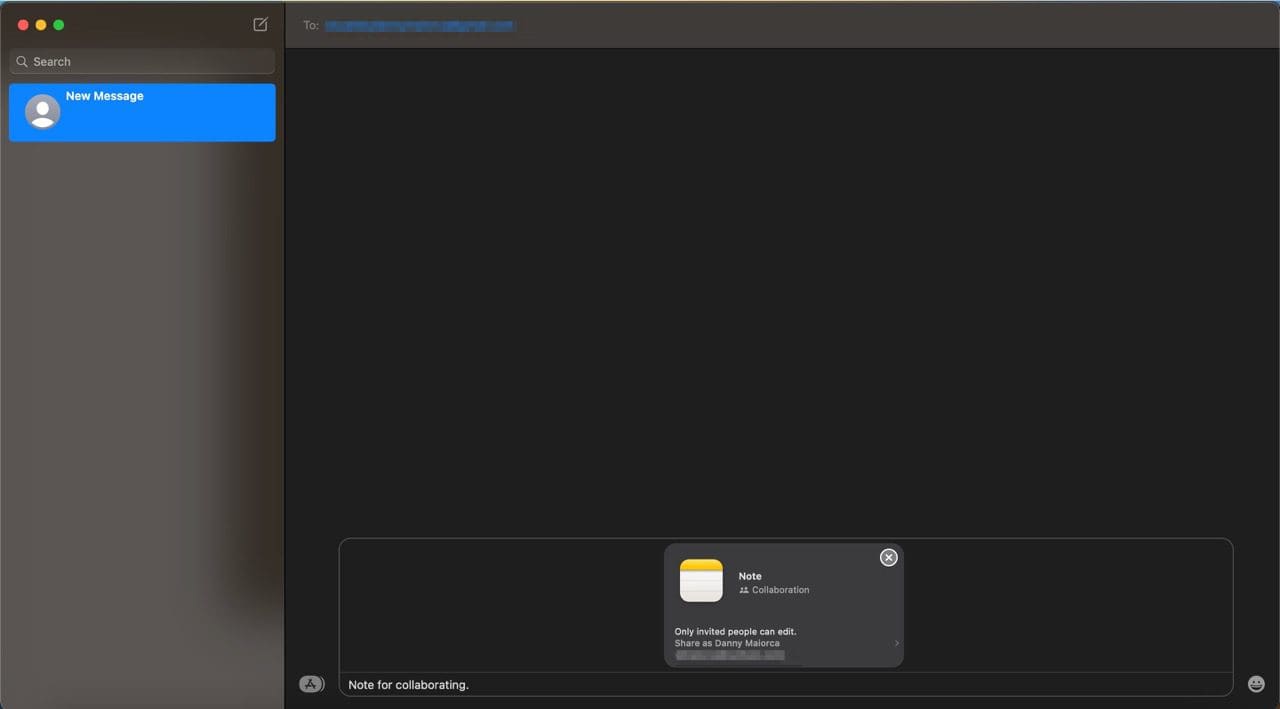
4. The Messages app will open once you’ve made your choice. Here, you can write any text you’d like to accompany your shared file or folder. Once you’ve finished, hit the Enter key to send.
Once you’ve sent your collaboration invitation, the other person will be able to retrieve the file or folder. When that has happened, they can add their own content to it.
Collaborating in Messages Has Become Much Easier With macOS Ventura
If you work remotely or as part of a team, having at least one instant messaging app is important for moving projects forward. It can also stop you from spending too much time in your email inbox, which can serve as a distraction if you aren’t careful.
With macOS Ventura, collaborating in Messages has become much simpler. So, if you haven’t already set yourself up on the app, you might want to consider doing so.
Danny has been a professional writer since graduating from university in 2016, but he’s been writing online for over a decade. He has been intrigued by Apple products ever since getting an iPod Shuffle in 2008 and particularly enjoys writing about iPhones and iPads. Danny prides himself on making complex topics easy to understand. In his spare time, he’s a keen photographer.













Write a Comment