• Skip to primary navigation
  • Skip to main content
  • Skip to primary sidebar
  • Skip to footer

AppleToolBox

Tools and Fixes for Mac, iPad, iPhone & iWatch

Search posts

  • About
  • Contact

CONNECT WITH US

CATEGORIES

  • iPhone
  • iPad
  • iPod
  • Apple Watch
  • Mac/MacBook
  • AirPods
  • Apple TV
  • News
  • Apple Services
  • HomePod
  • Reviews

SITE

  • Home
  • About Us
  • Contact
  • Advertise

Search posts

You are here: Home / Apple Services / How to Use Apple Notes with Microsoft Outlook

How to Use Apple Notes with Microsoft Outlook

By Louis Roundtree 0 comments Last updated November 20, 2024

Things to Know:
  • Apple Notes is an iOS feature that provides a virtual notebook you can sync across various devices.
  • By syncing your Outlook account with your iOS device, you can create notes you can access on any iOS or Outlook-connected device.
  • This allows you to make lists on your iPhone or iPad and then access them later on your Windows-based Outlook app.

How to Use Apple Notes with Microsoft Outlook: Step-by-Step

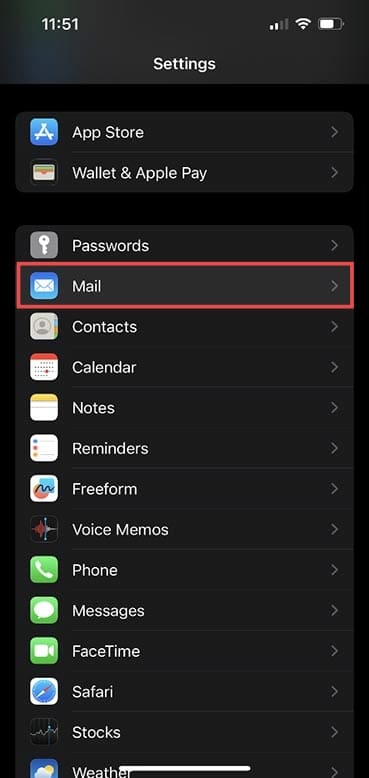
Step 1: Go to Settings>Mail on your iOS device.

How to Use Apple Notes with Microsoft Outlook 1

Step 2: Press Accounts>Add Account then choose the Outlook.com option.

How to Use Apple Notes with Microsoft Outlook 2

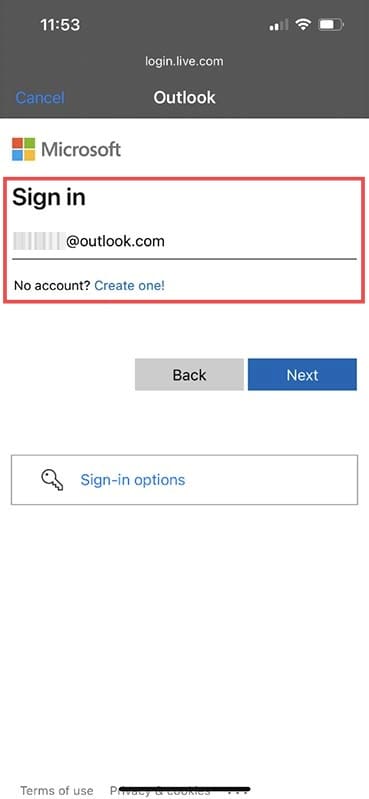
Step 3: Carefully enter your Outlook email account details when prompted.

How to Use Apple Notes with Microsoft Outlook 3

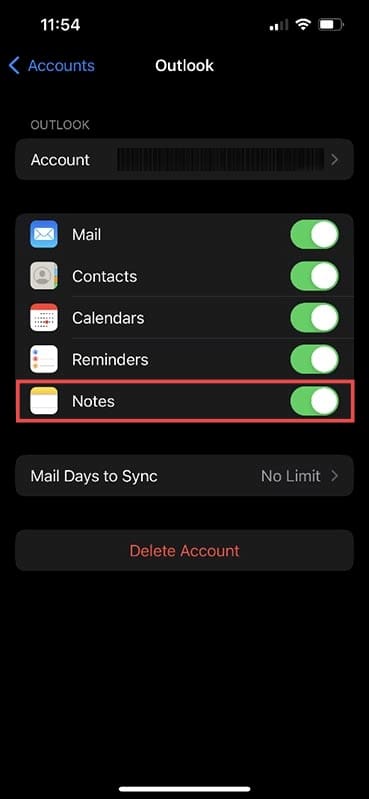
Step 4: After a few seconds, you’ll see a screen showing what you can sync between your Outlook Account and your iOS device. Ensure that Notes has the toggle button slid to the right and is green.

How to Use Apple Notes with Microsoft Outlook 4

Step 5: Open the Notes app on your iOS device and look for the Folders option in the top left corner. Press here.

How to Use Apple Notes with Microsoft Outlook 5

Step 6: Click Notes under where it says Outlook — it may also have your full Outlook email address instead.

How to Use Apple Notes with Microsoft Outlook 6

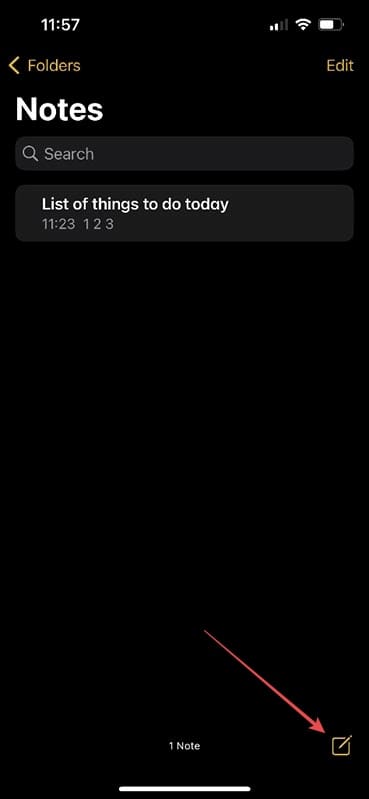
Step 7: You’ll now see any notes already associated with your Outlook account. Click the icon in the bottom right to start a new note.

How to Use Apple Notes with Microsoft Outlook 7

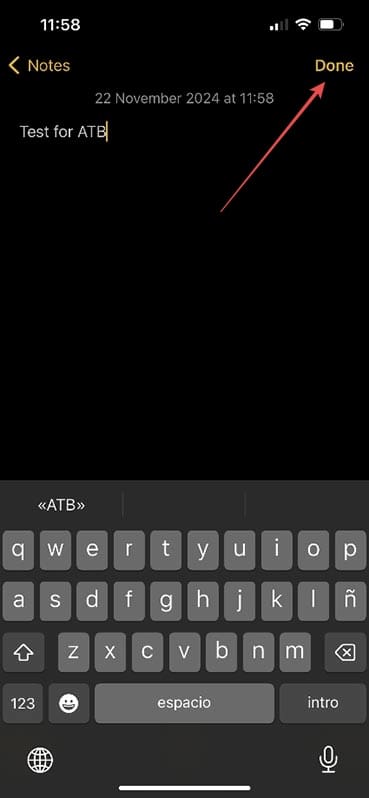
Step 8: Write your note then press Done in the top right corner.

How to Use Apple Notes with Microsoft Outlook 8

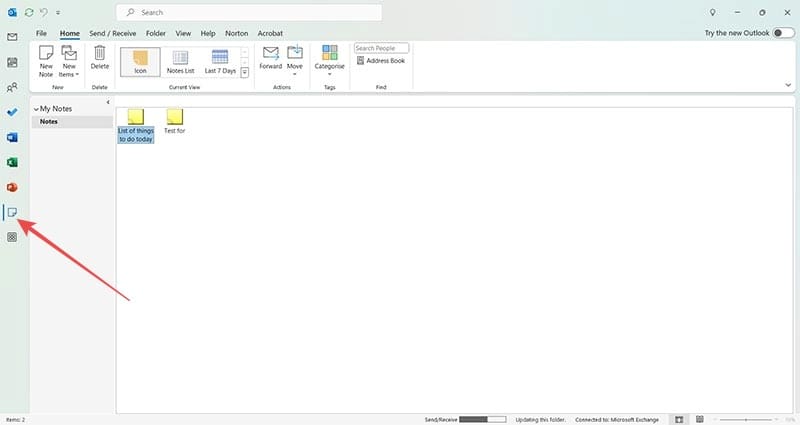
Step 9: Open Outlook on your Windows machine and click Notes on the left-hand side.

How to Use Apple Notes with Microsoft Outlook 9

Step 10: You’ll now see the notes you created on your iOS device.

How to Use Apple Notes with Microsoft Outlook 10

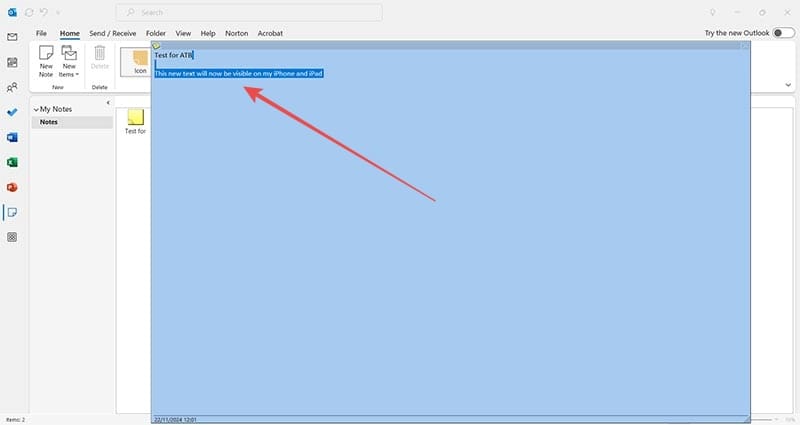
Step 11: Double-click on any of the notes to see the content and edit it. These edits will shortly be visible on any iOS device with your Outlook account synced. Similarly, if your Outlook account is synced to other Windows devices, the changes will also be visible there.

How to Use Apple Notes with Microsoft Outlook 11

Troubleshooting

Sometimes, you might not see your notes in your Outlook app on your Windows machine. This rarely means that the sync was unsuccessful and simply indicates that the Notes app isn’t pinned to the Outlook taskbar. Here’s how to fix it.

Step 1: Open Outlook. If you don’t see Notes in the options on the far left, carry on to Step 2.

Troubleshooting 1

Step 2: Click File, then Options.

Troubleshooting 2

Step 3: Click Advanced.

Troubleshooting 3

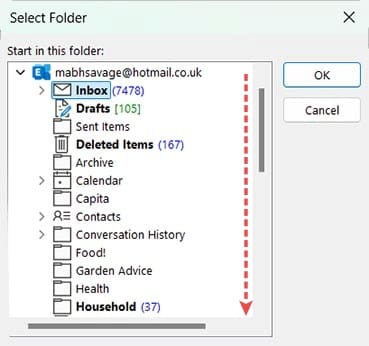
Step 4: Head to the option Outlook start and exit and click Browse which opens the following window.

Troubleshooting 4

Step 5: Scroll down until you find Notes. Double-click here.

Troubleshooting 5

Step 6: Press OK and you should see that the Outlook start and exit option now shows Notes.

Troubleshooting 6

Step 7: Click OK on this window then restart Outlook. It will now open directly in the Notes app.

Troubleshooting 7

Step 8: Right-click the Notes icon and select Pin.

Troubleshooting 8

Step 9: Repeat the process above to switch the Outlook start and exit option back to Inbox. Now, whenever you load Outlook up, you’ll be able to access your notes from the app you just pinned to the left-hand side.


Related Posts:

  • New Outlook for Mac 7 Best Features You Should Know
    New Outlook for Mac: 7 Best Features You Should Know
  • How to Fix Attachments Not Showing in Outlook for Mac
    How to Fix Attachments Not Showing in Outlook for Mac
  • photo of an iphone with ios 16 downloaded on it
    iOS 16 Tips and Tricks: The Definitive List
  • How to Switch From New Outlook to Old on Mac 4 Best Steps
    How to Switch from New Outlook to Old on Mac: 4 Steps
  • How to Fix Verifying Microsoft Outlook Mac Stuck Error 11 Best Methods
    How to Fix Verifying Microsoft Outlook Mac Stuck…
  • Mail app macOS Ventura WWDC 2022
    How to Use Email Alias for iCloud Mail on iPhone,…
  • Update Apple ID settings on your iPhone, iPad, or Mac after changing your password
    Getting a Message to Update Apple ID Settings on…
  • 2023 Mac Studio lifestyle - 1
    macOS Could Not Be Installed, How-To Fix
  • sidecar on iPadOS and macOS
    Sidecar not working in iPadOS and macOS? How to fix…
Louis Roundtree
Louis Roundtree

As an avid gamer, I’ve run into my fair share of error codes and weird faults that have forced me to find fixes to problems I never anticipated. That gave me a passion for sharing those fixes with others so we can all game without feeling like our hardware is rebelling against us.

Reader Interactions

Write a Comment Cancel reply

Primary Sidebar

Recent Posts

  • How to Manage Your iPhone Call Log
  • Are Apple’s Safety Precautions Enough for AirTags?
  • How to Hide Username and Photo on the Mac Lock Screen
  • Microsoft Resume vs. Apple Handoff – Which Wins for Cross-Device Work?
  • How to Export iTunes Library to New Computer
  • What the Gemini Desktop App Will Bring to Mac

Connect with us

Footer

ABOUT

  • About Us
  • Contact us
  • Advertise
  • Privacy
  • Terms of Use

GUIDES

  • iOS & iPadOS
  • Apple ID
  • iCloud
  • App Store
  • iTunes
  • FaceTime
  • iMessage
  • Siri
  • Books and iBooks
  • Game Center
  • AirPlay

CONNECT

  • Facebook
  • Twitter
  • FeedBurner
  • YouTube

© Copyright 2010-2024 Guiding Tech Media · All Rights Reserved

This site and its content are in no way affiliated or endorsed by Apple, Inc. · Reproduction without explicit permission is prohibited

Last Updated on November 23, 2024 by Louis Roundtree