Apple, in its batch of latest software updates, has introduced the ability to share iCloud folders with other users. The feature was originally introduced with iOS 13 beta but it was removed before the final public version was released. It appears that with the latest iOS 13.4 Beta released today, Apple has bought back the iCloud drive folder sharing functionality.
It’s a big change that should simplify workflows and family sharing across Apple’s ecosystem. Here’s what the feature does and how to use it on your devices.
In previous versions of iOS and macOS, Apple allowed users to share files from their iCloud Drive. But it only allowed them to share files — not entire folders.
That’s changed in Apple’s 2019 slate of software updates. You can now share entire folder using iCloud Drive on your iPhone, iPad, iPod touch or Mac.
It works kind of like link sharing from most cloud-based storage platforms. You send a link to a shared iCloud Drive folder. When someone clicks on it, they can get access to that folder. You can also restrict access to people you explicitly invite.
This is, of course, a major boon for everyone from sharing family photos with your loved ones to managing complex work projects with a team of individuals.
The caveat, on the other hand, is that you’ll need to be running macOS Catalina, iOS 13, or iPadOS to be able to share iCloud Drive folders. Currently, the feature is inaccessible from the iCloud Drive app on Apple’s iCloud web interface. Since that platform is currently undergoing a revamping, Apple may add iCloud folder sharing to it in the future.
How to share iCloud Drive folders in macOS
Sharing folders in iCloud Drive is actually pretty easy, as long as your Mac is running macOS Catalina.
Sharing a folder in macOS Catalina
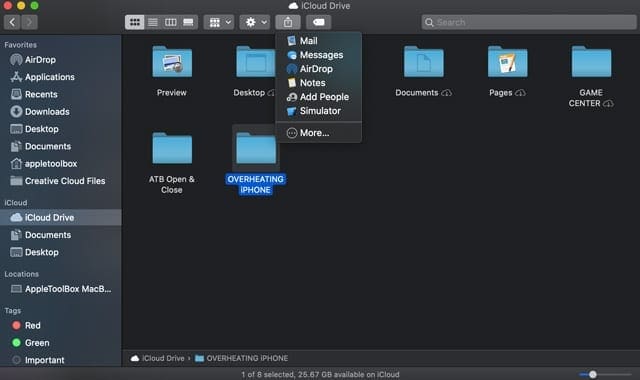
Open Finder on your Mac running macOS Catalina.
Click on the iCloud Drive directory in the sidebar. (It’ll be under the iCloud heading.)
Next, select a folder within your iCloud Drive.
Next, click the Share sheet icon — it’ll be above the file field in the Finder window menu bar.
Using the Share sheet, you can send a link to users via Mail, Messages, AirDrop, or another sharing medium.
That’s pretty much all there is to it. When someone clicks on the embedded link in the message that you sent, they will get access to your shared iCloud Drive folder.
Changing shared folder permissions
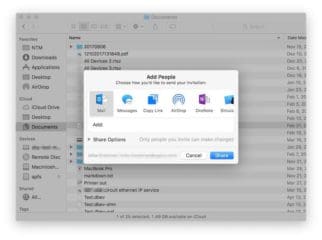
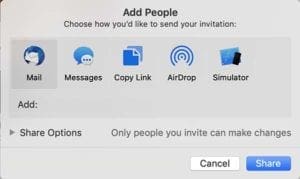
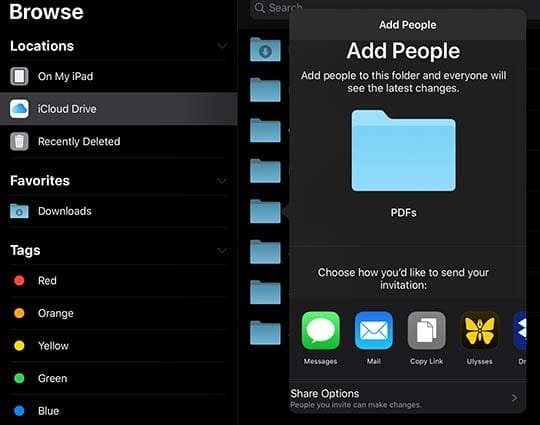
You can also edit permissions in the Add People menu.
You can see a list of the people who have access to the folder and change shared folder permissions after the fact.
Open Finder on your Mac.
Click the iCloud Drive directory in the sidebar.
Select the folder that you shared earlier. (You can also select and share multiple folders.)
Click the Share sheet icon in the window bar.
Now, you’ll want to click on Add People from the dropdown menu.
From here, you should see a list of everyone you’re sharing the particular folder with. You also have some options here.
You can select an individual recipient to change their permissions. View only means they can only view the data in your folder — they won’t be able to make changes. Can make changes is the exact opposite of this.
You can also change permissions for everyone at once by click on the Share Options at the bottom of the Add People menu.
Only people you invite: This means only the people you’ve selected will be able to access your shared iCloud Drive folder.
Anyone with the link: This means that the embedded link will be accessible by anyone. It also means that recipients can pass on the link and non-Apple users can view the folder.
You’ll also be able to set general permissions as View Only or Can make changes for everyone that has access to your folder.
How to share iCloud folders in iOS 13 and iPadOS
You can also share folders in much the same way on iOS 13 and iPadOS.
Sharing a folder in iOS 13 and iPadOS
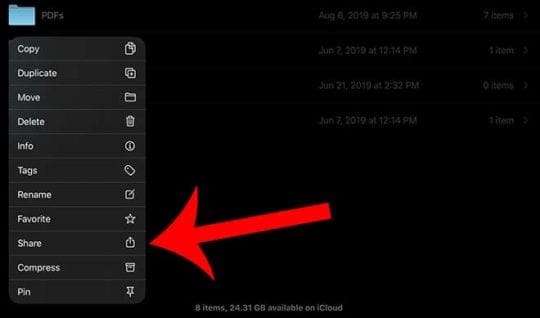
It works pretty much the same in iOS and iPadOS. Just long-press to bring up tap menu and tap Share.
Open the Files app on your iPhone or iPad.
Long or firm press on a folder. (You can also select multiple folders using the Select icon.)
In the popup menu, tap on the Share sheet icon.
Now, you can send off the invite link or add people in the Share sheet.
Just like on macOS, anyone with the embedded link or people you’ve invited will be able to access your iCloud Drive folder.
Changing shared folder permissions
The Share sheets let you invite people or Add People to your iCloud Drive folder.Sharing permissions can also be edited in the Add People (which you can access through the Share sheet).
If you scroll up on the Share sheet, you can also view the same sharing permission options we covered in the macOS portion.
That includes setting the folder or folders as accessible by People you invite or Anyone with the link.
You can also change the permission for individual recipients or the folder more generally. As with the macOS option, you can set this to Can make changes or View only.
We hope that you enjoyed this short article on some of the workings around the new iCloud Drive folder sharing feature. As we test through the iOS 13.4 beta releases over the next few weeks and months, we will be update you with new information.
Please let us know if you have any questions via comments.
Mike is a freelance journalist from San Diego, California.
While he primarily covers Apple and consumer technology, he has past experience writing about public safety, local government, and education for a variety of publications.
He’s worn quite a few hats in the journalism field, including writer, editor, and news designer.
I have shared a number of iCloud folders with others this way but, try as I might, I can no longer do this. I’m using iPad OS 16.6. I’ve tried with my up to date Mac laptop with similar results. I can share it but it tries to send the folder which of course is too big. Any ideas?
Thanks!
Martha
Sounds like something that would be useful to me … but first, a few questions:
[1] Is this iCloud Drive folder sharing only available to iMac, iPhone, and iPad users? (I have an iMac, but what about recipients I want to share a folder with—must they all have an i-product? I recall reading that Windows and Android users can establish Apple-account sign-ins, too.) If so, can I expect that SOMEDAY the other folks will be able to access my folder, too? How far in the future?
[2] As a workaround, can my invitees (i-product or others) enter a folder I’ve stored and access INDIVIDUAL files from it? Or should I be storing NO files within folders at all, if I want the wider accessibility?
Having weird issues doing this. Sharing folders of PDF music to a group of people. Some with the new update are able to view it, some aren’t. However some that didn’t upgrade yet were able to view it, and some weren’t. Anybody else having issues with this feature yet?
macOS Catalina 10.15.3 (19D76)
When I go to share a folder in my iCloud Drive by mail, there’s no option to send a link – it sends the whole folder as an attachment.
Am I doing something wrong?












I have shared a number of iCloud folders with others this way but, try as I might, I can no longer do this. I’m using iPad OS 16.6. I’ve tried with my up to date Mac laptop with similar results. I can share it but it tries to send the folder which of course is too big. Any ideas?
Thanks!
Martha
Sounds like something that would be useful to me … but first, a few questions:
[1] Is this iCloud Drive folder sharing only available to iMac, iPhone, and iPad users? (I have an iMac, but what about recipients I want to share a folder with—must they all have an i-product? I recall reading that Windows and Android users can establish Apple-account sign-ins, too.) If so, can I expect that SOMEDAY the other folks will be able to access my folder, too? How far in the future?
[2] As a workaround, can my invitees (i-product or others) enter a folder I’ve stored and access INDIVIDUAL files from it? Or should I be storing NO files within folders at all, if I want the wider accessibility?
You cannot share a folder with the name “Documents” if its directly under iCloud Drive. It has to be a sub-folder of something else.
Having weird issues doing this. Sharing folders of PDF music to a group of people. Some with the new update are able to view it, some aren’t. However some that didn’t upgrade yet were able to view it, and some weren’t. Anybody else having issues with this feature yet?
macOS Catalina 10.15.3 (19D76)
When I go to share a folder in my iCloud Drive by mail, there’s no option to send a link – it sends the whole folder as an attachment.
Am I doing something wrong?
Same on my end.