If you’re trying to combine Apple and Windows services, chances are you need both iCloud and Outlook for your devices. But if your iCloud account doesn’t show in Outlook, you won’t be able to connect the two. Here are some tips on solving this quickly.
Before you go on to change settings, here are some of the most common temporary reasons an iCloud doesn’t show in Outlook:
Temporary internet outage
Apple web service downtime
Incorrect time and date settings on your PC or iCloud account
Your apps are fully updated
Fix 1 – Reinstall iCloud on your PC if iCloud Account Doesn’t Show in Outlook
Outlook relies on the iCloud app to pull data on your account, so reinstalling it from the App Store or Microsoft Store can sometimes fix the issue.
Step 1. Go to Settings (“Win + I”), then to “Apps.”
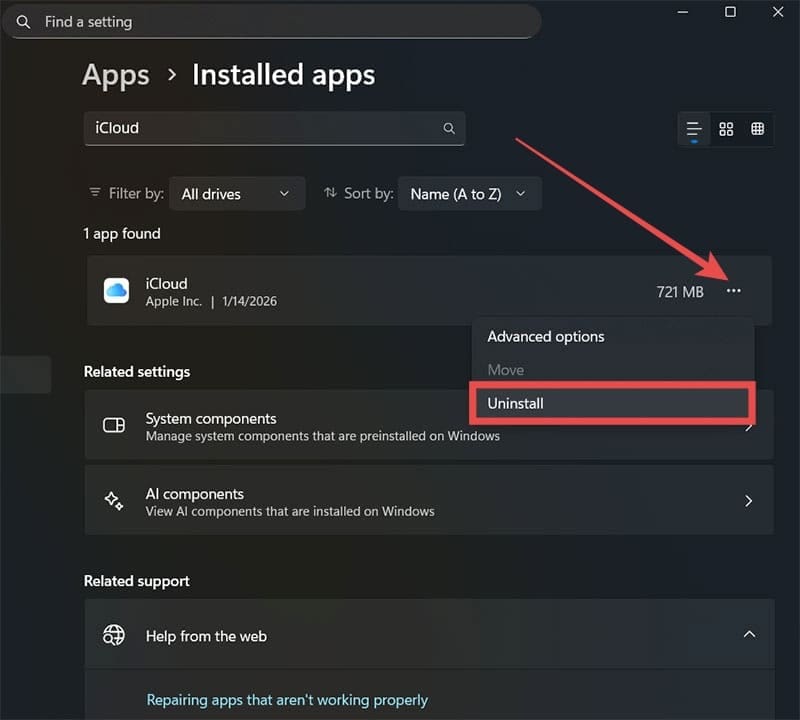
Step 2. Select “Installed Apps” (it should be on the top), then type in “iCloud” in the search bar.
Step 3. Click on the three-dots icon on the right and select “Uninstall.”
Step 4. Search for the Microsoft Store (via the search bar) and open it.
Step 5. Search for iCloud in the top search bar, then install the app with “Get.”
Step 6. Open the app and log in with your Apple ID.
Fix 2 – Make Sure the iCloud Add-In for Outlook Is Enabled
Outlook has a separate iCloud add-on that makes it easier to use iCloud accounts in the app.
Step 1. In the ribbon (on the top or left, depending on your version of Outlook), go to “More apps” and choose “Get Apps.”
Step 2. In the dialog pop-up, search for “iCloud” and install the app.
Step 3. In that same window, make sure that the iCloud add-in has been enabled.
Fix 3 – Use iCloud with an IMAP for manual syncing
Note that this method allows you to only sync your emails (which is the vast majority of the use cases most people need if iCloud doesn’t show in Outlook).
Step 1. Open the Apple Account page. Log in with your Apple ID credentials.
Step 2. In the “App-Specific Passwords” options, generate a new password and name it to associate it with Outlook.
Step 3. Paste the generated password.
Step 4. In Outlook, go to “File” and select “Account Info.”
Step 5. Click on “Add account” in the “Email accounts” section.
Step 6. Enter your iCloud email, choose to use the IMAP protocol, and select your account’s name.
Step 7. When prompted, fill in the following:
Incoming mail server: imap.mail.me.com
Outgoing mail server: smtp.mail.me.com
Use the generated password
Check the “My outgoing server (SMTP)” box
Step 8. In Advanced, use the following:
Incoming server (IMAP) port: 993; choose SSL/TLS
Outgoing server port: 587; STARTTLS
Step 9. Finish the account.
Fix 4 – Use a Fresh Outlook Profile or Web Version
If your current profile doesn’t seem to be working (with iCloud not showing up in Outlook), try making a new one and connecting your account to it. This could indicate that your existing account has been rate-limited.
Alternatively, you can ditch the apps entirely and go to Outlook for the Web. This ensures that you’ll be using the same environment regardless of your device.
As an avid gamer, I’ve run into my fair share of error codes and weird faults that have forced me to find fixes to problems I never anticipated. That gave me a passion for sharing those fixes with others so we can all game without feeling like our hardware is rebelling against us.











Write a Comment