Unlike Android phones, your iPhone doesn’t always let you decline incoming calls. Sometimes, the only option that appears on the screen is “Slide to answer“. So, how do you ignore or reject a call when there’s no decline option? Let’s find out!
Why Your iPhone Doesn’t Always Show the Decline Option
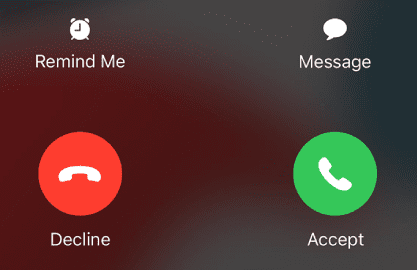
When your iPhone is locked, the only option that appears on the screen is “Slide to answer”. The option to decline incoming calls is available only when the phone is unlocked.
There’s a good reason why Apple decided to implement this unusual UI design. If your iPhone is locked, most likely the device is in your pocket. If the option to accept or decline calls were available on locked devices, you could accidentally accept or reject important calls. By forcing you to slide to answer, Apple simply wants to avoid such accidents.
What to Do if There’s No Option to Decline Calls on iOS
Silence the Call
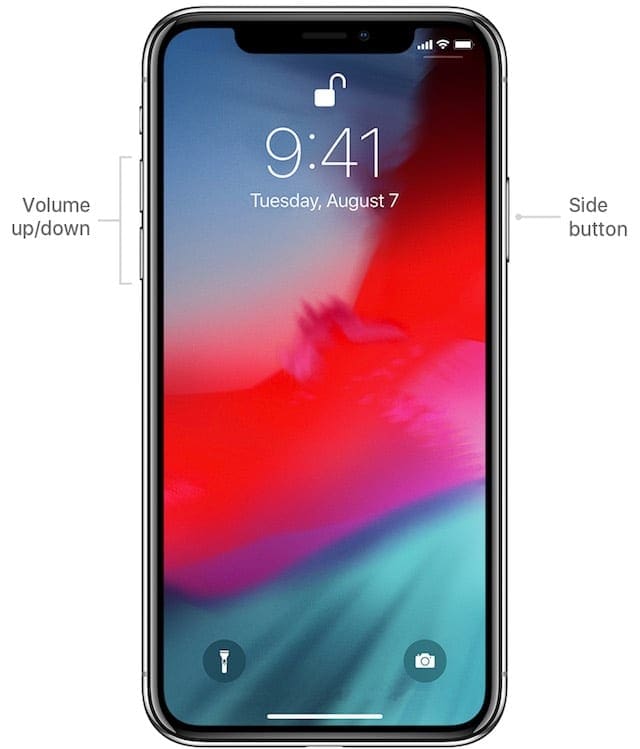
You can silence the call by pressing the Side or Sleep/Wake button, depending on your phone model. You can also press either Volume button. That will cause the phone to stop ringing or vibrating.
The call won’t go straight to voicemail. You can still accept it if you change your mind. After the standard amount of ring time, the call will get sent over to voicemail.
Use the Physical Buttons to Decline the Call
If you want to straightforwardly decline the call, quickly press the Side or Sleep/Wake button twice.
If you want to have access to more options, you can swipe down on the call banner. You can choose to set a reminder for the respective call or send a default message to the caller.
Display Incoming Calls as a Banner
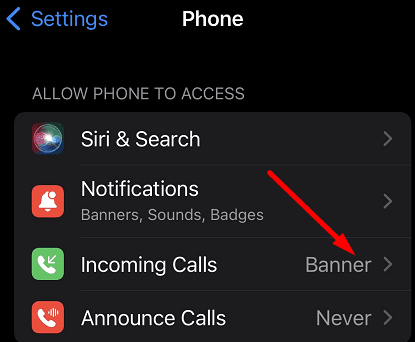
If you want to free up your iPhone for other uses while receiving incoming calls, tweak your settings and have calls displayed as a banner at the top of the screen. Instead of occupying the entire screen, incoming calls will take up only the top of your iPhone screen.
To do that, navigate to Settings, and scroll down to Phone. Select Incoming Calls and then tap Banner.
Conclusion
When your iPhone is locked, the option to decline incoming calls is not available. Instead, you can press the Side or Sleep/Wake button once or twice to silence or reject calls, respectively. The Decline button shows up only when your iOS device is unlocked.
Do you think Apple should change the UI design and add the option to decline calls even when your iPhone is locked? Share your thoughts in the comments below.
Madalina has been a Windows fan ever since she got her hands on her first Windows XP computer. She is interested in all things technology, especially emerging technologies — AI and DNA computing in particular.
Consistency please! A similar UI approach could have been used as seen in other iPhone apps. Look at how the Apple Mail app works. Sliding left on mail message provides Trash(red), Flag(green) and More(gray). In this case the options would be: Decline(red), Accept(green) and More(gray). More would display options to send a brief test message or could be relabeled Message. A similar slider approach was implemented in the Messages app in fact the slide approach is a pervasive Apple UI design in many other places. Consistency please! 🙂
Yes, I would really like to be able to decline incoming phone calls when my phone is locked. I get so many bogus calls that it would be a great time saver.












SE 2022 – Give Decline option on incoming call notification screen.
Having no decline option is ridiculous
If there is a ‘slide to receive call’ then there should be a ‘slide to decline call’
YES!! As a former Android owner it was definitely a plus especially with the increased influx of SPAM callers and unwanted solicitations!
Consistency please! A similar UI approach could have been used as seen in other iPhone apps. Look at how the Apple Mail app works. Sliding left on mail message provides Trash(red), Flag(green) and More(gray). In this case the options would be: Decline(red), Accept(green) and More(gray). More would display options to send a brief test message or could be relabeled Message. A similar slider approach was implemented in the Messages app in fact the slide approach is a pervasive Apple UI design in many other places. Consistency please! 🙂
Yes, I would really like to be able to decline incoming phone calls when my phone is locked. I get so many bogus calls that it would be a great time saver.