• Skip to primary navigation
  • Skip to main content
  • Skip to primary sidebar
  • Skip to footer

AppleToolBox

Tools and Fixes for Mac, iPad, iPhone & iWatch

Search posts

  • About
  • Contact

CONNECT WITH US

CATEGORIES

  • iPhone
  • iPad
  • iPod
  • Apple Watch
  • Mac/MacBook
  • AirPods
  • Apple TV
  • News
  • Apple Services
  • HomePod
  • Reviews

SITE

  • Home
  • About Us
  • Contact
  • Advertise

Search posts

You are here: Home / Apple Watch / Increase Your Apple Watch Screen Size With Zoom

Increase Your Apple Watch Screen Size With Zoom

By Sandy Writtenhouse 0 comments Last updated February 20, 2024

If you have trouble reading the display on your Apple Watch and apps appear a little too small, the Zoom feature can easily increase your Apple Watch screen size. This feature comes in handy if you have a visual impairment or just find it difficult to see what you need to see on your Apple Watch.

We’ll show you how to use Zoom for Apple Watch to read text, emails and apps clearly.

Contents

  • How to Enable the Zoom feature on Your Apple Watch
  • How to Enable the Zoom Feature on Your iPhone
  • How to Increase Your Apple Watch Screen Size With Zoom.
  • Use the Zoom Feature if You Want Your Apple Watch Screen to Look Bigger
    • More Apple Watch Tutorials and Tips:

How to Enable the Zoom feature on Your Apple Watch

Turning on the Apple Watch Zoom feature is where it all starts. Just follow these steps on your Apple Watch.

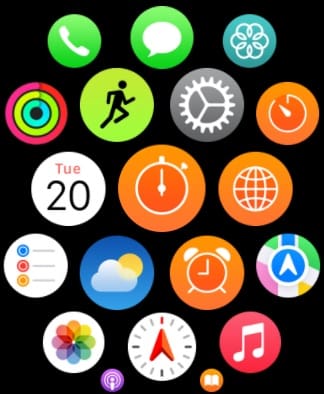
  1. Open the Settings app on your Apple Watch. It’s the icon with a cog in your Apple Watch app library.
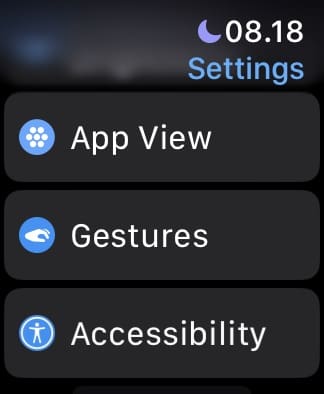
  2. Scroll down until you find Accessibility and click on this.
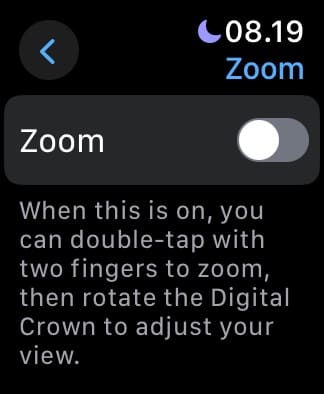
  3. Look for Zoom and tap on this option.
  4. Toggle the Zoom feature on.
The App Library on an Apple Watch, where you can see the Settings app
Select the Accessibility Tab on Apple Watch
Tap the Zoom tab on an Apple Watch
Toggle the Zoom feature on for Apple Watch

How to Enable the Zoom Feature on Your iPhone

You can also enable the Zoom feature for your Apple Watch using your iPhone if you’d find doing that easier. Follow the steps below to achieve your desired results.

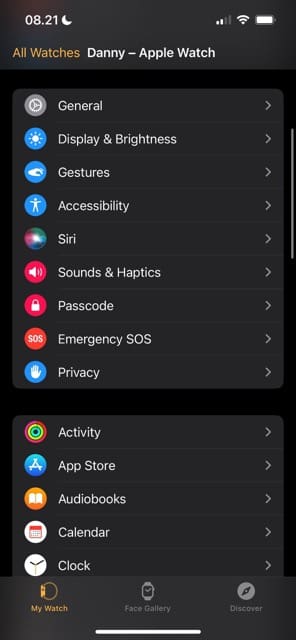
  1. Open the Watch app on your iPhone.
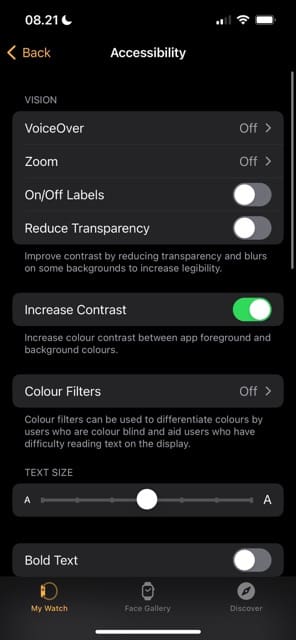
  2. Go to Accessibility > Zoom.
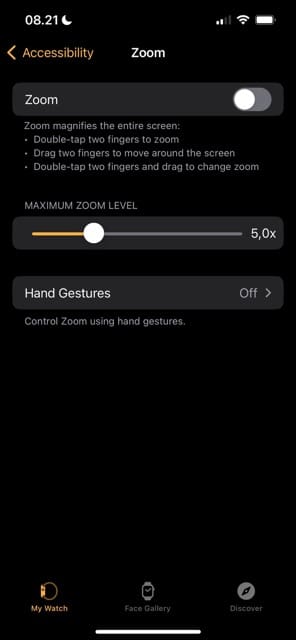
  3. Toggle Zoom on. While on this screen, you can also adjust the Maximum Zoom Level by dragging your finger along the slider. You can increase the zoom by up to 15 times the normal size.
    The Accessibility Tab on the Apple Watch iPhone app
    Accessibility Settings on Apple Watch
    Toggle Zoom on and off on Watch for iOS

How to Increase Your Apple Watch Screen Size With Zoom.

Now that you have Zoom enabled, the rest is easy. Plus, you will see the zoom on your Apple Watch face, your menu, and when you have apps open.

Double-tap with two fingers on your Apple Watch screen. You’ll immediately see it zoom in to the level you choose.

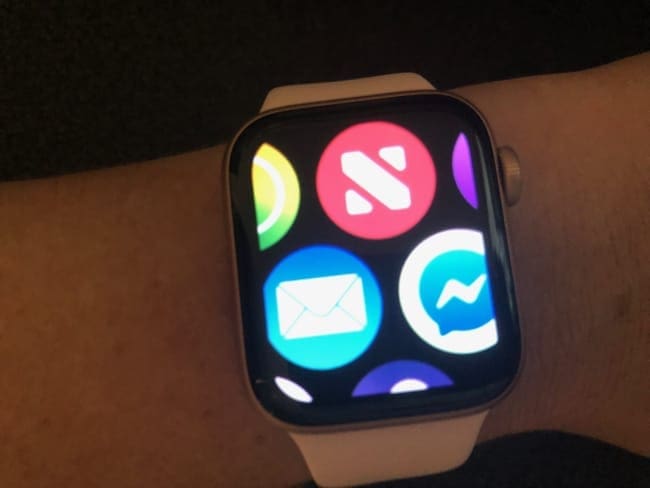
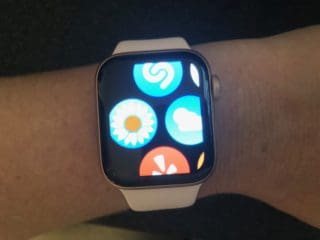
Apple Watch Zoomed in
Once enabled, Zoom magnifies the user interface.

You can use two fingers to move the screen around to where you need it. You can also use the Digital Crown to move about. Using the Digital Crown, the screen will move from the top left to the bottom right slowly as you scroll the wheel downward. The reverse happens when you scroll the wheel upward.

To zoom back out, just double-tap with two fingers again.

Users who have trouble using app icons on the Apple Watch and prefer a more conventional way of seeing apps can also take advantage of the list view on the Apple Watch.

Use the Zoom Feature if You Want Your Apple Watch Screen to Look Bigger

Whether you’re using the Zoom feature because you have difficulties with your vision or because you simply like how it looks, enabling the tool is very straightforward. What’s also nice is that you have the ability to choose how much you want to zoom in on your screen, so you can customize the feature precisely for your needs. Moreover, you can make your adjustments from both your iPhone and Apple Watch.

Now that you’ve read this guide, you have all the information you need to use the Zoom feature on your Apple Watch. Once you’ve tried it, let us know what your thoughts are about it in the comments section below:

More Apple Watch Tutorials and Tips:

  • How to Use the Double Tap Feature on Your Apple Watch
  • How to Set Up Your Apple Watch for an Elderly Loved One
  • How to Use the Mirroring Feature on Your Apple Watch
  • The Best iOS Apps and Features for Accessibility
  • How to Reset or Restart Your Apple Watch

Related Posts:

  • iPhone 15 event - iPhone 15 Pro and iPhone 15 Pro Max A17 Pro Video Recording Promo
    iPhone 14 vs. iPhone 15: Should You Upgrade?
  • Apple Watch Ultra Tips and Tricks
    Apple Watch Tips and Tricks for 2023
  • The home screen on an iPhone
    iOS iPhone Visual Voicemail Not Working After iOS 17…
  • iPhone 15 Pro Max - 4
    Best iPhone Lock Screen Widgets for iOS 17
  • apple-studio-display-front
    Apple Studio Display Review: Is this the Best…
  • pexels-cottonbro-5082579
    Getting Started With iOS 15: Everything Good And Bad
  • Update Apple ID settings on your iPhone, iPad, or Mac after changing your password
    Getting a Message to Update Apple ID Settings on…
  • Photo of someone using Apple Music on their smartphone
    How to Fix Apple Music Not Working on iPhone / iPad
  • photo of an iphone with ios 16 downloaded on it
    iOS 16 Tips and Tricks: The Definitive List
sandy apple
Sandy Writtenhouse

Sandy worked for many years in the IT industry as a project manager, department manager, and PMO Lead. She then decided to follow her dream and now writes about technology full-time. Sandy holds a Bachelors of Science in Information Technology.

She loves technology– specifically – terrific games and apps for iOS, software that makes your life easier, and productivity tools that you can use every day, in both work and home environments.

Her articles have regularly been featured at MakeUseOf, iDownloadBlog and many other leading tech publications.
Reader Interactions

Write a Comment Cancel reply

Primary Sidebar

Recent Posts

  • How to Hide Username and Photo on the Mac Lock Screen
  • Microsoft Resume vs. Apple Handoff – Which Wins for Cross-Device Work?
  • How to Export iTunes Library to New Computer
  • What the Gemini Desktop App Will Bring to Mac
  • What to Do When Windows 11 Won’t Detect Your iPad
  • Outlook Outage 2026: iPhone Fixes for Sign-In Chaos

Connect with us

Footer

ABOUT

  • About Us
  • Contact us
  • Advertise
  • Privacy
  • Terms of Use

GUIDES

  • iOS & iPadOS
  • Apple ID
  • iCloud
  • App Store
  • iTunes
  • FaceTime
  • iMessage
  • Siri
  • Books and iBooks
  • Game Center
  • AirPlay

CONNECT

  • Facebook
  • Twitter
  • FeedBurner
  • YouTube

© Copyright 2010-2024 Guiding Tech Media · All Rights Reserved

This site and its content are in no way affiliated or endorsed by Apple, Inc. · Reproduction without explicit permission is prohibited

Last Updated on February 20, 2024 by Danny Maiorca