One of the most frustrating things is when you need to get up at a specific time, only to find out that your alarms never went off. We’ve all been there before, but what can you do if iPhone alarms won’t work? Well, there are a few different troubleshooting steps that you can take to ensure it never happens again.
This is the most common reason why your iPhone alarms won’t work, as the alarm actually went off when it was supposed to, but you didn’t hear the sound. This can happen if you accidentally turned the sound of your notifications down, which would include the ringer for your alarm.
Open the Settings app.
Scroll down and tap Sounds & Haptics.
Under the Ringer and Alerts section, move the volume slider all the way to the right.
You might also want to toggle the Change with Buttons option to the On position.
Once you’ve adjusted the volume, you can jump into the Clock app and create a quick alarm to make sure that everything is back in working order.
Restart Your iPhone
For one reason or another, we’ve found that a simple restart of your iPhone can fix any issues that you may experience. At the end of the day, our smartphones are just really fast computers, and there might be some software cruft that is wreaking havoc. Here’s how you can restart your iPhone:
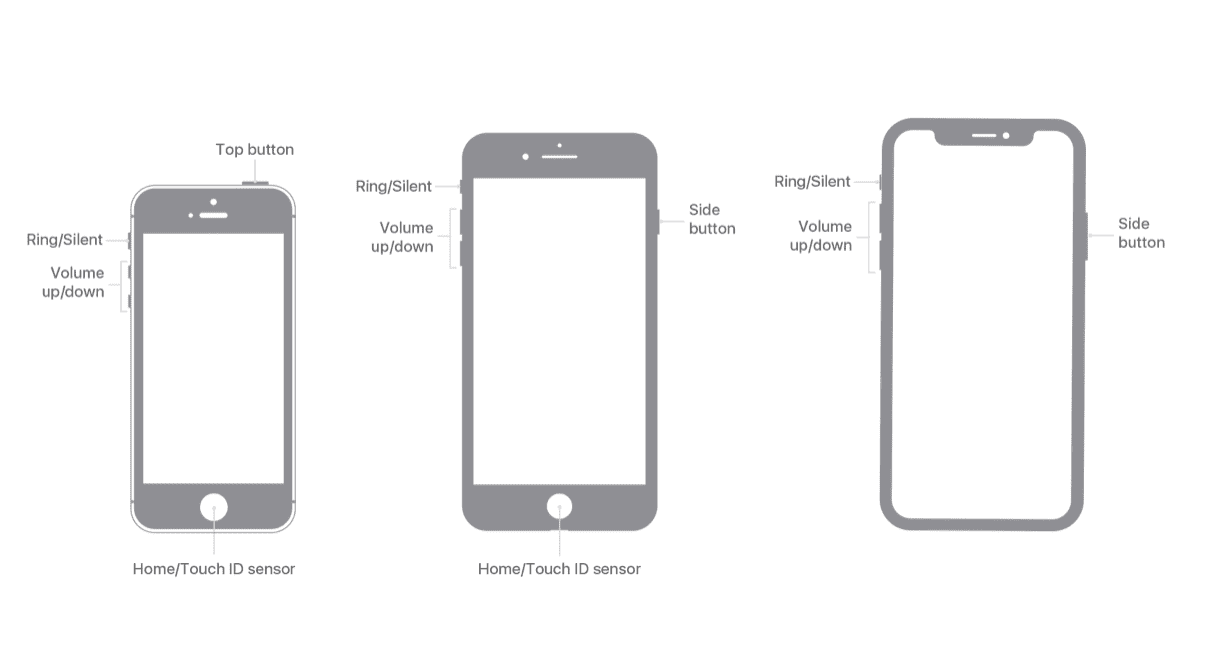
Press and hold the Side Button with either the Volume Up or Volume Down buttons at the same time.
Once the Slide to Power Off slider appears, slide the toggle to turn off your iPhone.
When you perform a “regular” restart of your iPhone, this allows iOS to go through its traditional shutdown safety nets. But if you want to really knock out any potential cobwebs, then you might want to try a force restart.
Press the VolumeUp button and release.
Press the Volume Down button and release.
Press and hold the Side button for 10-15 seconds until your iPhone reboots.
Once your iPhone is finished booting back up, log back in, and then head into the Clock app to set a quick alarm. This should give you an idea as to whether everything is back in working order or not.
Pick A Different Alarm Noise
Another issue that we’ve run into in the past is that the default noise for the iPhone doesn’t actually work. It’s one of the weirdest bugs, but it’s happened off and on over the years, even after iOS updates claim to fix the bug. Here’s how you can swap out the alarm noises if your iPhone alarms won’t work:
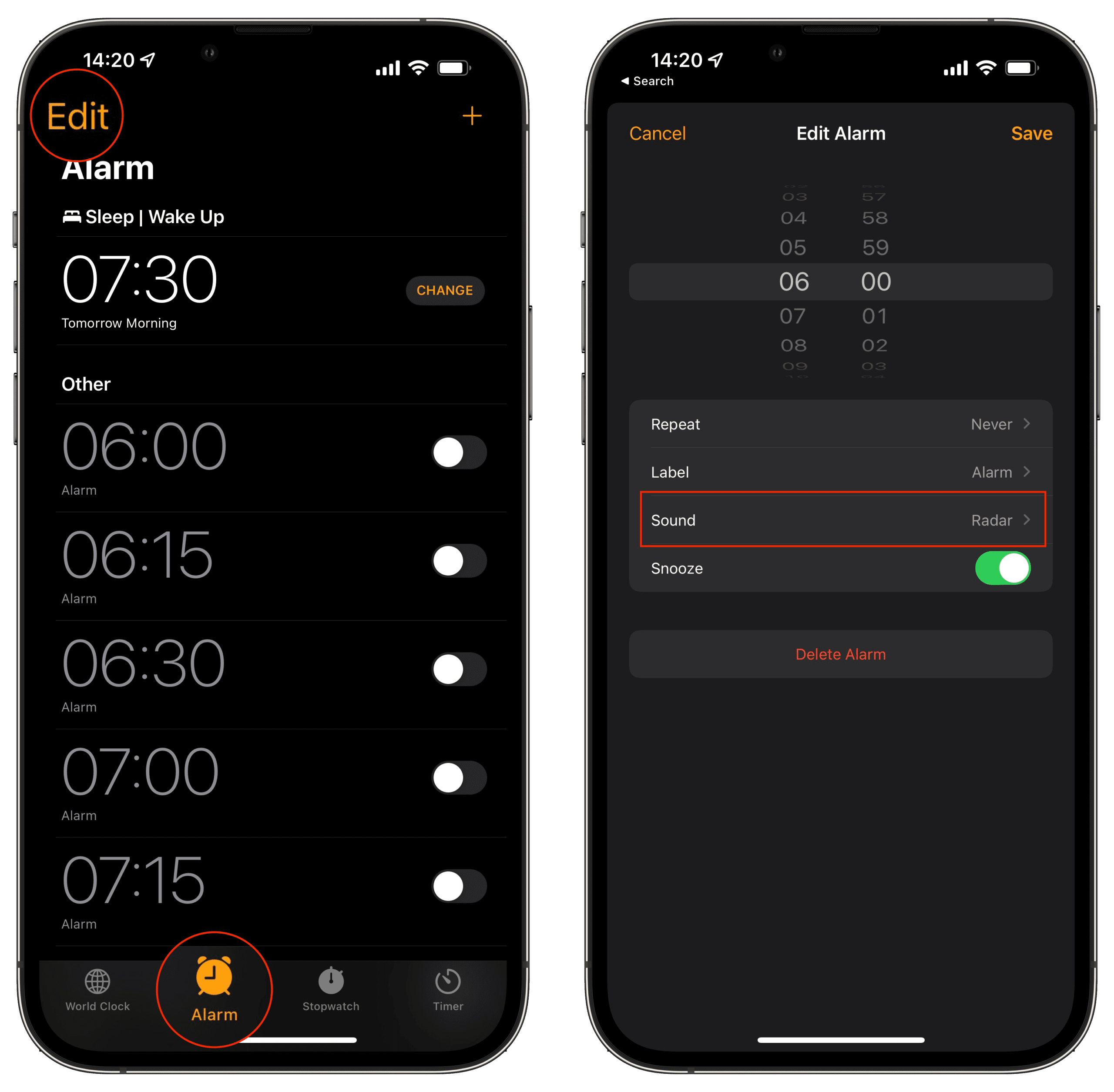
Open the Clock app on your iPhone.
Tap Alarm in the bottom toolbar.
In the top right corner, tap Edit.
Select the alarm that you want to change.
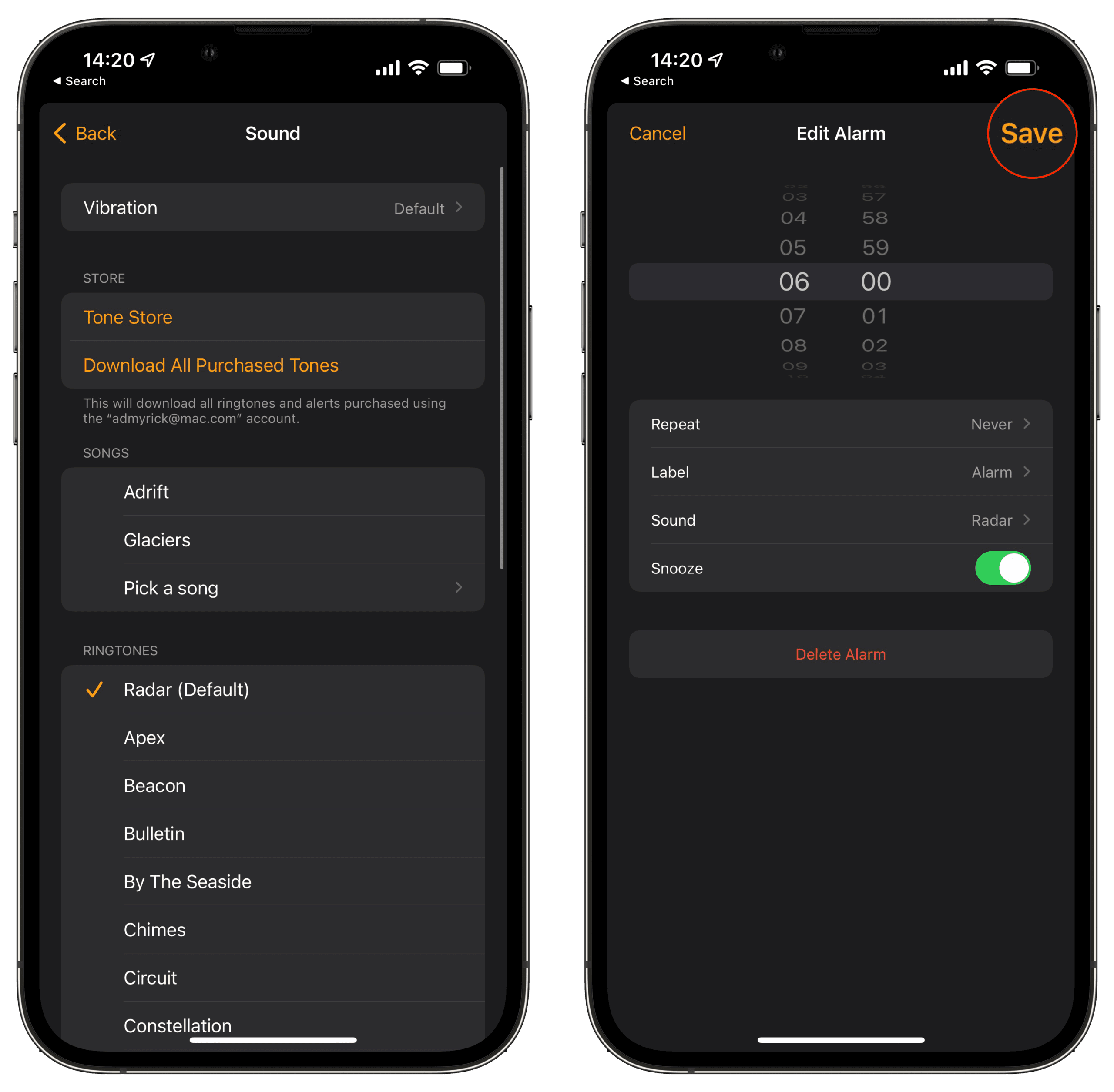
Tap Sound.
Pick a Ringtone or Song that you want to use.
Tap Vibration.
Select one of the options provided.
Tap < Sound in the top right corner.
Tap < Back in the top right corner.
In the top left corner, tap Save.
Repeat the steps for all of your pertinent alarms
If you want to be on the safe side, you can always restart your iPhone after you’ve updated your alarms. This could help to knock out any of the kinks that have been preventing alarms from going off.
Check For An Update
Apple has been feverishly updating its lineup of devices, at a more rapid pace than we’ve seen in the past. Chances are, you might have an update waiting for you, but it just hasn’t prompted you to install it yet. If you want to be on the safe side, you can quickly and easily check for an update.
Open the Settings app on your iPhone.
Tap General.
Select Software Update.
If there is an update available, tap the Download and Install button.
After the update is finished downloading, your iPhone will prompt you to begin the installation. During this time, you will be unable to use your iPhone, so make sure you have a few minutes to spare.
Reset All Settings
The last method we recommend trying if your iPhone alarms won’t work essentially resets all of the preferences that you might have tweaked over the duration of owning your iPhone. This literally means that if you’ve tapped a toggle to turn something on or changed an alarm, performing this reset will put things back to the way that they were when you first took the iPhone or iPad out of the box.
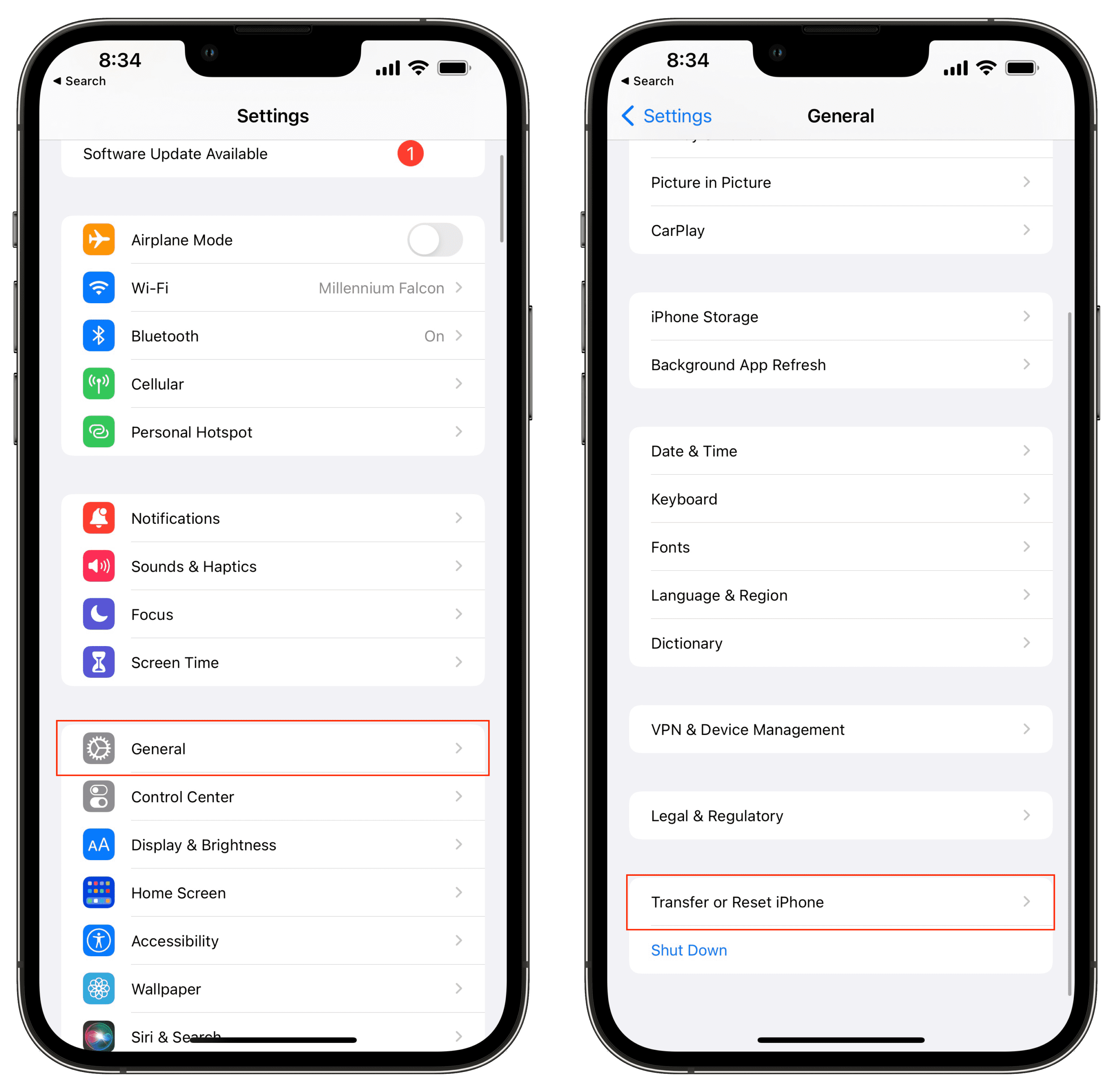
Open the Settings app on your iPhone.
Tap General.
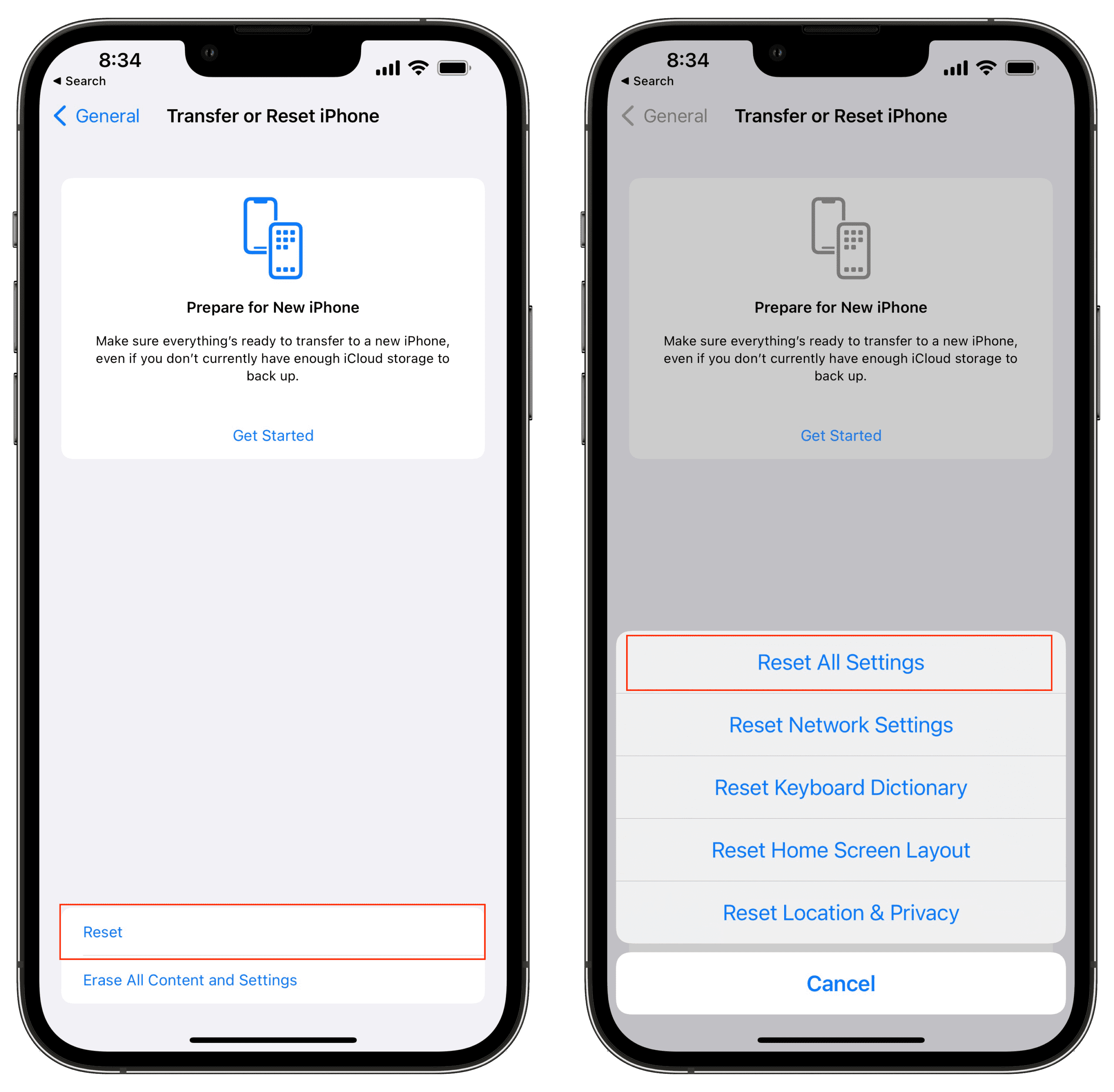
Scroll to the bottom and tap Transfer or Reset iPhone.
Tap the Reset button at the bottom of the page.
Tap Reset All Settings.
Enter your passcode if prompted.
As you might expect, following the steps above will also require you to go back into the Clock app and set up all of your alarms again. Obviously, this is a rather cumbersome solution, but it’s better than waking up later than you need to be.
It Might Be Time To Try A Different App
There’s really nothing wrong with Apple’s Clock app. It has much of the functionality that you need, along with a few added benefits thanks to Bedtime Mode. But for some, Apple’s app just won’t wake you up when you need to get up. Thanks to the wonder that is the App Store, there are quite a few alternatives that you can try out. Here are three of our favorites.
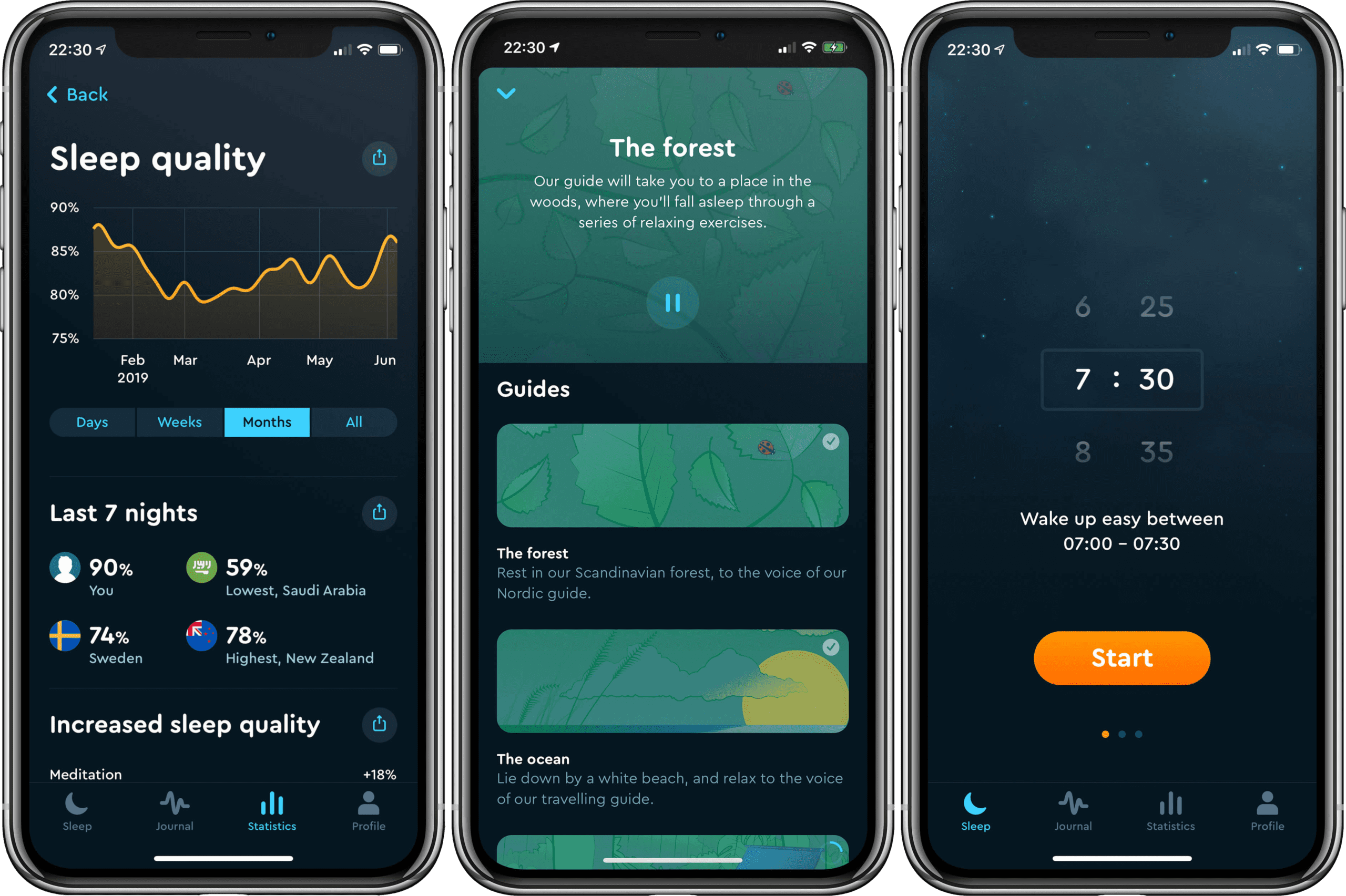
Sleep Cycle – By using Sleep Cycle to track your sleep and find your perfect wake-up window, we believe you’ll be part of that change, for the benefit of better health.
Alarmy – Joyful Alarm clock – Alarmy makes your BODY get out of bed first and then makes you get to the place like a bathroom where you have no other choices but to wake up. Alarm will keep ringing until you prove the fact that you arrived at the place through taking a “Photo” or scanning a “Barcode”.
Alarm Clock for Me – Wake up and go to sleep to your favorite music, get your own collection of exclusive designer clocks, know weather conditions in your area, and light up the darkness with a powerful built-in flashlight!
Andrew Myrick is a freelance writer based on the East Coast of the US. He enjoys everything to do with technology, including tablets, smartphones, and everything in between. Perhaps his favorite past-time is having a never-ending supply of different keyboards and gaming handhelds that end up collecting more dust than the consoles that are being emulated.









Write a Comment