During FaceTime calls, your iPhone screen may sometimes go black for a second and then come back to normal. It’s as if you were taking a screenshot. This issue affects both the caller and the receiver at the same time. As a matter of fact, this glitch has been plaguing users ever since iOS 10 was launched. Unfortunately, the problem persists even if you upgrade to iOS 14 or later. Without further ado, let’s explore what you can do to troubleshoot the problem.
Some users suggested the black flashes during FaceTime calls could have something to do with the brightness or white balancing process. The issue seems to occur more frequently when there’s a white background behind users. Try to change the background, and check if you notice any improvements.
Switch Between Cameras and Rotate Your Phone
As a temporary workaround, you can switch from the front camera to the rear camera and back again. Many users confirmed this trick helped them stop the annoying black flashes temporarily. In other words, after a few minutes, you may need to switch between cameras again.
Other users suggested that rotating the phone 90 degrees could help alleviate the problem. It appears that the facial recognition in FaceTime sometimes doesn’t interact properly with the exposure control settings. Well, the landscape mode may not be great for your FaceTime calls, but it’s a better alternative than the flickering.
Clear the Lens and Update Your Phone
Make sure nothing’s interfering or blocking your camera lens. Take a soft cotton cloth and gently wipe off smudges and fingerprints. Remove your case, and then restart your iPhone. Launch a new FaceTime call and check if the issue persists.
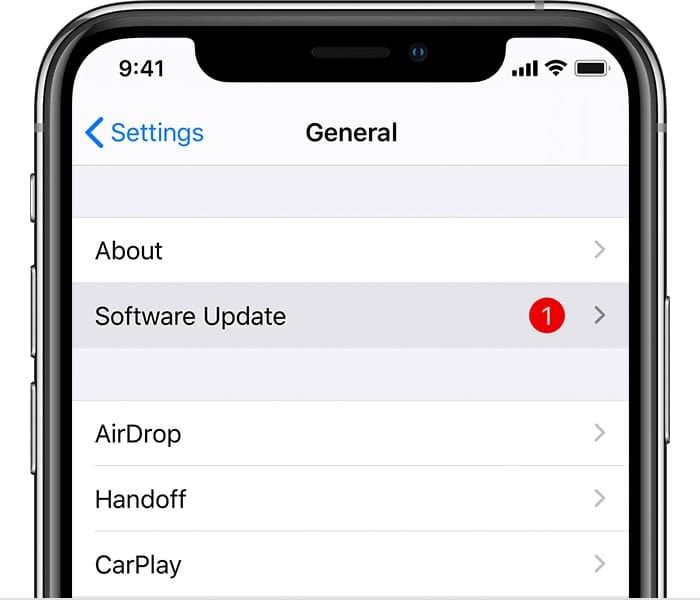
Check if there are any pending FaceTime and iOS updates and install them on your terminal. Go to App Store, tap your profile icon, go to pending updates, and select Update All. Then, go to Settings, select General, and tap System Update to install the latest iOS version.
Make sure your device is running the latest software.
Close Background Apps
Close all background apps to prevent them from using your camera. Sometimes, apps such as Zoom, Teams, Skype, and so on may try to use your iPhone camera, interfering with FaceTime. Close them, launch FaceTime again, and check if the issue persists.
Check Your Internet Connection
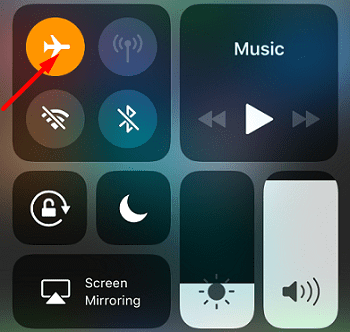
If your Internet connection is not stable, you may experience bandwidth issues that could cause various FaceTime glitches. Enable Airplane Mode, wait for 30 seconds, then go back online and check the results. Alternatively, use a different network connection and check if you notice any improvements.
Conclusion
A bad Internet connection may cause your iPhone screen to flash black during FaceTime calls. Use a different network and check the results. Additionally, check for FaceTime and iOS updates, close background apps, and restart your phone. Avoid white backgrounds and mirror reflections during FaceTime calls.
Have you ever experienced similar FaceTime issues? Did you find other ways to fix the problem? Share your ideas in the comments below.
Madalina has been a Windows fan ever since she got her hands on her first Windows XP computer. She is interested in all things technology, especially emerging technologies — AI and DNA computing in particular.











Write a Comment