Do you know what the worst feeling is beside losing an iPhone or iPad? Breaking one of the two most important buttons on your iOS device. We’re not talking about the volume buttons either; it’s the home and power buttons located on the bottom of your screen and the top right-hand corner.
The home button allows you to do many things such as closing an app, kill applications from the App Switcher, and it gets you out of trouble sometimes. The power button, as its name suggests lets you turn off the screen or even the device entirely.
So you may have guessed that both home and power buttons are essential and it played a crucial role in our daily usage. It sucks to lose one of them especially when you need to reboot an iPhone or iPad, put the device into recovery mode, etc.
Learn the different ways to reset iPhone 7
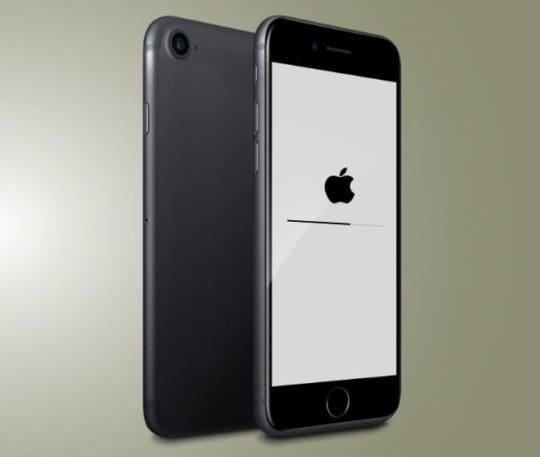
As for rebooting a device, did you know that you can still do so without one or the other? Just in case, your home or button breaks, you can always restart/reboot your device. Here is how.
How to Restart your iPhone or iOS Device Without Home or Power Buttons
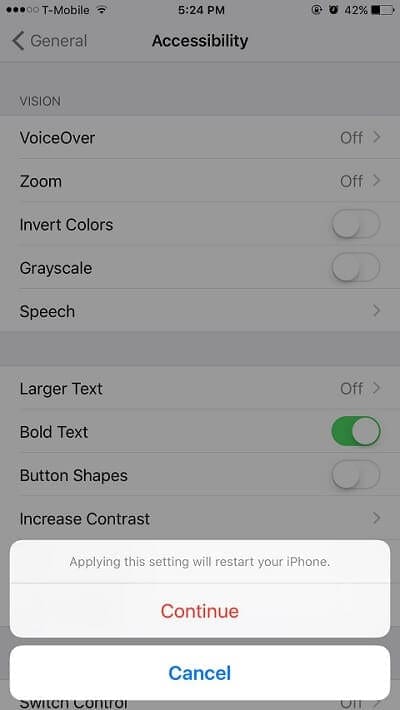
Go to Settings > Accessibility
Look for the ‘Bold Text’ option and turn it On
Your iPhone or iPad will ask if you like to restart the device
Of course, you have to say Yes because we’re looking for a way to reboot your iOS device. Once the device is restart, everything should be good to go.
Restart by Resetting Your Network Settings
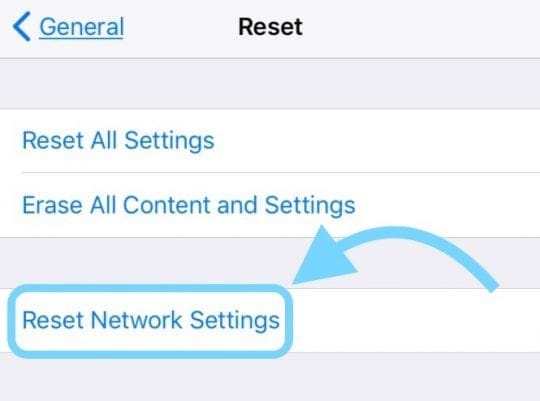
Alternatively, you can also reset your Network settings from Settings > General > Reset > Reset Network Settings.
And the system will also be rebooted as part of the resetting process.
Be mindful that this action removes any stored WiFi passcodes, so have those on-hand before resetting your network’s settings.
For iOS 11 and above, use the Shut Down Feature in Settings App
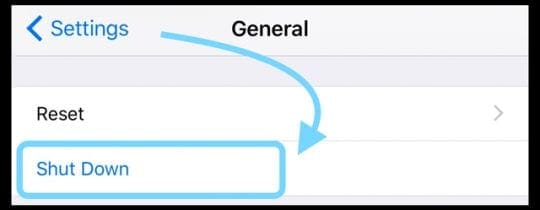
Another great and easy option for folks with iOS 11 and above is the shutdown command within the Settings App.
Go to Settings > General > and scroll down all the way until you find Shut Down. Tap it and your device restarts! Easy-Peasy.
Try AssistiveTouch To Restart
Originally designed to help folks who have mobility challenges when working with touch screens and small buttons like Home or Power, assistive touch allows anyone to use their iDevices to perform tasks with one or more taps by creating custom actions.
While Assistive Touch helps folks with disabilities and physical impairments use iDev ices, it also has some nice commands to help out folks with problems like when the home button stops working.
Press the power button to turn on or connect your iDevice to a computer to automatically turn it on (if the power button isn’t working)
With iOS 11 or Above?
iOS 11 includes another excellent accessibility setting to help folks restart their devices without the need for power or home buttons.
Set-Up Assistive Touch For Single-Tap Restating
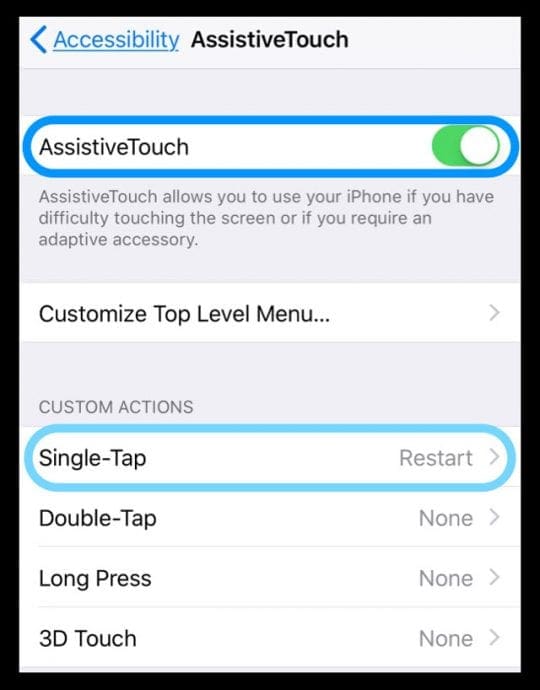
Open Settings > General > Accessibility
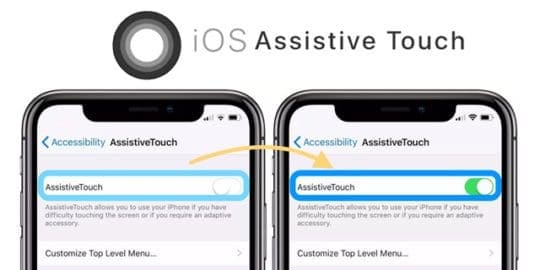
Scroll down to locate AssistiveTouch and tap it
Toggle ON AssistiveTouch
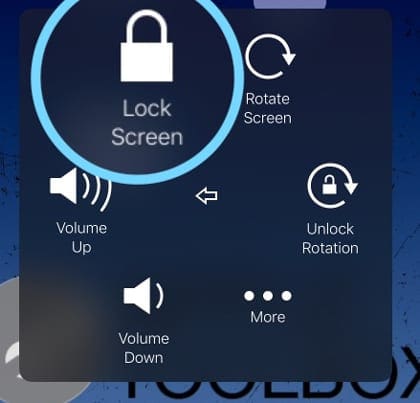
A virtual button appears on screen
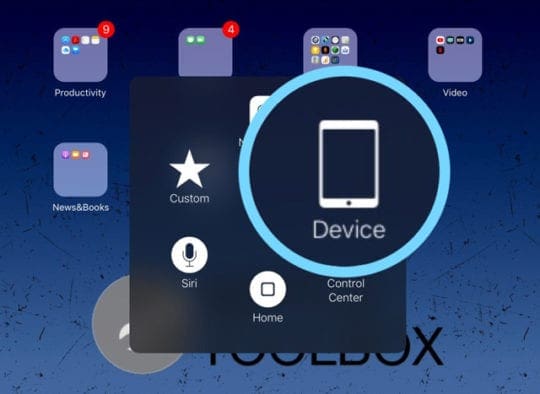
Press and hold to move this button to any location on your screen
Locate your Custom Actions and select Single-Tap (or if desired, choose a different action like Long Press or 3D Touch)
From the on-screen menu, choose Restart (scroll down to find it)
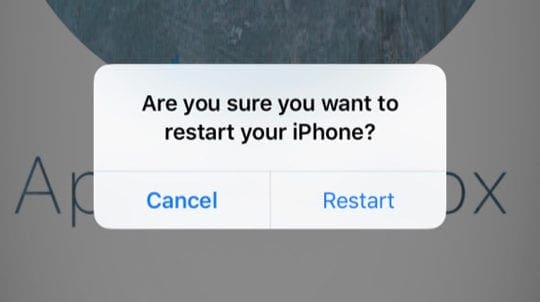
Whenever you want to restart, just press the on-screen button and select Restart from the message “Are you sure you want to restart your iPhone?”
Drain the Battery and Recharge
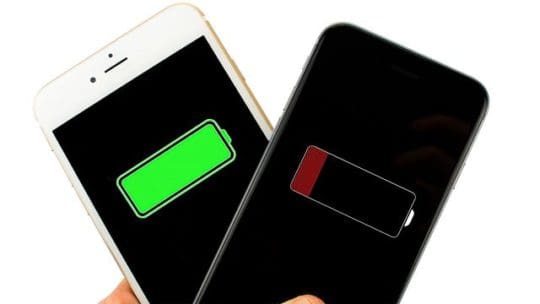
The final way to restart an iDevice without a power or home button is to just let all the power run out.
Yup, that’s right! Just letting the battery fully drain and then placing your device back on the charge restarts your device.
Given that the other methods are quite simple, this process is a lot more time-consuming. But in case nothing else works, you always have this last alternative.
To speed up your battery drain, play or steam a video and set it to auto-play so videos just play until the power is out.
Just be sure you are connected to WiFi and not your mobile data plan to avoid unnecessary data charges or reductions in internet speeds over your mobile network.
So yes, that is how you can quickly restart your iPhone, iPod touch, and iPad in case one of the buttons stop working.
How can I get or use my device when it already has been forced restarted and I need to press the home button but it’s broken, and I can not get into the phone settings to put on the assistive touch???
How can I get or use my device when it already has been forced restarted and I need to press the home button but it’s broken, and I can not get into the phone settings to put on the assistive touch???













How can I get or use my device when it already has been forced restarted and I need to press the home button but it’s broken, and I can not get into the phone settings to put on the assistive touch???
Reply
How can I get or use my device when it already has been forced restarted and I need to press the home button but it’s broken, and I can not get into the phone settings to put on the assistive touch???