You’re texting someone and then when you try to send you get the message: “Cannot Send Message: iMessage needs to be enabled to send this message.” Then it forces you to accept the situation by hitting OK. There are a few ways to troubleshoot this issue, which we’ll cover below.
The simplest thing to try on the list is to simply delete the message and attempt to send it again. Once in a while, iMessage may fail to send if there are many different iMessages in a conversation.
You might also try removing the whole conversation and starting a new conversation.
To delete conversations, tap and hold the messages from the Message window, and then hit Delete.
To delete a message, tap and hold an individual message. You may see an option that reads More… Tap that and then the message will be selected. Hit the trash can icon below.
Enable Your iMessage
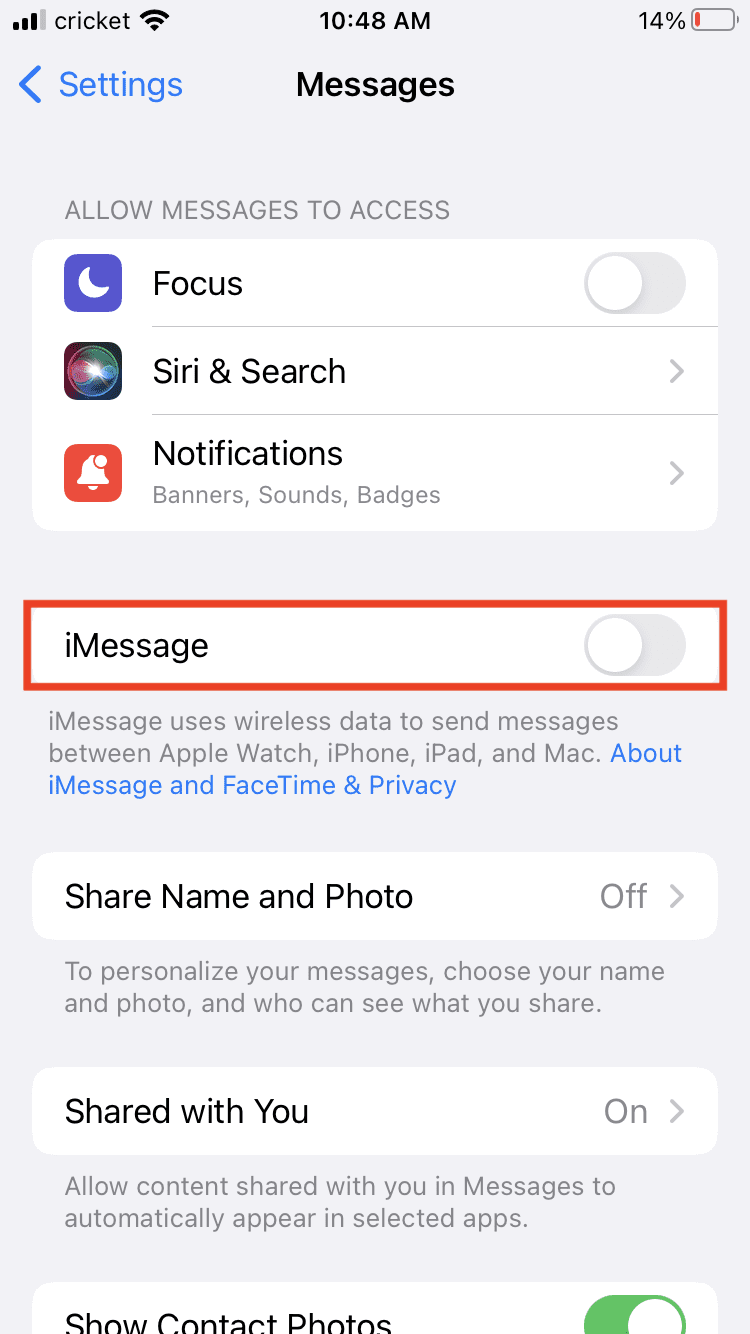
Sometimes the simplest solution is that iMessage is not enabled. You can find this feature and enable it by:
Tap Settings (the cogwheel icon).
Tap on Messages.
Near the top, you’ll see iMessage. Toggle it on to green if it is not on.
If iMessage is on, toggle it off, wait a second and toggle it back on.
Try to send the message again.
The iMessage Server May Be Down
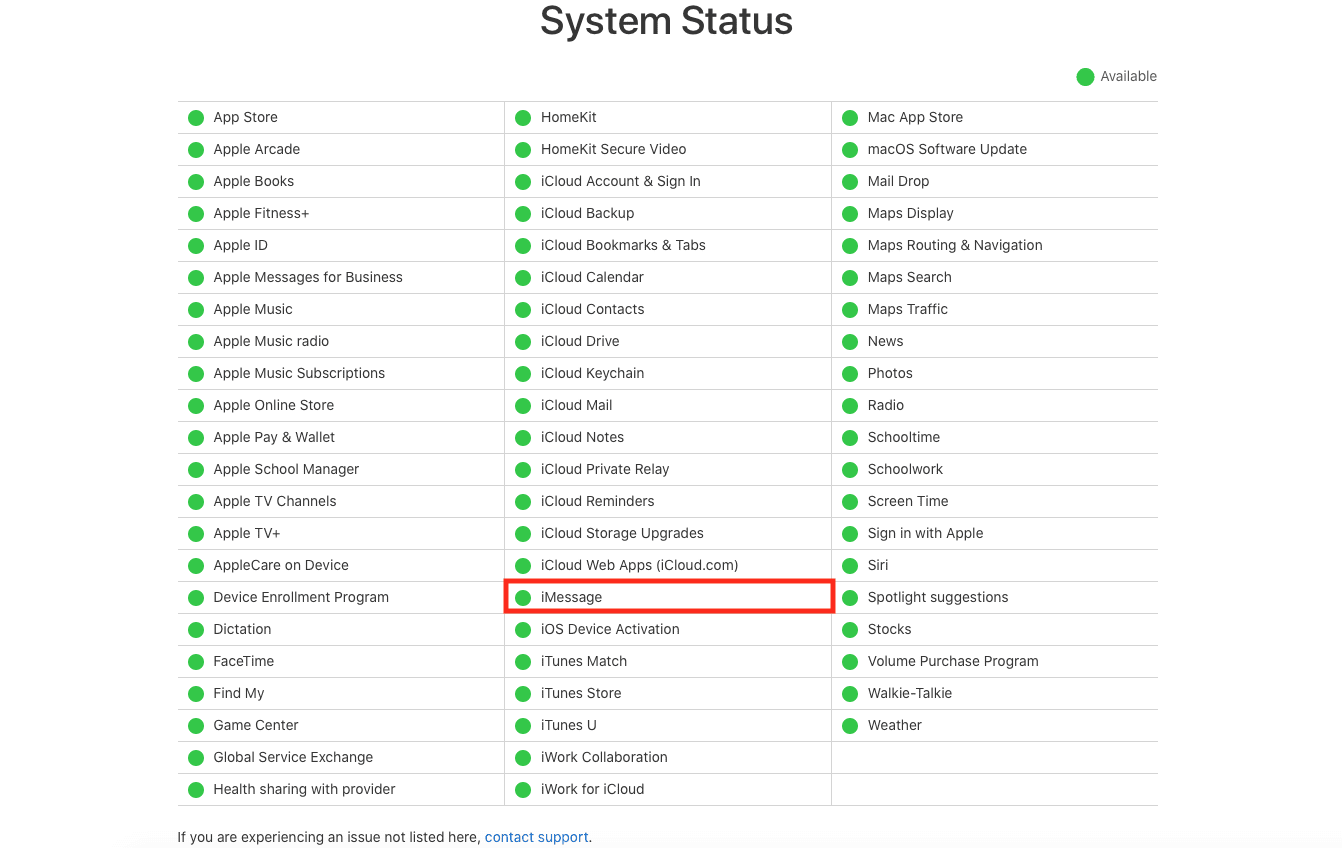
While rare, it can happen that iMessages don’t send because the server is not working at the moment on Apple’s end. Apple has a system status page, which shows if iMessage is down or up:
If there’s a green dot next to iMessage, you’re good to go.
Try Resetting
You can also try to reboot your phone. Hold the power button until the phone completely turns off and then turn it back on again.
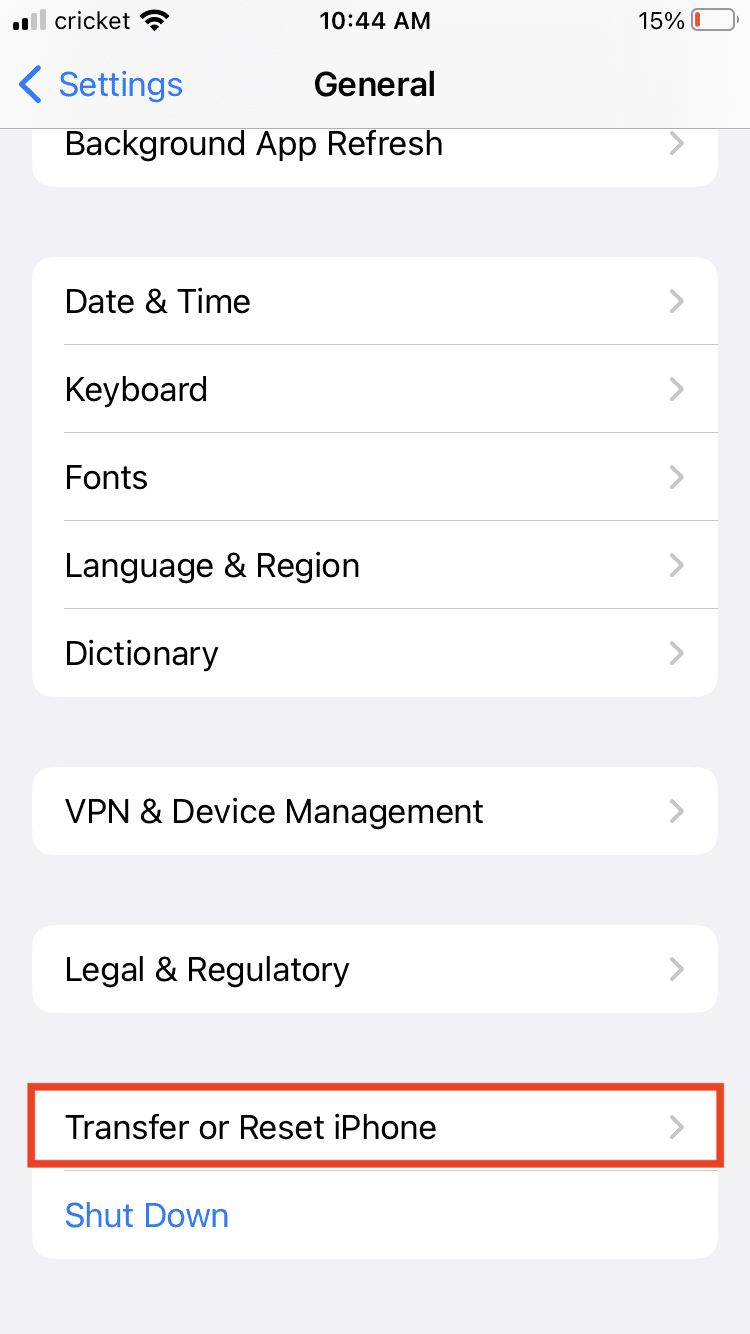
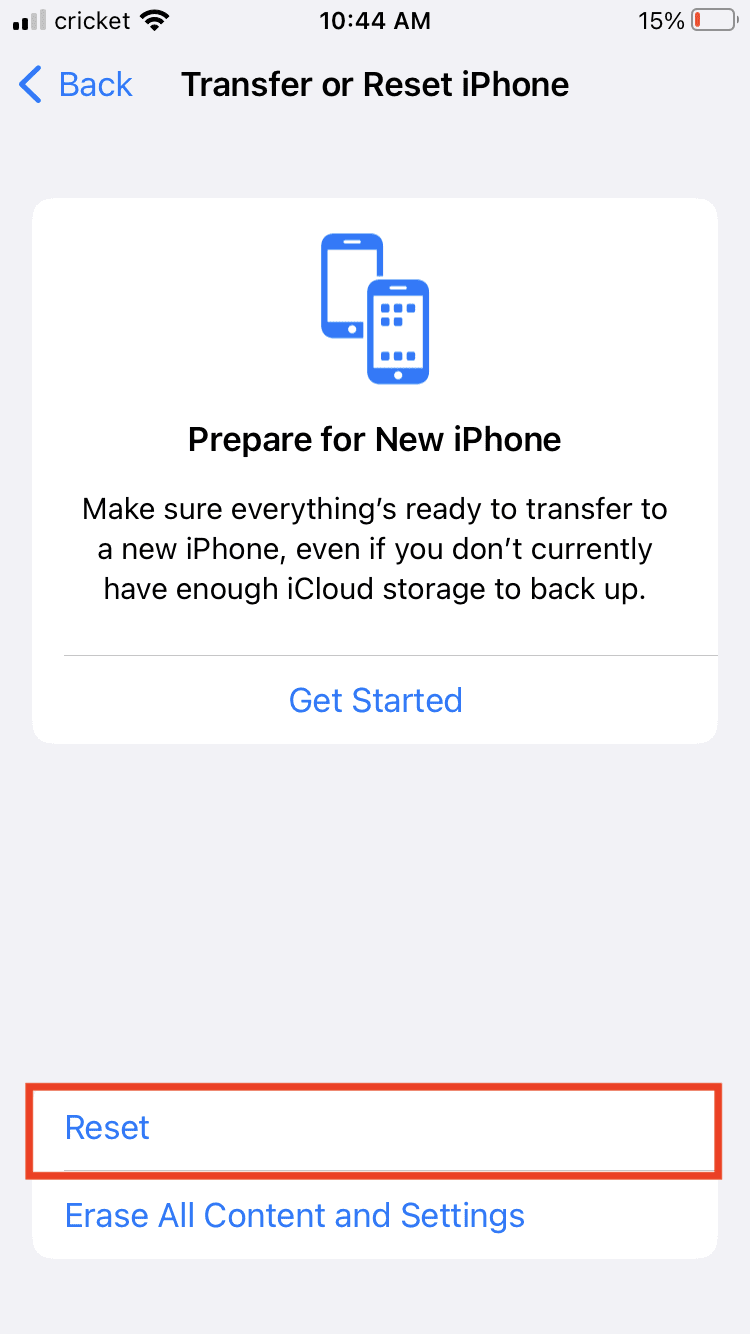
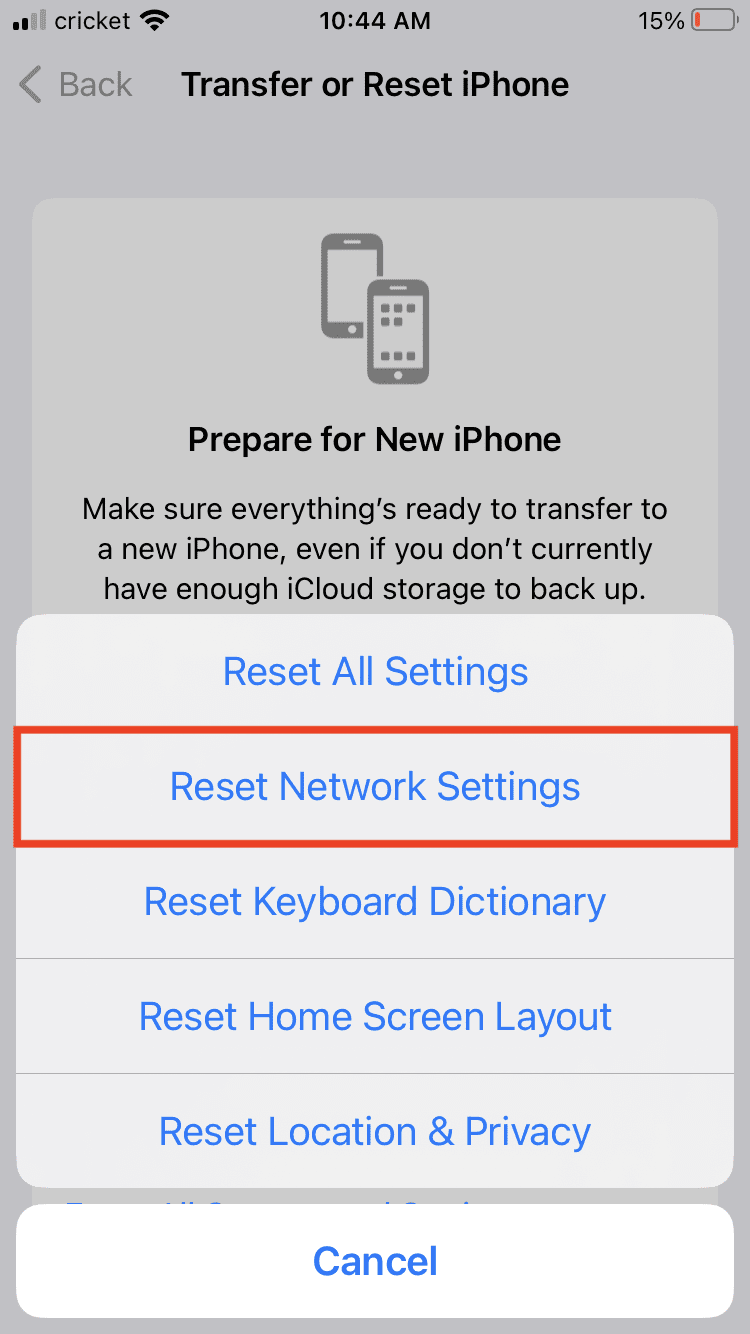
You can also try resetting the network, since network issues could cause the message to not send. To reset the network:
Tap on Settings.
Tap General.
Hit Transfer or Reset [Device].
Choose Reset.
Tap Reset Network Settings.
You can also reset the iMessage settings:
Tap Settings.
Tap Messages.
Select Send & Receive.
Uncheck the email address and phone number that iMessage reaches you through.
Sign out of Apple ID.
Restart your Phone.
Select iMessage and activate it. (See instructions above under Enable Your iMessage.)
Sign back into Apple ID.
Another option is to reset your phone back to factory settings, but you’ll have to back up your phone first and this is the most drastic option.
Send as Text Message
When all else fails, you may want to send messages as a regular text message, or SMS. This is the green text bubble versus the iMessage blue bubble.
To send all messages as texts, go to Settings > Messages > Toggle iMessage to off.
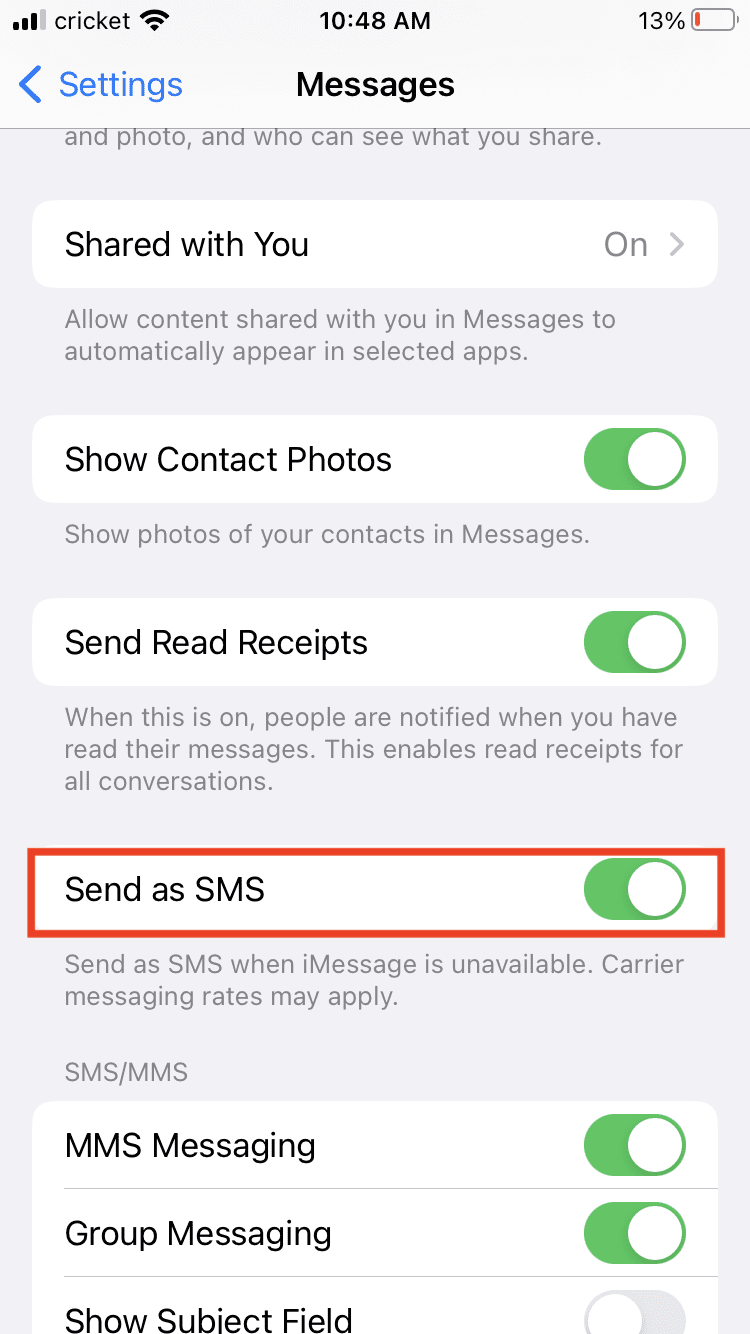
To send messages as texts only when iMessage is unavailable, go to Settings > Messages > Toggle Send as SMS to be on.
If you want to send individual messages as texts manually, go into Settings > Messages > Toggle Send as SMS off. In your text app, when iMessages do not send, tap and hold the message. You’ll get an options menu that allows you to hit Send as Text Message.













Write a Comment