Charging your phone with moisture in the charging port, whether your iPhone uses the older Lightning connector or the more recent USB-C charger, can be dangerous. The combination of electricity and water can cause corrosion of the charging points and permanently damage them. That’s why the iPhone liquid contact indicator will send you a “liquid detected on iPhone” message if even small amounts of moisture get into the charging port.
You can ignore a “liquid detected on iPhone” message and continue to charge your phone anyway, but it’s not recommended. Instead, take these steps to check that your phone and accessories are dry and safe to use.
All current models of iPhone have liquid detection built in. It’s not a setting you have to switch on, and unfortunately, if you have an older iPhone, most likely pre-iPhone 6, you won’t have this feature.
Liquid Detected on iPhone: Apple’s Advice
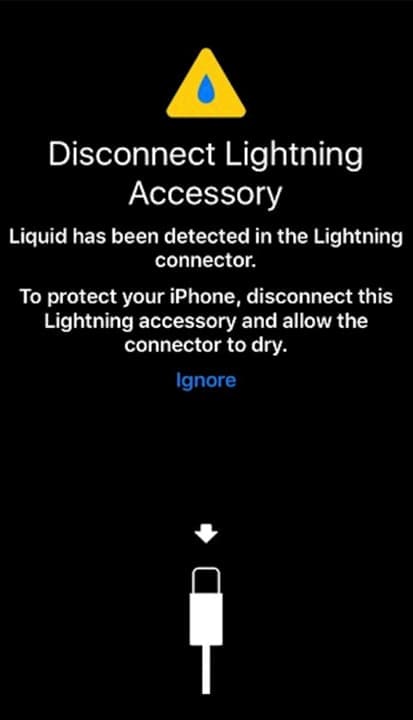
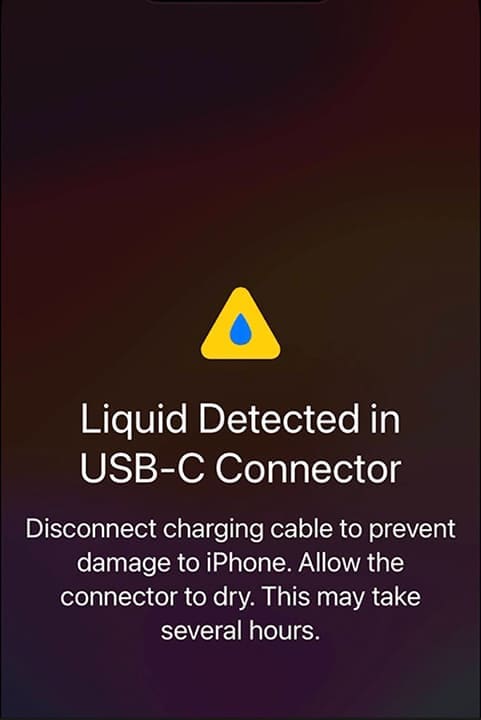
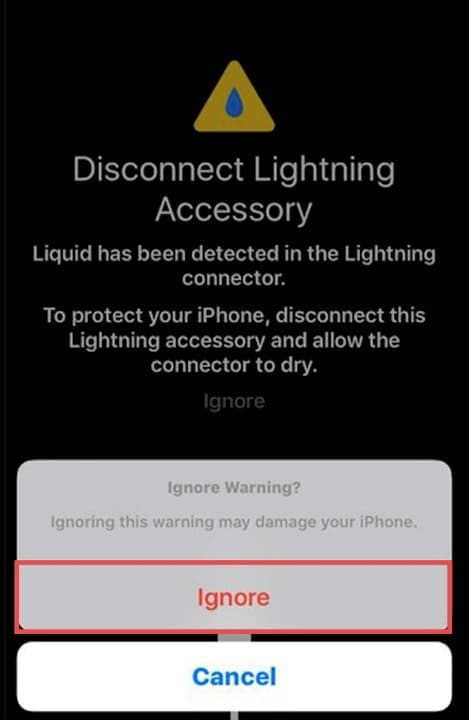
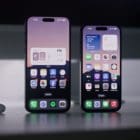
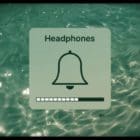
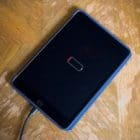
The alert from the iPhone liquid contact indicator will look something like one of these images below.
Apple’s official advice is to try to dry the charging port and try charging again after some time.
Step 1. Remove the charging cable or any accessory connected to the charging port. Tilt your iPhone so that the charging point is angled down and gently tap the device against your hand. This should shake any excess water out of the charging area.
Step 2. Place your iPhone on a flat surface in a dry area with good airflow to help dry it out naturally.
Step 3. Wait at least 30 minutes and try charging the device again. If you see the same message, you may need to leave your iPhone for 24 hours to ensure it is fully dry. Pro tip: You should be able to use a wireless charging pad during this time without damage to the charging points on your device.
What to Do if the “Liquid Detected on iPhone” Message Recurs
There are some instances where fully drying the iPhone doesn’t get rid of the warning message. In these cases, you can try:
Unplug the charger from the power source and the cable, and wait a few minutes before trying again.
Restarting your device: Switch it fully off, wait, then switch it back on again and try charging again.
Try a different charger and cable. It could be a fault with the accessory rather than the iPhone itself.
If you are fully confident that there is no way moisture could have made its way into the charging port or the end of the cable, you can choose to ignore the message. You will see an “Ignore” or “Dismiss” button, depending on the version of iOS you have. Tap the button, and you can continue charging your device as normal. Only do this if you are 100% sure there is no moisture in the charging port.
Make sure that you never:
Stick anything into the charging port to dry it, e.g., cotton balls, cotton swabs, tissue, etc. You can cause more damage.
Put your phone in a bag of rice. Rice can create dust and particles that may damage your phone.
Use heat sources such as a hair dryer or compressed air to try to dry the charging port. Again, you’re likely to damage the delicate components within.
As an avid gamer, I’ve run into my fair share of error codes and weird faults that have forced me to find fixes to problems I never anticipated. That gave me a passion for sharing those fixes with others so we can all game without feeling like our hardware is rebelling against us.




Write a Comment