Quicktime Player and Screen Recorder may sometimes fail to save your screen recordings. As a matter of fact, many Mac users complained about this problem after upgrading to Big Sur. Unfortunately, simply restarting your machine won’t help. If you’re experiencing the same issue, follow the troubleshooting steps listed below.
Background apps may sometimes interfere with the screen recording feature. Probably an open app is causing this error, so make sure iTunes and other apps are not running in the background.
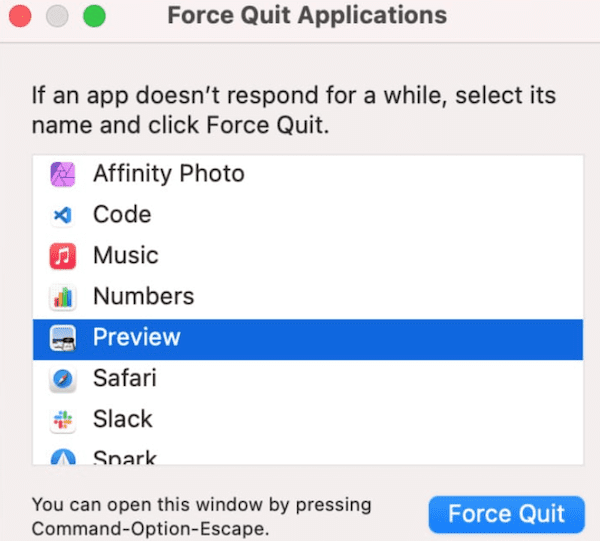
Click on the Apple menu, and select Force Quit. Then select the apps you don’t need during the recording process and force-stop them. Try to record something again and check if you can save the recording.
Additionally, change your save location. For example, if you’re using a non-writeable location, try saving the recording directly on your desktop. Then check your audio recording device (built-in mic or external microphone) and make sure it’s running as intended. If you want to record your screen with internal audio, this post will guide you through the process.
Locate the Actual Recording
Launch the Activity Monitor, and select Quicktime.
Go to the View tab and select Inspect Process.
Click on Open Files and Ports.
You should now see a pretty long list of files in the new window. Locate all the files that end with .MOV. As a quick reminder, that’s the default QuickTime video format on Mac.
Copy the entire path file and go back to Finder.
Then click on the Go menu and select Go to Folder.
Paste the file path you previously copied.
A new folder should appear on the screen. That’s where your temporary video files are located. Some of them are empty (0 MB), so it’s safe to ignore them.
The actual screen recording should be one of the largest files on the list.
Copy and paste the respective file(s) to your desktop.
Enable Safe Mode
Boot your Mac in Safe Mode and check if the error persists. If it doesn’t, this indicates one of the programs launching at startup is causing this issue.
If your Mac is equipped with an Intel CPU, restart the device and immediately hold the Shift key. Don’t let go until the login window appears on the screen. Enter your login information and make sure the Safe Boot note is visible in the right-hand corner of the screen.
If you own a newer Mac model, shut down your computer completely. Then power on the device and keep on holding the Power button. Release the button when the startup options appear on the screen. Select your startup disk, press Shift, and click on Continue in Safe Mode
Repair Your Disk
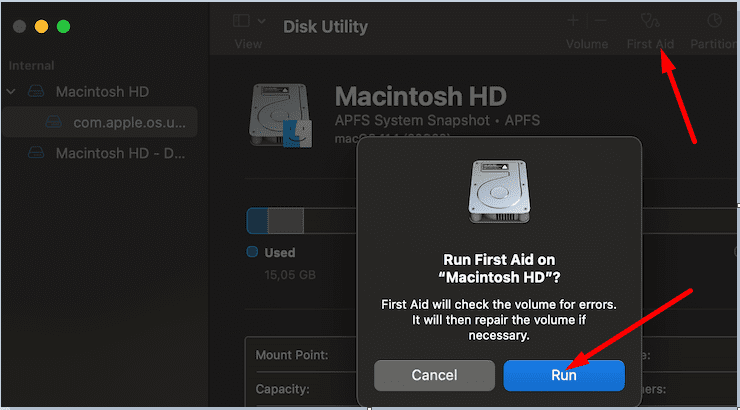
If your Mac disk got corrupted, your computer won’t work as intended. Use the Disk Utility to repair your machine.
Navigate to Applications, select Utilities, and then click on Disk Utility. Let the tool check and repair Macintosh HD. Restart the computer and check if you can save your screen recordings now.
Conclusion
If your MacBook won’t save your screen recordings, change the save location and force quit background apps. Go to your list of temporary files and check if the recording is there. Additionally, enable Safe Mode and repair your disk.
Let us know if you’re still experiencing the same error on your Mac. If you found other ways to troubleshoot this problem, share your ideas in the comments below.
Madalina has been a Windows fan ever since she got her hands on her first Windows XP computer. She is interested in all things technology, especially emerging technologies — AI and DNA computing in particular.











I have an M1Pro operating OS 12.4. I cannot save a QuickTime screen recording. The save is grey. Nor will it let me export.
Please advise.
Thanks.
Karl