• Skip to primary navigation
  • Skip to main content
  • Skip to primary sidebar
  • Skip to footer

AppleToolBox

Tools and Fixes for Mac, iPad, iPhone & iWatch

Search posts

  • About
  • Contact

CONNECT WITH US

CATEGORIES

  • iPhone
  • iPad
  • iPod
  • Apple Watch
  • Mac/MacBook
  • AirPods
  • Apple TV
  • News
  • Apple Services
  • HomePod
  • Reviews

SITE

  • Home
  • About Us
  • Contact
  • Advertise

Search posts

You are here: Home / Mac / macOS: How to Password Protect a Folder

macOS: How to Password Protect a Folder

By Michelle Honeyager 0 comments Last updated August 29, 2022

If you want the highest security possible for your folders and files, there’s a method through the Disk Utility to password protect a folder, which we’ll go into below. You can also use third-party apps.

Using Disk Utility to Password Protect a Folder

  1. Click on the Go Menu.
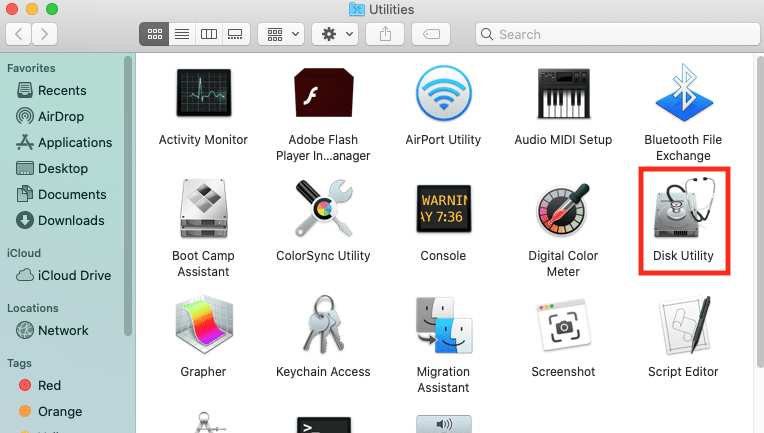
  2. Select Utilities.
  3. Click on the Disk Utility.

  1. Select File in the top left of the screen.
  2. Click New Image.
  3. Select Image from Folder…

  1. You can now select the folder you want protected from a list of your current folders. Select the folder and then hit Choose on the bottom right of the screen.
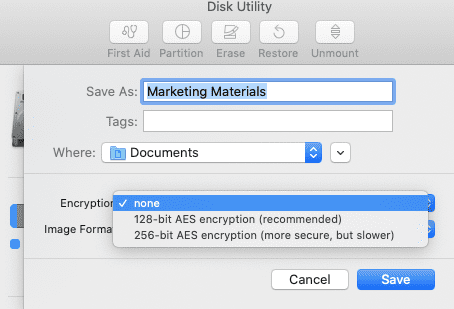
  2. You can select between the 128-bit or the 256-bit option in the field next to Encryption:. Select 128-bit for the faster option and 256-bit for the even more secure option.

  1. Enter your password in both fields to set and verify.                                    
  2. You can now rename the folder, if you wish.
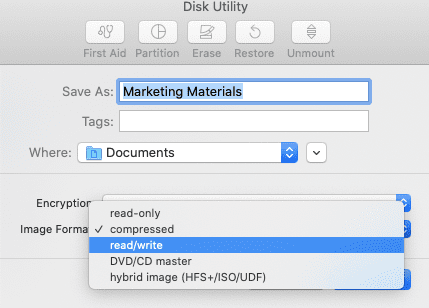
  3. Under Image Format, you can select read/write from the menu. This allows you to add and update files after you have set the password. If you don’t select this option, all the content in the folder will be locked from changes.

  1. Select Save to finish.

Password Protecting a Folder Without Disk Utility

For more ease of use, there are also third-party apps that allow you to encrypt your files. Make sure to download them from the App Store so that they are vetted by Apple for security.

One example is Encrypto, which allows you to password protect your folders. Searching the App Store for “password protect folders” can help you find a variety of apps that help secure folders and files.

Related Posts:

  • 2023 Mac Studio lifestyle - 1
    macOS Could Not Be Installed, How-To Fix
  • Excel Lock Header
    How to Password Protect an Excel File on Mac (With…
  • Windows computer
    How to AirDrop from iPhone to Windows PC
  • Screen Shot 2021-04-25 at 10.20.25 PM
    How To Recover Photoshop Files On Mac
  • photo of an iphone with ios 16 downloaded on it
    iOS 16 Tips and Tricks: The Definitive List
  • 2022 Mac Mini with Studio Display and Accessories
    Mac Tips For New Users In 2023
  • Delete-Group-Reminders-Folder-macOS
    MacBook Will Not Start Up After macOS Update, How-To Fix
  • pexels-jess-bailey-designs-810079
    How To Run Linux On Mac: A Step-by-Step Guide
  • An iPhone, Mac, and MacBook on a table
    Can You Use Time Machine to Back up Your Mac to…

Reader Interactions

Write a Comment Cancel reply

Primary Sidebar

Recent Posts

  • How to Disable Predictive Text in iOS 26
  • How to Stop Sharing Analytics in iOS 26
  • How to Manage Your iPhone Call Log
  • Are Apple’s Safety Precautions Enough for AirTags?
  • How to Hide Username and Photo on the Mac Lock Screen
  • Microsoft Resume vs. Apple Handoff – Which Wins for Cross-Device Work?

Connect with us

Footer

ABOUT

  • About Us
  • Contact us
  • Advertise
  • Privacy
  • Terms of Use

GUIDES

  • iOS & iPadOS
  • Apple ID
  • iCloud
  • App Store
  • iTunes
  • FaceTime
  • iMessage
  • Siri
  • Books and iBooks
  • Game Center
  • AirPlay

CONNECT

  • Facebook
  • Twitter
  • FeedBurner
  • YouTube

© Copyright 2010-2024 Guiding Tech Media · All Rights Reserved

This site and its content are in no way affiliated or endorsed by Apple, Inc. · Reproduction without explicit permission is prohibited