If you use a multi-monitor setup, you probably don’t want your macOS Dock to jump between monitors all the time. When the Dock pops up on your second monitor, the apps automatically contract to make space for the Dock.
The most annoying part is that they don’t expand back when the Dock jumps to the main monitor.
If you don’t want macOS to automatically move the Dock to your second display, there are three options you can use, and we’ll list them below.
When the Dock is located at the bottom of your main display, you may accidentally move it to the second display when your mouse reaches that area.
To prevent that from happening, the simplest solution is to move the Dock to the side of the main screen.
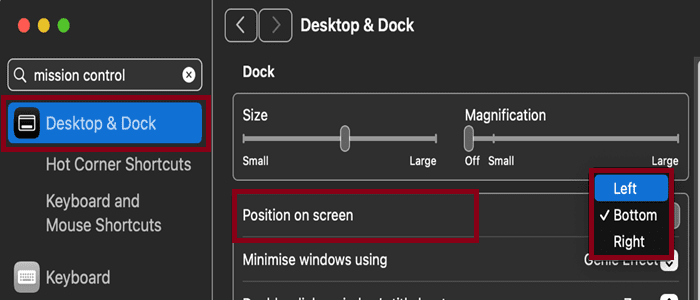
Navigate to System Settings, select Desktop & Dock, go to Position on screen and select Left or Right.
If you’re not a fan of this layout, you can turn your screens into one larger monitor.
Use Both Displays as One Large Screen
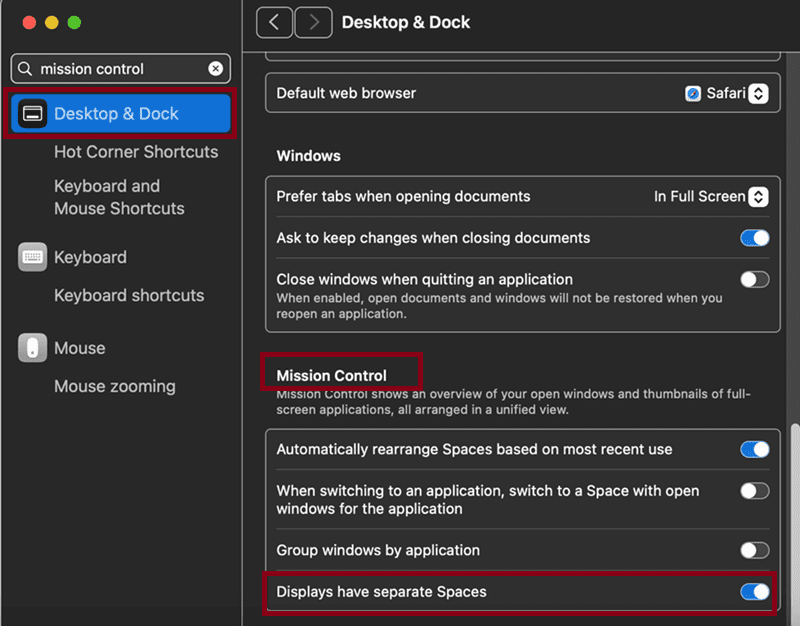
Go to System Settings, select Desktop & Dock and scroll all the way down to Mission Control. Toggle off the last option on the list, Displays have separate Spaces.
Once this option is disabled, your screens will become one larger display.
The main downside to using this option is losing your dual-monitor features.
For example, you can’t have a full-screen video on your main screen and Numbers or another app on the second monitor.
When you watch a full-screen video on one monitor, the others automatically go dark. This can negatively impact your productivity.
Tweak Your Dock’s Autohide Delay
If you’re using a three or four-monitor setup, applying either one of the two solutions above may prove too complicated. You’re probably using three or more monitors for productivity purposes and the last thing you want is to disrupt your workflow.
In that case, you may want to change your Dock’s autohide delay. Basically, you’re instructing macOS to take a very long time to move the Dock between displays.
Open Terminal and run this command: defaults write com.apple.dock autohide-delay -float 9999999; killall Dock
With the help of this handy command, it will take forever for your Dock to move between screens. The good news is that you can use it even if the Autohide option is disabled.
Quick Note:This command may not work on macOS Sonoma. It will probably have the opposite effect, making the Dock move lightning fast between monitors. Use it on older macOS versions.
There you go, we hope you found this guide helpful. Hit the comments below and let us know which of these three tips works best for your current setup.
Madalina has been a Windows fan ever since she got her hands on her first Windows XP computer. She is interested in all things technology, especially emerging technologies — AI and DNA computing in particular.







Write a Comment