• Skip to primary navigation
  • Skip to main content
  • Skip to primary sidebar
  • Skip to footer

AppleToolBox

Tools and Fixes for Mac, iPad, iPhone & iWatch

Search posts

  • About
  • Contact

CONNECT WITH US

CATEGORIES

  • iPhone
  • iPad
  • iPod
  • Apple Watch
  • Mac/MacBook
  • AirPods
  • Apple TV
  • News
  • Apple Services
  • HomePod
  • Reviews

SITE

  • Home
  • About Us
  • Contact
  • Advertise

Search posts

You are here: Home / Mac / Microsoft Word Won’t Open on Mac – 5 Fixes

Microsoft Word Won’t Open on Mac – 5 Fixes

By Louis Roundtree 0 comments Last updated January 24, 2025

Things to Know
  • There are several reasons why Microsoft Word won’t open on Mac, including corrupt files and software bugs.
  • Forcing a reboot, repairing the app, and reinstalling Word are some possible fixes.
  • Closing resource-intensive apps to free up memory might help, as well.

Word may be a Microsoft app, but it’s also available for Apple products, like Macs and MacBooks. However, just like the Windows versions, Mac versions of Word can encounter random issues, crashes, and bugs, and sometimes, Microsoft Word won’t open on Mac at all.

This guide shows you several ways to fix this issue.

Fix 1. Forceful Reboot

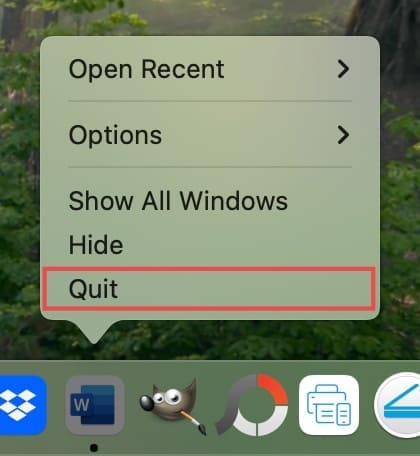
If Word refuses to open, it may be that it hasn’t properly closed down from the last time you used it. A forceful reboot of the app may fix the issue. There are a couple of ways to do this. The first method is:

Step 1. Right-click the Word icon.

Step 2. Select “Quit.” Then, re-launch Word.

Microsoft Word Won’t Open on Mac 1

An alternate method is:

Step 1. Press “cmd,” “option,” and “esc” keys together.

Step 2. Find Microsoft Word in the list and select it, then click “Force Quit.”

Microsoft Word Won’t Open on Mac 2

Contents

  • Fix 2. Free Some Memory
  • Fix 3. Try the Disk Utility
  • Fix 4. Clear Your Device’s Cache
  • Fix 5. Reinstall Word

Fix 2. Free Some Memory

One of the possible reasons why won’t Word open on Mac is that your device is already running many other applications and is low on memory (RAM). Stopping some apps should free up the memory you need.

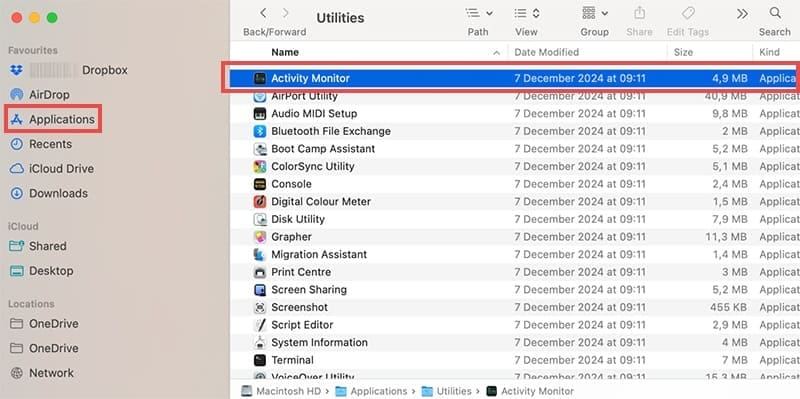
Step 1. Go to “Applications,” then “Utilities,” and open the “Activity Monitor.”

Microsoft Word Won’t Open on Mac 3

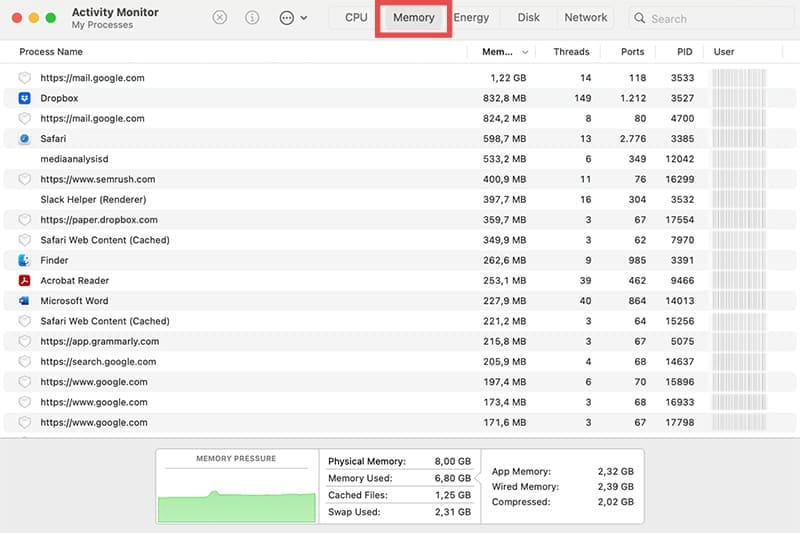
Step 2. Click the “Memory” tab to see how much memory you’re using and which apps are using the most.

Microsoft Word Won’t Open on Mac 4

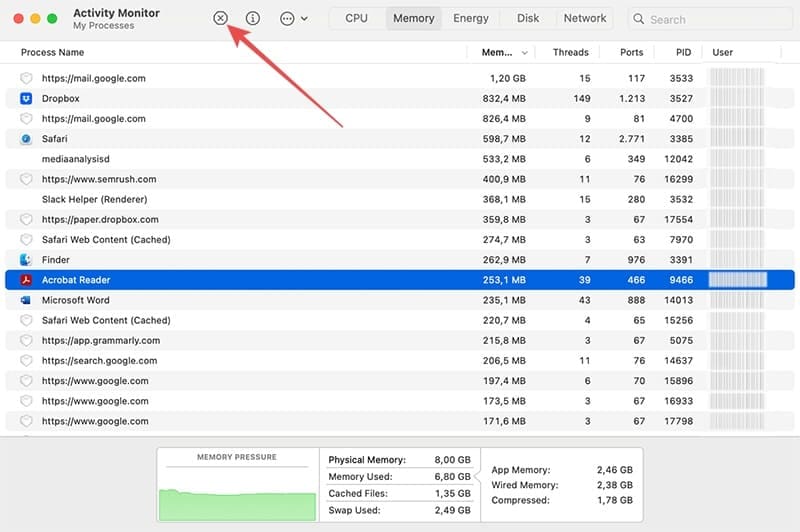
Step 3. Close down the apps you don’t need. Select the app and then press the “Stop” icon (x) in the Activity Monitor to do this.

Microsoft Word Won’t Open on Mac 5

Fix 3. Try the Disk Utility

There may be some corrupted files that are causing problems when you try to open Word. The Disk Utility can find and fix those sorts of issues.

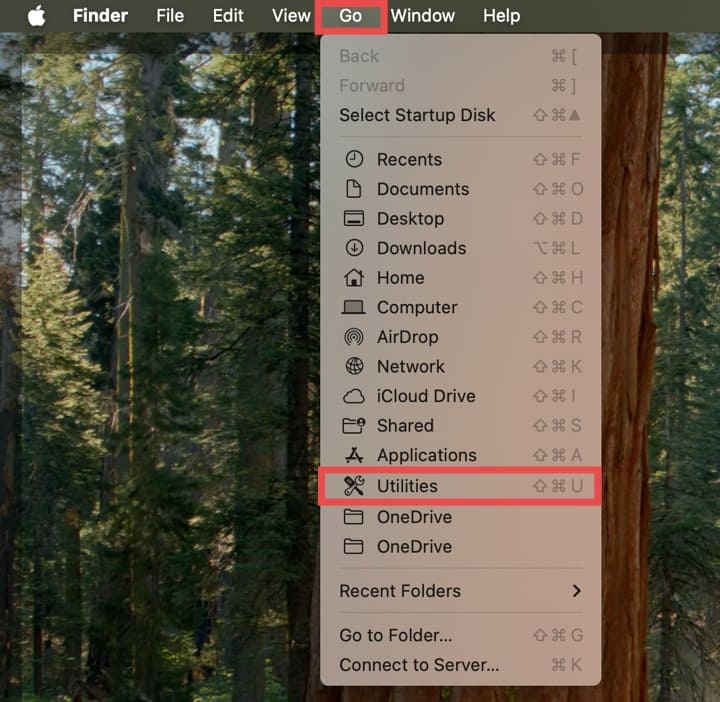
Step 1. Click “Go” and then “Utility.”

Microsoft Word Won’t Open on Mac 6

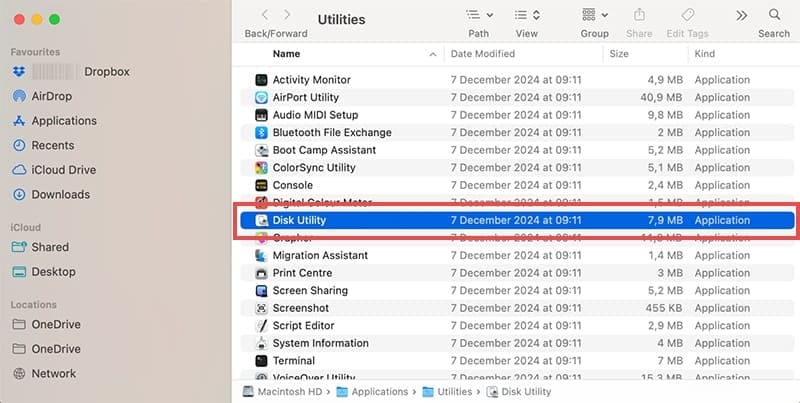
Step 2. Select and start the “Disk Utility” tool.

Microsoft Word Won’t Open on Mac 7

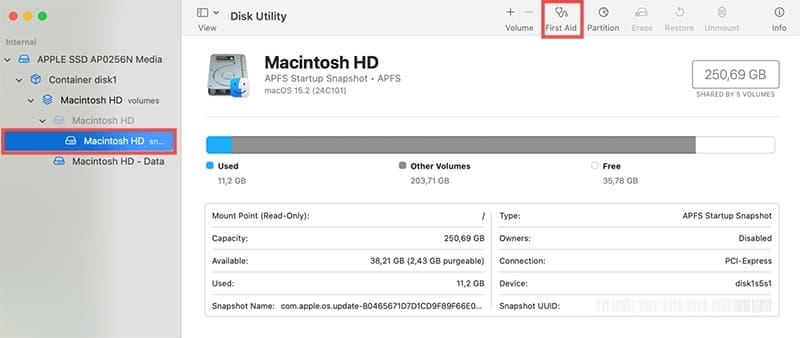
Step 3. Make sure your Mac’s main hard drive is selected, then click on “First Aid.”

Microsoft Word Won’t Open on Mac 8

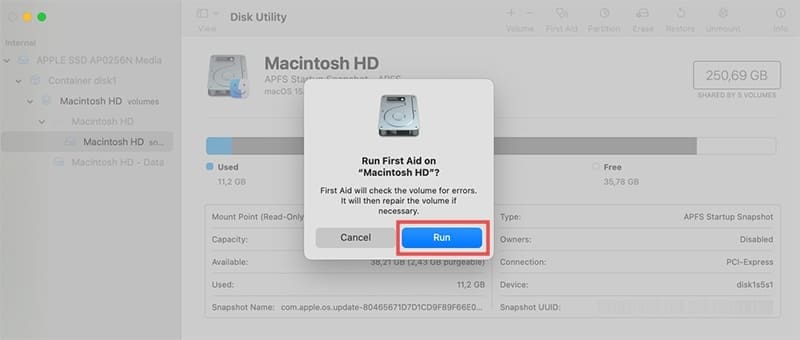
Step 4. Press “Run” and wait while the utility runs. It may fix the issues you were having, so try starting Word after it has finished.

Microsoft Word Won’t Open on Mac 9

Fix 4. Clear Your Device’s Cache

There can sometimes be issues where a Mac’s cache gets too clogged up or has some corrupted data in it that then causes issues with apps, including MS Word. Here’s how to clear the cache:

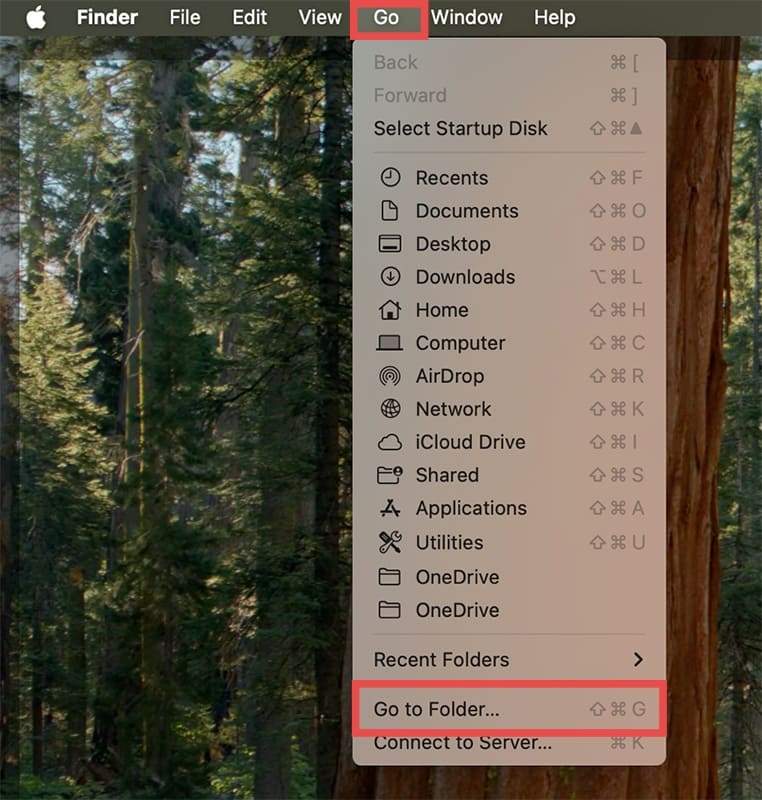
Step 1. In the Finder, click on “Go” and then “Go to folder.”

Microsoft Word Won’t Open on Mac 10

Step 2. Enter this command “~/Library/Caches/” and click “Go.”

Microsoft Word Won’t Open on Mac 11

Step 3. You will be taken to the system cache files and can delete the files by dragging them to the Trash.

Fix 5. Reinstall Word

The last resort fix is to do a full reinstallation of Word. This may resolve any issue you have with corrupt Word files or other underlying issues that are keeping the app from opening as it should.

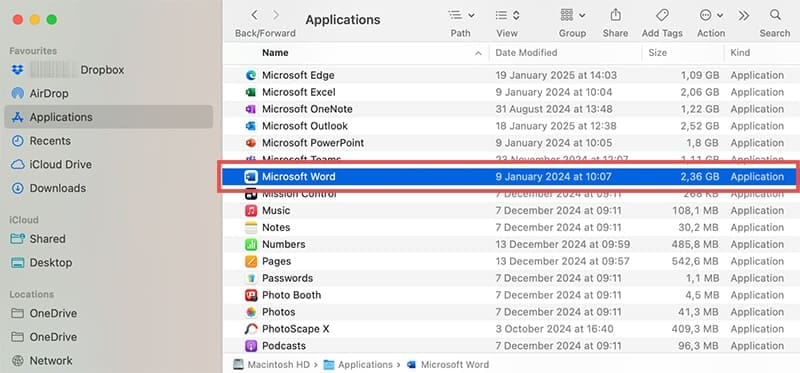
Step 1. Open the Finder and select “Applications.”

Microsoft Word Won’t Open on Mac 12

Step 2. Find Microsoft Word in the list and drag its icon to the Trash.

Microsoft Word Won’t Open on Mac 13

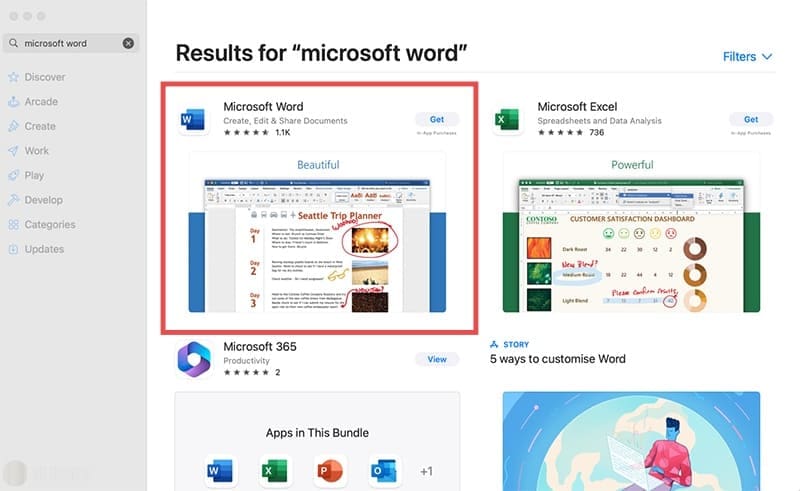
Step 3. Open the Mac App Store, search for Microsoft Word, then reinstall it.

Microsoft Word Won’t Open on Mac 14

Related Posts:

  • How to Install Windows 11 on Mac
    How to Install Windows 11 on Mac
  • Games coming to macOS Sonoma
    How to Play Windows Games on Mac
  • Windows on M1 Mac Lifestyle
    How to Use Windows on Mac
  • Windows computer
    How to AirDrop from iPhone to Windows PC
  • How To Manage iCloud Keychain With iCloud for Windows Hero
    How to Install Windows 11 on M1 and M2 Mac With Parallels
  • How to Install Windows 11 on Mac
    Want iMessage on Your Windows PC? How-To
  • 2022 Mac Mini with Studio Display and Accessories
    Mac Tips For New Users In 2023
  • 2023 Mac Studio lifestyle - 1
    macOS Could Not Be Installed, How-To Fix
  • How to Recover Unsaved Word Document on Mac in 5 Best Ways
    How to Recover Unsaved Word Document on Mac in 5 Best Ways
Louis Roundtree
Louis Roundtree

As an avid gamer, I’ve run into my fair share of error codes and weird faults that have forced me to find fixes to problems I never anticipated. That gave me a passion for sharing those fixes with others so we can all game without feeling like our hardware is rebelling against us.

Reader Interactions

Write a Comment Cancel reply

Primary Sidebar

Recent Posts

  • How to Set Up iCloud Passwords on a Windows PC?
  • How to Turn Off Apple Music’s Dark Mode
  • How to Disable Predictive Text in iOS 26
  • How to Stop Sharing Analytics in iOS 26
  • How to Manage Your iPhone Call Log
  • Are Apple’s Safety Precautions Enough for AirTags?

Connect with us

Footer

ABOUT

  • About Us
  • Contact us
  • Advertise
  • Privacy
  • Terms of Use

GUIDES

  • iOS & iPadOS
  • Apple ID
  • iCloud
  • App Store
  • iTunes
  • FaceTime
  • iMessage
  • Siri
  • Books and iBooks
  • Game Center
  • AirPlay

CONNECT

  • Facebook
  • Twitter
  • FeedBurner
  • YouTube

© Copyright 2010-2024 Guiding Tech Media · All Rights Reserved

This site and its content are in no way affiliated or endorsed by Apple, Inc. · Reproduction without explicit permission is prohibited

Last Updated on January 25, 2025 by Louis Roundtree