Function and modifier keys make performing tasks on your Mac easier. The function keys let you quickly adjust the volume or screen brightness. And modifier keys help you use shortcuts for things like copying, pasting, and minimizing windows.
The thing is, not every keyboard shortcut using these keys is convenient for everyone. You may prefer to use different keys for certain things. So if you’d like to spend a little time customizing your Mac, we’ll show you how to remap the function and modifier keys so they’re most useful for you.
The function keys on your keyboard are on the top row, starting with F1 and ending with F12. Each key has a printed indicator for what function it will perform. As examples, F1 and F2 decrease and increase screen brightness respectively.
Function keys on Mac
The first option you have with these keys is to use them for their printed purpose or use them only when in conjunction with the Fn key which is on the lower left of your keyboard.
To change the way you use these keys, head to your System Preferences with the icon in your Dock or Apple icon > System Preferences from the menu bar.
In System Preferences, select Keyboard.
Click the Keyboard.
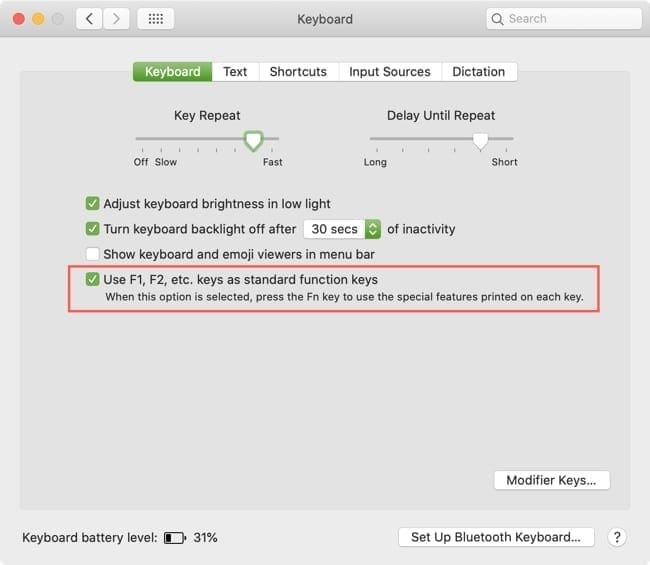
Check the box for Use F1, F2, etc. keys as standard function keys if you want to use them when holding the Fn key. If you find it easier to just hit the key without holding Fn, uncheck that box.
Use standard function keys
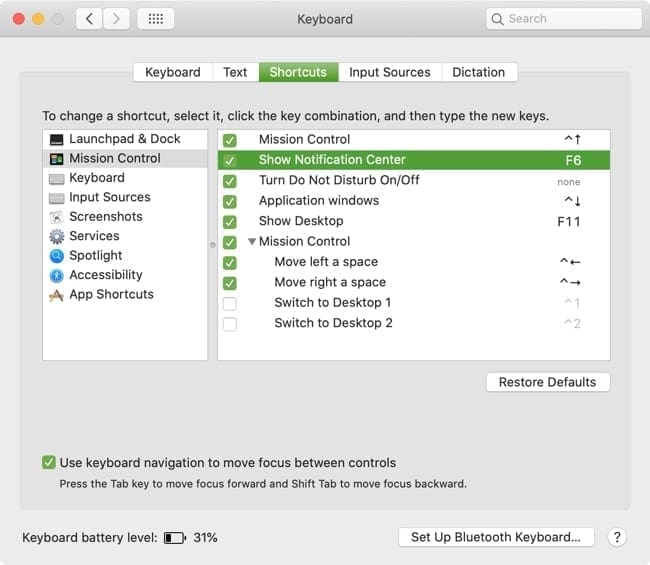
Now, if you want to remap these function keys, we’ll show you how to do that next. First, make sure that you check the box in Step 3 above. Next, in that same Keyboard preferences window, select the Shortcuts tab.
On the left, choose the category containing the section and action. For instance, we’ll pick Mission Control because we would like to use the F6 key for Show Notification Center. Check that option in the list and with your cursor in the text area to the right, hit the F6 key.
Remap your function keys
You can review the options in each section and change those you want with the corresponding function key the same way. And since you have the box checked in Step 3 above, you can still use the keys for the function printed on them by holding Fn when you press.
When you finish, make sure you test out the keys and actions to be certain they do what you intend.
Remapping modifier keys on Mac
The modifier keys on your keyboard are those used together with other keys for shortcuts. They include Caps Lock, Control, Option, Command, and Function (Fn). Some examples of keyboard shortcuts you might use with these keys are Command + C to copy, Command + V to paste, and Command + M to minimize a window.
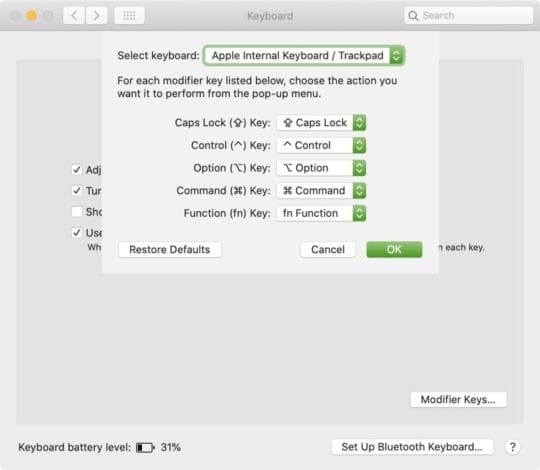
To change the actions for these modifier keys, head back to the Keyboard preferences (System Preferences > Keyboard). Select the Keyboard tab and then click the Modifier Keys button.
Click the Modifier Keys button
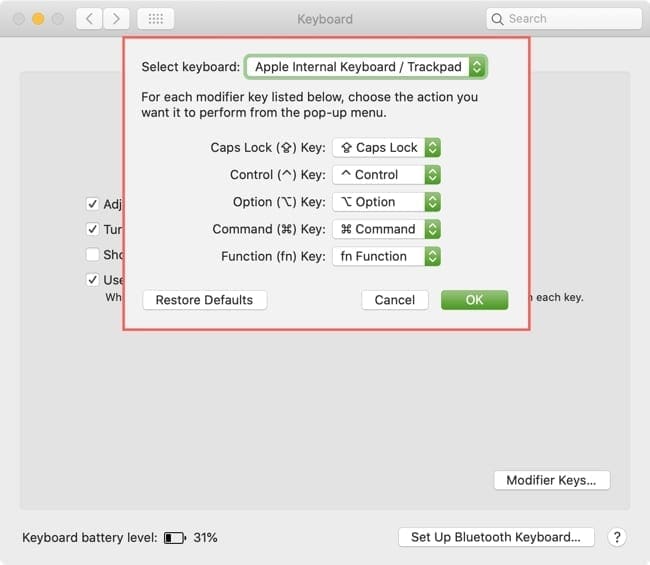
Start by selecting your keyboard in the drop-down list at the top if necessary.
Now you can click the drop-down box next to each modifier key and pick the action you want to use. You can also select No Action which is something a lot of people pick for their Caps Lock key because they hit it by mistake often but rarely use it purposely.
Remap your modifier keys
When you finish, click OK and then give your remapped modifier keys a try to make sure you’re happy with the changes.
* Keep in mind that the instructions above are for standard Apple keyboards for or built into your Mac. You may have different functions keys if you use a third-party keyboard.
Make your Mac keyboard more useful for you
No matter what tasks you perform on your Mac, the key (no pun intended) is to make them easy for you to do. And sometimes something as simple as changing what a key on your keyboard does is all it takes.
Are you going to change what your function or modifier keys do on your Mac? If so, let us know how you decide to remap your keys or if you run into any trouble! You can comment below or hit us up on Twitter or Facebook.
Sandy worked for many years in the IT industry as a project manager, department manager, and PMO Lead. She then decided to follow her dream and now writes about technology full-time. Sandy holds a Bachelors of Science in Information Technology.
She loves technology– specifically – terrific games and apps for iOS, software that makes your life easier, and productivity tools that you can use every day, in both work and home environments.
Her articles have regularly been featured at MakeUseOf, iDownloadBlog and many other leading tech publications.













Write a Comment