Did you know that you can use your Mac to share your Wi-Fi network password with another iOS or macOS user? To do that, connect to the network, sign in with your Apple ID, and place the other person’s device next to your MacBook. Then select the same wireless network on the other device and wait until your Mac prompts you to share your Wi-Fi password with the other user.
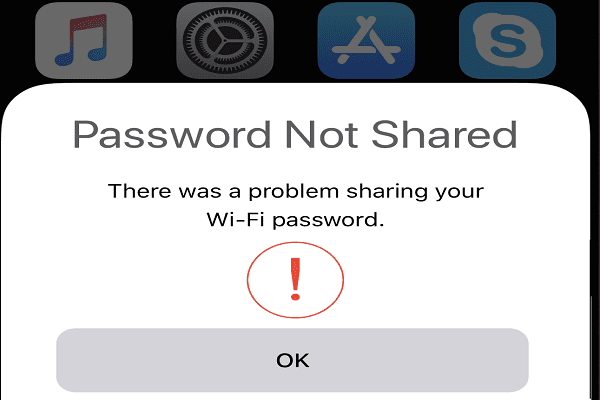
Unfortunately, your Mac may sometimes throw an error message saying there was a problem sharing your Wi-Fi password. The other user will get a similar notification. If the error persists even after disconnecting and reconnecting to the network, pursue the troubleshooting tips below.
What to Do if Your Mac Won’t Share the Wi-Fi Password
Sign Out of iCloud
Log out of your iCloud account and restart your computer. By the way, if you’re logged in on multiple devices, make sure to log out everywhere. Then log back in to establish a new connection to Apple’s servers. Check if this quick workaround solved the Wi-Fi password sharing issue.
Delete Your Wi-Fi Networks
Clearing all the wireless networks saved on all of your devices may help you fix this issue.
macOS
Click on the Apple menu and go to System Preferences.
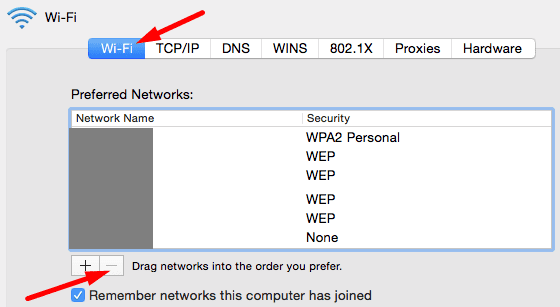
Then click on Network and hit the Advanced button.
Under Preferred networks, click on the Wi-Fi network you want to remove and hit the delete option (the minus sign).
Click on Remove and save the changes.
iOS
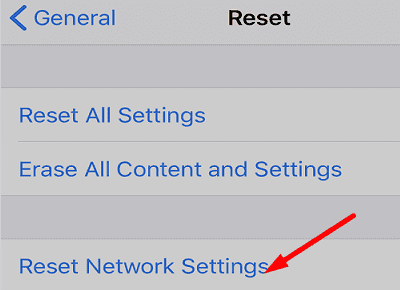
To reset your network settings on iOS, go to Settings, select General, tap Reset, and then Reset Network Settings. Enter your passcode, and hit the Reset Network option to confirm your choice.
Restart your devices and then re-add the problematic Wi-Fi network to the list of preferred networks.
Use an Ethernet Connection
If you have a USB-C to Ethernet dongle, connect it to your Mac and use this connection for two or three minutes. Then disconnect the dongle, switch back to Wi-Fi, make sure your devices are right next to each other, and check if you can share your Wi-Fi password now.
Update Your Devices
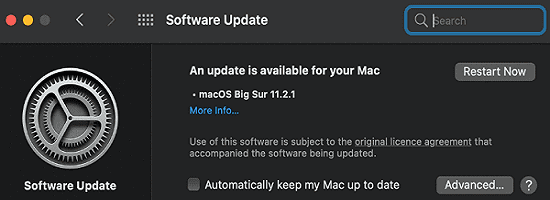
If you’re running outdated iOS and macOS versions on your devices, certain features may not be available. Install the latest OS releases and check if this quick solution did the trick for you.
On your iPhone, go to Settings, select General, and tap Software Update. On your Mac, click on the Apple Menu, go to System Preferences, click on System Update and check for updates.
Conclusion
If you can’t use the share Wi-Fi password option on your Mac, log out of your iCloud account, delete your Wi-Fi networks, and make sure to update your devices. Additionally, you can temporarily use a USB-C to Ethernet dongle and then switch back to Wi-Fi. Hit the comments below and let us know if these solutions helped you fix the problem.
Madalina has been a Windows fan ever since she got her hands on her first Windows XP computer. She is interested in all things technology, especially emerging technologies — AI and DNA computing in particular.












Write a Comment