Consumer technology aims to make our daily lives as easy as possible, and Apple constantly updates its products to achieve that goal. What we once thought was impossible just a decade ago, we are suddenly seeing come to life in real-time. Universal Clipboard is a unique feature across iOS devices that allows you to transfer information between all of your devices, allowing you to have a free-flowing and seamless technological experience. This feature aims to reward Apple loyalists who purchase the company’s products for convenience and efficiency in return. If you’re interested in this futuristic Apple feature, read on below.
Apple’s Universal Clipboard is a wireless feature that Apple enthusiasts can take advantage of to transfer information, such as text, images, or files, seamlessly between their devices. If you want to copy and paste a block of text on your iPad and paste it into a messenger application on your iPhone, then this feature enables you to do that. You do need some specific requirements across all of your Apple devices in order to use the feature, however. You won’t find any official mention of Universal Clipboard in your Settings or any Apple documentation unless you look for it specifically, which is a shame as it can help many casual users be more expressive with their work.
Universal Clipboard Requirements
Before you begin taking advantage of this useful feature, you need to make sure all of your Apple devices meet the company’s Continuity system requirements. Here are a few things you’ll need to check off before you can start using Universal Clipboard:
Hardware and Software Requirements
For Mac usage, you require macOS Sierra (10.12) or newer.
iOS devices running on iOS 10 or newer.
Other Requirements
Each device is signed into iCloud.
Each device has BlueTooth turned on.
Each device is connected to the same WiFi.
Each device has Handoff turned on.
Each device is within 30 feet of each other.
How to Setup and Use Universal Clipboard
If you meet the requirements, you can begin setting up Universal Clipboard and begin using it instantly. Below is an in-depth guide on how to set it up and how to begin using it.
Sign in to iCloud on all relevant devices. To do this, go to Settings > [your name] > iCloud > Sign In on iOS. On macOS, navigate to the Apple menu > System Preferences > iCloud > Sign In.
Turn on BlueTooth. On iOS, navigate to Settings > BlueTooth and switch the slider on. On macOS, navigate to the Apple menu > System Preferences > BlueTooth > Turn BlueTooth on.
Turn on WiFi.
Enable Handoff. On iOS, navigate to Settings > General > Handoff and turn the slider on. On macOS, go to the Apple menu > System Preferences > General > check the box for Allow Handoff between this Mac and your iCloud devices.
How to Use
Universal Clipboard allows you to transfer all sorts of information and data across your devices. For example, if you’re making final tweaks to a Keynote presentation, you can copy text from your Mac to your iPad readily. Here’s how you can use the feature:
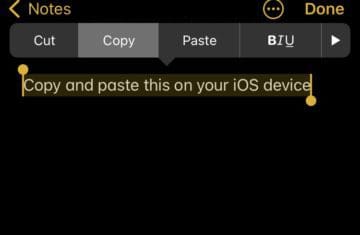
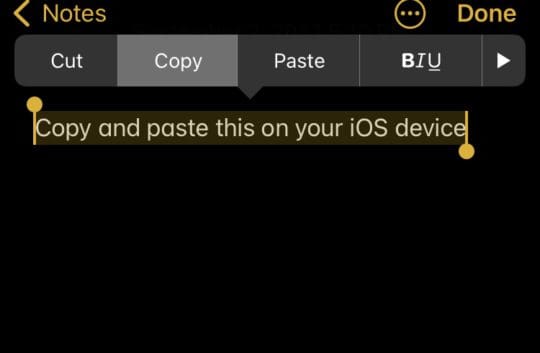
Copy content on one device as you normally would. Types of content you can transfer using iOS Universal Clipboard include text, images, or videos.
The content is automatically saved onto a digital clipboard. Since your devices are all interconnected via iCloud, BlueTooth, WiFi, and Handoff, the digital clipboard on your other device also activates.
Switch over to your other device and paste as you normally would.
Information stored on iOS Universal Clipboard disappears after a short period of time, so you may want to act quickly.








Write a Comment