Society has grown up using the QWERTY keyboard, but the verdict is clear that it’s not the most ideal method for modern typing. The QWERTY layout was developed in the mid to late 1800s and was designed so that the most frequently used letters were spread out to avoid jamming. Obviously, we don’t have these issues with modern keyboards, but we still use QWERTY out of habit. The Dvorak keyboard was created in the 1930s in hopes of streamlining typewriting and creating a more efficient method of writing. In iOS 16, users finally have the opportunity to use alternate keyboards depending on their preferences. To find out more about the iOS 16 Dvorak keyboard, keep reading.
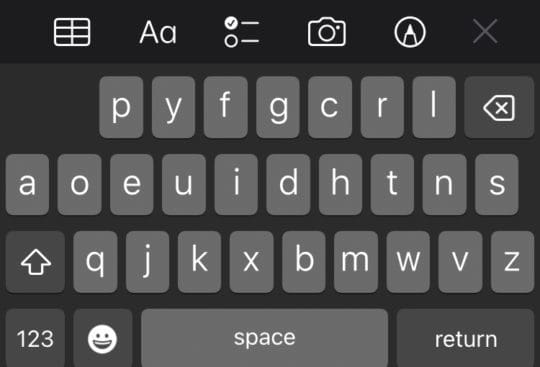
The Dvorak keyboard completely restructures the keyboard in a way that would feel unfamiliar to most. Most notably, the common vowels are bunched together on the left-hand side of the home row. You then have more uncommon letters, such as Z or V, at the far corners of the keyboard. Those who use the Dvorak keyboard report that it takes less energy to type and that they feel their typing speed increases. It’s important to note that the Dvorak keyboard sees the most changes when you use 10 fingers to type, so if you use your thumbs or pointer finger to text, you probably won’t see much improvement and will just feel confused. Steve Wozniak, the co-founder of Apple, is purportedly a huge fan of the Dvorak keyboard and uses it himself to make his typing more efficient.
How to Enable iOS 16 Dvorak Keyboard
It’s extremely simple to enable the iOS 16 Dvorak keyboard. You just have to go through a few settings and enable it. Read below for a simple step-by-step guide on how to do so:
Open up the Settings app on your iOS device.
Navigate to the General tab.
Tap on the Keyboards option.
In the Keyboards screen, tap on Keyboards again (at the top of the menu).
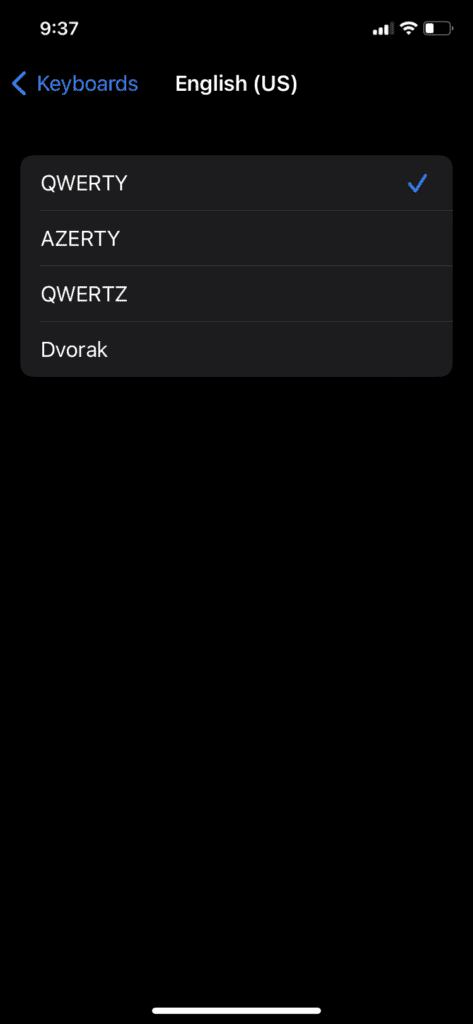
Tap on your main language (for example, English US).
Choose the Dvorak keyboard.
Other iOS 16 Keyboards
Along with the Dvorak keyboard, there are 3 other options you can choose from. Each one has its own benefits and uses that you may enjoy. They are:
QWERTY: The QWERTY keyboard, while not the most efficient, is iconic as most of us have grown up with it. It evenly spaces out all the commonly used letters so that it puts less strain on one hand. One downside some feel is that it takes a lot of energy to type and that the standardized 10-finger typing approach on a QWERTY keyboard is extremely inefficient.
AZERTY: French-speaking individuals use the AZERTY keyboard a lot, however it is quickly fading out of popularity as the French government has identified that it promotes poor French writing. You’ll commonly see this keyboard in French Canada, France, Belgium, and Luxembourg. It takes the same layout as the English QWERTY keyboard but replaces the Q and the A.
QWERTZ: The QWERTZ keyboard is more common in Central Europe. It replaces the Z and Y on a typical QWERTY keyboard, as Germans and Germanic-speaking countries use the Z letter much more frequently than the Y.
iOS 16 Keyboard Tricks and Settings
If you enjoyed switching to the iOS 16 Dvorak keyboard and are looking for some more tips and tricks, you may enjoy some of these:
Keyboard Haptics
Typing without haptic feedback can be dull and boring. What haptic feedback does is create a slight vibration every time you press a key on your iOS device’s keyboard, so you can feel some physical reaction to your typing. This slightly emulates the feeling of real typing, as you’re getting that physical feedback. It makes typing way more engaging and interesting, but some reports may state that it could drain battery life (although tests remain inconclusive). To turn on keyboard haptics, go to Settings > Sounds & Haptics > Keyboard Feedback > Toggle Haptic.
QuickPath
Ages ago, you’d have to download third-party applications to use a QuickPath function. With QuickPath, you can simply swipe the letters, and the keyboard will pick up on the word you’re “typing”. This reduces the strain on your hands and wrists, as you just swipe around on your phone screen instead of using force to tap. To enable this, head over to Settings > General > Keyboards > Toggle Slide to Type.
Trackpad Mode
If you’ve ever felt frustrated with trying to edit a typo when typing due to the frustrating tracking feature that Apple implements on text fields, you’re not alone. Not many people know, though, that if you hold down on your spacebar, you can enter Trackpad Mode. This mode transforms your keyboard into a trackpad, where you can use your finger as a cursor to glide around your text. It’s much easier to edit long blocks of text this way.










Write a Comment