• Skip to primary navigation
  • Skip to main content
  • Skip to primary sidebar
  • Skip to footer

AppleToolBox

Tools and Fixes for Mac, iPad, iPhone & iWatch

Search posts

  • About
  • Contact

CONNECT WITH US

CATEGORIES

  • iPhone
  • iPad
  • iPod
  • Apple Watch
  • Mac/MacBook
  • AirPods
  • Apple TV
  • News
  • Apple Services
  • HomePod
  • Reviews

SITE

  • Home
  • About Us
  • Contact
  • Advertise

Search posts

You are here: Home / iPhone / How to Add a Different Keyboard Language on iPhone

How to Add a Different Keyboard Language on iPhone

By Danny Maiorca 0 comments Last updated September 17, 2022

Learning a new language opens several doors, including job opportunities and the chance to make new friends. The best way to pick up a different way of speaking is by immersing yourself, and changing the language on your devices can help in that respect.

Related Reading:

  • How to Use Gboard Translate on iPhone
  • Translate a Website in Safari on iPhone With Microsoft Translator
  • How to Share Your Location Via Satellite Using Find My
  • iOS: How to Enable Trackpad Mode
  • How to Make Siri Announce Notifications on iPhone

If you want to know how to add a different keyboard language to your iPhone, you’re in the right place. This guide will tell you everything you need to know.

Contents

  • How to Add a Different Keyboard Language on Your iPhone
  • How to Switch to Your New Keyboard Language
  • Switching Keyboard Languages on iPhone Is Easy

How to Add a Different Keyboard Language on Your iPhone

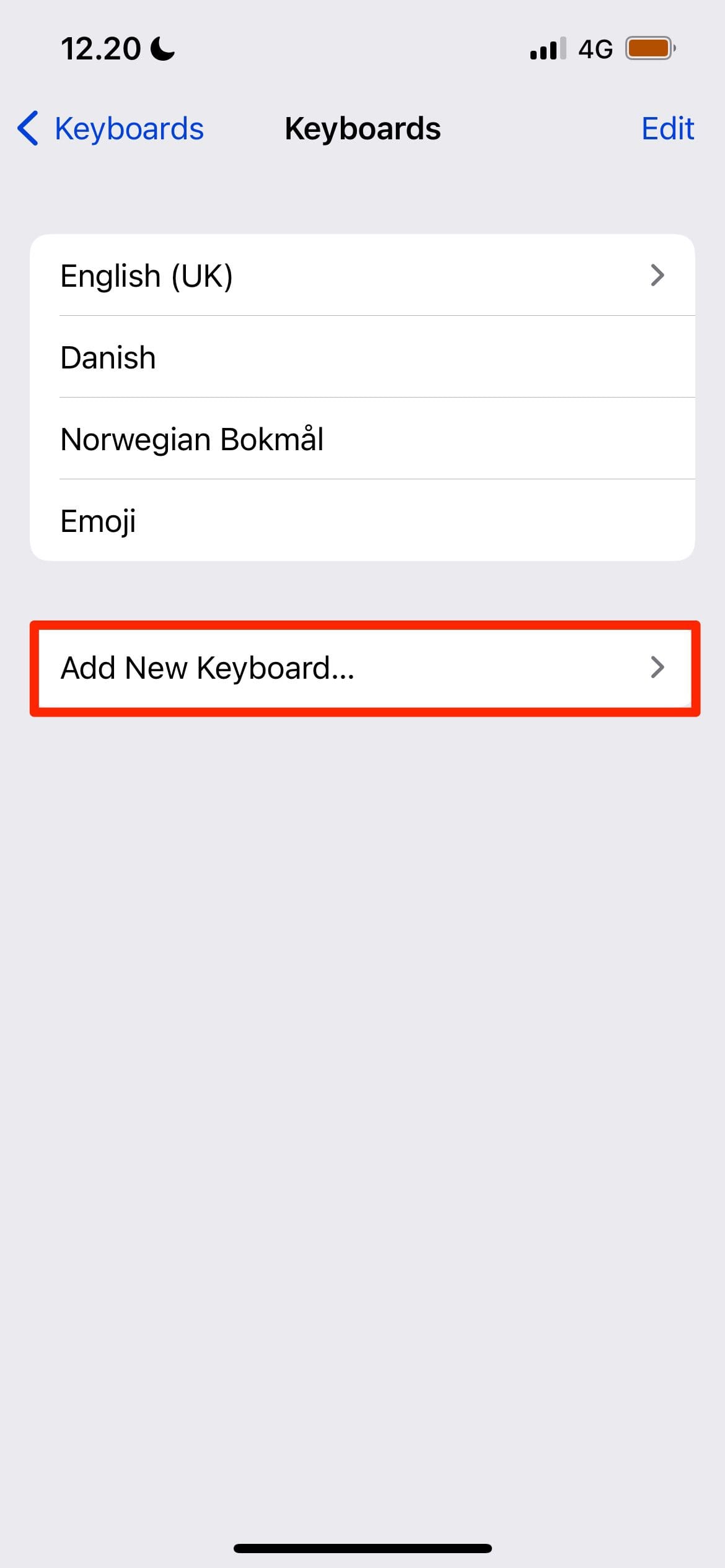
Screenshot showing keyboard tab on iPhone
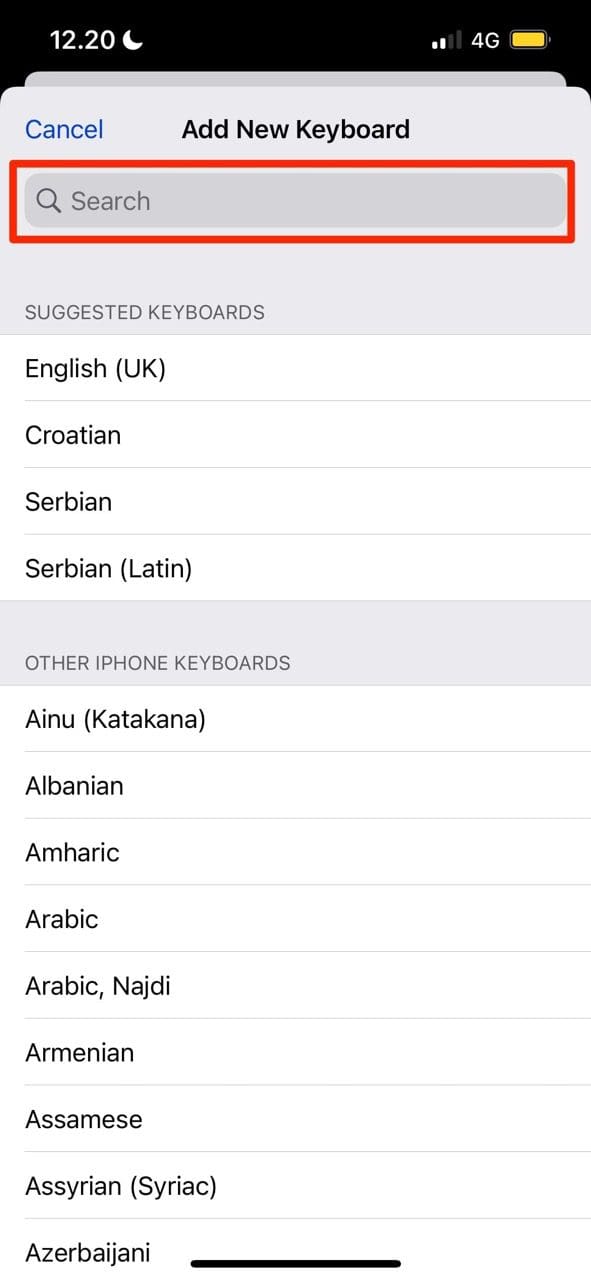
Screenshot showing how to add a keyboard on iPhone
Screenshot showing language options for keyboard on iPhone

To add an extra keyboard language on your iPhone, you’ll need to open the Settings app. When you’re there, follow the instructions listed below.

  1. Go to General > Keyboards.
  2. On the next screen, select the Keyboard tab at the top.
  3. At the bottom of the following window, you will see an option titled Add New Keyboard. Click on this.

Search for the keyboard you’d like to and tap that specific language. Your iPhone should add it straight away.

How to Switch to Your New Keyboard Language

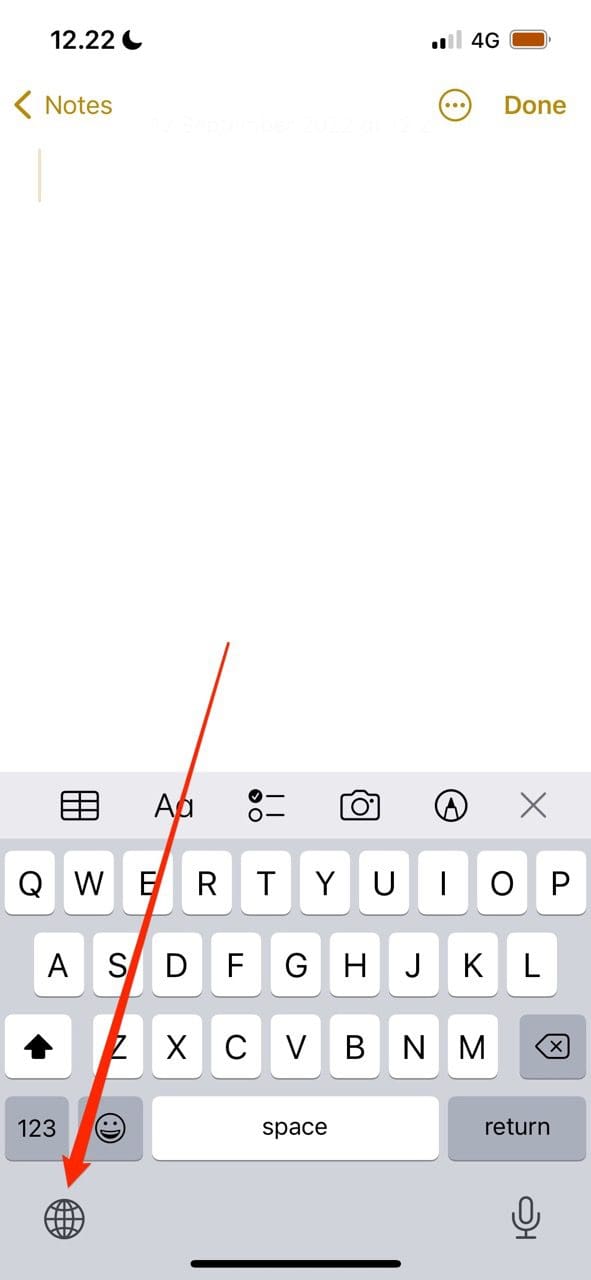
Screenshot showing the world icon on iPhone
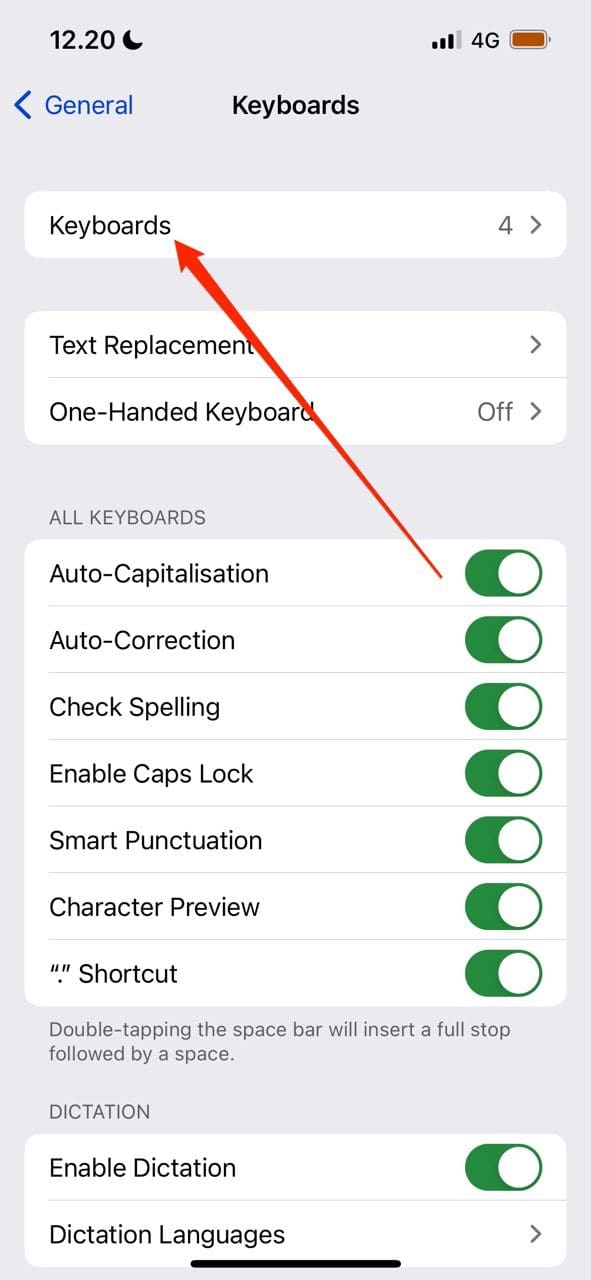
Screenshot showing the added keyboard on iPhone

Once you’ve added your new keyboard language, you’ll need to navigate through your existing ones to use it.

To switch to a new keyboard language on your iPhone, click on the world icon at the bottom when you type. As you scroll through, you’ll see all of the languages you’ve added.

Scroll through until you see the language of the keyboard you added. If you can’t find it, try switching your iPhone off and on.

Switching Keyboard Languages on iPhone Is Easy

So, there you have it – now you know how to add a new keyboard language on your iPhone. The process is very straightforward, and it shouldn’t take you more than a couple of minutes. Once you’ve added it, you can begin to practice writing in the language you want to learn.

If you want to take your language learning to the next level, you can also change the language on your iPhone.

Related Posts:

  • gboard-translate-on-iphone-featured
    How to Use Gboard Translate on iPhone
  • photo of someone using their iphone with a camera
    Apple Translate vs. Google Translate: Which Is…
  • fix-Gboard-crashing-on-iOS
    Fix: Gboard Is Crashing on iPhone
  • photo of an iphone saying hello
    The Best Language-Learning Apps for iOS
  • Apple Watch receiving message next to AirPods
    How to Stop Siri Reading Out Apple Watch Messages in…
  • pexels-cottonbro-5082579
    Getting Started With iOS 15: Everything Good And Bad
  • pexels-cottonbro-4709285
    How To Learn Swift On Mac And iPad
  • iPhone 15 event - iPhone 15 Pro and iPhone 15 Pro Max A17 Pro Video Recording Promo
    iPhone 14 vs. iPhone 15: Should You Upgrade?
  • A problem occurred with this webpage so it was reloaded, fix
    Can’t Clear the Browsing History in Safari on Your…
Danny Maiorca

Danny has been a professional writer since graduating from university in 2016, but he’s been writing online for over a decade. He has been intrigued by Apple products ever since getting an iPod Shuffle in 2008 and particularly enjoys writing about iPhones and iPads. Danny prides himself on making complex topics easy to understand. In his spare time, he’s a keen photographer.

Reader Interactions

Write a Comment Cancel reply

Primary Sidebar

Recent Posts

  • How to Stop Sharing Analytics in iOS 26
  • How to Manage Your iPhone Call Log
  • Are Apple’s Safety Precautions Enough for AirTags?
  • How to Hide Username and Photo on the Mac Lock Screen
  • Microsoft Resume vs. Apple Handoff – Which Wins for Cross-Device Work?
  • How to Export iTunes Library to New Computer

Connect with us

Footer

ABOUT

  • About Us
  • Contact us
  • Advertise
  • Privacy
  • Terms of Use

GUIDES

  • iOS & iPadOS
  • Apple ID
  • iCloud
  • App Store
  • iTunes
  • FaceTime
  • iMessage
  • Siri
  • Books and iBooks
  • Game Center
  • AirPlay

CONNECT

  • Facebook
  • Twitter
  • FeedBurner
  • YouTube

© Copyright 2010-2024 Guiding Tech Media · All Rights Reserved

This site and its content are in no way affiliated or endorsed by Apple, Inc. · Reproduction without explicit permission is prohibited