Performance issues are the last thing you would associate with a Mac. But sometimes, you will have problems with your device – such as your Mac screen flickering.
Your Mac screen might flicker for several reasons, and some issues are trickier to fix than others. Below will give you a couple of possible reasons why your Mac screen is flickering, before discussing a selection of solutions you can try.
If your Mac screen is flickering, it might be due to one of the reasons listed below.
Your Mac Has Water Damage
Were you innocently working on your Mac, before accidentally knocking water or coffee on your device? If you’ve ever had that happen to you, you’ll know that Mac computers do not react well in many instances.
Your Mac screen flickering could be a result of water damage. You can fix the issue yourself if you act fast, but it’s often better to take your device to a repair store.
You Might Have Dropped Your Mac
While Macs are pretty sturdy, they cannot withstand everything. If you drop your computer, you might find that your device stops working in the same way that it previously did.
If you’ve recently dropped your Mac, your screen might start flickering as a result. In these instances, you will probably need to get your device repaired.
You Might Need a Software Update
When your Mac doesn’t have the latest software installed, it often doesn’t perform at the same level it previously did. Apple releases several updates throughout the year, so it’s possible that you might have missed one.
You can easily update your macOS software, however – as we’ll discuss later in this article.
How to Stop Mac Screen Flickering
If your Mac screen is flickering, you will find several solutions to the issue. Below are some of the main ways you can fix the problem.
Update Your Mac Software
If you haven’t spilled liquid on your Mac or dropped it, checking for a macOS software update is a good idea. Some Redditors have said that they didn’t have the issue after upgrading their software; you can do so by following the instructions listed below.
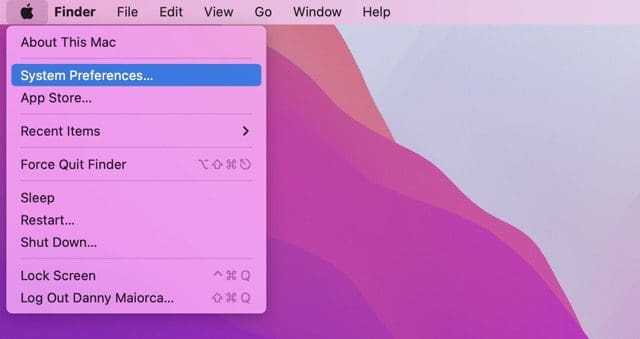
1. In the top left-hand corner of your screen, click on the Apple logo.
2. When the dropdown menu appears, go to System Preferences.
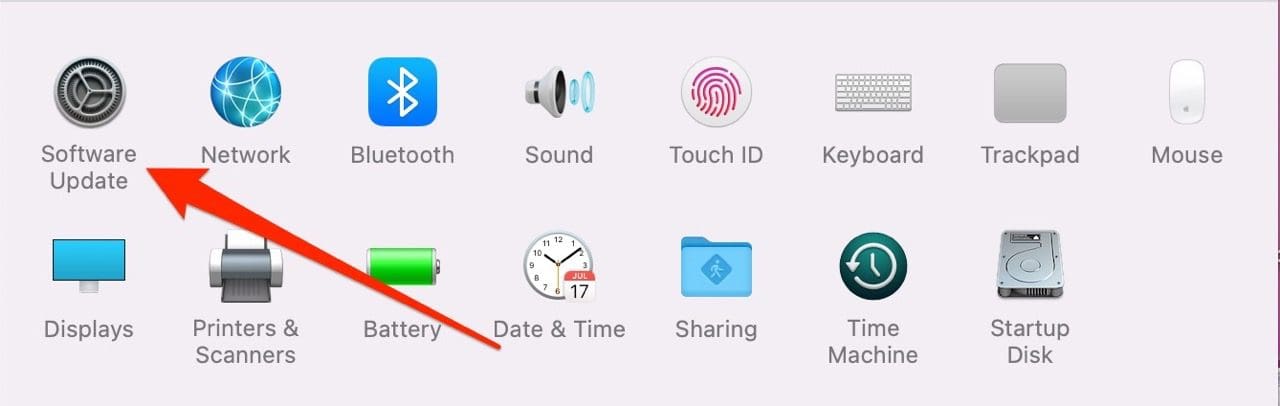
3. In the next screen, you will see a Software Update icon; click on this.
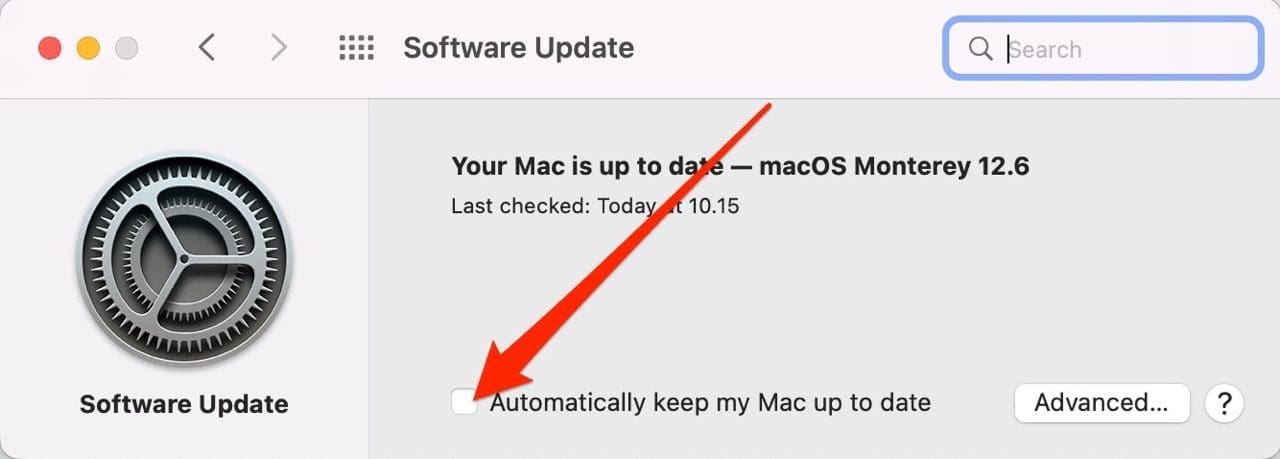
4. If you need to update your software, you will see a prompt asking you to do so. Select this if that ends up being the case.
To make sure that you never miss an update in the future, you can switch on the Automatically keep my Mac up to date option. If you expand the Advanced tab, you can customize your options further.
Leave Your Mac For a While
If your Mac has sustained water damage, you might be able to fix the issue by leaving your computer for a while. Turn your device off and leave it in a dry room for a little while.
You might, if the damage isn’t significant, find that you can use your device again after taking a little break from it.
Restart Your Mac
If your Mac screen has only just begun flickering, your device might need little more than a simple restart. To switch your Mac off and on again, follow the steps below.
Go to the Apple logo in the top left-hand corner of your screen.
Select the Restart option; you’ll see this toward the bottom of the dropdown menu.
When the popup window appears on your screen, press Restart.
You can, of course, also turn your Mac off and on again. Instead of hitting Restart in the Apple menu, you’ll need to select Shut Down. Once your device has switched off, you can turn your Mac on again via the standby button in the top right-hand corner of your keyboard.
Take Your Mac to an Apple Store
In situations where you can’t fix the Mac screen flickering issue, taking your device to a repair store is your best option. Check to see if your device is still under warranty; if it is, you will likely be able to get it fixed with minimal issues.
When taking your computer to get repaired, make sure that the store you use has official Apple certification. Some shops will offer cheaper options for replacements, but you should avoid those where possible.
Stop Your Mac Screen From Flickering
Your Mac screen could be flickering for several reasons. The issue is sometimes caused by physical damage, but in other instances, it’ll be issues with your device or the software. Before you get your device repaired, you should try the several options you have to fix the problem.
If your Mac screen is flickering, you now should have more control over tackling the issue.
Danny has been a professional writer since graduating from university in 2016, but he’s been writing online for over a decade. He has been intrigued by Apple products ever since getting an iPod Shuffle in 2008 and particularly enjoys writing about iPhones and iPads. Danny prides himself on making complex topics easy to understand. In his spare time, he’s a keen photographer.











Write a Comment