Several users have reported that the iPad/iPod/iPhone home button isn’t working or works intermittently. If your iPad (or iPhone) button is not responding, here’s what you can do to fix it.
There are various iPhone, iPad, and iPod models that come with a Home button. Some of these Home buttons also function as the fingerprint scanner of the device. Normal wear and tear, software bug, or firmware issues can cause this Home button to malfunction.
When this happens, it becomes pretty challenging for anyone to use these Apple devices. If you’re also one of those users who often complain that the Home button stopped working, read this article until the end to discover the best troubleshooting ideas.
Find below why might the Home button on your Apple smartphone or tablet isn’t working. The cause of this Home button malfunctioning will also decide how to fix the problem.
The Home button has cracks on it.
Micro debris, lint, and grime found their way into the contact point of the Home button and device body.
The wiring cable that connects the Home button to the iPhone/iPad/iPod logic board is loosely connected.
The Home button is unable to communicate with the iOS due to firmware or other software issues.
During the course of its use, the Home button’s calibration may become inaccurate, resulting in unresponsiveness and atypical performance.
An iOS update may have added compatibility issues with the Home button.
If there are hardware-related issues as mentioned in Reasons 1 to 3 outlined above, you may need to replace the Home button or the whole iPhone. However, when the home button not working on your iPhone/iPod/or iPad due to software issues, you can fix it at home.
How to Fix the Home Button Not Working
There are different approaches to fixing the Home button issue on an Apple mobile device depending on the root cause. Find all possible troubleshooting ideas below:
1. Inspect the Home Button for Damages and Debris
Check if there are any cracks in the Home button. If there are any, the Home button may not work anymore until you replace this. This isn’t something anyone can do at home. If your iPhone/iPad/iPod is within the warranty period, take it to an Apple-authorized service center. Here’s how:
Click the current ZIP code and enter your own ZIP code.
Select any service locations from the portal to find driving navigation or address.
If your Apple mobile device isn’t in the warranty period, still you should take it to an Apple-authorized service center for the best repair services. There is nothing much you can do when the home button is broken.
Sometimes, debris and grime stop the Home button from working. You can try the following fix at home:
Dip a cotton swab into a bottle of 98% to 99% isopropyl alcohol.
Use the cotton swab to gently wipe the circular contact point between the Home button and the device body.
Also, press the Home button repeatedly when cleaning the circular area.
Isopropyl alcohol goes inside the contact point and cleans grime, lint, and debris. It doesn’t cause liquid damage to the device because it evaporates in the air. An alternative to isopropyl alcohol is compressed air.
2. Try to Fix the Home Button and Logic Board Connection
If the cable running between the Home button and logic board is loose, try the steps mentioned below to fix the “iPhone Home button not working” issue:
Disconnect the adapter from the wall outlet.
Connect the charging cable to the iPhone, iPad, or iPod.
Apply gentle pressure to the lower part of your iPhone’s connector.
It’s more like pushing the USB port toward the Home button.
Press the Home button a couple of times and you keep pressing the USB port toward the Home button.
How to push the Lightning cable against the port and home button
3. Recalibrate the Power Button
Here’s how you can do it:
Open any pre-installed app on your device, such as Calendar, Notes, Shortcuts, Reminders, App Store, etc.
Launch Settings and navigate to General > Shut Down to enter the shutdown screen with a slider button.
Now, long press the Home button until the shutdown sequence cancels and the app closes.
4. Activate the AssistiveTouch Button
If you don’t need the fingerprint scanning function on the iPhone/iPad/iPod Home button, then you can enable the Assistive Touch feature. By enabling this functionality on an iPhone, iPad, or iPod device, you get an on-screen Home button. You no longer need to use the physical Home button. Find below the steps to activate this feature and how to use the virtual Home button on iPhone:
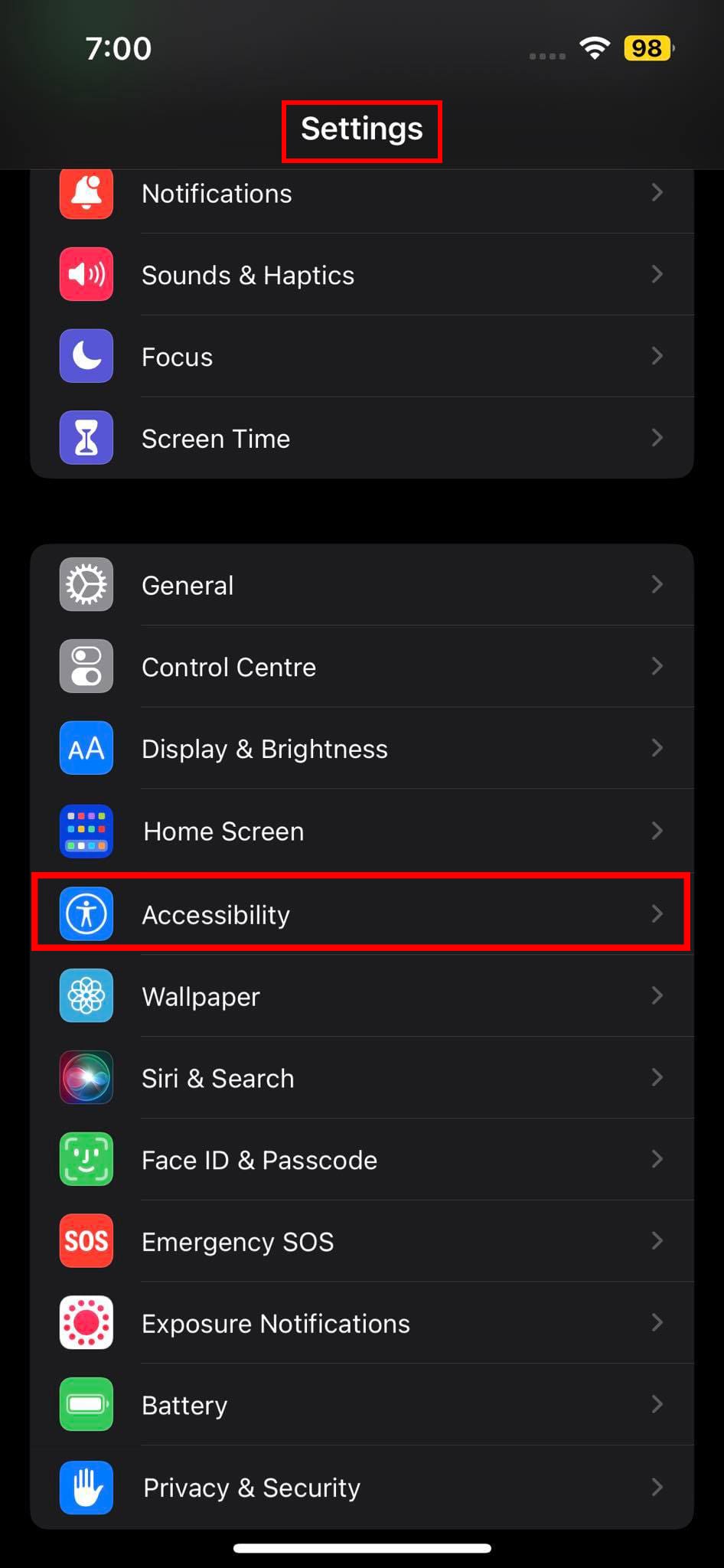
Open Settings and go to the Accessibility menu.
Access settings accessibility on iPhone
On some iPhone/iPad/iPod models, you may need to to Settings > General > Accessibility.
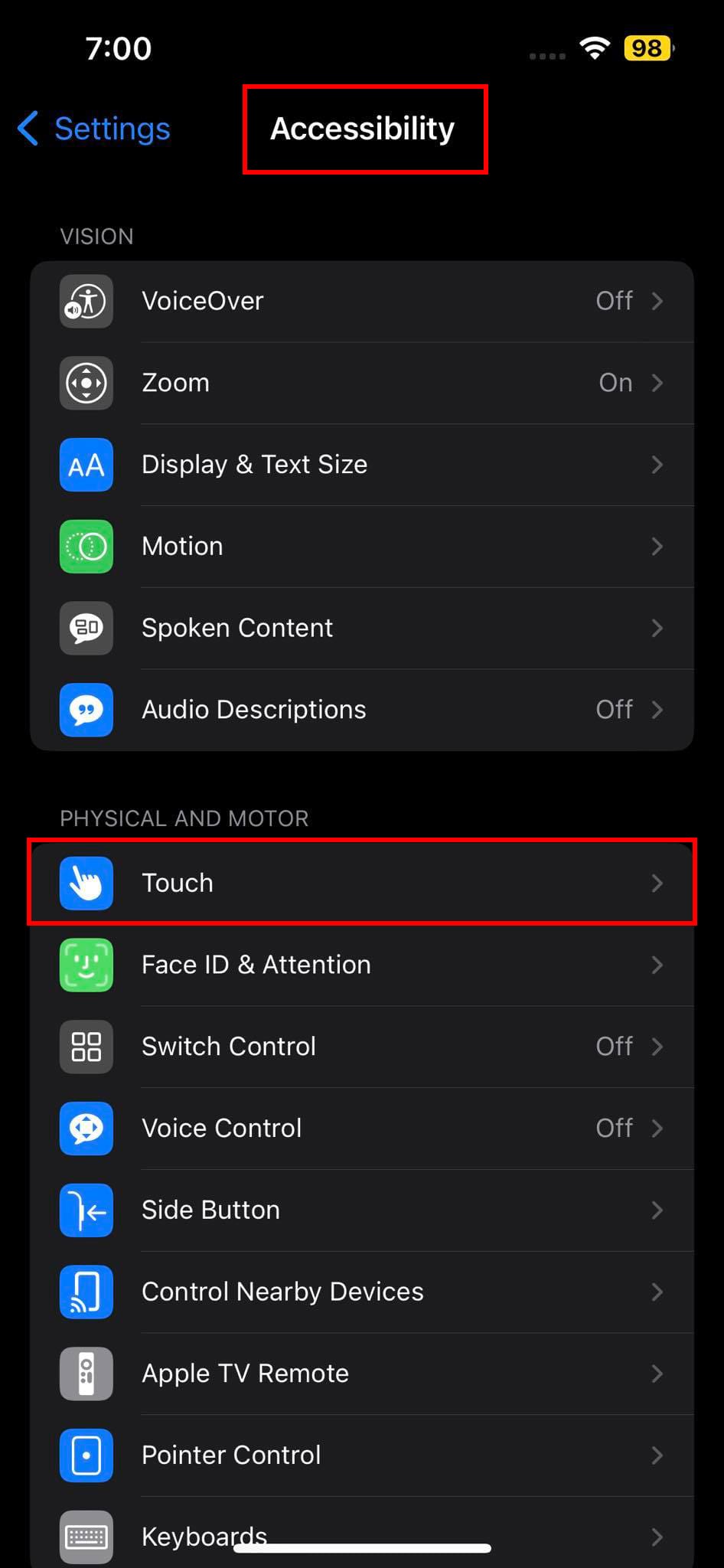
Now, tap on the Touch menu.
Accessibility Touch settings
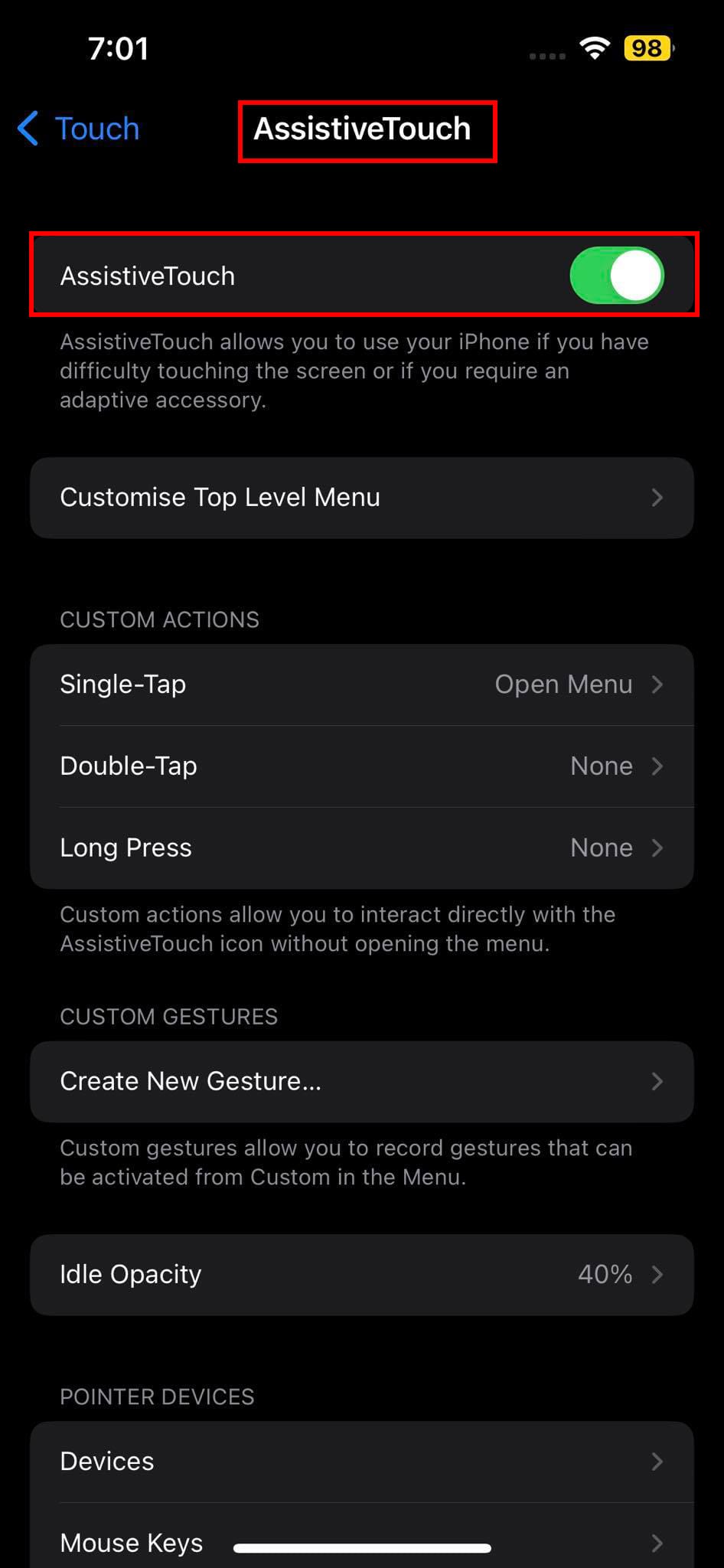
Touch the AssistiveTouch feature and enable it.
Enable AssistiveTouch
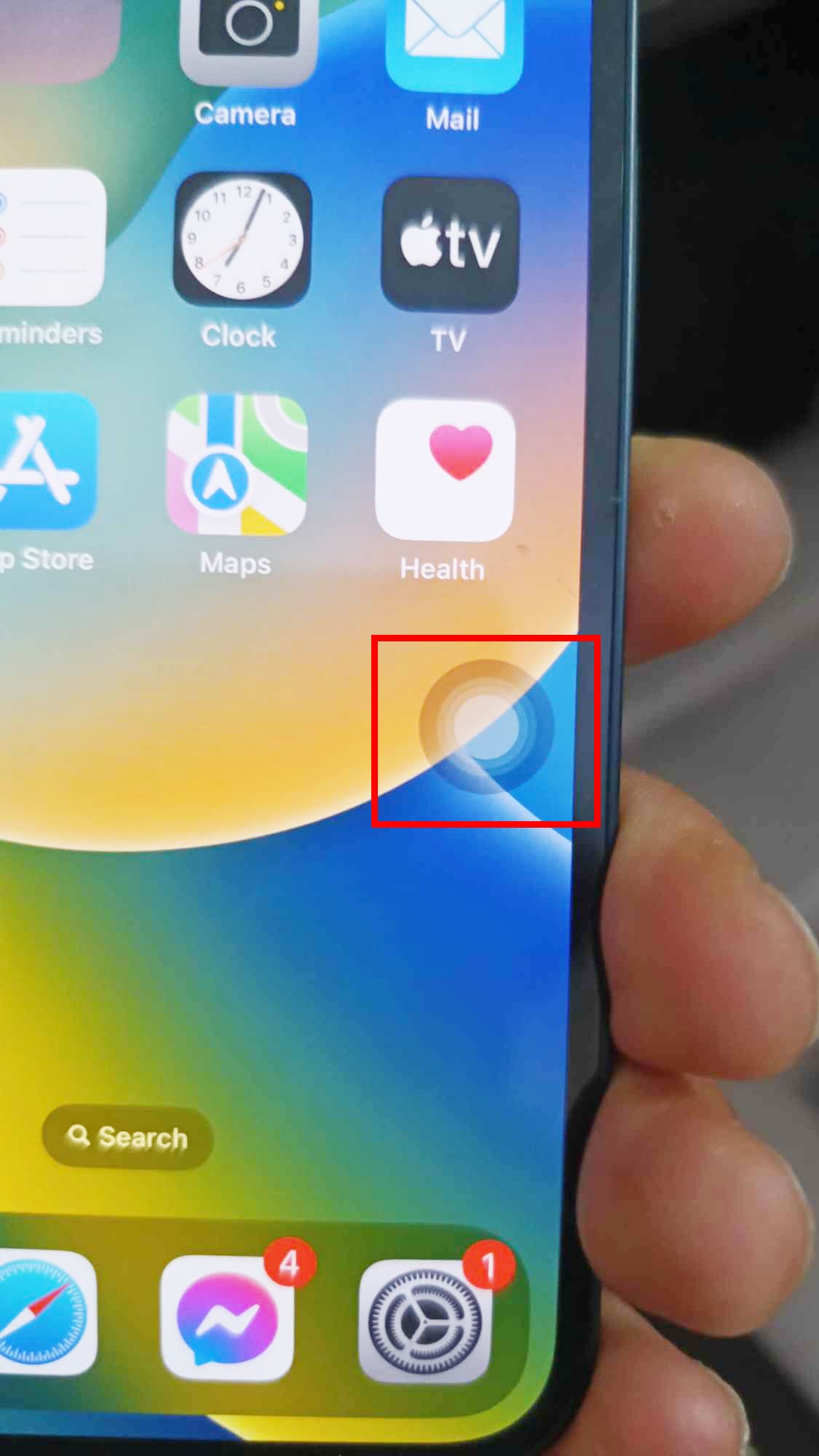
The AssistiveTouch button will show up on the edge of the device screen.
The AssistiveTouch button on iPhone
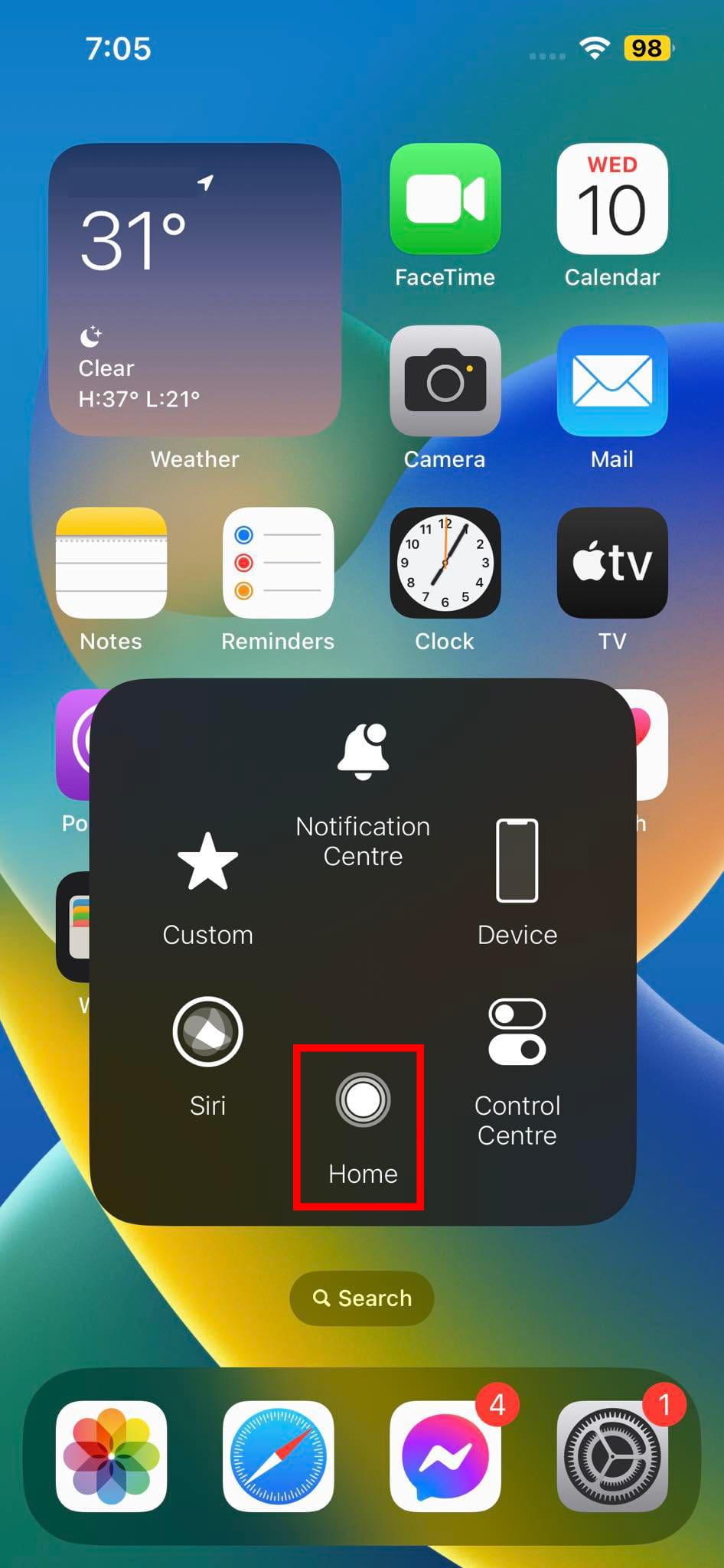
Touch the button to open a widget of options like Device, Control Center, etc., including Home.
AssistiveTouch control panel
Tap the Home icon to go to the Home Screen.
The AssitiveTouch button stays on top of all the apps so you can easily access the virtual Home button when the physical Home button no longer works.
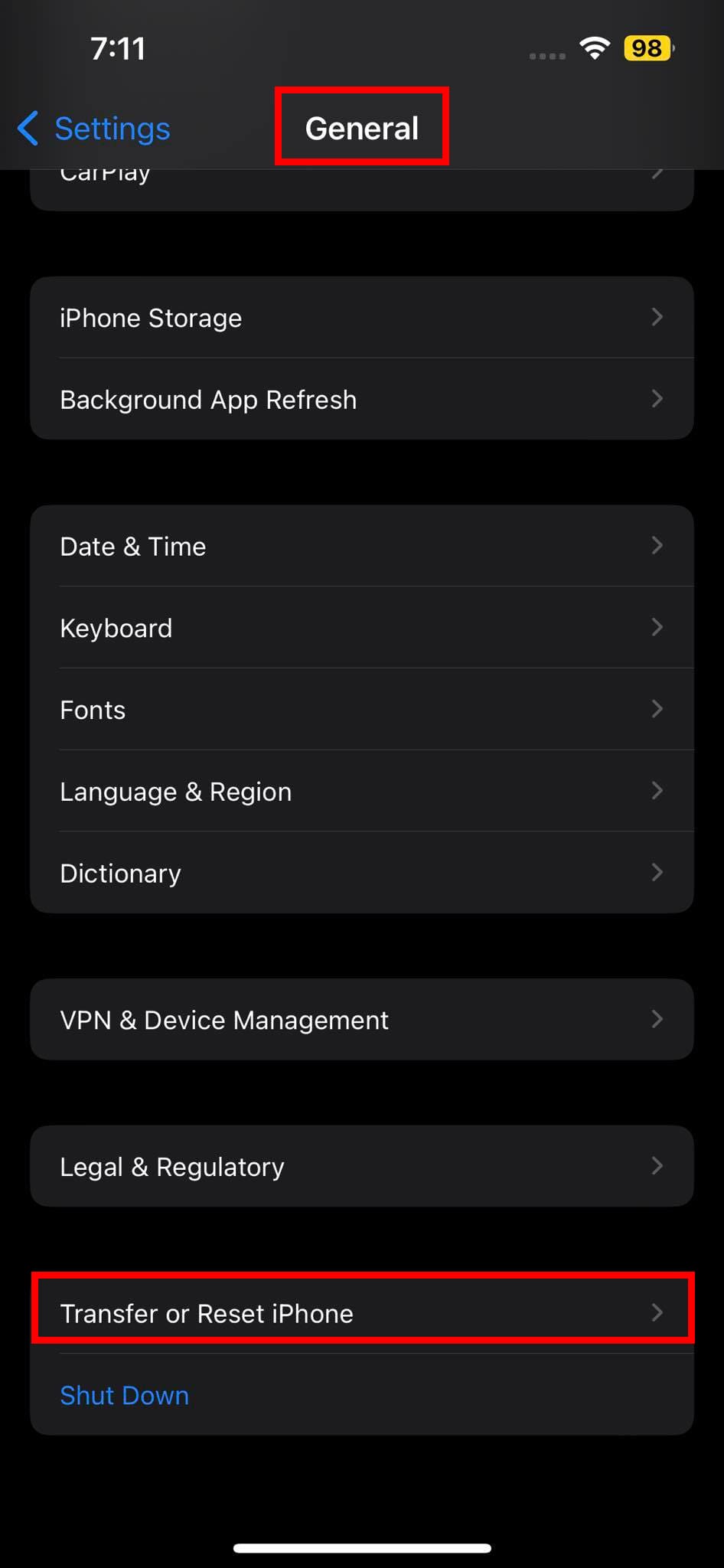
Scroll to the bottom of the screen and tap on Transfer or Reset iPhone (iPad and iPod for respective devices).
Touch the Reset button and then select Reset All Settings.
Reset Transfer Reset All Settings iOS
Enter your device password to proceed.
Before you do this, ensure you know the Wi-Fi password. Because resetting iOS settings will also delete all saved Wi-Fi SSIDs and networks.
6. Restore Software From iTunes or Finder
If the Home button issue is due to a corrupt software update, you need to restore the device from a PC or Mac. Here’s how to do this on a PC:
Launch the iTunes app on your Windows PC.
Connect the iPhone/iPad/iPod using a compatible USB cable.
Authorize or trust the devices as the prompt appears.
When you see the connected device shows up on iTunes, do the followings:
Tap and release the volume up button
Tap and release the volume down button
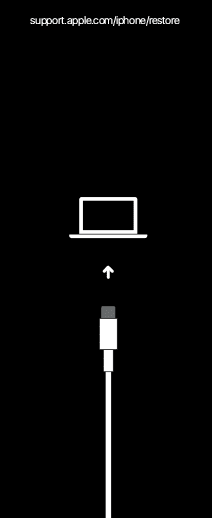
Press and hold the side button until you see the Restore iPhone or the recovery mode screen
iPhone recovery mode
On some device models, you may need to press and hold the volume down and side button together.
Now, you should see the RestoreiPhone button on the iTunes app. Click on it and follow further on-screen instructions.
Restore and update confirmation on iTunes
On a Mac, the steps are similar. You need to use the Finder app instead of iTunes on macOS Catalina and later devices. For macOS Mojave and earlier, use the iTunes app. Restoring an iPhone/iPad/iPod deletes all the device data. So, do this after taking a backup of the device on your PC. Alternatively, you can use the iCloud backup to restore apps, data, and settings on your device.
Conclusion
So, these are all possible and proven methods to get rid of the “Home button not working on iPhone” issue. If you try these and any of the methods resolve the issue, don’t forget to mention the method in the comment box below. Also, if you know of any other efficient ways to fix the issue, don’t hesitate to comment.
Obsessed with tech since the early arrival of A/UX on Apple, Sudz (SK) is responsible for the original editorial direction of AppleToolBox. He is based out of Los Angeles, CA.
Sudz specializes in covering all things macOS, having reviewed dozens of OS X and macOS developments over the years.
In a former life, Sudz worked helping Fortune 100 companies with their technology and business transformation aspirations.
I have no sound on my IPad. I did but now I don’t and I do not know how to fix it. Hope you can help please?
It is a new IPad and I can’t remember how to get the sound back sorry. Thank you.
The troubleshooter sl.no.5-‘accessibility’ feature helped to solve. -home button problem not responding. Now want to know if the circle can be hidden or removed? These relates to my iPad mini stopped from responding to the Home button.thanks
The troubleshooter sl.no.5-‘accessibility’ feature helped to solve. -home button problem not responding. Now want to know if the circle can be hidden or remove??
Thanks , believe it or not I was just about to send to apple to fix when blowing and sucking the dock port worked!!! (tip 3) Must have had something stuck there!












I have no sound on my IPad. I did but now I don’t and I do not know how to fix it. Hope you can help please?
It is a new IPad and I can’t remember how to get the sound back sorry. Thank you.
Bev. Hyson
Fix 5.. is a good help.. but it doesn’t resolve the problem though… the button is very hard to push in and I cant get it to respond.. so sad..
Even putting the assistive touch didn’t work. Also, my bottom screen isn’t showing up, and my iPad screen is locked on landscape! Help me!
Fix # 4 worked for me on stuck home button. Thanks!
My screen froze whilst using Skype. Fix 4 worked for me. THANKS!
Did all the fixes and # 4 worked! Thanks
my ipad home button is stuck inside my ipad and isnt coming out and #4 isnt doing anything. Please help
The troubleshooter sl.no.5-‘accessibility’ feature helped to solve. -home button problem not responding. Now want to know if the circle can be hidden or removed? These relates to my iPad mini stopped from responding to the Home button.thanks
The troubleshooter sl.no.5-‘accessibility’ feature helped to solve. -home button problem not responding. Now want to know if the circle can be hidden or remove??
Thank you sorted
i am so grateful for you help. I know you have helped so many, but I have to stop and say thank you. #4 is the option that helped me.
I pad is frooze n
Hardware button is dead.
All the fixes failed, but #5 works well.
Thanks for pointing it out.
Unbelievable. Lived with this for a year and decided to Google before taking to get the hardware fixed. Fix 1 worked perfectly.
Thanks , believe it or not I was just about to send to apple to fix when blowing and sucking the dock port worked!!! (tip 3) Must have had something stuck there!
Thank you very much
Great tip. 2nd step fixed for me after weeks of frustration. Thanks v much.
My screen is frozen and my home button or my off button isn’t working. Help!
My ipad 2 home button has not worked for months – Fix number 2 sorted it out – happy days !
This info helped so much! Thank you!
Gently wiggling the docking pin/charging cable in the iPad helped me!