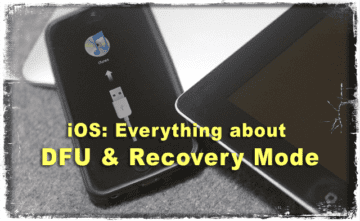
Sometimes recovery mode just doesn’t do the trick and you need to go into DFU mode to reload your iOS. This often happens when a jailbreak goes wrong. iFolks are often confused about the difference between DFU and Recovery Mode. DFU stands for the Device Firmware Update, it’s that state of your iDevice when it doesn’t load the Operating system on itself but still interacts with iTunes. Hence, DFU Mode allows all devices to be restored from any state
DFU Mode is very different from Recovery mode because DFU bypasses the iBoot bootloader on your iPhone, iPod Touch and iPad.
This is the main difference between the Recovery mode and DFU mode. On the other hand, Recovery mode uses iBoot during restoring or upgrading your iPhone. In bypassing the iBoot bootloader, DFU Mode allows downgrades of your current firmware because there is no iBoot agent during the DFU mode.
The quickest way to know if you’re in DFU Mode is that your screen appears totally black in DFU mode. Not so with Recovery.
Apple doesn’t allow downgrading to previous versions of iOS; this is where DFU mode comes in handy. It allows you to downgrade to previous versions of iOS, to troubleshoot major issues, install custom firmware, or unlock your iPhone. iFolks also use it to jailbreak their iDevices.
For example: If you have installed the latest version of iOS on your iPhone and want to downgrade your iPhone to a previous iOS version to get the Jailbreak, you need to enter in DFU mode. However, device compatibility and downgrading software are also needed to install previous versions of iOS.
Before restoring
Verify that you are using the latest version of iTunes or macOS for the Finder app (macOS Catalina+)
Transfer and sync content to your computer if possible
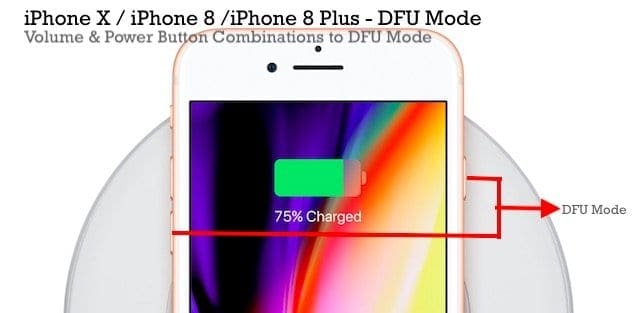
If you own an iPhone 8 or later model, please follow the steps below to enter the DFU mode on your device. For iPads, iPod Touches, and earlier model iPhones look further down for detailed instructions.
Instructions on Performing a Forced Restart By Model
On an iPhone 6S or below plus all iPads & iPod Touches, press Home and Power at the same time until you see the Apple logo
For iPhone 7 or iPhone 7 Plus: Press and hold both the Side and Volume Down buttons for at least 10 seconds, until you see the Apple logo
On an iPhone 8 and above model: Press and quickly release the Volume Up button. Then press and quickly release the Volume Down button. Finally, press and hold the Side button until you see the Apple logo
How To Enter DFU Mode on an iPhone 8 or above model
Update to latest iTunes/Finder version on your computer FIRST
Connect Your iPhone to your computer using the Lightning Cable
Launch iTunes/Finder and make sure that your iPhone shows up on the list of devices
Make Sure your iPhone is switched ON
Next, press the Volume UP button followed immediately by the Volume DOWN button
Now, press and hold the Side or Power button until the iPhone screen turns black
Your screen should stay black, if not go through the previous steps again
Release the Side or Power button and press down both the Side or Power button AND Volume DOWN button together for 5 seconds
After 5 seconds, release the side or power button but keep pressing the Volume Down button
Give it a few seconds, around 10, till iTunes/Finder recognizes the DFU mode and check that your screen remains black
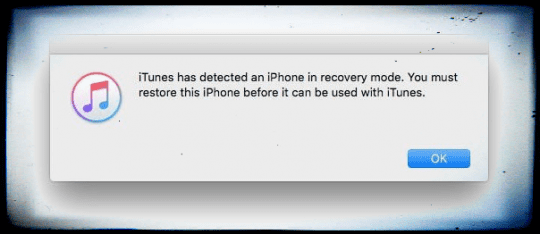
If you successfully entered the DFU Mode on your device, you see a message that “iTunes/Finder has detected an iPhone in recovery mode. You must restore this iPhone before it can be used with iTunes/Finder.”
If not, repeat these steps
If you do not see a black screen, you are not in DFU Mode. Please run through these steps again.
How-To Enter in DFU mode on iPad, iPods, and Earlier iPhone models
The most important thing before entering in DFU mode is the timing; you should hold the buttons for the exact time as mentioned below. Otherwise, it leads to recovery mode instead of DFU mode.
Be aware that DFU mode is signified by having a completely black screen on the device.
So if you don’t see anything, this is normal.
First, Turn OFF Your iDevice
Open iTunes/Finder on your computer
Connect your computer and your iDevice
Hold the Power Button for 3 seconds
Continue holding the power button and ADDITIONALLY hold the home button OR iPhone 7 models, hold the volume down button for 10 seconds
The screen remains blank throughout. If you see the “Connect to iTunes/Finder” message, your iPhone is in recovery mode. Restart the process again from step 1.
Release the power button while continuing to hold the home button or for iPhone 7 models, the volume down button, for 5 seconds
Again, if your phone displays the “Plug into iTunes/Finder” screen, you’ve held down too long and need to restart
If your device’s screen remains blank, a dialog appears in iTunes/Finder saying it’s “detected an iPhone in recovery mode. You must restore this iPhone before it can be used with iTunes/Finder”
Follow the on-screen steps to Restore iPhone or another iDevice
Now, interaction is easy between your iDevice and iTunes/Finder. You may install new custom firmware, Jailbreaks or downgrades. If your iDevice shows another message other than
If your iDevice shows ANY OTHER messages, Apple logos, OR NO BLACK SCREEN, it indicates that your iDevice is not in DFU mode.
How to Exit from DFU Mode
Exiting from DFU mode is rather simple as compared to enter into it.
Carefully follow these steps
While still connected to your computer, force restart on your device by pressing and holding home + power (iPhone 6S and lower, all iPads and iPod Touches,) press and hold power + volume down (iPhone 7,) or tap volume up + tap volume down + press and hold the side button (iPhone 8 and above) until the Apple Logo appears on the screen of your iDevice
Release the button(s) so that your iDevice disappears from iTunes/Finder
Now, press the ON/OFF or SIDE button and your iDevice restarts normally
Recovery Mode
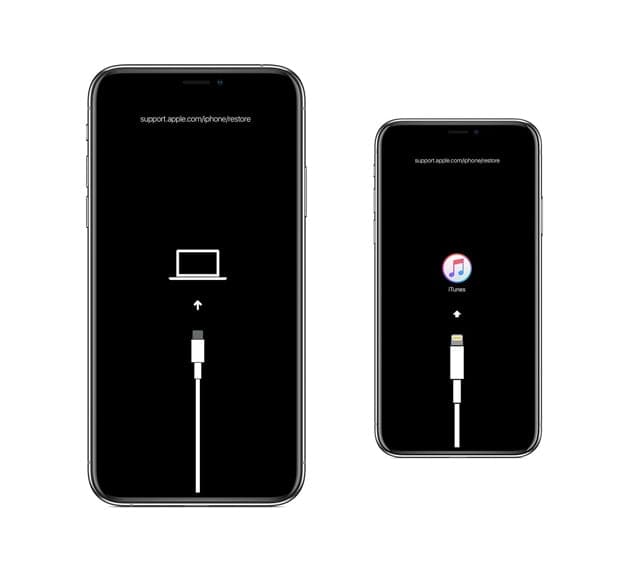
Unlike DFU mode, Recovery mode is pretty simple and it can be defined as the state in which iPhone loads the bootloader but not the OS. However, it still interacts with iTunes/Finder to install fresh firmware and restores.
Uses of Recovery Mode:
Recovery mode doesn’t allow you to downgrade previous versions of iOS. However, you can simply restore your iPhone, iPod Touch or iPad to current firmware or install the updates using the Recovery mode. On the other hand, Recovery mode may also be useful to Jailbreak your iPhone, iPod Touch or iPad.
How to Enter Recovery Mode
Entering Recovery mode is pretty easy and simplest process.
Make sure that you’re using the latest version of iTunes or macOS for Finder
If iTunes is already open, close it
Connect your device to your computer and then open iTunes/Finder
Now, perform a forced restart on your iDevice
iPhone 8 and above and iPad models with Face ID: Press and quickly release the Volume Up button. Press and quickly release the Volume Down button. Press and hold the Side/Top button until your device begins to restart. Continue holding the Side/Top button until your device goes into recovery mode
iPhone 7, iPhone 7 Plus, and iPod touch (7th generation): Press and hold the Top (or Side) and Volume Down buttons at the same time. Keep holding them until you see the recovery-mode screen
iPad with Home button, iPhone 6s or earlier, and iPod touch (6th generation) or earlier: Press and hold both the Home and the Top (or Side) buttons at the same time. Keep holding them until you see the recovery-mode screen
Don’t release the buttons when you see the Apple logo
Keep holding the buttons until you see the recovery mode screen on your device
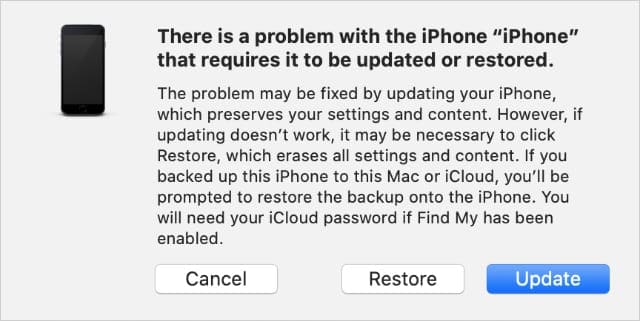
A message appears on your computer with options to Restore or Update
You should see this message in iTunes or Finder when your device is in recovery mode.
Choose Update
iTunes/Finder tries to reinstall iOS without erasing your data
Be patient while iTunes/Finder downloads the software for your device
If your download takes more than 15 minutes and your device exits recovery mode, let the download finish. THEN repeat these steps
If Update didn’t work, repeat these steps and select Restore
You may lose data, especially if you have not backed up on iTunes or iCloud
After your iDevice completes its Update or Restore, set up your device following the on-screen instructions.
How to Exit from Recovery Mode
While maintaining the connection between your iPhone or iDevice to your Mac or Windows PC, force restart your device following the instructions above to completely turn off your iPhone
Now, press the ON/OFF or Side button again to turn off your iPhone
The Connect to Tunes/Finder logo should disappear
If this method doesn’t solve your problem, you need to restore the latest iOS/iPadOS version for your iDevice
Similarities and Differences between DFU and Recovery Mode
Both modes can be used to restore the latest version of iOS on iPhone, iPod Touch, iPad, and iPad mini
DFU mode does NOT offer you to SAVE CONTENT before restoring
Both modes are easily returnable using the same methods as explained above
DFU mode is a necessary step for Jailbreaking iPhone, iPod Touch or iPad using Redsn0w as the Jailbreak Software While Recovery mode is necessary for installation of new firmware
DFU mode can also be used to downgrade to previous versions of iOS but Recovery mode can’t
Recovery mode doesn’t bypass the bootloader on iDevices while DFU mode can easily bypass the Bootloader and prevent loading the default OS on iDevice
Conclusion
Both the DFU and Recovery Mode are very useful to install custom firmware, update, unlock or Jailbreak iPhone, iPod Touch or iPad. Remember that you need to backup your data BEFORE a disaster occurs, not afterward. So make backing up a part of your iDevice daily or weekly routine.
Entering or exiting from DFU or recovery mode depends upon the timing of pressing the Sleep and Home Button. Pressing the home button for too long may lead to recovery mode instead of DFU mode.
Obsessed with tech since the early arrival of A/UX on Apple, Sudz (SK) is responsible for the original editorial direction of AppleToolBox. He is based out of Los Angeles, CA.
Sudz specializes in covering all things macOS, having reviewed dozens of OS X and macOS developments over the years.
In a former life, Sudz worked helping Fortune 100 companies with their technology and business transformation aspirations.
Still stuck in recovery mode all the time. Tried both update and recover and both seem to go through the process but always fails about 75% on the progress bar. Tried other computers with no luck. Ipad 7th generation still stays in recovery mode.
I have an older iPad–not sure which model, to be honest, but it has a home button. The only thing the iPad can do is show the white Apple logo on a black screen. When I power it up, the Apple logo appears and remains; at exactly 60 seconds, the logo flickers once, very briefly. This continues as long as I leave it on, with the flicker every 60 seconds. Once in this state, I can’t turn the iPad off with a long press of the power button, I have to do a hard power down by holding down the power and home buttons. I have tried to put it into recovery mode, but there is no response from the unit and it doesn’t show up in Finder (I’m running Catalina). I have tried to put it into DFU mode, but I get nothing but an Apple logo again as if I just turned it out. (When I follow your instructions, the Apple logo goes on momentarily when I press the home button after holding down the power button for three seconds; it goes off, then re-appears when I let go of the power button after the ten-second count.) At no time during the process does the iPad appear in Finder, nor does System Information acknowledge that an item is plugged into the USB port. I have similarly tried it with a Windows 10 machine and it’s not getting picked up.
So in summary, it has power but it doesn’t do anything. The buttons all seem to work, as does the lightning port. I’d like to avoid a visit to an Apple Store because it’s certainly out of warranty and the nearest store is an hour away. Any help would be appreciated! THANK YOU!
Hi,
I have tried to do this, but my iPhone 6 wont even show iTunes symbol or lightning symbol. all i see is a white screen with the apple logo. and if i let go it just turns itself on. I have downloaded iTunes, but my windows 10 pc can’t seems to find my iPhone 6, other iDevices can connect to the same pc. the iPhone 6 does charge, but there is not a single sign of my iPhone 6 on my pc. i have tried to search for unidentified devices, but even there i can’t find it. really nothing.
i hope you can help me with this problem and hope to hear soon of you,
While following the steps, even though it shows downloading and restoring in this iphone, there is nothing on my phone screen. Is it how it’s supposed to be?
In most situations, deleted data can reanimate – even if you have cleared the trash or did not use the trash when deleting files.
For effective resuscitation lost data very important execute some activities. Do not be discouraged – for this, it is not necessary to be an expert in the field of information technology, you also do not need to pay hundreds of dollars to a specialist professional for the restoration of your lost information.
My iPad Pro is locked with a strange green screen which says Enter Passcode” and with “Touch ID requires your passcode whenIPad restarts”. Below it is a line with 6 circles for the numbers. Underneath that is the keypad with the numbers. But when I startmentering the passcode, a circle appears around the number, which does NOT register in the numbers line. when I entrr the full passcode, nothing happens.
Are you trying Recovery or DFU mode or just restarting your iPad Pro? Is the device experiencing problems other than this passcode issue?
If you’re simply trying to restart your iPad Pro, try charging it overnight via its original charger and connected to a wall outlet (not a computer port) and then performing a forced restart by pressing and holding both the Home and Power buttons at the same time and maintain this hold until the Apple Logo appears on-screen, then release the buttons. See if you are now able to enter your passcode successfully.
If the problem persists or if you’re having issues in DFU or Recovery Mode, let us know.
HOW EASY IS IT TO DAMAGE THE ELEMENTS IN CHARGER SOCKET ON IPAD 4MINI AND HOW MANY METAL STRIPS AR THEIR IN THE SLOT THINK SOMES BEEN DAMAGED AS KIDS TRIED SQUEEZING STANDASD SAMSUNG CHARGER INTO IT BE NICE IF U HAD DIAGRAM TO COMPARE TO
Sorry to hear that your iPad is getting error 4104–that stinks! Error 4014 often appear when iTunes detects a hardware problem – usually a faulty cable or a faulty port.
Try changing the USB port that you connect to the iPad. If that doesn’t help, change your lightning cable that you use to connect the iPad to the iPad.
A couple of readers discovered that creating a new user (administrator) account on their computer and then initiating DFU Mode worked for them.
If that doesn’t help, try updating from another computer which has the latest iTunes installed. Hopefully, you have an iCloud backup to restore your data. But you may have to set it up as new and then connect to your Apple ID to download apps and any other data associated with your Apple ID.
Good luck. Hope one of these works for you! Let us know.
Have iPad 4 with retina and screen went black took to local repairer and they said it’s a hardware problem. I plugged it into laptop and iTunes doesn’t even come up. It’s been sitting on the shelf for a few years now. Help !!
Have you tried plugging it into a wall outlet using the original charger and Lightning Cable and just letting it charge for a day or two? If you don’t have the original charger/cable, make sure you use items identified as MFI (Made for iPhone/iPad/iPod.)
If you don’t see the charging screen within an hour, or you see the connect to power screen, check the jack, USB cable, and power adapter. Make sure that everything is plugged in firmly, free of debris, and not damaged. You might want to try a different USB cable or power adapter.
Since you’ve had it on the shelf for a few years, it’s bound to have no charge whatsoever. And probably when you plugged it into your computer, there wasn’t sufficient charge to be recognized. USB ports send a lot less power than your wall outlet, so please charge it up for 1-2 days and then try again connecting to iTunes.
Once charged, try a forced restart by press and hold both the Home and the Top (or Side) buttons for at least 10 seconds, until you see the Apple logo.
After charging, if iTunes still doesn’t recognize the device and it doesn’t turn on, it is likely a hardware or battery problem rather than software. And that means that most DIY fixes won’t work.
One reader tip that you could try at your own risk is what we call burping your iPad–cover your iPad in a towel taking note of which side the screen is on. Turn the iPad so the screen is facing away from you and the back of the iPad is facing you. Then give the iPad’s back (the metal side–not the screen side) a few pats–like your burping a baby. This tip often helps in situations where cables or connections have become a bit loose.
After these couple of things, if nothing works then you do need to have a tech diagnose the problem. You could send it in for Apple battery servicing, which relatively affordable compared to most iPad repairs, but there’s no guarantee that the battery is the problem, It just could be.
Thank you iTunes has now detected the iPad and iTunes says Ipad recovery mode – iTunes is restoring the software on this iPad. On the top of the page it says in greyed out letters – waiting for Ipad. The Ipad is plugged into the laptop but the iPad screen is still black. I
my 2015 ipad Air 2 has a black screen. I was doing an update while it was connected to my computer and we had a power outage. It has not worked since. I have taken it to a computer geek, but they told me to purchase a new one. Heck, it isn’t even 2 years old yet. I have tried everything myself on this site but so far I can’t get it to turn on. One computer geek told me that the whole memory had been erased. When I am hooked to the computer and it says it is in recovery mode I get an error from itunes that it could not restore error 4005
Please help me,
Anne
Oh that’s awful. We’ve never encountered this situation before so we’re not exactly sure what could work.
Given that, let’s try a forced restart by pressing and holding both the Home and the Power buttons together. Keep holding until the Apple logo appears. Then release. After that forced restart, connect your iPad to your computer using a USB cable. When iTunes asks you to update or restore, click Update (AND NOT Restore) to reinstall iOS.
Ok so my kids locked the ipad with a passcode… WHAT DO I DO? I’ve tried the above bit my itunes says “iTunes could not connect to this iPad. The value is missing.” Can anyone help?
If you’re using a MacBook, please connect to to the charger. Then, perform a forced restart on your iPad by holding down both home and power buttons until you see iTunes icon on your iPad. It should automatically go into Recovery Mode so you can restore and update. If you have an iTunes or iCloud backup use that; otherwise, restore it back to factory settings.
If that didn’t work, follow these steps EXACTLY. It erases all your phone’s data.
Turn Off your iPad by pressing and holding down the On/Off button for 3 seconds and then swipe the slide to power off
Launch iTunes on your computer
Plug in the charging cable (usb) into your computer (it’s not yet connected to your iPad)
Press and hold down the Home button on your iPad
Plug your iPad into your Mac or Windows PC and with iTunes running
Maintain your hold of the Home button UNTIL you see the Connect to iTunes screen on your iPad, then release
You may need to uninstall iTunes and then reinstall a fresh version. Find iTunes only downloads here.
Keep us posted!
Cheers,
Liz
A user also told us that after trying this process a few times, he changed one thing and it worked!
After the iTunes logo came up, in iTunes tap “Restore.” In the next message “Are you sure?” click “Cancel” and then click the Restore option that’s in the iTunes app details section. Again, you see “Are you sure? Go ahead and choose “Restore.” This process worked for me.
Fantastic Help as the only thing that helped me with my iPad was putting it into DFU mode, thank you so much very helpful as it wasn’t charging after I ran the battery down to 2% and no matter what I connected it to it still wouldn’t work
I got mr daughter’s iPad back after it kept rebooting over and over) by hooking it up to iTunes then pressing both buttons at the same time. I wasn’t sure it had even worked, so I’d actually given up, then she tried to restart it and it finally worked right! So I was queen of the day… 😉
I personally recommend you to use FonePaw iPhone Data Recovery Software Solution, and it will help you fix the stuck recovery status for iPhone, iPad and iPod.











ipad says eroor code 4042?
My iPad comes up with error 4042…
Still stuck in recovery mode all the time. Tried both update and recover and both seem to go through the process but always fails about 75% on the progress bar. Tried other computers with no luck. Ipad 7th generation still stays in recovery mode.
How do I fix a iPad 2 it won’t work it hasn’t been touched for a long time.
I have an older iPad–not sure which model, to be honest, but it has a home button. The only thing the iPad can do is show the white Apple logo on a black screen. When I power it up, the Apple logo appears and remains; at exactly 60 seconds, the logo flickers once, very briefly. This continues as long as I leave it on, with the flicker every 60 seconds. Once in this state, I can’t turn the iPad off with a long press of the power button, I have to do a hard power down by holding down the power and home buttons. I have tried to put it into recovery mode, but there is no response from the unit and it doesn’t show up in Finder (I’m running Catalina). I have tried to put it into DFU mode, but I get nothing but an Apple logo again as if I just turned it out. (When I follow your instructions, the Apple logo goes on momentarily when I press the home button after holding down the power button for three seconds; it goes off, then re-appears when I let go of the power button after the ten-second count.) At no time during the process does the iPad appear in Finder, nor does System Information acknowledge that an item is plugged into the USB port. I have similarly tried it with a Windows 10 machine and it’s not getting picked up.
So in summary, it has power but it doesn’t do anything. The buttons all seem to work, as does the lightning port. I’d like to avoid a visit to an Apple Store because it’s certainly out of warranty and the nearest store is an hour away. Any help would be appreciated! THANK YOU!
Hi,
I have tried to do this, but my iPhone 6 wont even show iTunes symbol or lightning symbol. all i see is a white screen with the apple logo. and if i let go it just turns itself on. I have downloaded iTunes, but my windows 10 pc can’t seems to find my iPhone 6, other iDevices can connect to the same pc. the iPhone 6 does charge, but there is not a single sign of my iPhone 6 on my pc. i have tried to search for unidentified devices, but even there i can’t find it. really nothing.
i hope you can help me with this problem and hope to hear soon of you,
Hi,
thanks for this post.
very helpful and indeed useful.
Keep sharing!
God bless!
Hi,
My iPad2,2 is frozen on the restart apple.
I tried charging and holding the power button to get the red slide but nothing.
Tried your hold the 2 buttons and got recovery mode and it shows up in iTunes.
I would like to Update (no recent backup 🙁 ) Will it update to the original iOS?
Hi Jill,
When you update via iTunes in recovery mode, it updates to the latest iOS compatible with your iPad model. For your iPad, that is iOS 9.3.5
I did this and it seemed like it was working but on the final step it told be there was an error and iTunes couldn’t restore the iphone
Thanks
My iPad still wont turn on(wont even show iTunes symbol or lightning symbol)
My iPad doesn’t change
My iPad will not turn on at all. I tried everything, hard start, starting and connecting with iTunes, nothing is working, any suggestions?
While following the steps, even though it shows downloading and restoring in this iphone, there is nothing on my phone screen. Is it how it’s supposed to be?
Be sure – Do not panic!
In most situations, deleted data can reanimate – even if you have cleared the trash or did not use the trash when deleting files.
For effective resuscitation lost data very important execute some activities. Do not be discouraged – for this, it is not necessary to be an expert in the field of information technology, you also do not need to pay hundreds of dollars to a specialist professional for the restoration of your lost information.
My iPad Pro is locked with a strange green screen which says Enter Passcode” and with “Touch ID requires your passcode whenIPad restarts”. Below it is a line with 6 circles for the numbers. Underneath that is the keypad with the numbers. But when I startmentering the passcode, a circle appears around the number, which does NOT register in the numbers line. when I entrr the full passcode, nothing happens.
Hi Bisa,
Are you trying Recovery or DFU mode or just restarting your iPad Pro? Is the device experiencing problems other than this passcode issue?
If you’re simply trying to restart your iPad Pro, try charging it overnight via its original charger and connected to a wall outlet (not a computer port) and then performing a forced restart by pressing and holding both the Home and Power buttons at the same time and maintain this hold until the Apple Logo appears on-screen, then release the buttons. See if you are now able to enter your passcode successfully.
If the problem persists or if you’re having issues in DFU or Recovery Mode, let us know.
Liz
HOW EASY IS IT TO DAMAGE THE ELEMENTS IN CHARGER SOCKET ON IPAD 4MINI AND HOW MANY METAL STRIPS AR THEIR IN THE SLOT THINK SOMES BEEN DAMAGED AS KIDS TRIED SQUEEZING STANDASD SAMSUNG CHARGER INTO IT BE NICE IF U HAD DIAGRAM TO COMPARE TO
The laptop is now saying Ipad could not be restored unknown error 4014.
Hi JM,
Sorry to hear that your iPad is getting error 4104–that stinks! Error 4014 often appear when iTunes detects a hardware problem – usually a faulty cable or a faulty port.
Try changing the USB port that you connect to the iPad. If that doesn’t help, change your lightning cable that you use to connect the iPad to the iPad.
A couple of readers discovered that creating a new user (administrator) account on their computer and then initiating DFU Mode worked for them.
If that doesn’t help, try updating from another computer which has the latest iTunes installed. Hopefully, you have an iCloud backup to restore your data. But you may have to set it up as new and then connect to your Apple ID to download apps and any other data associated with your Apple ID.
Good luck. Hope one of these works for you! Let us know.
SK
Have iPad 4 with retina and screen went black took to local repairer and they said it’s a hardware problem. I plugged it into laptop and iTunes doesn’t even come up. It’s been sitting on the shelf for a few years now. Help !!
Hi JM,
Have you tried plugging it into a wall outlet using the original charger and Lightning Cable and just letting it charge for a day or two? If you don’t have the original charger/cable, make sure you use items identified as MFI (Made for iPhone/iPad/iPod.)
If you don’t see the charging screen within an hour, or you see the connect to power screen, check the jack, USB cable, and power adapter. Make sure that everything is plugged in firmly, free of debris, and not damaged. You might want to try a different USB cable or power adapter.
Since you’ve had it on the shelf for a few years, it’s bound to have no charge whatsoever. And probably when you plugged it into your computer, there wasn’t sufficient charge to be recognized. USB ports send a lot less power than your wall outlet, so please charge it up for 1-2 days and then try again connecting to iTunes.
Once charged, try a forced restart by press and hold both the Home and the Top (or Side) buttons for at least 10 seconds, until you see the Apple logo.
After charging, if iTunes still doesn’t recognize the device and it doesn’t turn on, it is likely a hardware or battery problem rather than software. And that means that most DIY fixes won’t work.
One reader tip that you could try at your own risk is what we call burping your iPad–cover your iPad in a towel taking note of which side the screen is on. Turn the iPad so the screen is facing away from you and the back of the iPad is facing you. Then give the iPad’s back (the metal side–not the screen side) a few pats–like your burping a baby. This tip often helps in situations where cables or connections have become a bit loose.
After these couple of things, if nothing works then you do need to have a tech diagnose the problem. You could send it in for Apple battery servicing, which relatively affordable compared to most iPad repairs, but there’s no guarantee that the battery is the problem, It just could be.
Keep us posted and best of luck.
SK
Thank you iTunes has now detected the iPad and iTunes says Ipad recovery mode – iTunes is restoring the software on this iPad. On the top of the page it says in greyed out letters – waiting for Ipad. The Ipad is plugged into the laptop but the iPad screen is still black. I
my 2015 ipad Air 2 has a black screen. I was doing an update while it was connected to my computer and we had a power outage. It has not worked since. I have taken it to a computer geek, but they told me to purchase a new one. Heck, it isn’t even 2 years old yet. I have tried everything myself on this site but so far I can’t get it to turn on. One computer geek told me that the whole memory had been erased. When I am hooked to the computer and it says it is in recovery mode I get an error from itunes that it could not restore error 4005
Please help me,
Anne
Hi Anne,
Oh that’s awful. We’ve never encountered this situation before so we’re not exactly sure what could work.
Given that, let’s try a forced restart by pressing and holding both the Home and the Power buttons together. Keep holding until the Apple logo appears. Then release. After that forced restart, connect your iPad to your computer using a USB cable. When iTunes asks you to update or restore, click Update (AND NOT Restore) to reinstall iOS.
See if that makes any difference.
Good luck,
Liz
Ok so my kids locked the ipad with a passcode… WHAT DO I DO? I’ve tried the above bit my itunes says “iTunes could not connect to this iPad. The value is missing.” Can anyone help?
Hi Felicity,
If you’re using a MacBook, please connect to to the charger. Then, perform a forced restart on your iPad by holding down both home and power buttons until you see iTunes icon on your iPad. It should automatically go into Recovery Mode so you can restore and update. If you have an iTunes or iCloud backup use that; otherwise, restore it back to factory settings.
If that didn’t work, follow these steps EXACTLY. It erases all your phone’s data.
Turn Off your iPad by pressing and holding down the On/Off button for 3 seconds and then swipe the slide to power off
Launch iTunes on your computer
Plug in the charging cable (usb) into your computer (it’s not yet connected to your iPad)
Press and hold down the Home button on your iPad
Plug your iPad into your Mac or Windows PC and with iTunes running
Maintain your hold of the Home button UNTIL you see the Connect to iTunes screen on your iPad, then release
You may need to uninstall iTunes and then reinstall a fresh version. Find iTunes only downloads here.
Keep us posted!
Cheers,
Liz
A user also told us that after trying this process a few times, he changed one thing and it worked!
After the iTunes logo came up, in iTunes tap “Restore.” In the next message “Are you sure?” click “Cancel” and then click the Restore option that’s in the iTunes app details section. Again, you see “Are you sure? Go ahead and choose “Restore.” This process worked for me.
Fantastic Help as the only thing that helped me with my iPad was putting it into DFU mode, thank you so much very helpful as it wasn’t charging after I ran the battery down to 2% and no matter what I connected it to it still wouldn’t work
my itunes cant detect ipad
I went to three computer geeks to get help and not one of them was able to fix my iPad. This did the trick. THANK YOU!
I got mr daughter’s iPad back after it kept rebooting over and over) by hooking it up to iTunes then pressing both buttons at the same time. I wasn’t sure it had even worked, so I’d actually given up, then she tried to restart it and it finally worked right! So I was queen of the day… 😉
I personally recommend you to use FonePaw iPhone Data Recovery Software Solution, and it will help you fix the stuck recovery status for iPhone, iPad and iPod.
App in put box
Please post comments in formal English. No clue what this means….