You can easily share photos using an iCloud photo link, which is simple and seamless when you need to quickly share content with others. Recipients don’t need to download large images to their devices, allowing them to manage their storage much better. But sometimes, the iCloud photo links you share won’t work.
If, for some reason, your iCloud Photo link is not working, here are some tips that will help you fix the issue.
An iCloud Photo link is essentially an URL that leads to a small gallery with the photos you selected. It’s an elegant solution because it’s a lot faster and a lot easier on your cellular data allowance than simply sending photos. When you send an iCloud Photo link, recipients have 30 days to access the content you send them.
There aren’t really any special permissions, either. Both iOS and Android users can see the iCloud Photo link. If you try and click the link on macOS, it’ll simply open it in a web browser.
On the other hand, there are a couple of downsides to the feature. Some of them we’ll get to below, but the primary one is that there isn’t a way to bypass the iCloud Photo link. If you have iOS 12 and later, you’ll need to use it.
But that isn’t really that much of a problem, and there are workarounds. The bigger issue is when an iCloud Photo Link isn’t working. Which brings us to…
Troubleshooting iCloud Photo Link Problems
Sometimes, you run into problems.
There are a number of things that can go wrong with iCloud Photo link, whether you’re sending a cloud link or trying to open one you’ve received. You may run into a Here are a few steps that can help mitigate potential problems.
Do You Meet the Minimum Requirements?
If you’d like to use an iCloud Photo link to send pictures to friends and family, but it isn’t working, you’ll want to make sure that the following conditions are met.
Make sure you have at least iOS 12 installed. iCloud Photo link isn’t available in past versions of the mobile operating system. Almost every modern iPhone and iPad will meet the criteria for this software.
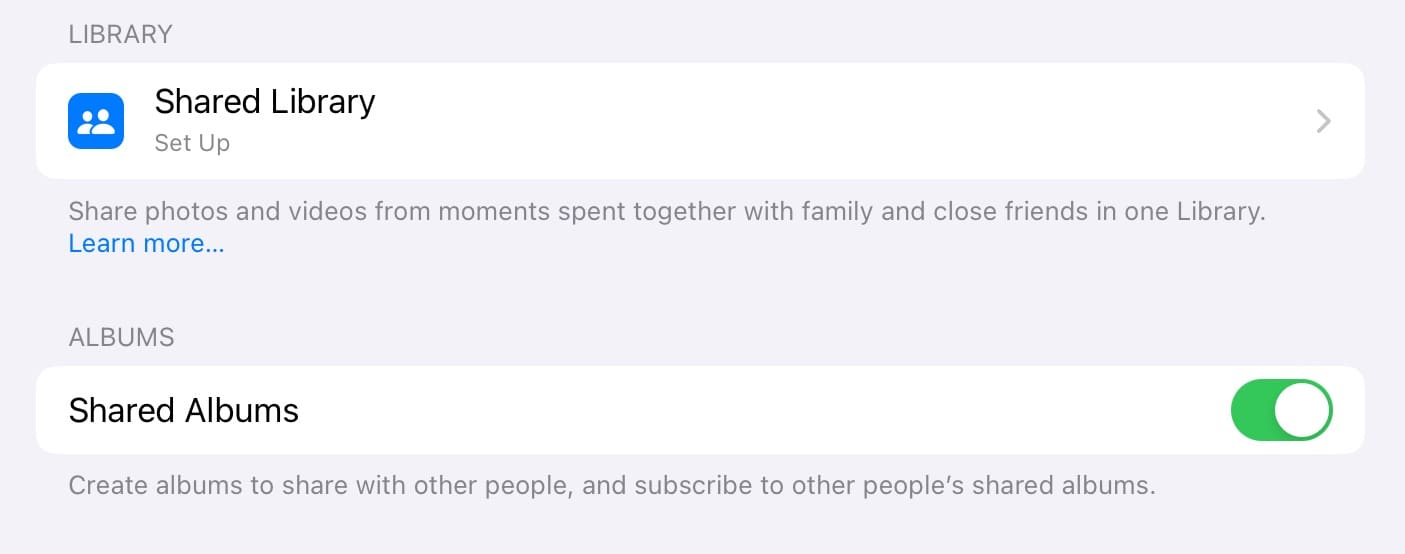
Double-check that Shared Albums is enabled.
To set up Shared Albums, follow these steps:
Go to Settings > Apple ID > iCloud.
Scroll to the bottom of the page. Under Albums, make sure that you have toggled Shared Albums on.
Has the Link Expired?
As mentioned earlier, recipients can only access iCloud Photo links for 30 days after you’ve sent it.
After that, the link will expire and the pictures will no longer appear. This, of course, can cause some confusion if the actual URL is still hanging around in a message or something. Typically, when an iCloud Photo link has expired or if the sender has deleted the link, it may show a message that says “Failed to Retrieve.”
You will need to resend those photos in a new iCloud Photo Link if this is the case, however.
See If You’re on Low Power Mode
Occasionally, an iCloud Photo link will work but it’ll hang when loading the actual images. Essentially, you’ll see an endless “waiting for photos” indicator at the bottom of the photo link.
This can sometimes be the result of a network error or a slow internet connection. But it could also be due to your iPhone being in Low Power Mode. When you’re low on battery life and Low Power Mode is enabled, images in an iCloud Photo Link may take longer to load — or may not load at all.
Charge your iPhone or iPad battery. Once it is out of Low Power Mode, you can try to download the photos.
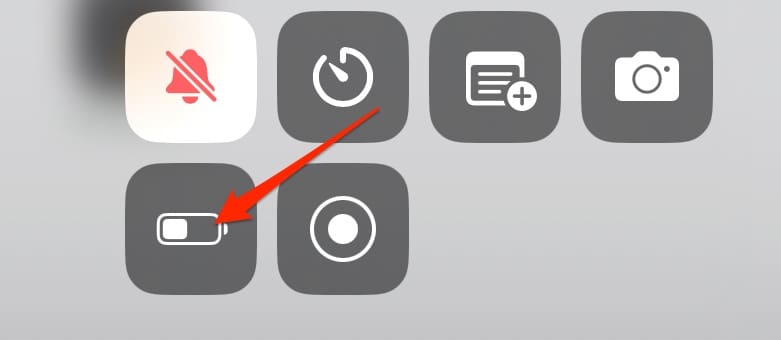
If you’re on Low Power Mode but you have enough battery life, you can disable the feature by going to your Control Center and toggling the Battery icon so that it’s no longer yellow.
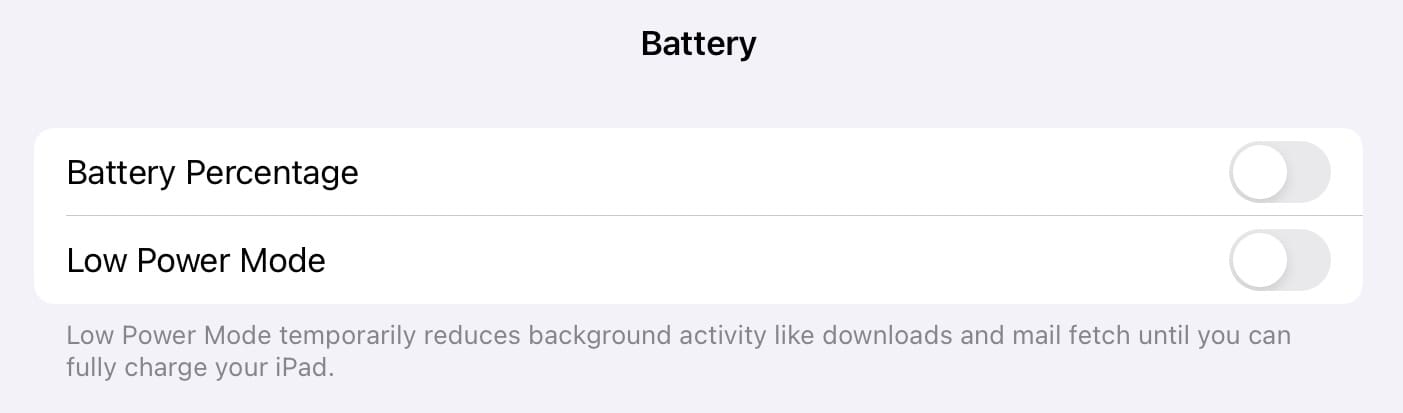
Alternatively, go to Settings > Battery and toggle Low Power Mode off.
Reset Your Network Settings
In some cases, there could be an issue with your device’s network settings. This can impact both sending and receiving iCloud Photo links.
To reset your network settings:
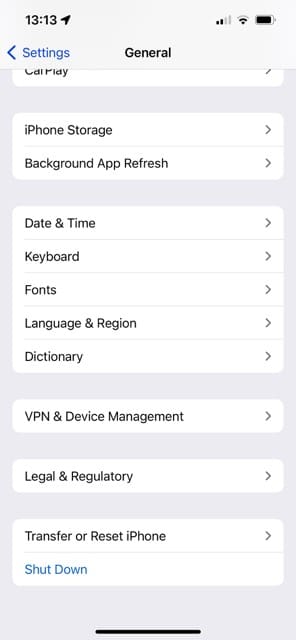
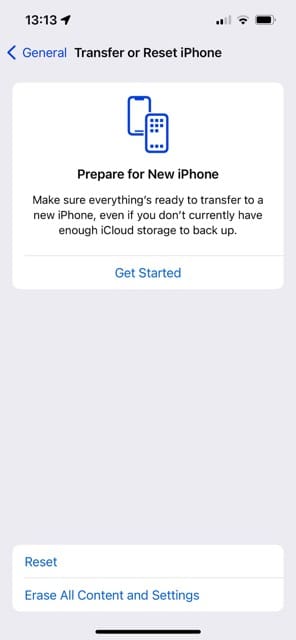
Go to Settings > General > Transfer or Reset iPhone/iPad.
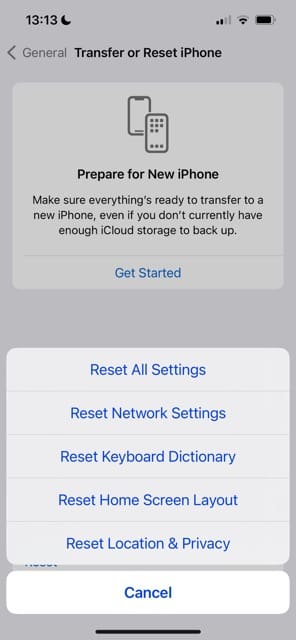
Select Reset.
When the list of options appears, choose Reset Network Settings.
Check Your Wi-Fi
If you’re receiving a “network unavailable, please try again later” error, then the issue might be with your current cellular or Wi-Fi connection.
Make sure you have a decent cellular connection. Alternatively, make sure the Wi-Fi network you’re connected to is working properly. You can do this by testing the connection on other devices, along with checking to ensure that all lights and whatnot are switched on for your wireless router.
Check Apple’s iCloud Server Status
If all else fails, there’s a chance that Apple’s systems are down or iCloud is experiencing some type of issue.
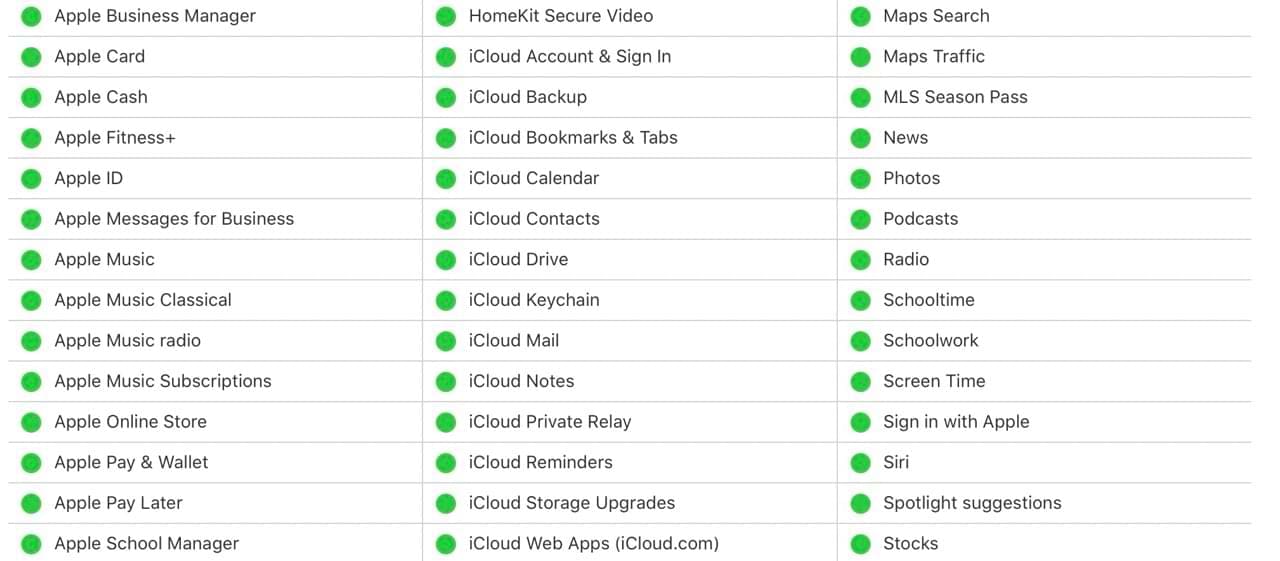
You can easily find out whether this is the case by using a handy Apple support webpage that shows the status of each of its platforms or systems. You can get to Apple’s System Status with this link. If the dots next to iCloud are green, the servers are working as they should.
Try Some Alternatives to Share Your iPhone or iPad Photos
If iCloud Photo links continue to not work (or there’s a problem with the server), you can try a number of alternative to share your pictures with family members. Of course, you can always share them in group chats; many instant messaging apps let you “like” people’s photos these days.
If you only need to share your photos, try some of these solutions:
Dropbox
Google Photos
OneDrive
All of the above integrate fairly well with Apple devices.
iCloud Photo Links Not Working? These Tips Should Help
It’s not common that iCloud Photo links stop working, and there’s usually an easy-to-understand reason why that’s the case. For example, the link might simply have expired or Apple could be having problems with its servers. But regardless, you can try a handful of things to solve the issue and start sharing your photos with ease.
If you still have problems with your iCloud Photo links after trying these steps, you can always try contacting Apple’s support team. Alternatively, use a third-party solution if all you want to do is transfer pictures to others.
We hope that you were able to resolve the issues associated with iCloud Photo links using some of these tips. Please let us know in the comments below if you have any questions.
Mike is a freelance journalist from San Diego, California.
While he primarily covers Apple and consumer technology, he has past experience writing about public safety, local government, and education for a variety of publications.
He’s worn quite a few hats in the journalism field, including writer, editor, and news designer.
I’m sending an email from my iPad and trying to attach photos. I’m getting a message when I tap on a photo to say ‘downloading from iCloud – 100% complete’ but no active button to attach or use – just a cancel button in blue. Never had a problem before!
Also, when I try to make a collage I get the message ‘can’t make collage’ – very frustrating when I’ve followed all the steps on YouTube video.
When I click the camera icon in Facebook or an email, it won’t go to my album. It just shows 3 pictures in “camera roll” and it won’t let me out of that. Can’t cancel it and get to my album
I’m having trouble with my shared link sorting the pictures in a different order than the date the pictures were added into the album. The shared album link has pictures that were added more than a month ago on the top of the page with a comment saying the photos were added yesterday. It’s almost as if the dates are not being updated properly on the shared album link. The shared album on my phone is correct however so it’s only a problem with the web link. Any ideas? Thanks














I just get iPhone 6 and I what to open my iCloud
I want to put iCloud on my phone, please help me with iCloud.
I’m sending an email from my iPad and trying to attach photos. I’m getting a message when I tap on a photo to say ‘downloading from iCloud – 100% complete’ but no active button to attach or use – just a cancel button in blue. Never had a problem before!
Also, when I try to make a collage I get the message ‘can’t make collage’ – very frustrating when I’ve followed all the steps on YouTube video.
Can you please help?
When I click the camera icon in Facebook or an email, it won’t go to my album. It just shows 3 pictures in “camera roll” and it won’t let me out of that. Can’t cancel it and get to my album
How do you add a Photo in your account in a tablet as a apple tablet
Hi Josue,
Are you trying to add a photo from your camera or an app (like Messages, Facebook, Safari) or so forth?
Generally, if you press and hold on the photo, you see a pop-up menu with options to Save or Add to Photos.
Thanks for the advice it helped me!
I’m having trouble with my shared link sorting the pictures in a different order than the date the pictures were added into the album. The shared album link has pictures that were added more than a month ago on the top of the page with a comment saying the photos were added yesterday. It’s almost as if the dates are not being updated properly on the shared album link. The shared album on my phone is correct however so it’s only a problem with the web link. Any ideas? Thanks