Taking photos in low-light situations often results in blurred and low-quality pictures. Your iPhone camera app takes pictures with flash, but you can’t control the intensity.
It automatically adjusts the surrounding and outputs the flash’s power according to the available light in your current environment.
In this quick article, we show you how to adjust your iPhone’s LED Flash intensity in three easy steps using a popular third-party app.
For most of us, the auto setting for the built-in flash saves the day.
There are however times when you want to be able to tweak these flash intensity settings to take a better picture.
While shooting outdoors if you notice shadows falling across your subject or the faces of people you are shooting, try using fill flash.
This camera technique brightens the areas of shadow by filling in just those darker parts with a little flash.
When you control the intensity of the LED Flash, you can experiment with your photos a little more and get that perfect shot.
There are many great camera apps out there. And most offer you manual controls of things not included with your iPhone’s stock Camera app.
For illustrative purposes, we’re demonstrating using Camera+.
This app has versions for iPhone and iPad and offers free and paid products.
We love Camera+ because it’s easy to use and doesn’t require a huge learning curve.
And it lets you shoot in both RAW and TIFF formats!
This application is the one for iFolks who love perfecting their pictures.
Photographers who really want or need to take control of every setting so that they can use the camera professionally.
3 Easy Steps to Adjust LED Flash Intensity on iPhone
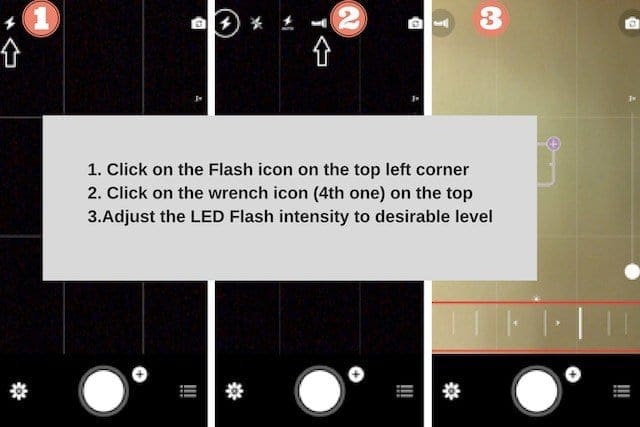
After downloading “Camera+,” open it and allow camera access.
On the top left corner of the screen click the flash button, as seen in the picture below:
Camera+ also gives you the controls for manually adjusting exposure, focus, shutter rate and much more so that you can capture moments not only the picture itself!
And the app offers other manual controls that we wish our iPhone’s own camera included.
The app features a stabilizer shooting mode to get steady shots as well as the incredible Clarity Filter.
Summary
For utilizing the power of iPhone’s camera and producing a professional picture, you cannot rely on automatic settings.
You need to be able to manage proper flash controls and much more by yourself. Camera+ is one such app that provides you with these extensive controls.
For those of you who own the newer iPhone models, you should definitely take this app for a ride and test it out yourself!
Another recommended Camera app to explore if you are into photography is the ProCam.
This app allows you to control shutter speed and ISO as well as shoot and save in RAW format. The app does a lot to take advantage of the iPhone’s latests sensors.
I clicked on the flash icon, but the 4th icon to the right on the next screen is a flashlight, not a wrench. All it does is turn the light used for the flash on. There is no wrench.









I clicked on the flash icon, but the 4th icon to the right on the next screen is a flashlight, not a wrench. All it does is turn the light used for the flash on. There is no wrench.