Most people have limited data plans on their iPhones and iPads. You may face overage charges when you use more data than what is included with your plan. This is why you may want to monitor your data use on your device. Do you want to know how much cellular data you are using on your iPhone? On your iPhone (or iPad), you can see how much data a specific feature of your iOS device is consuming.
Further, you may adjust (enable or disable) cellular data for certain iOS apps. Some of the apps on your iPhone or iPad will consume cellular data. You may enable or disable cellular data access for apps of your choosing.
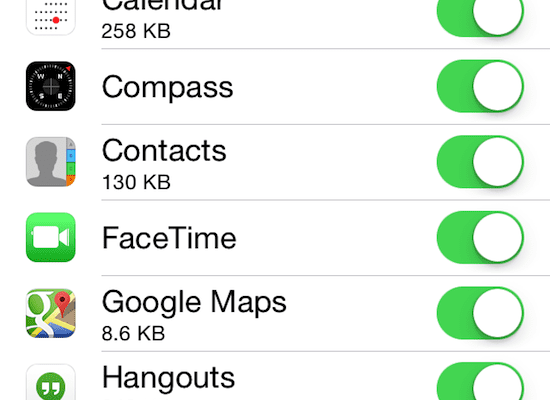
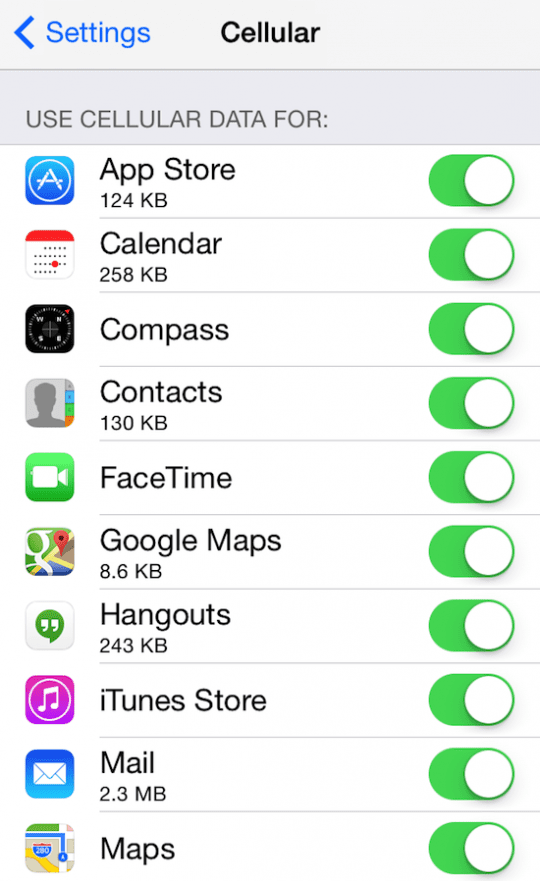
Tap Settings > Cellular to see the cellular data usage for each app installed on your device.
If you want to disable one, simply toggle one off. You may temporarily disable some apps. For instance, if you are traveling internationally, you may want to avoid extra roaming charges. For any app you disable for cellular data, your phone will use only Wi-Fi.
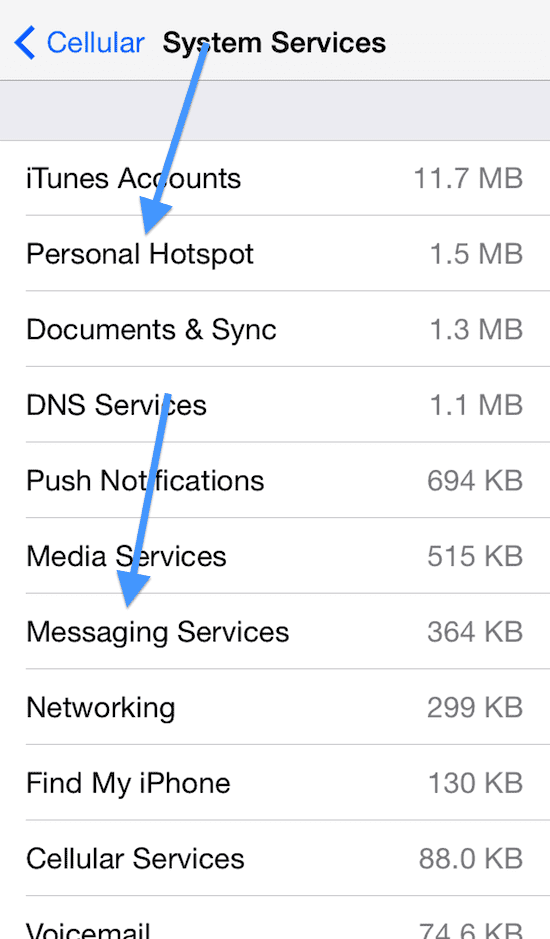
You can also view how much cellular data a specific system feature of your device is using. For instance, one of the questions we often receive is whether iMessage uses cellular data. You may see how much data iMessage is consuming. Or, if you are using hotspot frequently to connect your computer or other devices to the internet using the cellular data, you can see how much cellular data was used for hotspot data. To do this, tap Settings > Cellular > System Services where you can see how much data a specific feature is consuming.
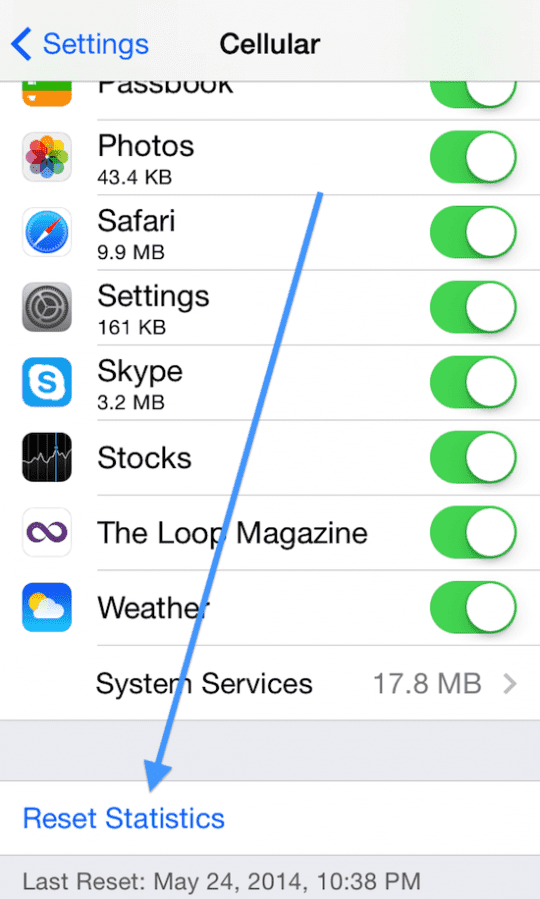
You may reset these statistics by tapping Settings > Cellular > Reset Statistics.
Note that these statistics only include cellular data, and does not include Wi-Fi use. Also, the data statistics will not automatically reset when your billing cycle ends, so you will need to reset the statistics manually in order to determine your usage for a particular billing month.
Obsessed with tech since the early arrival of A/UX on Apple, Sudz (SK) is responsible for the original editorial direction of AppleToolBox. He is based out of Los Angeles, CA.
Sudz specializes in covering all things macOS, having reviewed dozens of OS X and macOS developments over the years.
In a former life, Sudz worked helping Fortune 100 companies with their technology and business transformation aspirations.
Better help than Apple support ❗️I always solve my iPhone & iPad problems taking direction from the
Apple Toolbox
Thanks …… you’re very helpful ⭐️⭐️⭐️⭐️⭐️











Better help than Apple support ❗️I always solve my iPhone & iPad problems taking direction from the
Apple Toolbox
Thanks …… you’re very helpful ⭐️⭐️⭐️⭐️⭐️