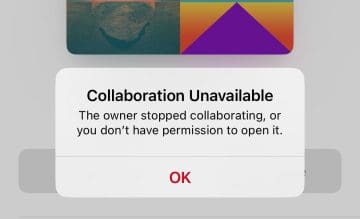
Apple finally released the Collaborative Playlists feature in iOS 17.3, and for the most part, the feature works pretty well. But while testing it out, we noticed an issue where new playlists sometimes say “Collaboration Unavailable”. Thankfully, we managed to fix this before too long.
Most users won’t need to perform a huge number of actions to solve this issue, but we figured it would make sense to give you a broad list of options in case the first few don’t work. Keep reading to learn how to fix this issue.
When we encountered the “Collaboration Unavailable” message in Apple Music, we solved the problem by closing and reopening the Apple Music app. However, we needed to try this a few times – so keep that in mind if it doesn’t work the first time.
Closing and reopening the Apple Music app is simple. Simply swipe up and close the Apple Music app by swiping up again. Then, tap on Apple Music to reopen it and try to create a collaborative playlist again.
Restart Your iPhone
If you’ve closed and reopened Apple Music a few times but to no avail, you should next attempt to restart your iPhone. Start by turning it off and on like normal. Follow these steps to do that:
Close the Apple Music app before restarting your iPhone.
Press and hold the standby button and one of your volume buttons.
Wait for slide to power off to appear, before moving your finger along that slider.
Your iPhone will then turn off. When it has, hold the standby button until the Apple logo appears.
Wait for your iPhone to fully turn on. When it does, enter your passcode and go back to Apple Music to see if you can now use collaborative playlists.
Force Restart Your iPhone
Did normally restarting your iPhone fail to fix the “Collaboration Unavailable” issue? Don’t worry; you can try force restarting your device instead.
Close the Apple Music app again if you need to.
Tap the volume up button.
Tap the volume down button shortly after doing the same with the volume up button.
Hold the standby button to turn your device off. When the Apple logo appears, you can let go.
Enter your passcode and try creating a playlist with the Apple Music app.
Delete and Re-Download Apple Music
Another way you can try fixing this problem with collaborative playlists is by deleting and re-downloading Apple Music. Follow these instructions to do that.
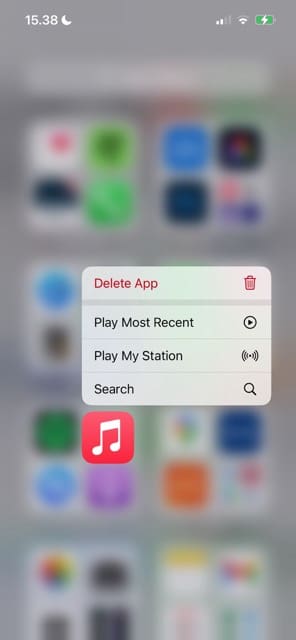
Tap and hold on to the Apple Music app.
Select Delete App.
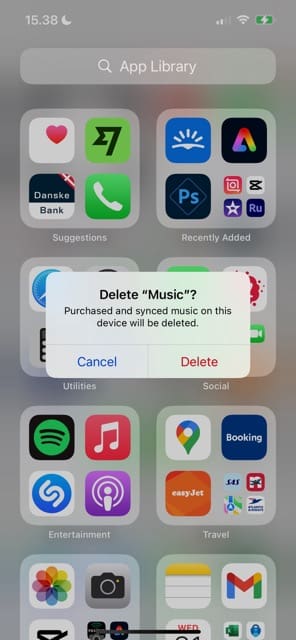
When the option to delete Apple Music appears, select Delete again.
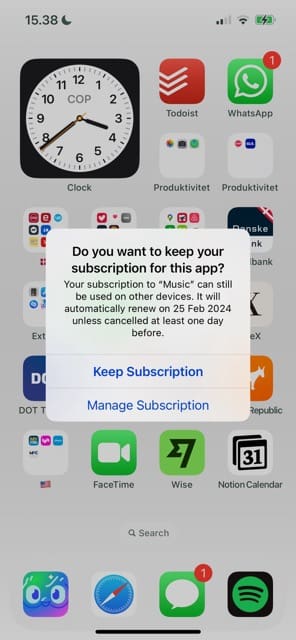
Tap Keep Subscription when you see the next pop-up window.
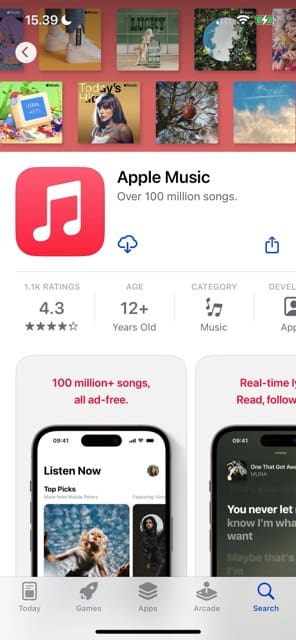
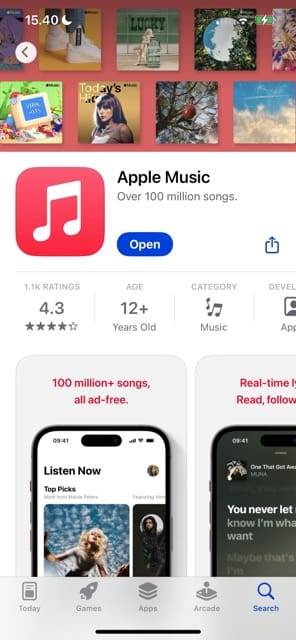
Go to the App Store and select the Search tab.
Type “apple music” in the search bar. It doesn’t matter if the A and M are uppercase or not.
Select the cloud icon to re-download Apple Music.
Tap Open to reopen the app. Then, try to set up a collaborative playlist again.
Sign Out of the Apple Music App and Back In
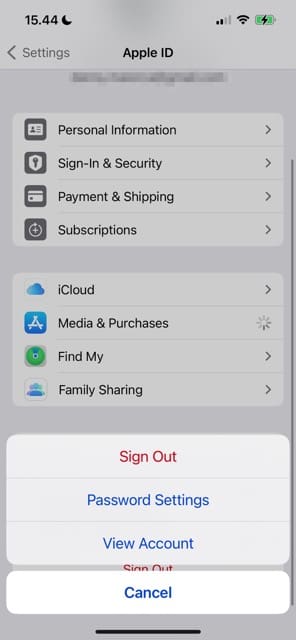
You can also potentially fix the “Collaborative Unavailable” problem by logging out of the Apple Music app and then signing back in. The steps below will help you do precisely that.
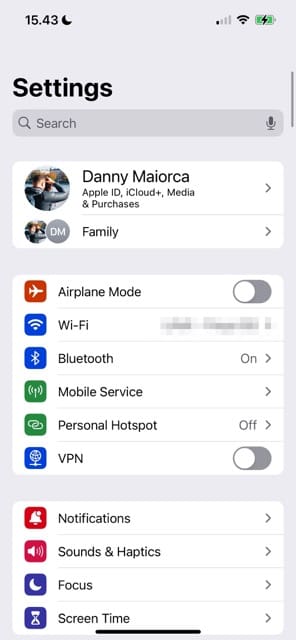
Open the Settings app and click on your Apple ID at the top.
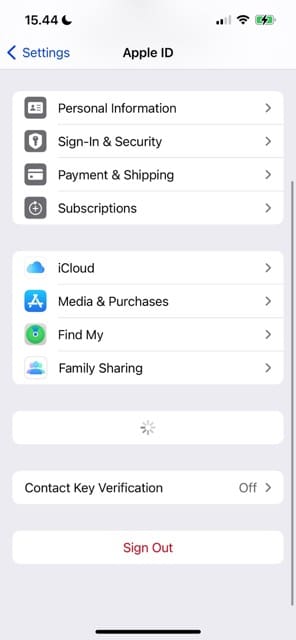
Tap Media & Purchases.
Select Sign Out when the window appears at the bottom of your screen.
Log back in with your Apple ID and try to make your playlist collaborative in Apple Music.
Try Making a New Playlist
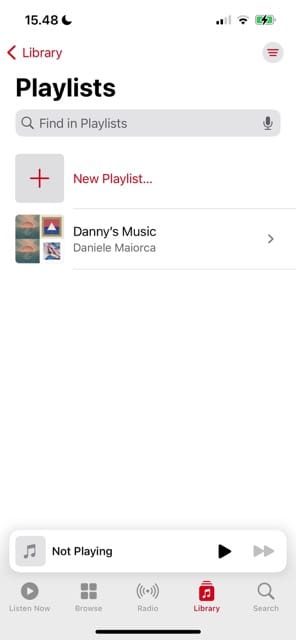
This option admittedly isn’t ideal, but you can at least verify whether this is a general problem with your app or just with one particular playlist. Below, you’ll find the steps required to make a new playlist in the Apple Music app and hopefully solve the “Collaboration Unavailable” problem.
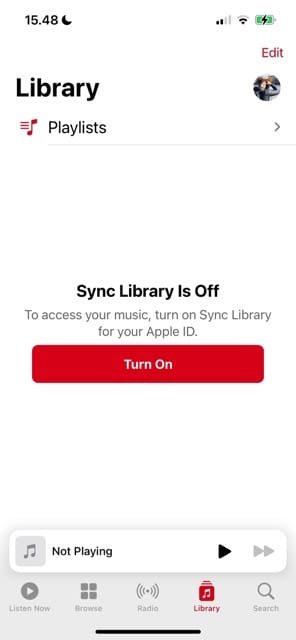
In the Apple Music app, go to Library > Playlists.
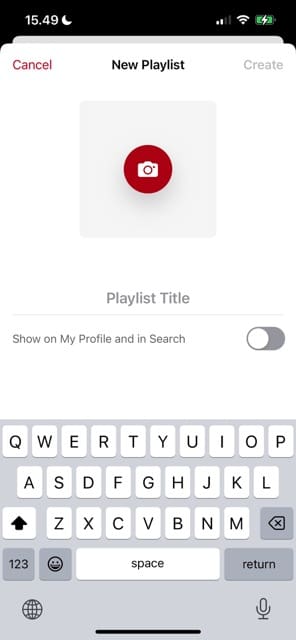
Select New Playlist.
Customize your new playlist title and add a featured image if you want. Then, select Create.
Try to set up your playlist as a collaborative playlist with other users.
Contact Apple Support
In most cases, you will solve the issue with collaborative playlists not working long before needing to contact Apple Support. But thankfully, if you do need to do that, it’s very easy to get in touch with Apple’s support team.
You can contact Apple Support via support.apple.com. Alternatively, download the Apple Support app and identify the problem you’re dealing with. If you need personal assistance, you can chat with a team member.
Try These Steps to Fix Apple Music’s “Collaboration Unavailable” Issues
It’s possible that you’ll see “Collaboration Unavailable” after upgrading to iOS 17.3 and trying to use the Apple Music collaborative playlists feature. But thankfully, you normally don’t need to try a huge number of steps to fix this issue. Simply restarting the app or your device should be more than enough to solve this problem, but you can try other steps if required.
Try deleting and re-downloading Apple Music, and if you need to, you can experiment by making a new playlist. Hopefully, these tips will help you fix the problem; if you’re still having issues, the next best thing to do is contact Apple Support.
Did something work that we didn’t mention in this guide? Let us know in the comments!
Danny has been a professional writer since graduating from university in 2016, but he’s been writing online for over a decade. He has been intrigued by Apple products ever since getting an iPod Shuffle in 2008 and particularly enjoys writing about iPhones and iPads. Danny prides himself on making complex topics easy to understand. In his spare time, he’s a keen photographer.
Do you know if you have to have sync library turned on for collaborative playlists to work? I’ve tried everything else and cannot get it to work other than turn sync library on.
I’m getting the collaboration unavailable: the owner stopped collaborating, or don’t have permission to open it.











Do you know if you have to have sync library turned on for collaborative playlists to work? I’ve tried everything else and cannot get it to work other than turn sync library on.
I’m getting the collaboration unavailable: the owner stopped collaborating, or don’t have permission to open it.